
 Lessons: 21Length: 2.6 hours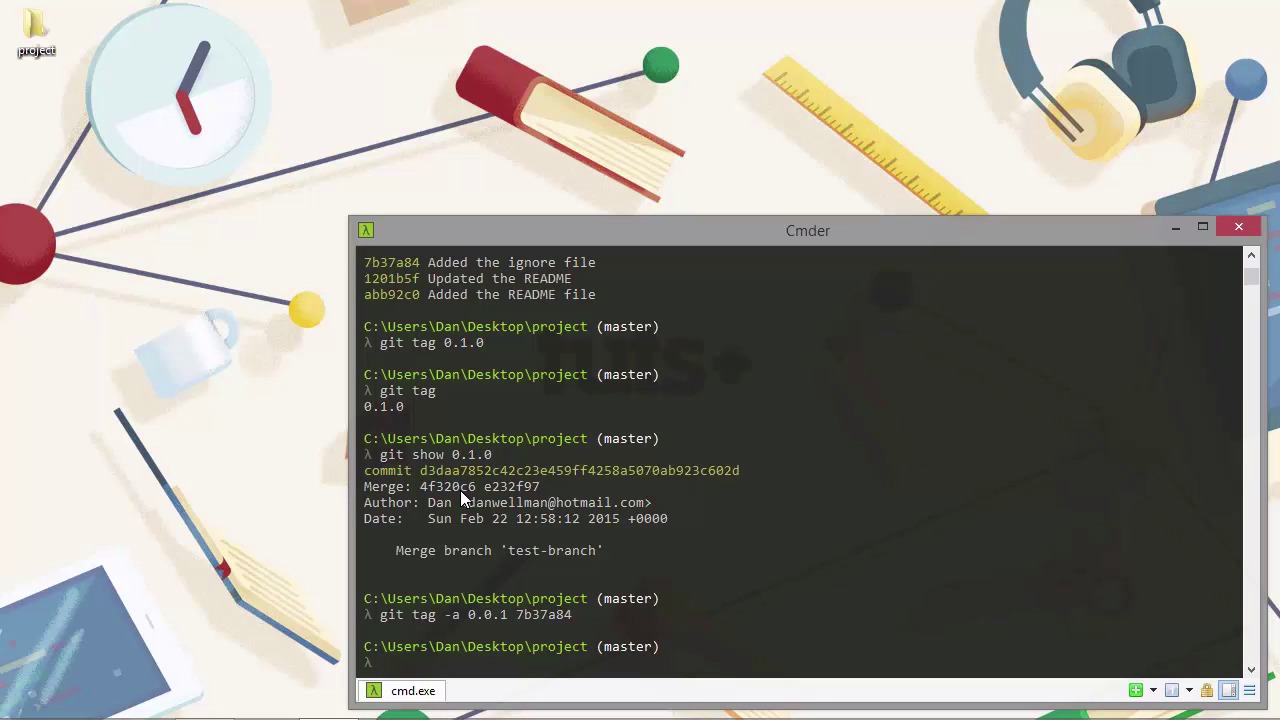
- Overview
- Transcript
3.5 Tags
Git gives us the ability to mark a particular point in our repositories as special in some way. We can do this using tags. Let's see how.
1.Introduction
1.1Introduction02:59
1.2Installing and Configuring Git08:00
1.3Git Concepts05:40
2.Git Basics
2.1Initializing a Repository07:05
2.2The Staging Area and Status Command05:12
2.3Making Commits10:34
2.4Ignoring Files08:06
2.5Viewing the Log09:46
3.Branching and Tagging
3.1Creating Branches08:02
3.2Fetching and Pulling09:20
3.3Diffing Files05:13
3.4Merging Branches07:03
3.5Tags06:38
4.GitHub and Remotes
4.1Setting Up GitHub10:42
4.2Working With Remotes10:12
4.3Creating GitHub Pages11:57
4.4Contributing and Contributors06:43
5.Intermediate Usage
5.1Stashing Changes10:45
5.2Cleaning Up Merge Conflicts03:46
5.3Rebase07:33
6.Conclusion
6.1Conclusion01:16
3.5 Tags
Hi folks. In this lesson, we're gonna take a quick look at tags in Git. Tags in Git are a simple way to mark a particular point in a project's history as special in some way and many people use them for marking releases. In some ways, tags are a little bit like branches in that they can both point to a specific commit. Branches however, can be changed and we'll point to different commits as changes are made. Once a tag is set, it will always point to a specific place in the project's history and will never change. There are two different types of tag. Light-weight or simple tags and annotated tags. And we'll look at both. So first of all, if we run the tag command without specifying any flags, it will show all the tags our projects currently has. In our case we haven't added any tags yet, so we don't see anything. A lightweight tag is just a descriptive label that points to a specific commit. In the last lesson we merged a new feature into a master branch which we can see if we run git log. So now let's say we want to release this as version 0.1.0 we can add a lightweight tag that marks this exact moment in the project's history. So we don't get any output from that, but if we run the tag command without any flags or arguments again then we should see our new tag listed. And indeed we do. And the tag just has the label 0.1.0. And that's the label that we supplied after the tag command. Okay, great. And if we want to see exactly which commit this tag points to, we can use the show command in conjunction with the tag that we just created. [BLANK_AUDIO] And that gives us the full commit hash. It tells us that it is was a merge commit and it shows the shortened hashes of the parent commits. It also shows the author and the dates and it shows the commit message. Which as you can see is one of Gits default merge commit messages. An annotated tag can store a little bit more information than the information associated from the commit that the tag points to. So earlier in the project's history we had a commit for the ignore file and previous commits saw the read me file added. So let's say that this commit, the one where we added the ignore, should have marked the 0.0.1 release in early alpha. We forgot to tag it at the time, but that's fine. We can still retroactively add a tag that points to the project as it was at that time. So let's copy the short hash from the log that we generated earlier. And now let's parse that after the tag. So doing that by itself doesn't make the tag annotated. In order to make the tag annotated, we have to supply the -a flag. [BLANK_AUDIO] We need to write a tag message so Git has automatically opened up vim, and let's just add a message to say that this was an early alpha. [BLANK_AUDIO] And once again we don't see any output from that command, but let's just show that tag now using the show command. And I'm just gonna clear my screen first of all. And this time we can see there's a lot more information here. So let's just scroll back up, and we can see that the name of the tag. Is shown in 0. It's tagged 0.0.1 and we can see the name of the person who made the tag and when that tag was added and we can see the message that we gave to that tag. And it just says Early Alpha Release. And then it points to the commit; we see the full commit hash. We can see the author and the date and the message from that commit. And it even shows us a div of the state of our project at the time that, that commit was made. So now that we have this tag we can check out the commit that the tag points to if we want to. So it gives us quite a bit of output this time, it says that we are now in a detached head state. Now it sounds really painful but actually it just means that our head, which should be pointing to the latest commits, is actually pointing to a different commit. And let's just open up the project folder. And we can see that all of the files that we added after this point in the history of the repository have been removed. But don't worry, they haven't been lost. Get still knows exactly where they are and it's just that we've checked out an earlier version of our project. And remember that I said earlier in the course that it's actually very difficult to lose anything in git because if you remember, almost everything is stored using hash. And we can use this hash to retrieve any piece of content in the project. So as well as checking out annotated tags we can also checkout lightweight tags. [BLANK_AUDIO] And our head is still detached, but if we go back to the folder now, we can see that all of the files have been brought back by Git. So I said that they weren't lost. They aren't lost. Git knows exactly where they are. And when we check out a later version of our project, Git brings everything back for us. So to re-attach our head, we just need to check out master again. [BLANK_AUDIO] And now we're back on the master branch, our head is no longer detached, and everything is back to how it was. Although we can create both types of tag, lightweight or annotated, with equal ease, it's recommended that we always create annotated tags because these include information about who made the tag and when tag was added. And that's obviously useful information. One important point to note is that when we push our local repository to a remote repository, any tags that we've added are not pushed by default, so we have to specifically push them. In this lesson we saw how to create tags in Git which can give a friendly label like a version number to a specific commit in order to mark a particular point in the project's history as important. Or special in some way. We saw that we can create either light-weight tags or annotated tags and we looked at the differences between them. We also saw that we can check out our projects using tags but when we do that, our HEAD becomes detached. When we've got a detached HEAD, we should never make any changes to our repository. Thanks for watching.


