
 Lessons: 21Length: 2.6 hours
- Overview
- Transcript
2.4 Ignoring Files
Often there will be files or folders that we don't want to keep in the repository. In this lesson we'll see how to ignore those files and folders so that Git doesn't keep trying to store them for us.
1.Introduction
1.1Introduction02:59
1.2Installing and Configuring Git08:00
1.3Git Concepts05:40
2.Git Basics
2.1Initializing a Repository07:05
2.2The Staging Area and Status Command05:12
2.3Making Commits10:34
2.4Ignoring Files08:06
2.5Viewing the Log09:46
3.Branching and Tagging
3.1Creating Branches08:02
3.2Fetching and Pulling09:20
3.3Diffing Files05:13
3.4Merging Branches07:03
3.5Tags06:38
4.GitHub and Remotes
4.1Setting Up GitHub10:42
4.2Working With Remotes10:12
4.3Creating GitHub Pages11:57
4.4Contributing and Contributors06:43
5.Intermediate Usage
5.1Stashing Changes10:45
5.2Cleaning Up Merge Conflicts03:46
5.3Rebase07:33
6.Conclusion
6.1Conclusion01:16
2.4 Ignoring Files
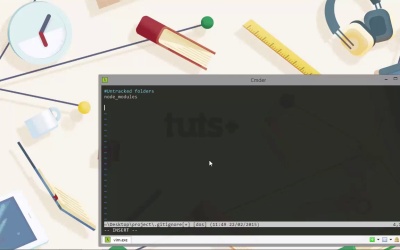
Hi folks. In this lesson, we're gonna take a look at how we can ignore particular files or folders within our projects. Very often, there will be files within our working directory that we don't want Git to track. If we're building front-end applications with JavaScript, we're probably using Node.js and Grunt, and probably a whole bunch of other tools, frameworks, and modules. In this case, we don't want to store anything in the node_modules folder because developers can just run mpm install after they've cloned our repository in order to get all of these Node dependencies. So we definitely want to ignore any files that are found within this folder. So we're not actually going to install Node or anything as part of this course. But let's just create a node_modules folder to see how we do it in a real project. [BLANK_AUDIO] And let's just cd into this and add a single file within. [BLANK_AUDIO] Great. So now let cd back up to the root of our project, and let's run git status. And we can see that git can see our node_modules folder and that it wants us to add it. As I mentioned, we don't want to add it, so we could just ignore this and we could, we could just add other changes. So when we come and add some more files and make some changes in some other files, then Git will list everything and we can add things on a step-by-step basis. But if we, if we don't specifically ignore folders and files that we don't want Git to track, it means that we can't use things like git add dot to just to add everything. So what we want to do is actually creates an ignore file which tells Git the files and folder that we don't want it to track specifically. So, to do this, we need a .gitignore file, and like many other files that Git uses, this is a just a simple text file. So let's create this file now in Vim. So, first of all, let's just add a comment to say that we're adding folders that we don't want Git to track. And we add a comment by starting a line with the hash symbol. [BLANK_AUDIO] And now we just need to list the folder names that we don't want to track. Of course, we don't have to tidy the gitignore file and keep it lovely and ordered with headings and comments and stuff like that. We could just have a basic list of folder names and file names. But when this file starts to get quite big, which it can do depending on the type of projects that we're using Git for. We don't have to use Git for front-end JavaScript projects. We could use it to build a Windows application or something using Visual Studio. And in this case, there would be many, many files and folders that we'd want to ignore. And I just think it's useful just to have the gitignore file broken out into sections where we can easily see exactly what's being untracked. So let's just add the name of our node_modules folder here. And now let's save and exit Vim. And let's just run git status once again. And we can see that Git no longer wants us to add our node_modules folder. And it doesn't care about any of the files in that folder because the whole folder is ignored. But it does show us that we have a new .gitignore file, and it wants us to add that. Great. So if we want to ignore specific types of file, we can use that using wild cards or references to specific files. So Windows has this annoying habit of generating thumbs.db files in any folders that contain images. So we can probably safely ignore these. So let's just go back into our ignore file now. And we can add a new section. And we'll start this one off with a comment as well. [BLANK_AUDIO] And this section can just be for our untracked files. So we don't have any thumbs.db files, but that doesn't matter. We can still add an ignore so that if in the future we add any images to this folder and Windows generates the thumbs.db files, they will already be ignored. We won't have to worry about coming back and ignoring them at that point. And let's save and exit once again. So as well as ignoring files locally, we can also ignore files at the global or indeed the system level. So let's run the command to edit the global file, or we could go and find that file. We saw where it was in a previous lesson. It's in our user directory on Windows. But let's just edit it directly from Vim here. [BLANK_AUDIO] At the bottom here in the core section, you can see there's a, a line here called excludesfile. And that shows us the path to our global ignore file. And if we wanted to globally ignore particular files or folders, so I am a front-end JavaScript software developer, so most of the projects that I create are based on JavaScript. And most of the projects that I create use Node and Grunt. So, ignoring the node_modules folder is gonna be pretty common for me, so I could just go and open up that gitignore_global.txt file. And I could add the node_modules folder there. And then I'd never have to worry about specifically ignoring it in particular projects. So let's open up the global config file. As you can see, it's in the Documents folder of the user folder. And the file is down at the bottom here, gitignore_global. I'm just gonna open that in a text editor. So you can see that by default, Git will add some entries to this, and it's already going to ignore thumbs.db files. That's fine. There's a bunch of other files that get generated by Visual Studio. And because we used the Windows installer, then Git has automatically added those for us. And if we want, we can add a new section down at the bottom. Let's just do that. And let's say that in all of our projects we create a TODO file, and that just reminds us what is left to be done in our projects. So let's just add a section for that down at the bottom here. [BLANK_AUDIO] And then let's just specify that any file called TODO should be ignored. So let's just save that, and we can exit the text editor. Now let's close that down, and we're still in Vim in the console here. Let's just quit out of Vim. So now let's add a TODO file. [BLANK_AUDIO] And let's just add some basic content. [BLANK_AUDIO] And now let's just save that. So now, as you can see, the name of the branch in brackets hasn't changed even though we've added a new file. Let's just run git status. And we can see that it's not highlighted the TODO. So it sees the changes from the global TODO instantly. We don't have to do anything special to get Git to recognize that. We don't have to quit and reopen Cmdr or anything at all. As soon as we add and save that file, any new entries will be ignored from that point onwards. So in this lesson, we saw how to ignore files that we don't want Git to track on both a local and a global level. We saw that we can do that by creating a .ignore file in the root of our repository to specify files that should be ignored in this repository. Or that we can open up the global gitignore file and add files or folders to that, and that will be ignored in all repositories that we create on this computer. Thanks for watching.


