
 Lessons: 14Length: 1.3 hours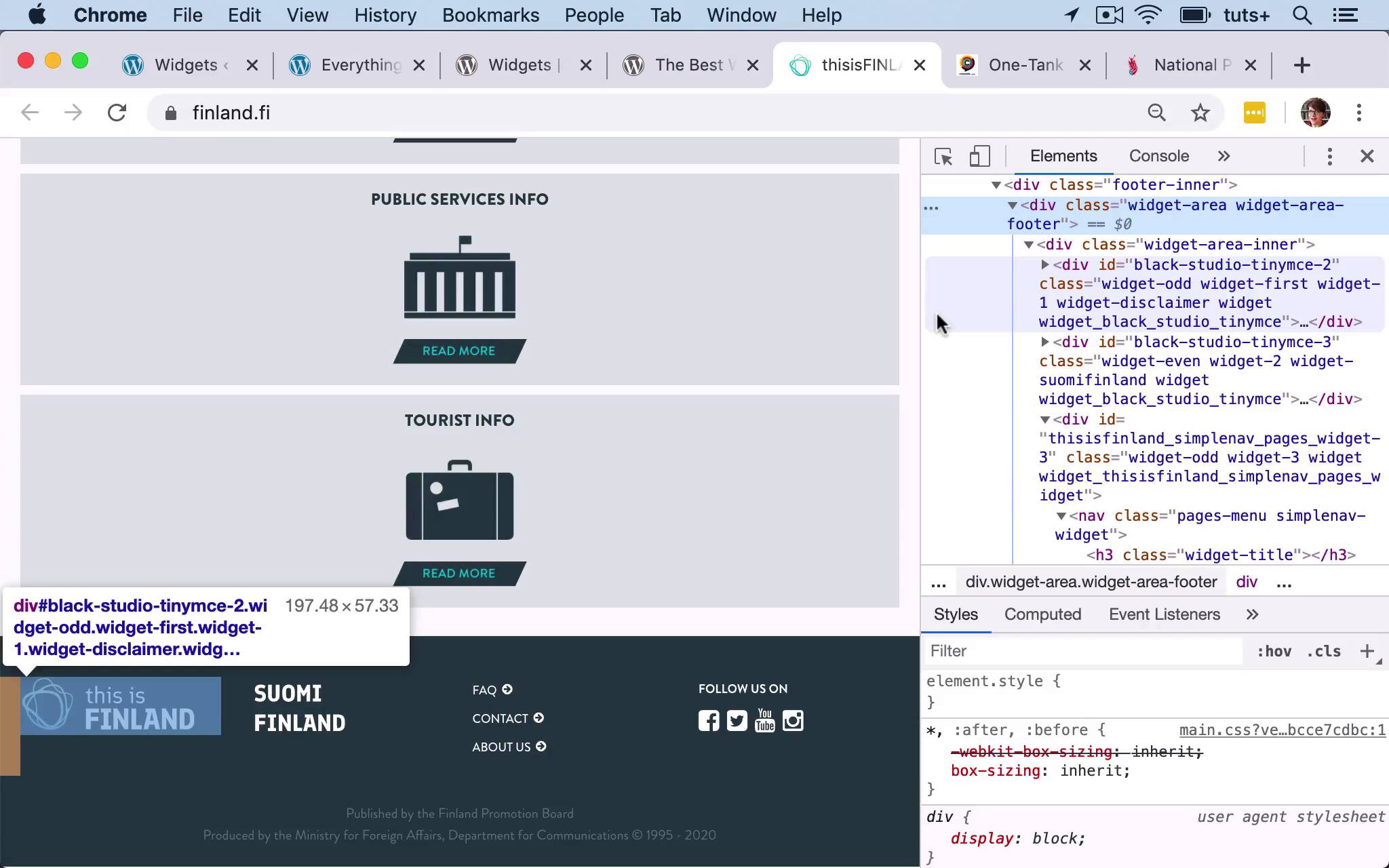
- Overview
- Transcript
2.1 What Is a Widget?
In this lesson, you'll learn what widgets are and when you would use them.
Related Links
1.Introduction
1.1Introduction00:53
2.Understanding WordPress Widgets
2.1What Is a Widget?06:54
2.2Examples of Widgets13:05
3.Adding Widgets to Your WordPress Site
3.1Adding Widgets via the Widgets Screen03:38
3.2Adding Widgets via the Customizer05:59
3.3Adding Extra Widgets via Plugins07:43
3.4Adding Widgets to Posts and Pages05:11
4.Widget Areas
4.1Understanding Widget Areas05:50
4.2Add a Widget Area to Your Theme: Registering the Widget Area07:03
4.3Add a Widget Area to Your Theme: The Theme Template Files07:13
5.Coding Your Own Widget
5.1The Widgets API03:36
5.2Coding a Call-to-Action (CTA) Widget06:52
5.3Coding a Query Widget03:54
6.Conclusion
6.1Conclusion02:34
2.1 What Is a Widget?
Hello, and welcome back to this Tuts+ course on WordPress Widgets. In this course, I'm gonna give you a more detailed introduction to Widgets and show you exactly what they are and where you might use them in on your site. So I've got a demo site that I've set up here that I'm gonna use throughout this course and I've deliberately picked a theme for my site, that includes lots of widget areas as you can see here. Now you'll find that how many widget areas you have available to you depends entirely on your theme, because widget areas are coded into the theme and they tend to be coded into specific theme template files, such as sidebar.php and footer.php. And that's because the most common places for widgets are your sidebar and your footer in your site. But as you can see here, there are plenty of other places that you can add widgets to your site. So in this theme, we've got two sidebars and which one will be displayed depends on the page template that you use for an individual page, because the theme includes multiple page templates with different layouts. We've also got a Header Sidebar, so that's a widget area in the header and contact page specifically on that page for a four page Front Page. There's 1, 2, 3, 4, 5 widget areas in the front page, then there's a widget area for above the footer to put an advert and then there are three sidebars or widget areas in the footer. So that means that those three widget areas in the footer can be laid out side by side so you can put an item or a widget in each of them, and you'll have all three next to each other. So you can choose to add widgets to as many widget areas as you want. So here you can see in the Right Sidebar, I've got a Search box and I've also got some Text. And as we go through this course, I'll be adding more widgets to these widget areas and I'll show you exactly what effect that has. So let's take a look at some sites that give us examples of how widget areas can be used. And you'll see that most sites don't actually use quite this many widget areas, although I think they're really useful, I like to have lots of widget areas in my sites so that gives me flexibility to add more content if I want to also at the main content of the post. And if your theme does not include widget areas in the places where you like them, you can add your own widget areas, which we'll see later on in the course. So let's take a look at some examples from the WordPress website showcase on the WordPress.org website. So I found a few that have widget areas, so here we have the this is FINLAND site and that's got widget areas right down in the footer. So these here are all widget areas and you can tell their widget areas by inspecting the code. So I'm just gonna make this a bit smaller so you can see the desktop layout. And then down here if I do Inspect, so you can see here, we've got the word widget in here. So we've got div_class="footer-inner" and then within that, we've got a widget-area called widget-area-footer. So the theme being used for this site, we'll have one widget-area in the footer, that's called widget-area-footer or footer widget area, probably. And then within that a number of widgets have been placed and the styling in the theme and the theme stylesheet is placing those widgets next to each other. So instead of having three widget areas side by side, like in my theme here, which is just as valid, this particular site has got one widget area with multiple widgets. Now if you're developing a theme for your own site, or you're adding widget areas to a theme for your own site, you've got a lot more control over the layout of the widgets within that widget area. So you can choose to just add one widget area and add multiple widgets. But if you were producing a theme for use by other people that you were gonna upload to the WordPress theme directory, if you added one widget area in the footer and then added styling to your theme to lay them out next to each other, each of these will be taking up a quarter of the width of the screen on this screen size. If you did that, and somebody then added five widget areas, it will completely mess up the layout. So you can see why in this theme, which I downloaded from the theme directory, they've added three widget areas so there's more control over exactly how those are laid out. So here's another site canada.com, and this has got widget areas in the sidebar here, so I'm looking at an individual post. So in the sidebar, we've got our most popular widget here, we've got some adverts which are kept in widgets, and then again, down the bottom we have a footer and this has got some menus in it. So you can create custom menus in your site using the menu screen just as you would for your main navigation menu and you can add as many custom menus as you want and you can then add those menus to your footer or your sidebar using a widget, which I find incredibly useful particularly for users on mobile. And most of the people coming to your site will be on mobile, because when they get all the way down to the bottom of a post on mobile, they would have a very long way to scroll back up again to go back up to your main navigation menu. So you want to make it as easy as possible for them to find more content and putting a menu in a widget area in your footer is a great way to do that. And then here's another site, the national puerto rican day parade. So this one has a very different layout, it's got a full width layout and all of this is coded into the theme, it's not widgets. But if we go down to the bottom, there are widgets in the footer. So we've got widgets for Facebook and Twitter and then we go further down, right down here in the footer, we've got a variety of widgets laid out next to each other here. So we've got Instagram widget, a Twitter widget, a text widget with information about contacting them and then again, a menu. So you can see there are a whole variety of different types of widgets that you can add to your widget area and there are a whole bunch of them that come with WordPress out of the box. So you don't even have to install any more plugins or write any more code to get access to a range of widgets. So in the next part of the course, I'm gonna show you some of the types of widgets that are available to you so that you can see some of the possibilities that you could use with widgets. See you next time and thanks for watching.


