
 Lessons: 14Length: 1.3 hours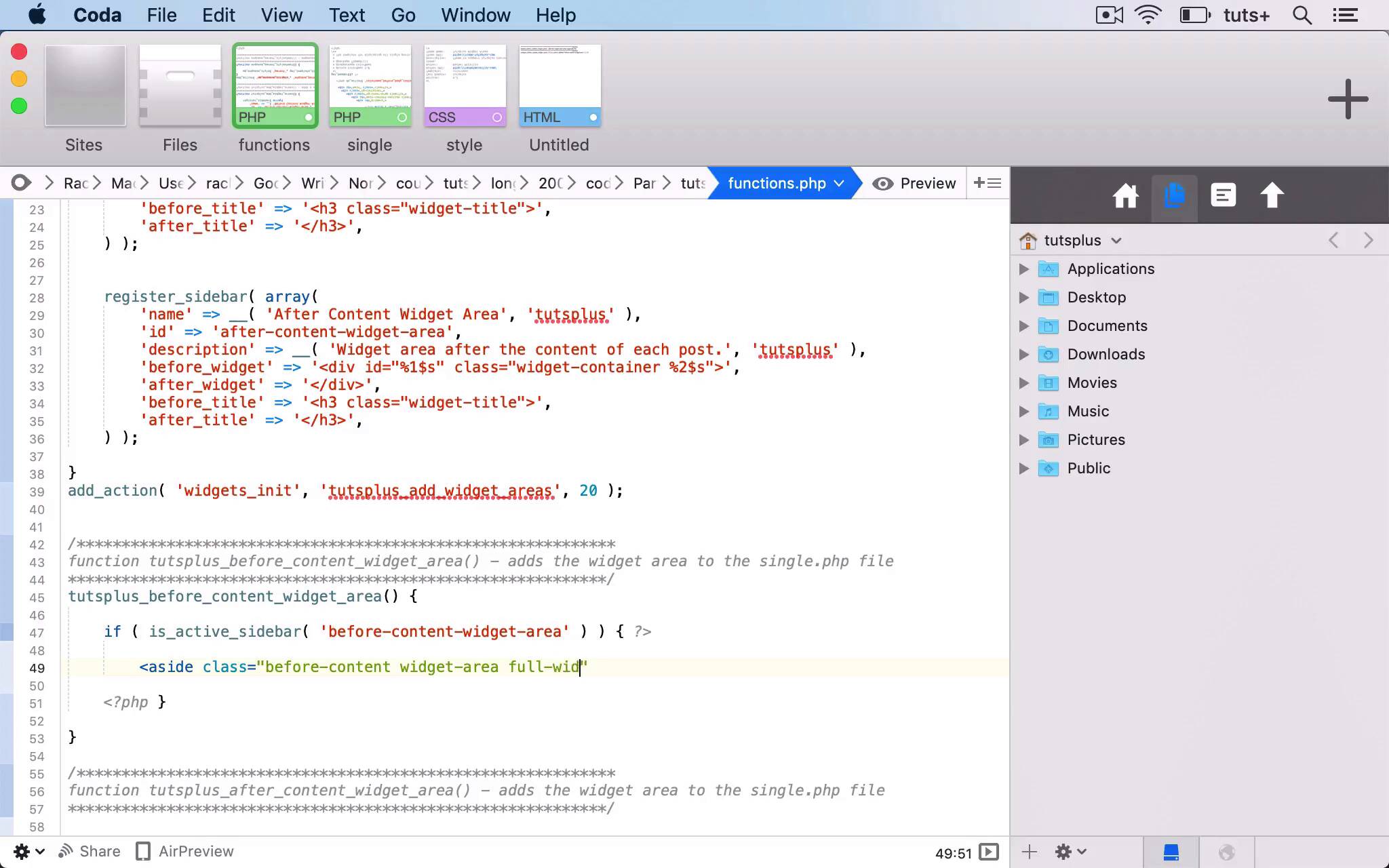
- Overview
- Transcript
4.3 Add a Widget Area to Your Theme: The Theme Template Files
In this lesson, I'll show you how to display the widgets in your widget area by adding the widget area to one or more theme files.
Related Links
1.Introduction
1.1Introduction00:53
2.Understanding WordPress Widgets
2.1What Is a Widget?06:54
2.2Examples of Widgets13:05
3.Adding Widgets to Your WordPress Site
3.1Adding Widgets via the Widgets Screen03:38
3.2Adding Widgets via the Customizer05:59
3.3Adding Extra Widgets via Plugins07:43
3.4Adding Widgets to Posts and Pages05:11
4.Widget Areas
4.1Understanding Widget Areas05:50
4.2Add a Widget Area to Your Theme: Registering the Widget Area07:03
4.3Add a Widget Area to Your Theme: The Theme Template Files07:13
5.Coding Your Own Widget
5.1The Widgets API03:36
5.2Coding a Call-to-Action (CTA) Widget06:52
5.3Coding a Query Widget03:54
6.Conclusion
6.1Conclusion02:34
4.3 Add a Widget Area to Your Theme: The Theme Template Files
Hello, and welcome back to this test class course on WordPress widgets. In this part of the course we're going to add our widget area to our theme, so that it actually outputs widgets. Now there are two ways you can do this. One is by adding the code directly to the sidebar.php or footer.php, or whichever file it is you need to in your theme. And in our case, it will probably be the single.php file because we want to add it to individual posts. Alternatively, if there's an action hook in your theme that you can hook it to, you can do that instead. So let's take a look at the code of our theme. And remember, we're using a child theme of the color news theme. So these are all the files in our color news theme. So the template that we'd be interested in here because we're adding this before or after the content in a single post is this single.php file. So we have the loop here you can see what while have_posts the_post, so we want to add it before the loop with the before content widget area, and after the loop with the after content widget area. And as you can see, this particular theme has an action hook that we can use to do that. So instead of creating a duplicate of this single.php file in my child theme and adding my code there, what I'll do instead is in the functions file of my child theme. I'll create a function that outputs the sidebar, and then I'll hook it to this particular function. So here's my functions file, and I'm gonna add two functions tatsplus_before_content_widget_area and tatsplus_after_content_widget_area. So let's start with the first one. So the first thing I do is I check for an active sidebar. So the active sidebar I want to check for is this one here, before-content-widget-area. And you'll note that I've made a slight amendment to before-content-widget-area and after-content-widget-area to the IDs from the last part of the course because I've added dashes instead of underscores here because I prefer to use that for the ID. But you could have both or either, not both. That would probably be a bit messy. So I've got is_active_sidebar before-content-widget-area. So what that checks for is that the sidebar is active and it has some widgets added to it. So if not, it won't output the sidebar. So if that is the case, we then want to output the sidebar. So we start by creating an aside element, and we need to close php and reopen it aside class equals. And instead of calling the class before-content-widget-area, I'm going to use two separate classes, one that's widget area and one that's before content. And widget area, I can more generally target if I'm targeting any widget areas. But if I want to target this one, I can also target that before-content-class. And I'm also going to give it a full-width class so that it spans the width of the element that it's contained within. So that's my aside and then let's close that. Close that aside and aside is the best element, is the better element to use for widget areas because it's something outside of the main flow of the document. So then I open php again and I use the dynamic_sidebar, Option. And what that does is display our sidebar. So we need to identify which sidebar it is and it's this one, sorry, no, this one before-content-widget-area. So, if the before-content-widget-area is active, we then output an aside and that sidebar. And then finally, we hook that to the action hook in our theme. So, the first parameter of this is the action hook in our theme, which is color news before body content. And then the second parameter is our function which is tutsplus_before_content_widget_area. So I'm now going to copy that for the after-content-widget-area and edit it. So we now have the after-content-widget-area which runs in the same way and is hooked to the colornews_after_body_content hook. So I'll save that and then I'll go back to my site. So now let's add a widget to one of these widget areas. So I'm going to add a list of recent posts. In fact, I'll add that after the content because that's quite a good place to add a list of recent posts, because when somebody gets to the end of reading a post, they can then look at the recent posts. So here's my site. I'll go into this particular post, and then I'll scroll down and here we are, a list of recent posts. So I've now got that widget area working at the bottom of my content. So that's how you add extra widget areas to your site. Let's do a quick one for the Before Content Widget Area. So you can see here it is up here. Now right now that's being styled in a particular way that's quite high up. So I might want to add some extra styling to my div so that it's spaced out a little bit better and it's not bumped up there right below the menu, but that's something you can add depending on your theme. So that's how you add your widget areas to your theme. In the next part of the course, I'm gonna give you an overview of how you create your own widget plugin. And I'll introduce you to the widgets API so you can see what kind of widget plugins you might add and what code you use to do so. See you next time, and thanks for watching.


