
 Lessons: 14Length: 1.3 hours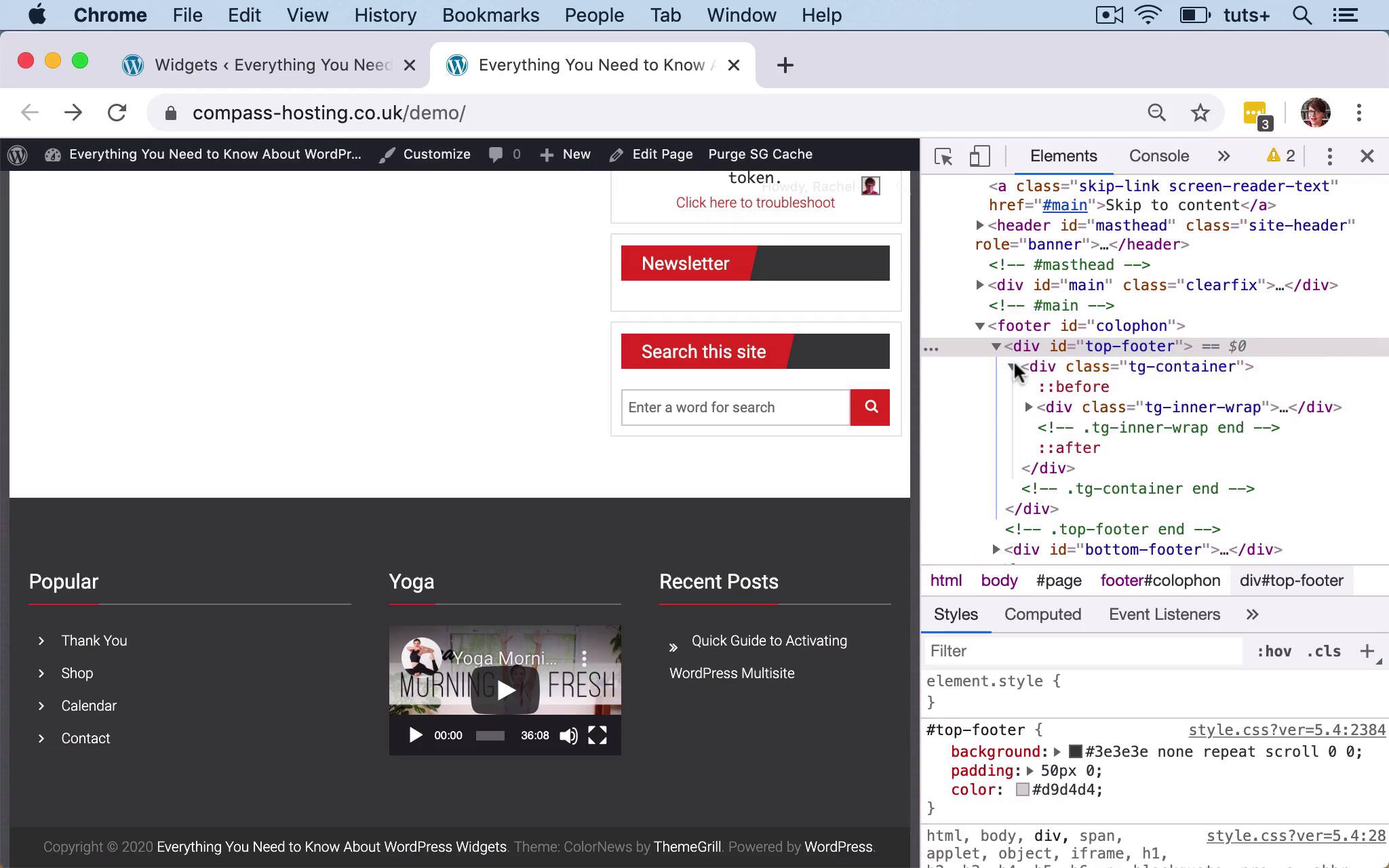
- Overview
- Transcript
4.1 Understanding Widget Areas
In this lesson, I'll explain the difference between widgets and widget areas and where widget areas appear in different themes.
Related Links
1.Introduction
1.1Introduction00:53
2.Understanding WordPress Widgets
2.1What Is a Widget?06:54
2.2Examples of Widgets13:05
3.Adding Widgets to Your WordPress Site
3.1Adding Widgets via the Widgets Screen03:38
3.2Adding Widgets via the Customizer05:59
3.3Adding Extra Widgets via Plugins07:43
3.4Adding Widgets to Posts and Pages05:11
4.Widget Areas
4.1Understanding Widget Areas05:50
4.2Add a Widget Area to Your Theme: Registering the Widget Area07:03
4.3Add a Widget Area to Your Theme: The Theme Template Files07:13
5.Coding Your Own Widget
5.1The Widgets API03:36
5.2Coding a Call-to-Action (CTA) Widget06:52
5.3Coding a Query Widget03:54
6.Conclusion
6.1Conclusion02:34
4.1 Understanding Widget Areas
Hello, and welcome back to this Tuts+ course on WordPress widgets. In this part of the course, we're gonna start looking at widget areas. So later on, I'll show you how to code your own widget areas. But first, I'm gonna show you exactly how widget areas work, and what the difference is between a widget and a widget area. So a widget area is an area that's coded into the template files in your theme. And in this particular theme, we have 1, 2, 3, 4, 5, 6, 7, 8, 9, 10, 11, 12, 13, 14 widget areas, which is a lot. You'll find that most themes just have 2 or 3, sometimes just 1 in the sidebar. But most themes have a sidebar and a footer widget area, and maybe another one. This one I've deliberately chosen for this demonstration, because it includes lots of widget areas, so I could show you how those work. So each of these is a widget area. And then each of these inside it is a widget. Now, you might also hear widget areas referred to as sidebars. And here, it's using the terminology sidebar quite a lot in this particular theme. So it's calling this one Footer Sidebar One, which to me, is confusing. I would call this footer widget area one if I was coding it myself. But the sidebar term is also used in the code in WordPress. And that relates to the fact that when WordPress was originally coded and widget areas were created, they were only designed to go in the sidebar. Because WordPress was a fairly simple blogging platform, and the only place that you would want to put widgets at that point was in your sidebar. So sidebars and widget areas, as far as the code is concerned, became pretty much interchangeable. But it's important to remember that the sidebar can be one widget area in your theme. And here we've got a few sidebars. So there's a Right one, a Left one, and one that goes in the Contact Page, and that would be a sidebar. And then an Error Page which, again, would be a sidebar. Then these other sidebars or widget areas don't go in the side of the screen. So if I show you we've got the ones in the footer, they don't go at the side at all. So I think of those as widget areas within the footer. But you'll find that when you come to code it, we're sometimes using the word sidebar to describe widget areas. So let me show you the code that underlies this particular page in my site, to show you how widget areas and widgets are coded. So I'll inspect that, and you can see we've got the footer. So we've got a top-footer and a bottom-footer. So when I hover over top-footer here, when I'm inspecting, you can see that it highlights the whole footer. So that shows me that those widget areas are inside that. And then I've got this tg-container div, within which there's a tg-inner-wrap. And then let's just keep going down, see if we can find it. Right, and there we go, we've got tg-footer-column-3, column-3, and column-3. Now you may be thinking, why are they all called column-3? The reason for that is because they will all be styled in the same way. So you can see when I hover over them, I get a width and a height for each of them. And the height is different, because that depends on the contents. But the width for each of them is the same, and that's so that they fit within the layout of my site. So then within that div, we've got an aside, which is our navigation menu. And that is the widget. The widget area is this tg-footer-column-3. And then the widget itself is this aside, and you can see that one of the classes for this is widget. And it's also got a class of widget_nav_menu, which is a class that's added by that specific widget that's provided with WordPress. Now when I'm coding my themes, I like to use widget area in the classes for my actual widget area. So if I show you one of my own sites and then scroll down to the footer, I'll inspect that. And you can see here, I've got a div, first one-third left, and that's layout styling. And this has got widget-area as a class. And then I've got widget-container in there for the actual widget. So this is a Twitter timeline widget. So depending on the actual widget and the theme, the classes that you find might be slightly different. But what you will find is that all your widgets are nested within one widget area. So if you're ever needing to style widgets within your theme, you need to identify whether it's the widget area you're targeting with your styling, or the widget itself. So that's the difference, let's turn off inspect. That's the difference between a widget and a widget area. These are all widgets, and we place them inside widget areas. So you can code either of these. You can add a widget area to your theme by writing code to do so, or you can code a widget. And if you're coding your own widgets, you generally do that within a plugin. Because that way you get to use your widget, whichever theme you're using it in. And if you switch themes in future, you can still use the widget from your plugin. So in the next part of the course, I'm gonna show you how to add an extra widget area to your theme, so that you can add widgets to it. See you next time, and thanks for watching.


