
 Lessons: 14Length: 1.3 hours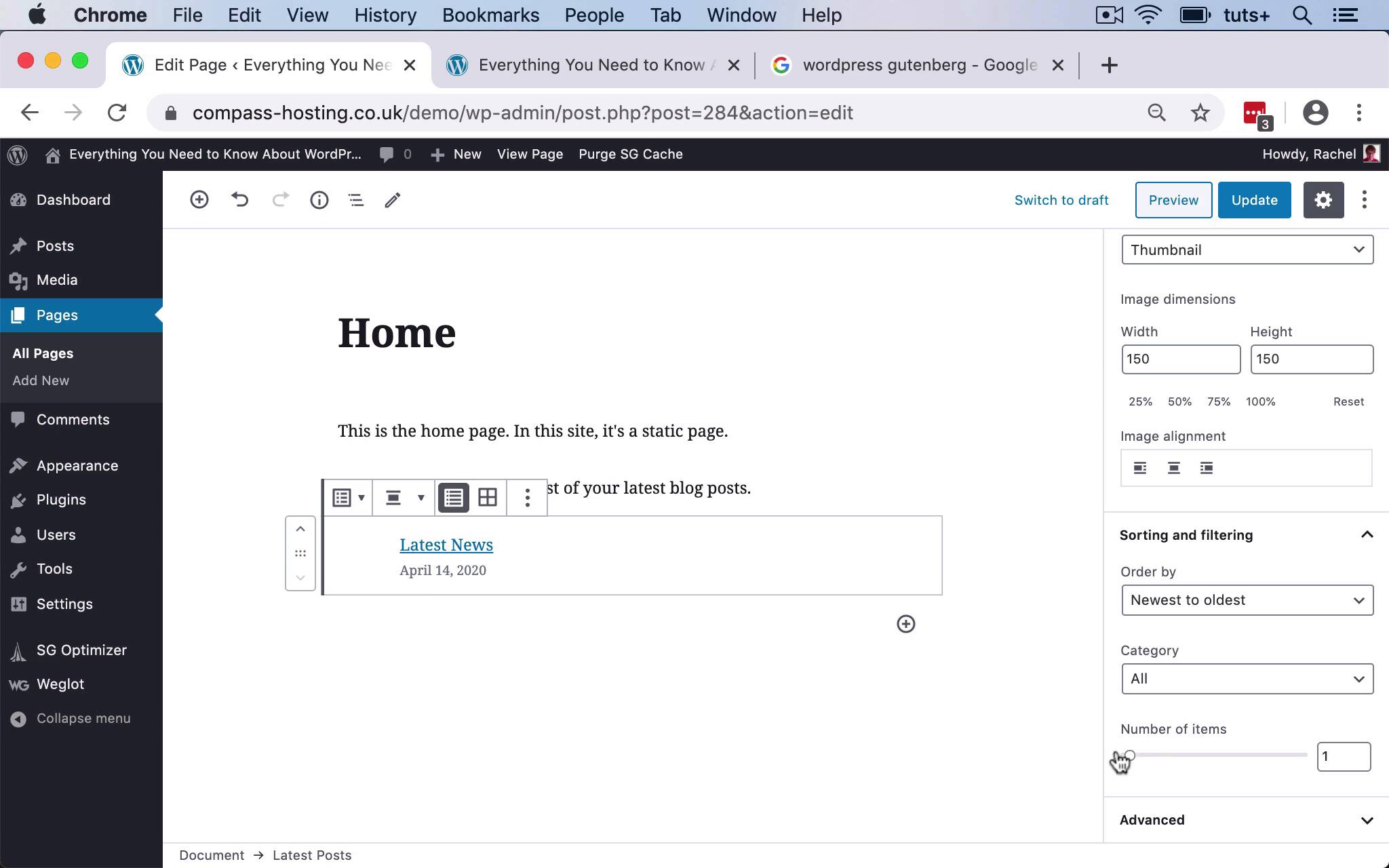
- Overview
- Transcript
3.4 Adding Widgets to Posts and Pages
In this lesson, you'll find out how you can add widget blocks to posts and pages using the Gutenberg editor.
Related Links
1.Introduction
1.1Introduction00:53
2.Understanding WordPress Widgets
2.1What Is a Widget?06:54
2.2Examples of Widgets13:05
3.Adding Widgets to Your WordPress Site
3.1Adding Widgets via the Widgets Screen03:38
3.2Adding Widgets via the Customizer05:59
3.3Adding Extra Widgets via Plugins07:43
3.4Adding Widgets to Posts and Pages05:11
4.Widget Areas
4.1Understanding Widget Areas05:50
4.2Add a Widget Area to Your Theme: Registering the Widget Area07:03
4.3Add a Widget Area to Your Theme: The Theme Template Files07:13
5.Coding Your Own Widget
5.1The Widgets API03:36
5.2Coding a Call-to-Action (CTA) Widget06:52
5.3Coding a Query Widget03:54
6.Conclusion
6.1Conclusion02:34
3.4 Adding Widgets to Posts and Pages
Hello, and welcome back this Tuts+ course on WordPress widgets. In this part of the course, I'm gonna show you how to add a widget that's not in a widget area, but that is in the content of a page or post. So I'm gonna show you how to add a widget to the homepage. So here I am in the Edit page screen for this particular page. So I access that by going to Pages here. And then selecting my Homepage. And one of the great things that you can do in WordPress since the Guttenberg editor came in, is that you can add widgets to any all of your posts or pages. Now, if you wanted to add a widget to all of them, it's probably best to add a widget area above or below the content, and use that widget area. But if you want to add a widget specifically to one page, so for example, if you want to add latest posts to your homepage or you want to add a gallery widget or something like that to one of your pages, you can do it using a widget block. So I'm going to select a block. So here I'll click on the little plus. And then if I scroll down the blocks, one of the types is widgets. So, I can choose any type of widget that is available to the block editor. Now, not all of the widgets that you have available to you in the widget screen will also be in the block editor. So you need to experiment and find out which ones you can use. And if you find that there's a widget that you need that's in your widget screen but not in your block editor, you might need to install a plugin or a different plugin to make that available to you. So let's add the latest posts widget here. So here we are, we have the latest post widget. We've automatically got a list of the one, two, three, four, five latest posts in my site. And that is pretty simple at the moment, but you can make changes to it. So you can include post meta. So I can include the date. I can include the featured image if I want to. My posts don't actually have featured images, so I'm not gonna worry about that. I can also change the layout. So I could change it to a grid, which if I was using featured images would be a really great way of laying those out to maybe remove the post meta and add a featured image. I'm gonna change it back to a list. I'm gonna include the post meta. You can also see the order is an option. I'm gonna put Newest to oldest, that's default. You can choose from a particular category. And you can also change the number of items, so I could have more or less items if I wanted to. Let's stick with five. You can also use the Advanced tab here to add some additional CSS classes if you want to style your list. And you can do that by targeting the homepage or that specific page using the page template CSS that's output by WordPress and this particular block as well. And you'll notice that there isn't a heading. So if I was using the latest posts widget in a widget area, it would include a heading for my widget. And that's not included here, but it's very simple to do. You just simply add a heading in the normal way. So I've typed in latest posts and I'll change that to a heading. I'm gonna make it an h3. So I'm gonna update that page, which is my homepage. And then I'll refresh it on the live site. And here you can see my list of latest posts. So that's how you add a widget. Now I could add another widget if I wanted to. So let's let's see what's available to us. So if I go down into Widgets, I can use a shortcode widget. So if I have any plugins that provide shortcodes, I can use the shortcode widget for that. I could have the archive widget, which we've already looked at and discussed the valid, it's not all that useful. Same goes for calendar. I could list the categories. At the moment in this site, there aren't any categories, it's uncategorized. So let's remove that block. Try another one. I could add an RSS feed, search box, social icons or a tag cloud. So this social media widget lets you add links to your own social media accounts. It's not for sharing, but you can install plugins that allow for social media sharing. So the Jetpack plugin for example. So here we go into wordpress.org and I can use these Facebook, Twitter LinkedIn, and so forth, Instagram widgets, to take people to my own social media accounts if I wanted to. So again, I'm gonna remove that block. So that's how you add a widget to the content of a page or post. So if you install plugins that give you widgets, you'll often find that that plug in gives you a widget block that you can use on your page or post content, as well as using it in your widget areas. In the next part of the course, we'll move on to looking at widget areas. And I'll introduce you to the widgets API so that we can start coding our own widget areas. See you next time and thanks for watching.


