
 Lessons: 14Length: 1.3 hours
- Overview
- Transcript
3.1 Adding Widgets via the Widgets Screen
In this lesson, you'll learn how to use the Widgets screen to add widgets to your site, move them around, and save unused widgets.
1.Introduction
1.1Introduction00:53
2.Understanding WordPress Widgets
2.1What Is a Widget?06:54
2.2Examples of Widgets13:05
3.Adding Widgets to Your WordPress Site
3.1Adding Widgets via the Widgets Screen03:38
3.2Adding Widgets via the Customizer05:59
3.3Adding Extra Widgets via Plugins07:43
3.4Adding Widgets to Posts and Pages05:11
4.Widget Areas
4.1Understanding Widget Areas05:50
4.2Add a Widget Area to Your Theme: Registering the Widget Area07:03
4.3Add a Widget Area to Your Theme: The Theme Template Files07:13
5.Coding Your Own Widget
5.1The Widgets API03:36
5.2Coding a Call-to-Action (CTA) Widget06:52
5.3Coding a Query Widget03:54
6.Conclusion
6.1Conclusion02:34
3.1 Adding Widgets via the Widgets Screen
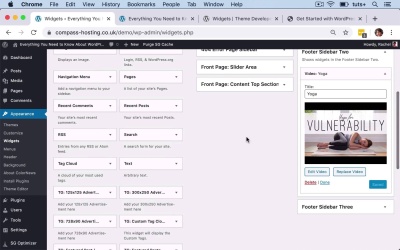
Hello, and welcome back to this Tuts+ course on WordPress widgets. In this part of the course, I'm gonna show you how to use this Widgets screen to manage your widgets. So you can use this screen to add more widgets to your site in all of these sidebars, and also to move your widgets around, and to store widgets you're not using. So I've already been quickly dragging widgets around and adding them to different sidebars earlier on in the course. But here I'm gonna show you a bit more detail. So there's more options than just dragging widgets in. So here I've just been dragging them on to the relevant sidebar, which is the most intuitive way to do it. But there are other ways of adding them. So for example, if I wanted to add a Categories widget to one of my sidebars, I could either drag it like I've already shown you. Or I could click on the arrow next to it, and then I could select the sidebar I wanted to. So that's quite useful if you've scrolled down and you want to add something like this Video one right at the bottom. So here if I want to add Video to the footer, which I've already done, I can then select Footer Sidebar One, and then click Add Widget. And you can see that it's been added to Footer Sidebar One here. I'm gonna delete that, cuz I don't need one in both sidebars. So that's one way of adding widgets. So you've got two options. You've got dragging them in, and you've got clicking on the right-hand arrow. Another area of the screen that you have access to, and this is something that you can only do in the Widgets screen, you can't do in the customizer, is this Inactive Widgets section here. So I've got some inactive widgets here, which I've dragged down here because I'm not using them anymore. And I'm gonna clear those. But say for example, if I was testing this widget, this Video widget, and it wasn't working. I could drag it down to the Inactive Widgets section. And that means that it's not currently active on my site, but I haven't lost it. So any configuration that I've done, any settings, any text I've added to it, or any other content will be saved for me. And if at some point in the future I should want to add it back to my widget area, I can easily do that by dragging it up. Another thing that's worth knowing about in this Widgets area, because you'll have noticed I've been doing a lot of clicking and dragging. What if you can't use a mouse? Well, there's something called Accessibility Mode that's available to you. So now we're in Accessibility Mode. So I can tab between the widgets. And then I can select the Add button by hitting Return. And then I can tab through the settings for this post. So I can type in Recent posts. I can make that a larger number, and then I can hit Select on Right Sidebar. And then that, as you can see here, has been added to the Recent Posts, to the Right Sidebar. I've got this Recent Posts widget in the Right Sidebar. So you can use the keyboard to navigate around the Widgets screen in accessibility mode. Which is the only way that you can edit widgets or add them to your site without using a mouse. So I'm gonna disable Accessibility Mode. And you can see that I've got that Recent Posts with seven posts. So that's how you use the Widgets screen to manage your widgets. In the next part of the course, I'm gonna show you how to use the customizer to manage widgets. See you next time, and thanks for watching.


