
 Lessons: 14Length: 1.3 hours
- Overview
- Transcript
2.2 Examples of Widgets
In this lesson, I'll introduce you to some of the most commonly used widgets and explain what they're used for. We'll start with the widgets built in with WordPress.
1.Introduction
1.1Introduction00:53
2.Understanding WordPress Widgets
2.1What Is a Widget?06:54
2.2Examples of Widgets13:05
3.Adding Widgets to Your WordPress Site
3.1Adding Widgets via the Widgets Screen03:38
3.2Adding Widgets via the Customizer05:59
3.3Adding Extra Widgets via Plugins07:43
3.4Adding Widgets to Posts and Pages05:11
4.Widget Areas
4.1Understanding Widget Areas05:50
4.2Add a Widget Area to Your Theme: Registering the Widget Area07:03
4.3Add a Widget Area to Your Theme: The Theme Template Files07:13
5.Coding Your Own Widget
5.1The Widgets API03:36
5.2Coding a Call-to-Action (CTA) Widget06:52
5.3Coding a Query Widget03:54
6.Conclusion
6.1Conclusion02:34
2.2 Examples of Widgets
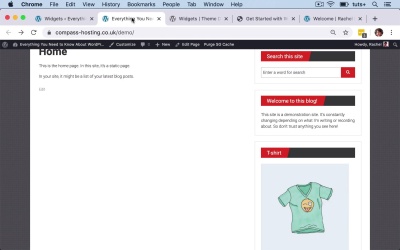
Hello and welcome back to this Tuts+ course on WordPress widgets. In this part of the course, I'm gonna show you some of the widgets that are available to you and some of the most commonly used widgets. So when you install WordPress, you get a whole bunch of widgets right out of the box, without having to install any extra plugins. Now you can add more widgets using a plugin and I'll show you how to do that. But before you do that, it's worth taking a look at the widgets that are already available in your WordPress installation, to see if you've got one that does the job you need. So here in my site, if I show you the front, I've got a search box and I've got a text widget. Both of these are built in widgets that come with WordPress. So if in the widget screen, we go down here, we've got text and search is, let's find search. Search is right above it. So those are two widgets that I find incredibly useful. I don't think I've ever developed a website where I haven't put a search box somewhere. Because for user experience, it's really important to include search functionality in your site. So it's normal to include a search box in your sidebar, or maybe in your header. So here are two examples of my own sites, this one is on WordPress and you can see there's a search box right at the top of the sidebar widget area. And then here's another site that I've developed and here's a search box up in the header. So you want that search box to be nice and prominent and easy for people to find. Because as your site grows and you get more and more content in it, you need to give people an alternative option for finding things, than just using the menus or the pages. So search is one I'd always use. Let's take a look at some of the others. The archives widget is a monthly archive of your site's posts. So if I add that to my right sidebar, I'll then refresh my site here and you can see the archives. Now this is a brand new site, so all I've got is January 2020. So this will display a list of all the months during which you've added content to your site and the blog posts. Now I don't think the archives which is particularly useful, it harks back to the early days of blogging, when archives were considered more important. I recently did a consultation with a website owner and she had an archive widget in her footer and the problem was there were big gaps between blog posts that she'd added. And having an archive widget like that just highlight the fact that we're gaps. So what I did was I recommended to her that she should use the latest posts widget instead. So the recent post widget rather, so we grab that, drag it up and then refresh our screen again. And you can see again, this is a brand new site I've created specially for this demo, but we got a quick guide to activating multisite. And in this site here, you can see I've got recent posts with many more posts. And one of those is a quick guide to activating WordPress multisite, which I've copied across to this demo site just so we can see it. So the recent posts widget is one that I think is really useful, because it highlights your recent content. And particularly if you're using a static front page and not your blog post listing on your front page, it's a good way of making sure people have an easy way to access your recent content. So let's remove that one and continue working down. The calendar works in a very similar way to the archive. So again, it will show months where content has been added. And not only the month, but the date. So if you're not adding content every day, I really wouldn't add this. And again I think it's one that harks back to the early days of blogging and isn't particularly relevant anymore. I don't think I've seen a calendar widget on a website for quite a long time. Now some sort of calendar widget might be useful if you run an events website, but that wouldn't be this calendar widget. You'd probably use an events plugin that included a calendar widget specifically for the events post type, rather than for your standard posts. Custom HTML widget is really useful if you want to add something more than just text. So here, you can type in any old HTML. So you might include an image and you might put a link around it. Making sure I type it correctly. So I've got a link there and my closing a for my link. There are errors, a href, a losing a is there. And there's no image here. So I obviously need to fix that code, but it means that you can add any HTML you want to. So if you want to add content that's more than just some text, or just an image, or just some links, you can add whatever you want here. So you could add anything that would be coded in HTML. Now the one thing I would be wary of is including links in that HTML that link internally in your site. Because if you should ever change the domain names, or any of the slugs for those specific posts or pages, you might be linking to. This is gonna be hard coded into this widget in HTML, unlike a menu widget, which will automatically direct to the correct place. This will use whatever URL for a given post or page you've got. So if you ever change that, you would need to set a redirect or edit your database. So we've then got an image. Image widget, so that's a nice way to be able to add a image to your side bar. And you can link it if you want. So that HTML typed in earlier where I had an image with a link, you don't actually need to use HTML widget for that. You could use the image one instead. So I'll save that and then refresh my site and you can see that we've got this T-shirt image. So that's a nice one to use if you want to have an image, say of your team or your logo, or something about your brand in your sidebar or your footer. Or possibly somewhere else where you've got a widget area. So let's delete that one. And then take a look at what else we've got. So the navigation menu widget is one that I use a lot in the footer. So let's add that to footer sidebar one here. And I'm going to add the main nav. But what I would normally do is create an extra navigation menu and then I would put that into my widget area. Let's refresh. And here you've got my navigation here. So what you would do is you would go into the menu screen, either through this menu screen or through the customizer and you would add another menu. So create a new menu, call it Footer menu, create that menu and then let's add some random pages to it. Save that menu. And then we'll go back to the widget screen. And in our footer sidebar, I'm gonna change the menu that's being used here. So footer menu, save that, refresh. My screen and you can see that I've got that link to whatever content I wanted to add. So you can add links to archive pages, to static pages, to custom post types. I wouldn't use it to add links to individual posts, because you can use the recent post widget to do that. If you want to add a more granular linked posts, say for example popular posts, or posts under a particular heading, you could install a plug in that would do that. Let's leave that there for now. So we've got recent comments as well. Let's put that in footer sidebar too. And all of these have places where you can add a header. Now I'm not sure if the this one has got any comments. No, there aren't any comments at the moment. Now, comments can be useful if you're running a site where you really want to highlight the interaction that's going on your site and the discussion between people. An RSS feed you can use, now here it's useful if you want to pull in posts from an external site. So, for example, this might be a sub site or a micro site of your main site and you want to pull in post from your main site, you're using an RSS feed. The tag cloud is what I like to put in the footer, because it can get quite big. And here the taxonomy used is tags, which is the default. This widget didn't used to give you the option to choose different taxonomies, but you could use categories if you wanted. But it's more common for tags. Now that the moment isn't showing up, because I haven't actually added any text to this site. So let me show you how that works in another site. So here I've got it in this sidebar. And you can see I've got a tag cloud. So there are a number of posts on this website. And the larger text shows you the tags that have been used more often. So if you click to any of those, you would get the archive page for that particular tag. So that's a good way of giving people an option to navigate around your site. Now let's have a look at the ones up here on the right hand side. So we've got audio. So if you have audio files that you want people to be able to play on your site, you can add those to your sidebar. We've got categories, so we can add a list of categories. And that's something that I've got here. So I've got sections in this site and each of those is a category and I've added some custom styling to my style sheet, so that each of those is shown almost as if it's a button. You could add a gallery, if you have a number of images that you want to display. Now this might be something you could add in a widget area or outside your sidebar or footer, if there's another widget area, maybe before or after the content in your site. The meta widget is one that I wouldn't use for a public facing site. So let's just add that and refresh the screen so you can see what it looks like. So we've got here site admin, log out, entries feed, comments feed and wordpress.org. Now for visitors to your site, those aren't particularly useful. If this is an intranet, an internal site that only specific people in your organization have access to, it might be useful. To be honest, you don't want people having a link to your site admin, because they might then use it to try and guess how to log in. So I wouldn't use that meta widget. Pages will list all of your site's pages. So that's an alternative to using a custom navigation menu. Because in a custom navigation menu, you can add the pages that you specifically want. Whereas here it just gives you a list of all the pages. Recent posts we've already looked at, that's a list of your most recent posts. And you can specify how many posts it's going to show. Search form we've already looked at and the text we've already looked at. Now these widgets here are ones that come with the theme I've installed. So and you can see that that's denoted by the TG here. So finally, we've got another widget that comes with WordPress. And that's the video widget. And I've used that occasionally in client sites on the front page. So I've included a video widget, because that gives the client the option to update the video if they want to. So if I was to add that widget to my, let's say my footer sidebar two. I could then add video, here. So I could, upload a file from the video library, or I could use a URL. So I could go into YouTube or Vimeo and I could paste in the URL from my video here. So here I've got a yoga video and all I need to do is copy that URL, type that in or paste it in. And you can see the video appears there. Add it to the widget and it shows up here. I'll change that to Yoga, the title and then refresh. And you can see my video shows up in the footer. So if you're using video to promote your services or your products, you can add a video widget to your site and give people another way to find out what you've been doing. So those are the widgets that come with WordPress out of the box. And as you can see, it gives you quite a lot of flexibility. Well, later on in this course, I'm gonna show you how to add extra widgets via plugins. But first, I'm gonna look in more detail at how you add and manage widgets using the widget screen and the customizer. See you next time and thanks for watching.


