
 Lessons: 14Length: 1.3 hours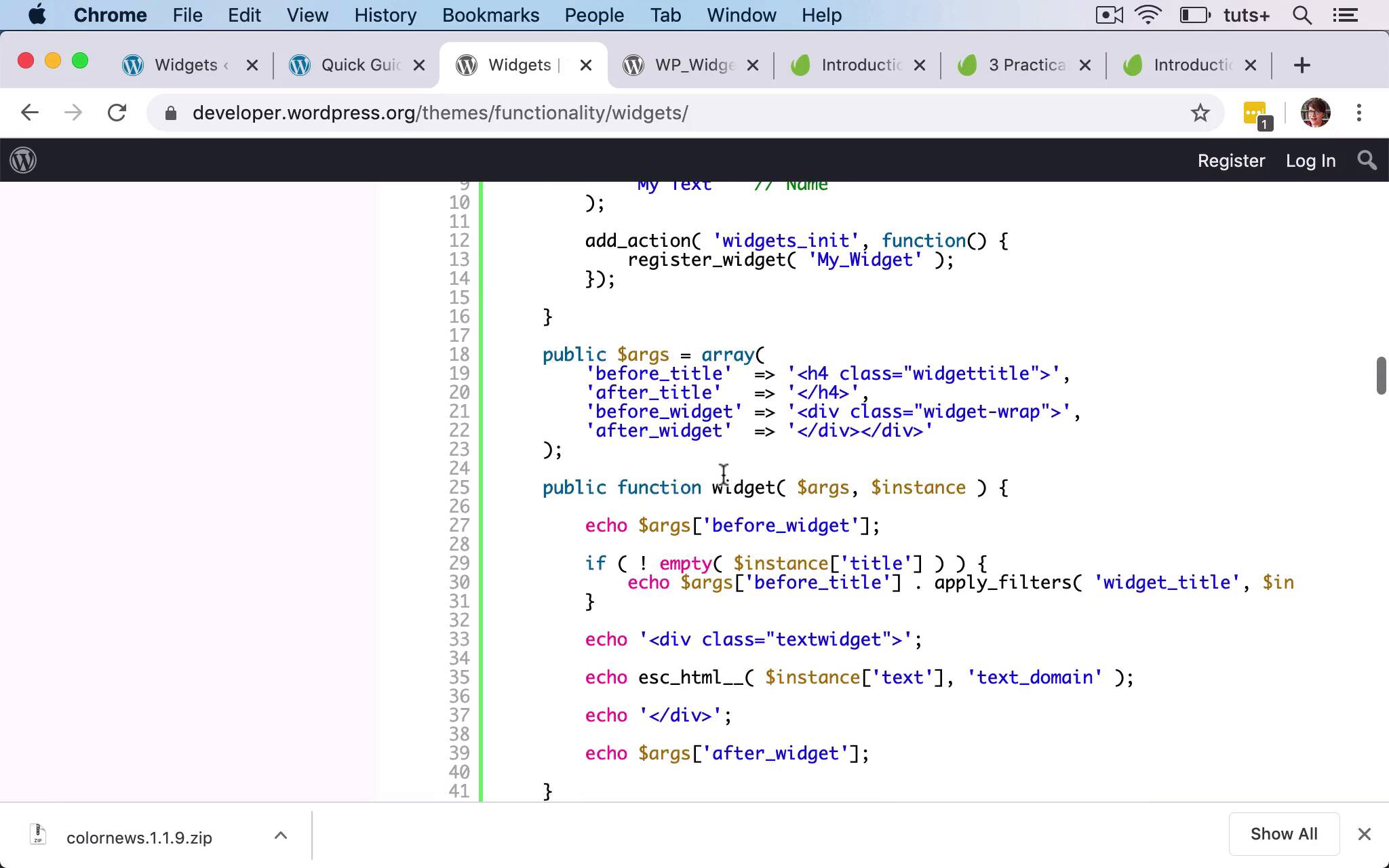
- Overview
- Transcript
5.1 The Widgets API
In this lesson, I'll give you an overview of the Widgets API and how to create your own widgets.
Related Links
1.Introduction
1.1Introduction00:53
2.Understanding WordPress Widgets
2.1What Is a Widget?06:54
2.2Examples of Widgets13:05
3.Adding Widgets to Your WordPress Site
3.1Adding Widgets via the Widgets Screen03:38
3.2Adding Widgets via the Customizer05:59
3.3Adding Extra Widgets via Plugins07:43
3.4Adding Widgets to Posts and Pages05:11
4.Widget Areas
4.1Understanding Widget Areas05:50
4.2Add a Widget Area to Your Theme: Registering the Widget Area07:03
4.3Add a Widget Area to Your Theme: The Theme Template Files07:13
5.Coding Your Own Widget
5.1The Widgets API03:36
5.2Coding a Call-to-Action (CTA) Widget06:52
5.3Coding a Query Widget03:54
6.Conclusion
6.1Conclusion02:34
5.1 The Widgets API
Hello, and welcome back to this Tuts+ course on WordPress Widgets. In this part of the course, I'm gonna give you an introduction to how you might code your own Widget, so that you can add it to your site and use it in your own Widget areas. Now, the first thing I would say is that before you code your own Widget, check thoroughly that somebody else hasn't done it first, because you could save yourself a lot of work by finding a Widget that does that job in the theme directory or via another source such as CodeCanyon. And what you might find is that somebody has developed a Widget that does a very similar job to what you've done, but it's slightly different, so you could then take that widget and adapt it for your own needs. And because WordPress is open source there's nothing to stop you doing that you have access to the code and any plugins that you install on your site and you can edit them if you want to. But I'm gonna show you how you create your own Widget using the Widgets API. So here is the theme handbook page on Widgets and that includes some information on the Widgets API that you need to use to create a Widget. So when you create a Widget, there are two things you need to do. The first is that, let me go down, here we go. The first thing is to create a class and you give that a unique name here it says My_Widget. But in my case, I'm gonna give it a name that's unique to that particular Widget and make sure use prefixes to make sure it's unique. So that extends the WP_Widget class, which you can find documentation about here. But when you're creating your Widget, you need to add four functions within that class. So the first one is a constructor function and I'll show you one of those in action shortly. So this creates the Widget itself. The second and you don't need to do them in this order in my plugins, I've actually done them in a slightly different order. The second is the widget itself. So this is the code that will output the Widget in the Widget area on your site. The third is the code for the form, so this is the form that appears either in the Widget screen or in the customizer. And then the fourth is the update function and this is essential because this updates data in the database. So anything that a user adds to that Widget in terms of saving a title to it, or any text, or any settings need to be updated in the WP options table in the database, and this update function will do it. So you've got those four functions within your WP_Widget or your own function that extends WP_Widget, you then need to use, but here it is, you need to use the register_widget function. So you create a function that has a unique name and you register the Widget with the Widget class that you use already that's unique and then you hook that to the Widgets in it, hook and we'll use that widgets in it hook already when registering a widget area. So that's how you create a Widget plugin and the reason it's important to create a plugin is because if you should change your theme in the future, you don't want to lose your Widget. You want to have that Widget available to you, whatever your theme should be. So when you're creating a Widget, you need to create a brand new plugin and then code this into the plugin. And then once you've done that you activate the plugin, and the Widget will become available to you in the Widget screen. So in the next part of the course, I'm gonna show you a practical example of this, I'm gonna show you the code for a specific Widget plugin. See you next time, and thanks for watching.


