
 Lessons: 18Length: 1.7 hours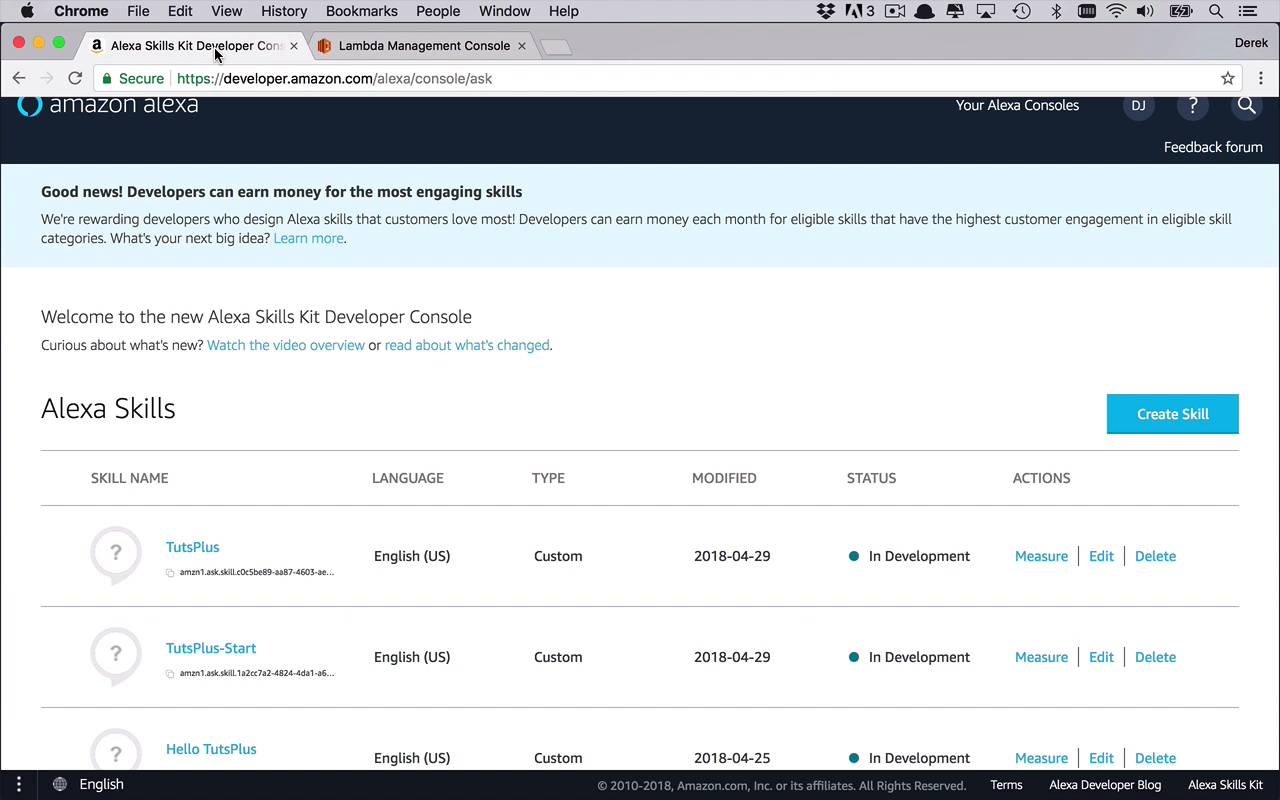
- Overview
- Transcript
3.2 Creating the Lambda Function
We now need to create a function to handle the intents from our previously created skill. But first we are going to create a simple shell.
1.Introduction
1.1Introduction01:03
1.2Prerequisites06:17
2.Alexa Skill Basics
2.1Alexa Skill Kit Walkthrough08:25
2.2AWS Lambda Walkthrough10:14
2.3Creating the Hello World Skill08:00
2.4Creating the Hello World Lambda Function10:14
2.5Handling Multiple Intents and Slots07:03
3.Building a Real-World Skill
3.1Creating the Skill06:37
3.2Creating the Lambda Function03:48
3.3Creating a Node.js App for Your Lambda Function07:11
3.4Creating Your First Handler04:38
3.5Creating the Setup Data for Your Skill03:00
3.6Finishing the Get New Courses Handler03:49
3.7Create the `GetCourseTeaser` Handler07:08
3.8Create the `AddToWatchList` Handler06:30
3.9Create the `GetWatchList` Handler03:43
3.10End-to-End Testing03:37
4.Conclusion
4.1Conclusion02:33
3.2 Creating the Lambda Function
So now that we have our skill created, we want to create our associated lambda function. So let's switch over to our Lambda Management Console. And we're going to go ahead and create a new function. And you could go Blueprints on this one but I'm still a fan of going by scratch, and let's stick with that. And I'm gonna show you another nifty trick that you can use by using an Alexa SDK to really basically get you up to the same point where you would be if you were to use one of the blueprints. So once again, we need to create a function. We need to give it a name. So I'm gonna call this, myTutsPlusSkill. I am once again gonna be using Node.js, so I'm just gonna leave the default here. And once again, we're going to create a new custom role just like we've done before. And let's go ahead in here and leave this as the lambda_basic_execution. Create a new Role Policy. Click the Allow button, and now it's going to pre-populate all that for you. And then we'll, once again, click Create Function. So here we are back in our Designer. And once again, our trigger is going to be coming from our Alexa Skills Kit and we need to do this configuration. So let's get all this configuration stuff out of the way right now so we can focus on the actual code in the upcoming lessons. So we need our Skill ID, so we'll come back over to our Skill. And once again, we can come to our skills list. And in our skills list, as you can see down here, here is our ID. Let's just click this little link here to copy it. And then we can come back over here, we'll go ahead and paste this Skill ID in here and click Add. Add now that we've got that set up, remember, you're gonna need to click Save to make sure that everything is saved properly. And once it says saved here, you should be good to go on this side. Now, we're also gonna do the same thing going the other direction. So we need to get this ARN value up here for our function. So let's go ahead and copy that. We'll come back over to our Skill. Make sure we go on to the proper one. And in this case, it's for TutsPlus. And then we'll come down here to our endpoint, and we'll make sure that we paste this into our default region, just like we've done before. So now we'll go ahead and save our endpoints. So at this point, just to be sure that everything is set up properly, we can come back over to our Invocation, and we can go ahead and click the Build Model. Now if everything has gone correctly, this should just take a few moments. And it will give you a notification once it is completed. If you have forgotten something or if you have misconfigured any of your slots or any of your intents. Or maybe you didn't save your endpoint when you put it in there, you'll get a list of errors over here on the right hand side. And for the most part they're somewhat helpful, especially if it's something that has to do with misconfiguring a slot name or something like that. But if you just follow along with this guide here, you should be able to build your skill without too much trouble. And there we go, as you can see our build is successful. So now we have properly configured our skill on the Alexa side. We also have created our function on the lambda side, and we're pretty much ready to go. And if you remember earlier in this course, we were clicking on the actual function itself, and we were hand writing code down here. Now, you could do that. We could continue to follow that paradigm in this part of the course. But as I mentioned before, you would be taking a lot of time for you to write a lot of if else statements, and checking intent objects, and looking for slots, and things like that to determine what you wanna do. But there's a better way. In the next lesson, I'm gonna show you how to start to create a lambda function from scratch using the Alexa SDK. Which is really gonna show you how to improve the way that you write these lambda functions, especially when you're interacting with Alexa Skills.


