
 Lessons: 18Length: 1.7 hours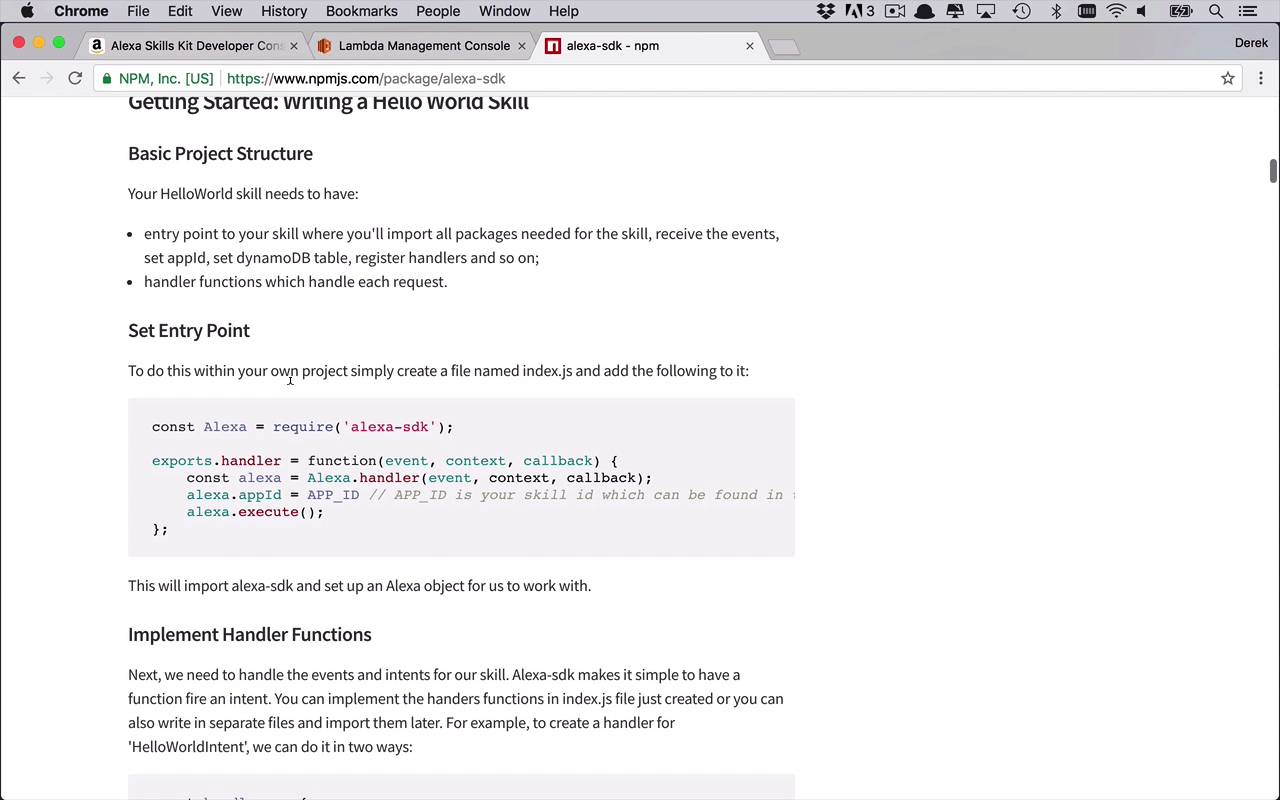
- Overview
- Transcript
3.3 Creating a Node.js App for Your Lambda Function
In this lesson, I'll show you how to create an Amazon Alexa compatible AWS Lambda Function using Node and the Alexa SDK.
1.Introduction
1.1Introduction01:03
1.2Prerequisites06:17
2.Alexa Skill Basics
2.1Alexa Skill Kit Walkthrough08:25
2.2AWS Lambda Walkthrough10:14
2.3Creating the Hello World Skill08:00
2.4Creating the Hello World Lambda Function10:14
2.5Handling Multiple Intents and Slots07:03
3.Building a Real-World Skill
3.1Creating the Skill06:37
3.2Creating the Lambda Function03:48
3.3Creating a Node.js App for Your Lambda Function07:11
3.4Creating Your First Handler04:38
3.5Creating the Setup Data for Your Skill03:00
3.6Finishing the Get New Courses Handler03:49
3.7Create the `GetCourseTeaser` Handler07:08
3.8Create the `AddToWatchList` Handler06:30
3.9Create the `GetWatchList` Handler03:43
3.10End-to-End Testing03:37
4.Conclusion
4.1Conclusion02:33
3.3 Creating a Node.js App for Your Lambda Function
As I mentioned in the previous lesson you could do all of your development work right here in this editor within your browser. And for the most part, it does a decent job. But I feel like we can do better. And the better way that I want to show you is using the Alexa-sdk. Now this is the documentation for the Alexa-sdk on the NPM website at npmjs.com. You can find additional documentation on GitHub, so there's multiple places that you can find information about this SDK. And while there's a lot of documentation here, we're not gonna go through all of it. We're gonna touch on mostly the basics, how to get it set up, how to use the basic pieces of it that are gonna be useful for you in the early stages of your skill development and in your lambda function development. And then, obviously, you can come back and refer to this documentation and improve upon your current lambda function and your skill as you so choose. One of the most important parts to take note of is the setup guide here. Now, there's really a whole lot here, this is only saying that all you have to do is run NPM install. But before you can actually do that you have to have a project for it to be install it in. So, the first thing I'm gonna do is I'm gonna head over to my trustee terminal. And as you can see I'm running on my desktop inside a brand new folder called tutsplus and see there's nothing currently in there. So what I wanna do is I wanna set up a brand new Node.js application to which we can then install Alexa-sdk into. So the way that we do that is we simply run the command npm init and this is gonna take us through a bit of an interview to ask us some questions about our project and how we want to initially configure it. So as you can see here it's defaulting to the directory name that I'm in for my package name and tutsplus, that's fine, version 1.0, that's fine. Description, you can add it in if you want, I'm gonna leave it empty. Entry point, (index.js), we will be using an index.js, so that's a good thing to have. Test command, git repository, keywords, author and license, obviously you can change any of those things that you want but I'm gonna be sticking with all of the defaults. Is this okay? The default is yes, it is. So let's go ahead and see what we've got so far. So I'm gonna be using the Visual Studio Code editor. And I'm simply gonna open up this current directory so we can see what we have. So all we have so far is the package.json file, which was created for us using all of that information that we entered in or just the defaults that were there in that previous interview. So this is a good place to start. So now that we have this we can start to include the alexa-sdk into our projects. We'll go ahead and clear this out. Now, I can say npm install --save, so I can save it into that package.json file, and I want to install the alexa-sdk. So now it's gonna go out there to npm and it's going to get not only the alexa-sdk, but any other required dependencies of that library and go and install all of them into my node_modules directory as well. So now let's go ahead and see what our project looks like. So now we also have a package lock, so you don't have to worry about that. But now we have node_modules here as you can see we have a number of them because there was a number of requirements for installing the alexa-sdk, which is fine, that's not a big deal. And you can also see in your package.json file under dependencies, we're now saying that we are gonna use the alexa-sdk. All right, so we're really getting along pretty well. So let's go ahead and move on down here and as you can see, we wanna get started with the basics. And in this case, we want to set our entry point of our nodeindex.js file to be that handler that we saw in all of the previous lessons when we were dealing with our lambda function. So let's go ahead and copy this, go ahead and copy it, and we'll come into Visual Studio Code, and we'll go ahead and create a new file. And that's going to be index.js, and we'll just go ahead and paste this in here. So now that we have this, as you can see, we're going to go ahead and require, and bring in the alexa-sdk. And we have in here an exports.handler just like we saw in our default lambda function. But as I mentioned before, we have three parameters here. Now, the event, a context, and a callback which is kind of the newer evolution of the Node.js kind of 6.0, 8.0 and beyond. This is the structure that you're going to see to be able to use this call back function. And now the only thing you really have to do here is we have to add in our app ID from our Alexa skills. So once again we will come back in here we can go to our skills and we will copy this ID as well, so go ahead and copy that. Go back over to Visual Studio Code and let's go ahead and drop this in here as a string, so we need to make sure we put out quotes in there like that. And now alexa.execute, so let's go ahead and save this. So now we have the basic structure of our lambda function here, ready to go. We've got our package.json. We've got our node_modules. We've got our index.js, we're basically ready to go. But how do we get all of this into our Lambda Management Console? How do we replace what we have in here with that code? Well, the way that we're gonna do that is by uploading a zip file. So let's go ahead into Finder or wherever else you wanna go and we want to bundle up our current code with our node_modules and go ahead and upload that. So here's what I'm gonna do, I'm going to highlight index.js and node_modules and I'm simply going to compress. You can use command line, you can do whatever you want, you can name it whatever you want, it doesn't really matter. But archive.zip will work just fine. So we'll come in here and will say we wanna upload the zip file, we'll click the Upload button, this will take us into our directories. So I'm going to go into my desktop and I'm going to make sure, I'm going to the proper directory, I'm gonna grab archive.zip, open this and I'm going to save it. And it's gonna tell you that for files larger than 10 megabytes which we won't get to but if you want it, if we were gonna start to get even bigger, you could consider using as three but in this case, I think we should be just fine. So once you do this, you're gonna start to see that our file in our structure is too large enable inline code editing. Which is fine and we don't really need to be able to do it in here. But it would be nice at some point if you were able to see it in here. But unfortunately, you're gonna have to go back and forth between your code editor, and your lambda kind of designer in here but that's okay. All right, so now we have pretty much everything ready to go. We have our Alexa Skills ready to go here. We have our lambda function ready to go. But unfortunately we're not really doing anything yet. So in the next lesson what I wanna show you is the basic process of being able to add in intent handlers, event handlers into our brand new lambda function in here. Without having to add in a bunch of if else stuff that you were seeing in the previous lessons.


