
 Lessons: 18Length: 1.7 hours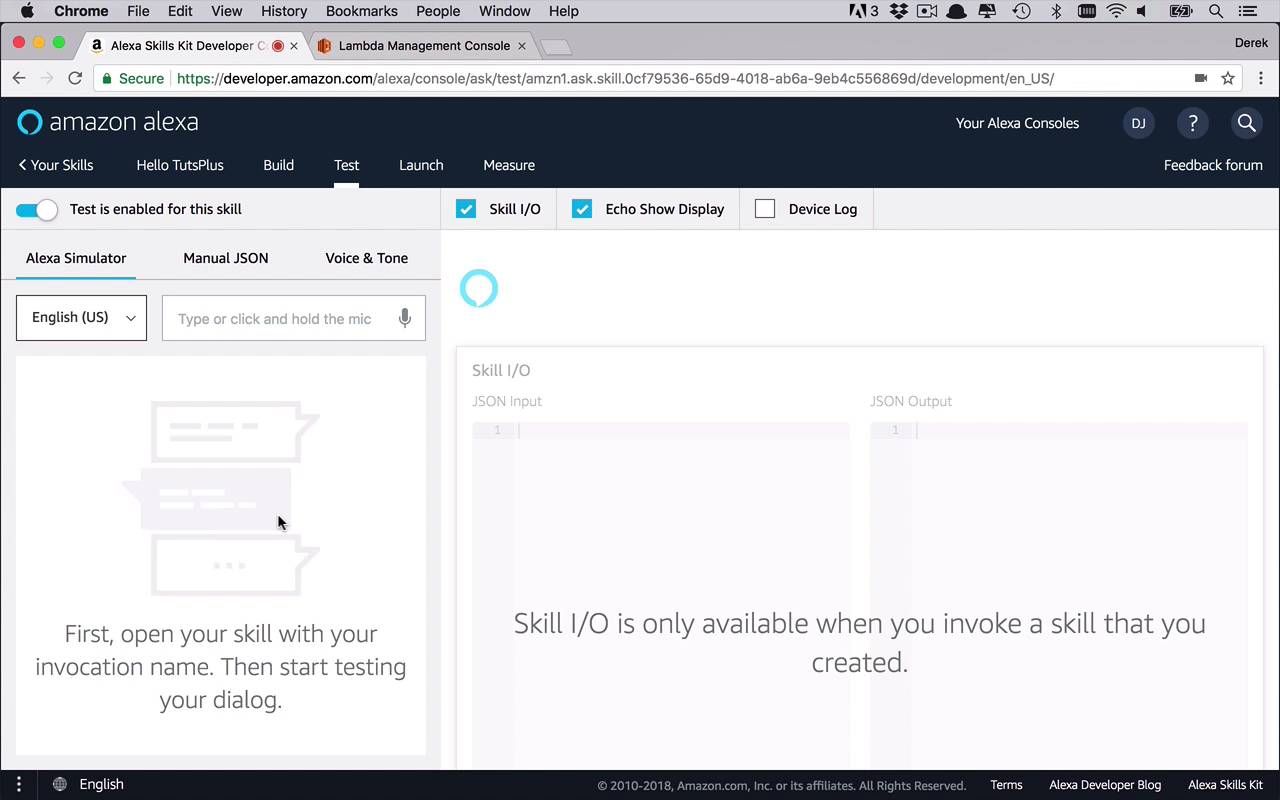
- Overview
- Transcript
2.4 Creating the Hello World Lambda Function
Now that we've created an actual Amazon Alexa skill, we need to connect it to an AWS Lambda Function so that it will be able to respond to a command. In this lesson, you will learn how to create a basic event handler that can return an actual Amazon Alexa compatible response.
1.Introduction
1.1Introduction01:03
1.2Prerequisites06:17
2.Alexa Skill Basics
2.1Alexa Skill Kit Walkthrough08:25
2.2AWS Lambda Walkthrough10:14
2.3Creating the Hello World Skill08:00
2.4Creating the Hello World Lambda Function10:14
2.5Handling Multiple Intents and Slots07:03
3.Building a Real-World Skill
3.1Creating the Skill06:37
3.2Creating the Lambda Function03:48
3.3Creating a Node.js App for Your Lambda Function07:11
3.4Creating Your First Handler04:38
3.5Creating the Setup Data for Your Skill03:00
3.6Finishing the Get New Courses Handler03:49
3.7Create the `GetCourseTeaser` Handler07:08
3.8Create the `AddToWatchList` Handler06:30
3.9Create the `GetWatchList` Handler03:43
3.10End-to-End Testing03:37
4.Conclusion
4.1Conclusion02:33
2.4 Creating the Hello World Lambda Function
Now that we have the basics of our Hello World or our hello tuts, Alexa Skill taking care of it, it's time to change direction a little bit and look at our lambda function a little bit. So now back in the lambda function, as you can see here, I have the function selected up top and here is the code below. Now this is the basic out-of-the-box handler that will come when you create a new function. There's really not a whole lot going on in here and actually I will tell you, cuz we're gonna change this a little bit later on and when you see that we create the full app later on, that the signature here is gonna look a little bit different. So, this version is compatible with Node JS, some of the previous versions of Node JS. So this is more of a backwards compatible version. Whereas a lot of the versions that you're going to see generated by some tooling and some SDKs are gonna have three parameters here within the handler function. But right now, we're just gonna deal with what we have here. We'll talk about the newer versions, going forward, in a little while. So we have an event and we have a context. So as you can see, I'm getting in information about the event that has occurred and then the context from which that is happening in. So the event is really what has been passed into this function to be able to do something and then the context is the context of this function, what do we want to return, what do we want to send back, how do we want to respond type of thing. So as you can see, there's really nothing going on in here. So how do we actually use this and see if it is functional? Well, the way that we do that is by setting up tests, so lets go ahead and set up a quick test. So if I come up here to the kinda upper right where you see select a test event and test. I'm gonna actually, sometimes there is an issue with if you are scrolled all the way down and you try to select this, it won't actually work. So you might have to scroll up a little bit. It is a little annoying but it'll eventually work. So we wanna configure test events and I just wanna create one really quick. So let's create a new test event, now there's a number of templates here actually. So you can create a bunch of different events based on templates. Normally what I do, when I get started working with these is I come down to the very bottom under comment and select Hello World as my template. And I need to give it a name. So in this case, I'll just call this MyTestEvent. And then you have a body here. Now these bodies really need to be there. If you don't have a body, it won't let you save it. So basically, this is the that we're passing in. We're passing in data associated with it. So once I've done this, I have my test event. The body, at this point, doesn't really matter, we're just gonna kind of play around with this a little bit. We'll go ahead and hit create and once I've done that, you're gonna see, up in this drop down, I have MyTestEvent and for all of them that you create, they'll show up in this little drop down and you can select them. So now what's gonna happen is if I hit this test button, it's going to fire this event to this function and then something is going to happen. So let's see what's gonna happen. Let's hit Test. You see here that the execution result is succeeded. So something good happened. And here is the actual result. We got back Hello from Lamda. Why did we get that? Well because in our function, we're specifying context.done(Hello from Lambda). So we wanna come up in here. And so we can see more information about it. So we can see more information about how long it took, 6 milliseconds, how much resources were configured, the request ID, the billed duration. So this is gonna specify a little bit more about your billing and then some more information here that was logged because of this function. So as you can see, this is how we're gonna wind up testing our function. And you can go in here and start to change things a little bit but ultimately, what we wanna get to is to the point where we can execute our Alexa skill, pass an event into our function and then get a response back. And then ultimately, what we're looking for is to get a response where Alexa will actually talk to us. So let's go and see how this works from end to end. Now, I have my function set up, its live. And I have my skill set up, it's live. And both of these have been made aware of each other using those ARN strings. We've put the Skill 1 into the function and then the function went into the skill. So they will be able to talk to each other. So let's see how that will work. So let's go into test. And once we come in here, you're gonna see that by default, the testing is disabled. Now, if you've forgotten to put, create an endpoint with that lambda function that I showed in the previous section, if you hit this slider, it'll actually fail and it'll tell you that you don't have an endpoint configured, so you have to have that to this point. So let's go ahead and turn this on, so this is pretty cool. So this is what you get to do now. In this left hand side, if you have Alexa Simulator selected, I can now start to type in the commands that I would normally say. Or you can actually give this website access to your microphone or to your camera and then you can actually talk to it back and forth but you don't have to do that if you don't want to. You can simply type commands in here and you will basically be communicating with Alexa. So you don't have to private sit with Alexa if you don't want, you can just start to type things in there, you can type in commands like hello and as you can see here, I'm going to get a high response from Alexa. And if you have your volume on, you will actually hear the sound come out. So that's pretty cool, so it's basically just like you're interacting back and forth. So this is how the testing is actually going to work. Now remember, our invocation name was Hello Tuts. So if I wanted to interact with my Hello Tuts skill, I would need to do something like this, ask hello tuts, so that's now, I'm specifying what the invocation of my skill is. So I'm saying, ask hello tuts to do something. And what were some of the utterances that were associated with my say hello intent? I said something like, say hello. Now, theoretically, if I were to execute this right now, what would happen is, Alexa would parse this request. It would identify that it needs to use the hello tuts skill. And that the intent is say hello or is being described by the utterance say hello. It will figure that out and it will send the data over to my lambda expression and we would get my lambda function and we would get back to response. So, if I were to hit Enter right now, let's see what happens. So I say ask hello tuts say hello and I'm getting back a, there was a problem with the requested skill's response. All right so, what it's going to show you down here is what it actually sent over as the request, so there's a lot of stuff down here but if you go all the way down to the bottom, you're going to see request. You're going to see the type intent request. And it was able to parse our request properly because it's saying okay, I need to set the request of intent, which has a name of say hello. So that's correct, it's finding the correct intent based on our utterance. And that's what it's sending but I'm not getting back a response. So that seems to be a problem. Why is that? Well because when we created this Lambda function, we did specify that we are gonna be using the Alexa Skills Kit to send things over but this is a very generic handler right here. This is not doing anything specific, at least with regards to Alexa. All this is doing is sending back a response that is a string Hello from lambda. And because we're not doing any logic in here because noting special is going on in here, all it's doing is returning a string and when it comes back here, Alexa has no idea how to return or do anything with the string and why is that? Because as it shows here, it's expecting JSON output, it's expecting a JSON object back that is of a relatively specific structure to actually tell Alexa what to do or what to say in this case. So I'm gonna give you a very basic example to show you how this would work. So right now, context.done is saying I'm done with this request and I want you to return the string Hello from Lambda. Well I don't wanna do that anymore because the problem here is that Alexa can't do anything with that string. It needs a JSON object. So I'm gonna drop in a very simple JSON object that is specific to as a response to Alexa. And as you can see here, I'm gonna specify a version. So I can version these things like any other JSON object. And then, I have a couple of properties that are gonna be nested in here to take case of this. So I have a response key in here with an object of output speech, which means I'm telling Alexa as part of this response. I want you to give a speech as an output of type plain text and types. You can actually specify how Alexa is going to talk, it can be plain text, it can be whispering it. There's all these different types of speech modifications that you could do but this are just gonna be plain and the text that I want to respond is Alexa responds with this text and I could put anything in here that I want, so we want to say hello. So let's make the response, Hello there. Now remember I'm going to save this. And if you wanted to test this out a little bit, you can still test it here within the function. I'll hit test. And as you can see, I get a successful response. It succeeded and I got back that JSON object. All right, so now that I've done this and now that I'm returning a JSON object instead, let's come back over here into our Alexa Simulator and try this again. So let's say ask hello tuts, that's our skill to say hello. And let's go ahead and execute that. And now when I execute that, I'm actually getting back that JSON output and I'm getting hello there as the text. So as you can see, if I were to say that to Alexa, then I would be gettng that response back. And she would be talking to me. Now, you're also going to notice that I'm not doing anything special here, I'm only saying hello there and I'm not using my slots, as far as naming conventions are concerned. So in the next lesson, I'm going to show you how to augment your lambda function to be able to handle those slots, as well as additional intents.


