
 Lessons: 19Length: 2.4 hours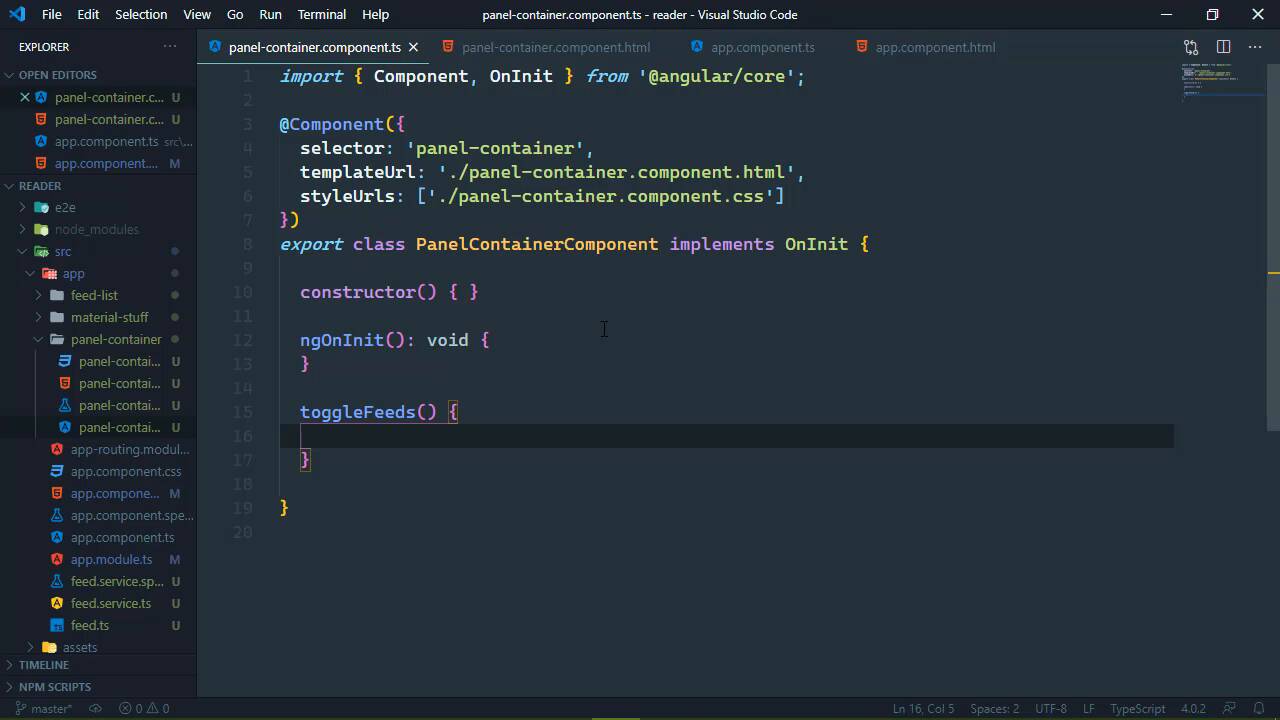
- Overview
- Transcript
3.3 Toggling the Feed List Drawer
It isn't necessary to show the feed list panel all of the time. We can make more room for the content if we hide it, and we'll add that functionality in this lesson.
Related Links
1.Introduction
1.1Introduction01:23
1.2What You Need06:14
2.Getting Started
2.1Creating the Project08:21
2.2Designing the Basic Layout08:50
3.Writing the Basic Functionality
3.1Fetching the Feed List08:48
3.2Displaying the Feed List07:06
3.3Toggling the Feed List Drawer05:53
3.4Using Named Router Outlets09:22
3.5Displaying Feed Items09:11
3.6Displaying the Content12:16
4.Adding Settings
4.1Designing the Settings Panel10:03
4.2Using Services to Manage State07:13
4.3Finishing the Settings11:02
5.Managing Screen Sizes
5.1Using the `BreakpointObserver`08:03
6.Authentication and Authorization
6.1Refactoring08:24
6.2Authenticating With the Server07:58
6.3Sending the Token04:19
6.4Authorizing Routes07:05
7.Conclusion
7.1Conclusion01:06
3.3 Toggling the Feed List Drawer
In this lesson we are going to add some functionality to our feed list and more specifically to what is containing our feed list. Because we want to be able to close our feeds just to give us a little bit more room and this will be very important on smaller screens. But even on larger screens, it would be nice to hide the feed list, so that, we can focus more on the content that we care about. I mean, after all, this is a reading program. We would like to be able to focus on the content. So the first thing we're going to do is add an icon right next to our title, so that we can click on that icon and then it will show and hide the drawer. So let's start there, and we are going to use just a button, but we're going to apply some material styling so that it fits into a material styled application. The first thing is this material icon button. That's going to give this the look and behavior of a button that is centered around an icon. And we're also going to use the material button because after all, this is still a button and inside of this button we are going to have an icon. Now the material library gives us a lot of icons and in the description for this lesson, there will be a link to all of the icons and the identifiers that you need in order to specify the icon that you want to use. In our case, we're going to use this list icon which looks like this whenever this loads there goes. So we have a feed list it kind of makes sense to use the list icon in order to show and hide it and of course right now there's nothing going on because.. Cuz we haven't taught them the code to do that. But we do need to be able to rub onto this component ,this drawer component. And that is inside of our penal container. So we kinda have to have to have a little tree going on here so that we can first of all grab this penal container component. And then from inside of there, access the drawer so that we can use the appropriate methods to show and hide the drawer. So, what we're going to do here is add an ID called panels. This is going to allow us to access this directly and we will just do this to where we will set up the click event listener to where we will use this panels identifier and we will define a method called toggle feeds. And so let's go ahead and let's do that inside of our panel container. So it doesn't matter where we do this as long as it is inside of the class. And of course, we need to be able to access the drawer, this material drawer object because this actually has the methods that we need in order to toggle opening and closing the drawer. So in order to access this, we need to have an ID. Something that we can use to query our component to grab this object and we'll just call it drawer and so inside of the component, then we will want to kind of do a document to get element by ID. But in the world of angular we use something called view child. Now notice that visual studio code automatically imported view child for me. It knows where that is defined that is inside of angular core. And we specify the item that we want to query for. So in this case, it's going to be drawer, and this is going to be a property called drawer. So we are essentially decorating this drawer property, kind of like we decorate our component classes with the component decorator. But we want to specify what type of object this is or what type of property this is. And we have a hint at that because of the selector mat dash drawer. So if we say that this is a mat drawer, then visual studio code is going to automatically import that class into this file so that we can then use it to say that this drawer property is eight material drawer. So that then inside of toggle feeds, all we have to do is use that property. And this is a material drawer object which has a method called toggle. And this is of course going to allow all of this to work. So if we go back to the browser and we click on our icon it will hide our feed list. If we click on it again, there we see the feed list once again. So it took a little bit of work we had to first of all add a reference to our panel container so that we could reference the toggle feeds method that we defined in this lesson. That in turn uses this drawer object, which we retrieved from our component. But once we did that, and we specified that it is a material drawer object we could use its API to. Open and close that whenever we click on our icon. So in the next lesson, we are going to add some more functionality because right now all we need to do is be able to click on one of these items and load in the items associated with that feed. And so we will do that in the next lesson.


