
 Lessons: 19Length: 2.4 hours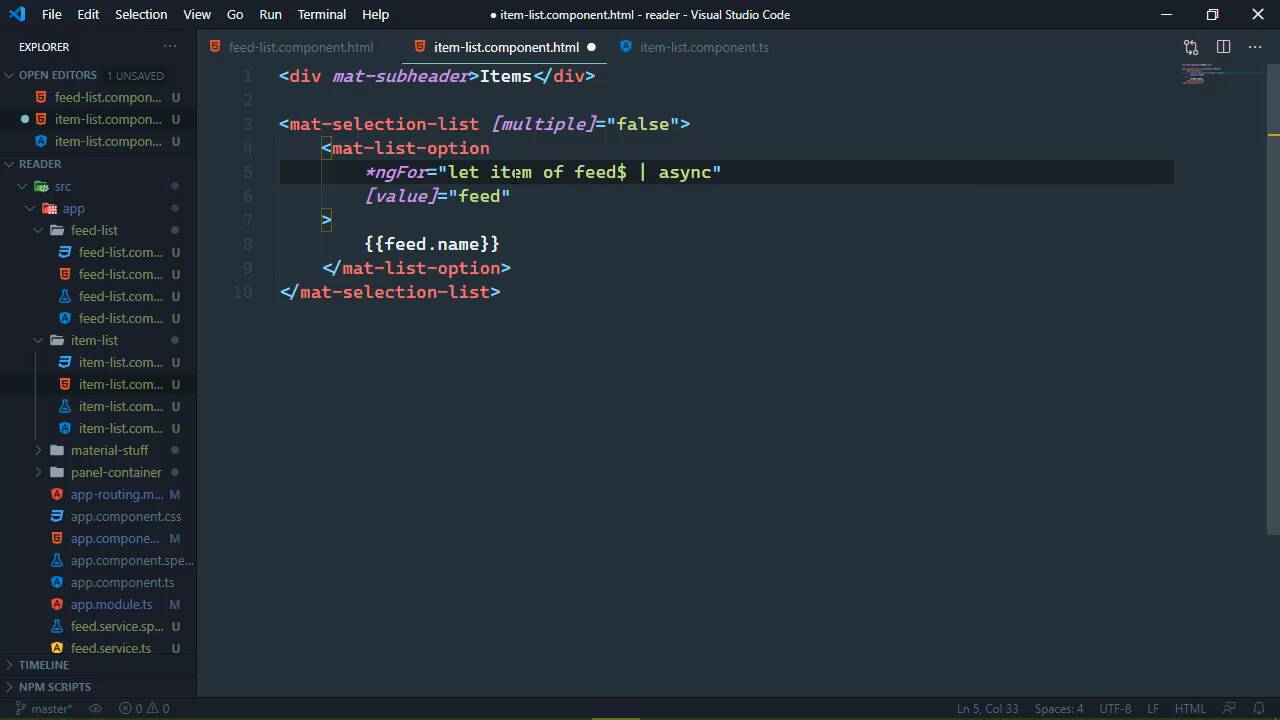
- Overview
- Transcript
3.5 Displaying Feed Items
In this lesson, we'll fetch the selected feed and display its items in the item panel.
1.Introduction
1.1Introduction01:23
1.2What You Need06:14
2.Getting Started
2.1Creating the Project08:21
2.2Designing the Basic Layout08:50
3.Writing the Basic Functionality
3.1Fetching the Feed List08:48
3.2Displaying the Feed List07:06
3.3Toggling the Feed List Drawer05:53
3.4Using Named Router Outlets09:22
3.5Displaying Feed Items09:11
3.6Displaying the Content12:16
4.Adding Settings
4.1Designing the Settings Panel10:03
4.2Using Services to Manage State07:13
4.3Finishing the Settings11:02
5.Managing Screen Sizes
5.1Using the `BreakpointObserver`08:03
6.Authentication and Authorization
6.1Refactoring08:24
6.2Authenticating With the Server07:58
6.3Sending the Token04:19
6.4Authorizing Routes07:05
7.Conclusion
7.1Conclusion01:06
3.5 Displaying Feed Items
In the previous lesson, we implemented the functionality for displaying an individual feed. Well, we didn't complete that functionality. We do have the navigation setup so that whenever we click on one of these feeds, it is being routed to the feed-items outlet. And we have the path that is being used and we have the ID of the feed that we want to retrieve. So anytime that we click on one of these feed router links, it is going to load an item list component in our item pane or our middle panel or whatever you wanna call it. So in this lesson we want to implement the functionality for displaying the items for the selected feed. And we really only need three files. The first is going to be feed-list or at least the template for the feed-list. The second will be the template for the item-list, and then we also need the typed script file for the item list. And really the only reason why we need the feed-list is because we can pretty much re-use all of this. We can just copy, paste it, make a few changes, and there we go. So the majority of our work is going to be inside of our typed script, so let's first of all talk about the constructor. So this component is going to be loaded based upon the router navigation to an outlet. So this means that we want to work with the activated route that is created as a result of navigating to this particular component. So that's the first thing that we need. So we will have a private route and the type is activatedRoute, it is right there, so there we go. The second thing that we need is our service, because we did write a new method in the previous lesson for fetching in individual feed, and that is of course, a FeedService object. So we have those available so that now whenever this component is initialized, we can use our route to get any information about the route, and in our case, what we want is the ID in the second segment of that path. So, we can do this. We will use our route to get to the params, which as you can see is an observable. So this is asynchronous, we need to subscribe to it so that we can get to the actual params. And then we will create a property called id. And let's go ahead and just parse it as an integer, and we will use params to get to the id param. And we want to parse that as a base 10 number. Now I'm gonna put my cursor over id, I'm gonna hit Ctrl+., or Cmd +., based upon your machine and operating system. And you can see that there's Declare property id. So I'm going to choose that, and voila, we have our property there. So now that we have the ID, we want to get the feed. So we will do essentially the same thing that we did for the feed-list. We will use our service, we will call the fetchFeed method, we will parse in the id, and then we're going to store that in this feed$ property. We aren't going to subscribe to it here, instead, we will do that inside of the template. Let's declare that property but this is wrong because this is not any, this is an observable of feed. So there we go, Ctrl+.over that. And that will import feed, it also imported observable, and yeah, we're good to go here. I don't think there's anything else that we need to do. So let's go to our feed-list component. Let's copy the contents and paste that into the item-list component. Now as far as the subheader is concerned, that's going to be Items. Let's get rid of the router link, we will talk about that in the next lesson. But let's talk about our for loop here. In the feed list, this made sense because our feeds was an array. So using a for loop, that's perfectly fine. In this particular case, we want to iterate over the items. But our feed, which is an observable is not iterable, we don't have anything to iterate over. We want to get to the items property. So, we could do something like this so that we wrap the feed and then the async pipe expression, and then have items that will iterate over our items property, so that we can get to the individual item and we can display its title. Well, let's go to the browser and let's see if that actually works. And now right off the bat, we are going to see, well, are things there? But let's do this, let's start completely over. We haven't navigated anywhere, let's pull up the console and let's see what happens whenever we click on one of these. We get an error, cannot read property items of null, that's because whenever the component is first loaded, the result of this expression is null because there is nothing there. So we could just add a question mark before that, the nullable property syntax there, and that will fix that particular error. However, I still don't like that. Because to me, if we look at this code, it makes it seem like that we are subscribing for every item in the feeds items, and I don't like that. So instead, this is what we can do. Kind of the same concept, but we're gonna use an ngIf here. And we will simply use our feed and we will pipe async, but we're going to say that we want to take this and make it as a temporary property called feed. So this way, we don't have to do anything fancy inside of our for loop, we can just use this feed object there, and everything would work. And this is really awesome too because this is an if statement, it's going to evaluate to false whenever it is fast loaded, because piping async is going to be null. So this whole thing is not going to be displayed, which means that the for loop for iterating over the items isn't going to execute either. So I think that this is a cleaner and much easier to follow approach. So now if we go back to the browser, then we can click on First Feed, we can see that the First Feed items are loaded. We can click on the Second Feed and see that the second items are loaded. Now here's the really cool thing about using the router in this case. If we click on Back, we're going to see that the First Feed was bloated. But notice on the Feeds panel, the active link did not change and we definitely want that to change. So let's do this, let's go to our feed-list template. And we are going to add another property to our list option component, and this is going to be called routerLinkActive. So basically, whenever this link is active and the router identifies that this is active, then it's going to apply whatever class we specify here. Now I've already figured this out and all I had to do is just inspect the element to find out what class to use. But its kind of long, it's mat-list-single-selected-option. So now, let's go back to the browser, we'll let this refresh and let's just start fresh completely, so that we don't have a Feed loaded. So let's start with the Second Feed, we will load the Second Feed, then we will load the First Feed. Let's go back to the Second Feed, and if we click on Back, we're going to see that the First Feed was loaded. The First Feed is active here as well, and if we click on Back again, it switches based upon the history. So that is really awesome. That's the functionality that I wanted so that whenever we click on an item and if we wanna go back, we can go back. And we will do the same thing for the items panel, but we will talk about that in the next lesson.


