
 Lessons: 19Length: 2.4 hours
- Overview
- Transcript
2.1 Creating the Project
Naturally, the first thing we need to do is create the project. We'll use the Angular CLI to generate our project and add the Material library in this lesson.
1.Introduction
1.1Introduction01:23
1.2What You Need06:14
2.Getting Started
2.1Creating the Project08:21
2.2Designing the Basic Layout08:50
3.Writing the Basic Functionality
3.1Fetching the Feed List08:48
3.2Displaying the Feed List07:06
3.3Toggling the Feed List Drawer05:53
3.4Using Named Router Outlets09:22
3.5Displaying Feed Items09:11
3.6Displaying the Content12:16
4.Adding Settings
4.1Designing the Settings Panel10:03
4.2Using Services to Manage State07:13
4.3Finishing the Settings11:02
5.Managing Screen Sizes
5.1Using the `BreakpointObserver`08:03
6.Authentication and Authorization
6.1Refactoring08:24
6.2Authenticating With the Server07:58
6.3Sending the Token04:19
6.4Authorizing Routes07:05
7.Conclusion
7.1Conclusion01:06
2.1 Creating the Project
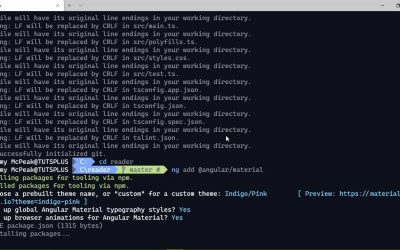
Now that we have our environment all set up, and we know what we want to achieve, let's get started developing our project and in this lesson we are going to create the project and add the things that we need to, well make it work. So the first thing we need to do is use angular CLI to create our new project. So from the command line ng new, and then whatever you want to call the project, I'm going to call it reader. And it's going to ask us a few questions before it starts going through the installation process. The first is do we want to add angular routing? Yes, we do. This is going to be a single page application. And the routing actually adds some navigational features that we want to take advantage of when it comes to displaying the feeds as well as the content in those feeds. So yes, we want routing. The second is what we want to do as far as CSS is concerned that we want to use just ordinary CSS, or do we want to use a preprocessor. The choice is yours. But I'm going to stick with just regular CSS. And it's going to create our project. And while it's doing this, let's talk about the UI. Because the UI is arguably the most important part of the application. Because that's what the user uses to, well use our application. So, when it comes to the UI, you can develop your own components. And there is a benefit to doing that because first of all, you know how they work. The second thing is, of course, you have the functionality that you know that you need. Well, there's also a third thing, and that you aren't depending upon anything else, because your angular and material. These are all things that will eventually change. They will eventually go the way of the dodo. That's just what software does, look at jQuery. Yes, it is still used today, but definitely not to the extent that it was because we have things like angular and view and react. So all of the applications that have depended upon jQuery will eventually need to be changed because jQuery will eventually die. That's just the way that software goes. So when it comes to developing an application, if you write everything yourself, you aren't, depending upon anything else. However, when it comes to actually writing the software, that's not a great way of being productive because it takes a lot of time to develop those types of things. So if you need to develop and develop quickly, yes, something like angular material is going to work, and for us, this is going to be perfect, because this gives us just about every type of UI component that we would need. If you haven't ever used this before, there's a ton of components, and this isn't even the full list. I don't know why they don't list all of the components here but this isn't it. But it also gives us the ability to use the CDK which is the component development kit. And there are a lot of tools that we can use not necessarily for developing a component before developing our application and we will be using parts of the CDK in this course as well. So there's a lot of useful things with this library. Of course it does tie us to the material design language. So everything is going to look like well, material, but that's also part of the point of having a library like this. So let's look at the installation. We're good here. So let's CD into our project and we're going to use the CLI once again to add in angular material, that is simply @angular/material. And this is going to almost have the same kind of process is gonna ask us what we want to use as our theme. And we can choose well, from a variety of themes or we can have a custom theme. It really doesn't matter. You can choose whichever theme that you want. I'm just going to stick with the indigo pink. And do we want to set up the angular material topography styles? Yes, and set up browser animations for angular material. Yes, animations are good. So this is going to go through yet another set up process, and when it's done let's go ahead and get into our code editor. Now, there are some things that we want to do because if we are going to be using angular material, we will eventually need to import the components that we need and that can be a work in tedium. So it kind of makes sense to go ahead and just import everything so that we don't have to worry about that and in some of my applications, that's exactly what I do. So let's go back to the command line and we're going to use the angular CLI once again to generate a module called MaterialStuff for the lack of a better term. This way we can import all of the components that we need. Well not that we need, we can import all of the components from the material library so that we don't have to keep going back and adding them in one at a time, whenever we need to. Now it might be beneficial for us to do that, but for right now, this is going to be just fine. So we now have inside of our source, we have a folder inside of app called material stuff. This is our material stuff module, and there's a lot of stuff to type in here. So, instead I'm going to cheat and just replace it with what I already have, but basically, it's importing all of the components that we could possibly want to use from the material library, because it's not just the components, but it's also the subcomponents. And so there's a lot of things there. And then of course we want to import this into our app module as well. So let's go to app module and let's import that MaterialStuffModule. So that was simply MaterialStuffModule. And that is from material-stuff/material-stuff, module. So there we go. And we of course, want to import that. So let's add that to our imports. And as far as the material library is concerned, that's it. We are importing all of the components so that we don't have to worry about that at another time. Now let's go to the command line and Run ng serve that's going to compile our application and run it, so that we can actually view that in the browser. So that we can look at what we have to start with, and we can start removing things. Because we don't want to work with just everything that it's given us, because, well, it's not going to fit within our application. So let's go ahead and close out these files. But we do want to open up the app component because this is where all of that markup is going to be. And in fact, we can just get rid of well, just about everything here. And once it's done compiling, we want to point our browser to localhost port 4200, and we will start to see what we have. And this is also just a good idea just to make sure that everything works as it should out of the box, and it does. So, we of course want to remove pretty much all of this. So let's go ahead and go back to our code. And the easy thing to do is just get rid of everything inside the appcomponent.html. Let's go back to the browser and of course it should refresh to show us that there is nothing there. So let's go back to our code and let's add in a toolbar. And we will do so using the material library. We have a material toolbar and let's just add a span element with a text ng reader. So let's save that. Let's go to the browser and whenever it refreshes, we can see that we have a toolbar. However, it's gray. I want to use one of the colors from our theme and we can do so by setting the color property on this toolbar to primary that's going to use the primary color so that now it is indigo. And so now that we have our project up and running, and we have a toolbar, we can start working on the three panel layout in the next lesson.


