
 Lessons: 19Length: 2.4 hours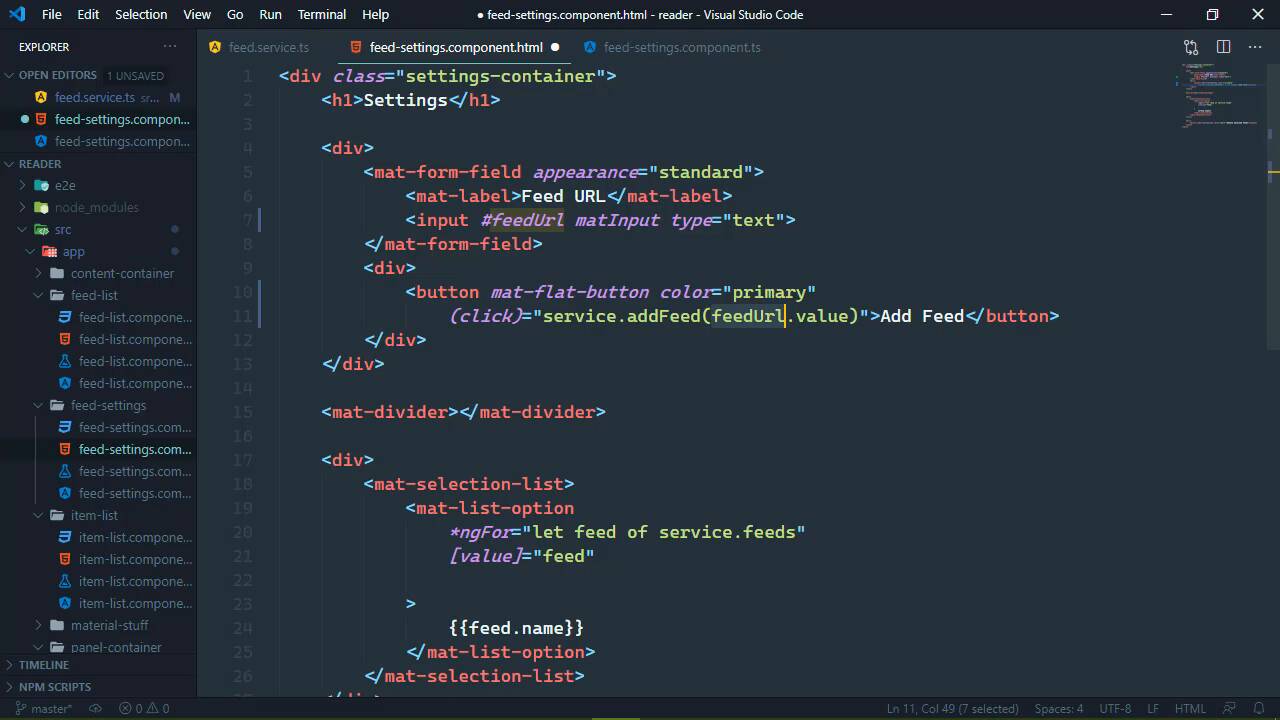
- Overview
- Transcript
4.3 Finishing the Settings
We can now finish the functionality for our settings. At the end of this lesson, you'll be able to add and remove feeds.
1.Introduction
1.1Introduction01:23
1.2What You Need06:14
2.Getting Started
2.1Creating the Project08:21
2.2Designing the Basic Layout08:50
3.Writing the Basic Functionality
3.1Fetching the Feed List08:48
3.2Displaying the Feed List07:06
3.3Toggling the Feed List Drawer05:53
3.4Using Named Router Outlets09:22
3.5Displaying Feed Items09:11
3.6Displaying the Content12:16
4.Adding Settings
4.1Designing the Settings Panel10:03
4.2Using Services to Manage State07:13
4.3Finishing the Settings11:02
5.Managing Screen Sizes
5.1Using the `BreakpointObserver`08:03
6.Authentication and Authorization
6.1Refactoring08:24
6.2Authenticating With the Server07:58
6.3Sending the Token04:19
6.4Authorizing Routes07:05
7.Conclusion
7.1Conclusion01:06
4.3 Finishing the Settings
In the previous lesson, we refactored our feed service so that it now maintains the state of our feed list. So that any change that we make through the settings either by adding or removing feeds, those changes will be reflected anywhere else that we use our feed list. So now we just need to implement that functionality. And we're going to start in the feed service because, well, that makes the most sense to me. This is where we actually manipulate our feeds. So we're gonna start with a method called addFeed, and we're going to supply the URL because as far as the server's concerned, that's all that we need, the URL. And we will start with a POST request because we are essentially saying we want you to create this new entity on the server. And usually whenever you create something on the server, the server responds with the entity that it created. So we are going to expect a feedback from this request. And we want to make a request to http, and you know what, we should just go ahead and create a variable that's going to contain our base URL as a variable. It's gonna be a property. So let's do this we'll have private URL, which is gonna be a string. And we will set that to our base URL so that whenever we make a request, it will look like this. We will specify URL/ and then whatever endpoint that we need to hit. In this particular case, we're going to make a POST request to the feeds endpoint. And our data is simply going to contain the URL, nothing else there. So that then all we need to do is subscribe. And we are getting the feed back that we created on the server, so that this will allow us then to manipulate our feeds array. So we will just push in that new feed, and there we go. We have added that feed. Now let's very briefly go ahead and update our request URLs, just so that everything is nice and consistent here. And of course, this last URL needs to be changed to items. Although this needs to be this.url, this.url [LAUGH] and I'm glad to call it that because that would have been knowing there. All right, so now that we have that, let's replace, there we go. So we have a little bit cleaner code. So now we need to write our remove feeds. Now this is going to accept an array of numbers, that way we can remove multiple items at the same time. And in fact that already matches what our UI is, we can select multiple feeds, so that we can remove them. Now as far as the execution of this, we are going to make multiple requests, so one for each ID. And that might seem counter intuitive, but when it comes to restful APIs, a lot of the times if you want to delete multiple things, you have to make multiple requests. So for each ID ,we are going to make a delete request. We want to hit the feeds endpoint and we also want to include the ID of the feed. Now there's no other information that we need to supply for this request. So we are just going to Subscribe here. Now typically with a delete request, we don't really get anything in return. We might get some message if there's an error, but if everything is okay, then we normally just get a 200 response, and then it's up to us to manage our state. So in this case, that's exactly what we need to do. We need to find the feed in our feeds array, and we will do that with the findIndex. So that we can look for the feed with the given ID, and if it's equal to the ID that we are working with, well, then we want to remove that. Now we do need to make sure that we have a valid index. So if it is greater than 1, then of course we have an item in the array so that we can remove it. And we will do so with the splice method passing in the index and we want to remove just that first item. Other than that, we will be good to go. So there we go, we have our methods, we just need to use them inside of our feed settings. So let's open up the template as well as our TypeScript file, and let's focus on adding a feed. Now we can do this in several different ways. Like for example, we could write a method inside of the component that would allow us to add that feed. But really we have all of the information that we need. We have our input here, and if we give this an ID, well, then that makes it a whole lot easier to just simply listen for the click event. And then we can use our service addFeed method passing in the feed URL value, and there we go. Now of course this is rather naïve, we would want to check to see if we have anything as far as the feed URL is concerned, but this is gonna be fine. Now when it comes to removing multiple feeds, we do need to have a method, because what we need to do is get all of the selected options. But to do that, we need to be able to select our selection list. So let's give this an ID, and we'll just call it feedSelection. Let me make sure I used the pound sign, I did, okay. So we have our feedSelection, so let's go to our TypeScript file. And let's call this removeFeeds. And we don't need any parameters here, but we do want to get to all of the selected IDs. But in order to do that, we need to first of all, grab a hold of this feed selection. So we do need to use the ViewChild decorator. We want to find the feedSelection, and let's call this selected feeds. And of course, this is of type MatSelectionList. Let's hit Ctrl dot, and that's the one that we want. So there we go, that's automatically imported for us, so that now we can use the selected feeds. But we do need ViewChild imported as well. And once again, I'm just hitting Ctrl dot while the cursor is over that, and that's automatically pulling those in. So now we can say with our selectedFeeds, we want to get the selectedOptions. And then there's a property called selected. So we want to get the selectedFeeds and get the selectedOptions and then get the selected. I don't know why they're selected here. It makes more sense to me to just call it selectedOptions, but I didn't design this API, I wasn't consulted. And we essentially want to just get the IDs because that's all that we need to work with. And if we look at our template here, the value of each one of these options is a feed object. So here we are going to go through each selectedOption so that we can get its value, which is a feed object, which has an ID. That's going to give us all of the selected IDs. Let's also put this on multiple lines. So that then we can call the services.removeFeeds method, and then we can pass in the selected IDs. And that should work, everything should be in place. So if we go to the browser, let's type something in. This really doesn't need to be an actual RSS or atom feed because the server really isn't parsing that out. It's just generating stuff for us to use. So we can use any URL. It doesn't even have to be a URL because it's not testing anything. But whenever we click on AddFeed, we should see something being added to our list, and we don't. So there's some kind of error somewhere, but it's not being displayed anywhere. Let's go to the console, let's see everything's fine there and let's make sure that I saved everything, and I didn't. The template needed to be saved. So with that, after this, refresh this, then we can test this. So let's just put in a URL. Once again, that doesn't matter what it is, we Add Feed and there it is. There's our third feeds. Let's add a few more. Now if we close the settings, we're going to see those feeds are automatically added here and we can navigate to using them. That's really awesome. But let's say okay, we don't need feeds 4 or 5. So if we select those and then click Remove Selected Feeds, well, that was too good to be true. We have an error somewhere something is not working, but I'm not seeing where that is, so let's do a refresh. And let's actually see if those items were deleted. No, they were not. So let's see what we get as far as the request is concerned. So let's go to the Network tab, let's clear out the log, and let's click on Remove Selected Feeds. And we don't get anything at all, so why is that? Yeah, [LAUGH] we need to add the click event here so that we can remove the feeds. All right, so with that in place, let's close the console. Everything else should work okay, so let's select feed 3 and 4. If we Remove the Selected Feeds, those are gone. Once again, if we go to the main UI, those feeds are gone and we can still navigate. If we refresh the page, of course those feeds are not gonna be there. Now, since we have the functionalities set for our settings, let's very quickly go ahead and change it so that it does not automatically open. So let's go our panel container, let's remove the opened attribute from our settings drawer. And there we go. So we now have the ability to, first of all, use the main UI to navigate through everything and to view the contents, we have the ability to manipulate our feed list. So that in the next lesson we can focus on working with different screen sizes.


