
 Lessons: 16Length: 2 hours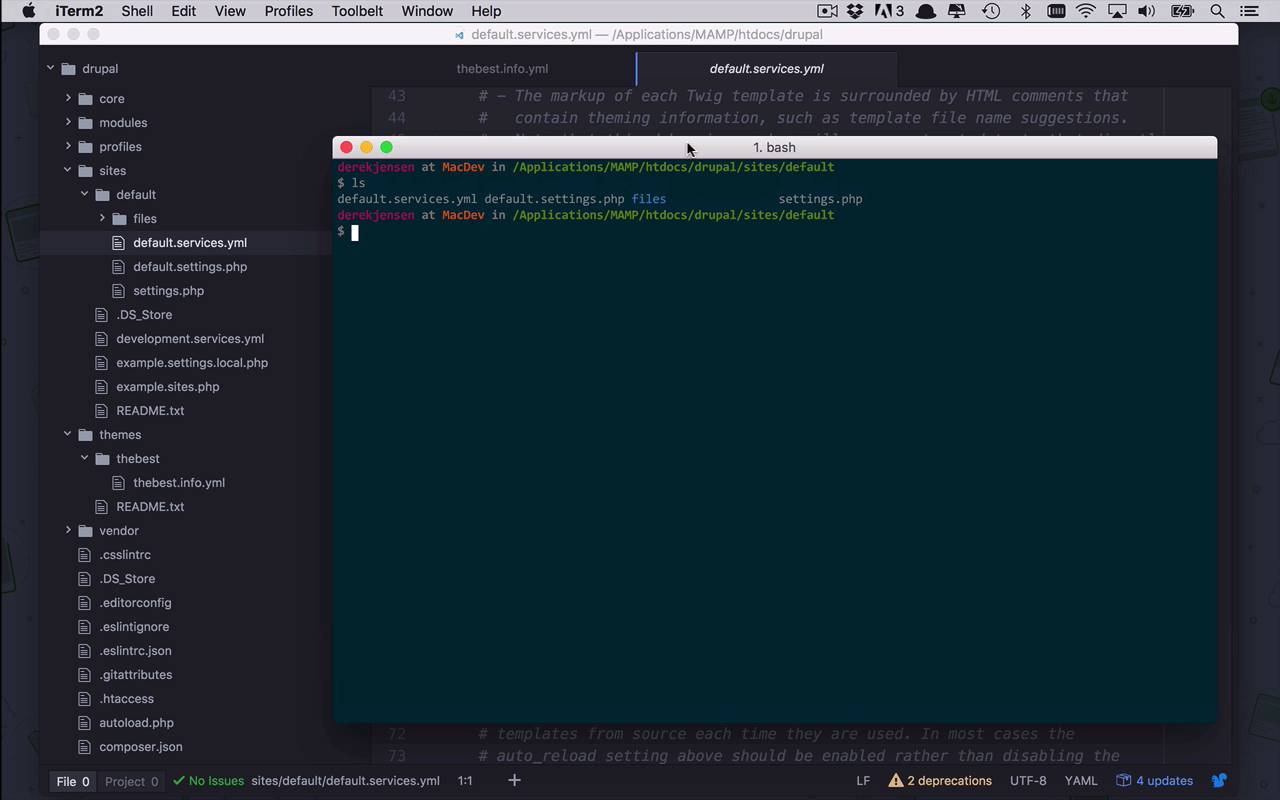
- Overview
- Transcript
2.3 Regions, Blocks, and Debugging
Now that we have our own theme, it's time to talk about some of the main components of themes: regions and blocks. I'll also teach you one of the most important tricks for Drupal 8 theme authors: debugging mode.
1.Introduction
1.1Introduction01:07
1.2Prerequisites07:24
2.Building a Custom Theme
2.1What Are Themes?07:29
2.2Create Your First Theme06:55
2.3Regions, Blocks, and Debugging10:59
2.4Introduction to TWIG14:00
2.5Add Custom CSS05:47
2.6Add External Libraries07:35
2.7Add Basic Styles08:16
2.8Create a Main Page05:57
2.9Style the Header14:13
2.10Style the Navigation06:46
2.11Using Partials05:02
2.12More Partials and Content07:23
2.13Adding Styles to Views07:25
3.Conclusion
3.1Goodbye01:12
2.3 Regions, Blocks, and Debugging
Now that we've created our first theme, it's time to start thinking and talking a little bit about the players in the game of Drupal 8 theming. Now yes, in the world of websites and CMS, content is king. But, content is nothing without a little bit of structure, and when it comes to creating custom themes in Drupal, your structure is defined by blocks and regions. Now, if you don't know much about blocks and regions, let's just kinda simplify it like this. A block is a container that you can put content in, different types of content. And regions are what you use to kind of group together different blocks of content. So, if I wanted to look at what exactly exists today within my theme that you see right here, as far as blocks and regions, how can I do that? Well, we can go in to Structure. And we can go into Block layout, and as you can see here, you have a list of blocks and regions. Although, maybe the first time you look at this, it's not as intuitive. The regions that are defined within our site right now because of our theme, are all of the groupings here that are embossed. So we have a Left sidebar, Right sidebar, Content, Header, Primary menu, on, and on, and on, all the way down to Breadcrumb. Now, these are all the different regions that are currently defined. And then all of the moveable pieces underneath those regions are our blocks. So we have a Search block, a Footer menu block, Tools block, and Ppowered by Drupal block, and all of these are within the left side bar region. Now the game of theming in Drupal 8 is all about how do we organize and place these regions on our page to display blocks of content to the end user. So, how can we get a feel for what exactly are regions look like currently on our site? Well the way that we do that is, we click on Demonstrate block regions that has name of your theme here, so let's go ahead and click on that. And as you can see here right now, it's not very interesting because basically, we have a very flat structure right now. Because we just created this theme, we haven't really provided any CSS. We haven't kind of arranged regions around on the site. We've just basically been given the defaults, that are defined within the core themes, core base themes of Drupal., which is all together once again fairly uninteresting. And what we're gonna spend the duration of this course doing is playing around with the regions, playing around with these blocks, styling them a little bit, moving them around. And making them our own and customizing them to our own desires. So how do we do that, and how do we know exactly what's going on, and what pieces of information live in different blocks, and in what regions? Well, there's another little bit of debugging that we can do when it comes to these files and when it comes to these regions and these blocks. But there's one more thing that we have to understand before we can truly start to dive into those things. So, what I wanna do now is, one more little tip, one more little trick that we can do, to make things a little bit more readable. So, as I said before, if I come in here and I View Page Source. It's really kind of a mess of things going on in here. It's really hard to see what mark up is doing what, and everything is kind of a hodgepodge here. So what I wanna do is, I wanna come back over to my site, and I want to go into my drupal folder, I wanna come down to sites and into default. Now within here, there's a couple of different files here, we had default services, default settings, and we also have settings.php. So what I wanna do is, I wanna take a look at this default.services.yammal file. And if I were to scroll down here, you're gonna see lots of information about some things that are being executed behind the scenes for Drupal, by default. And towards the bottom, actually towards the middle, there's a couple that I want you to pay attention to. One that we're really gonna play with, and that is gonna be this debug right here. So in the world of theming in Drupal, in Drupal 8, specifically, Drupal has switch over to the Twig templating engine. And really all that means is that, the different pieces or sections of markup that we can use within our site have kinda been templated out for us into smaller much more manageable chunks that get reused over and over again, all over our site. Depending on the location, and the content, and the regions, and all those types of things. But it's much easier for me to show you what that looks like, than to explain it to you. So what I wanna do, and I want you to do is, I want you to, we have to make a copy of this file, this default.services.yml, and we want to make a copy of it and change that to be services.yml. So what I'm gonna do here is, I'm gonna go ahead, and open up my terminal. And as you can see here, I am in that same location, so I have default services.yml, defaultsettings.php, a files directory and settings.php. Now depending on the version of Drupal you installed and where you got it from, you may or may not already have a services.yml in here. But if you don't, all you need to do is simply copy the default.services.yml, and copy it to services.yml. So the reason that we're gonna do this is because, of course, I'm going to have to ask for elevated permissions to do this. There we go. So now, we have the services.yml file, and the reason we need to make a copy of this is because, if you were to modify the default here, it's not really gonna pick those things up. Plus, if you were to maybe install an update to Drupal and all of these default files got overwritten, then you're gonna lose those changes and it just becomes a mess. So we're gonna copy this to services.yml. We are going to come in here to debug, and we are gonna change this to true. So let's go ahead and save that. And then we're gonna have to give this permission to save that. Okay, now, we're good to go. We have made our services.yml file, we have changed debug to true. Let's come back over here to our site. Let's refresh this, and let's go ahead and take a look at the page source again. And you're gonna notice that, it doesn't really seem like anything has changed. But remember what I said before, when it comes to a lot of these structural changes, configuration, PHP code, and things that run behind the scenes in Drupal, all of those things get cached. So if you start to change or modify those, you are oftentimes gonna have to clear your cache. So one thing that I like to do when I'm debugging is, I actually open up my configuration in a new tab, and then I come into Performance. So now I can leave this page open. I can go ahead and clear my cache. Once that completes, I'm gonna come back here, I'm gonna refresh my site. Now I'm gonna do the same thing, again, let's View Page Source. And now all of a sudden, things are gonna look a little bit different. We're gonna get a number of sections in here that are commented out where you're gonna see THEME DEBUG, THEME HOOK, html, and FILE NAME SUGGESTIONS. So if were were gonna come down here just a little bit, we can start to poke around and look through here. We can start to see these different sections of our site, these manageable chunks, and this is where a lot of the content is coming from. Now very interestingly here, we see My Drupal Site and if I come over here and take a look at our website, I see My Drupal Site. Now all of a sudden, we're starting to see this content that we have on our page by default. And we can see it within the source file. This is another little tip and trick that we're gonna go through quite often, when it comes to theming here, is we need to understand where this content is coming from, where this structure is coming from? Specifically in what Twig template file this is coming from, and how can we modify it to better fit our needs? So as you can see here, I found My Drupal Site, and if I come up here and take a look, I see that we are beginning output from core, themes, stable, this is our default kind of base template. Because we didn't specify a base template in our info.yml file, we are given stable as a base by default. Templates, block, block system, branding, and that's what's defining all of this area here. And if we were to come up a level, and you can see all these things are built on top of each other and kind of nested into all of them. Now, the first interesting one that I think we need to look into a little bit is this one right here, the templates layout page html.twig file. So let's go ahead and take a look at that for just a moment. So let's come back over to atom. We're gonna go into core. We're gonna look at themes. We're going to look at stable. We're gonna look at templates. We are going to look at layout. And here we go, now we have page.html.twig. This here is the first Twig template file, that we're gonna start to look at a little bit and play around with, but you're gonna see some very familiar things in here. If I start to look through here a little bit, I'm gonna see things like header, primary menu, secondary menu, breadcrumb, highlighted, and importantly things like, content as well as footer down at the bottom. Now we may not understand what this syntax all means, and we're gonna talk about that in the next lesson. But, these all start to look a little bit like regions that we have defined within our site. So if I were to come back here one more time, take a look at Structure and Block layout. And if I were to go into block regions, I'm starting to see Primary menu, Secondary menu, Breadcrumb, Footer, Content and this is not coincidence. This is how these things are put together. So now, you can start to think about this as we've defined these regions. And now that we have these regions, we can refer to these in this Twig templates, using the special machine names that I'm gonna show you how to define. So in the next lesson, we're going to take this page.html.twig file, and we're going to start to make it our own, and customize it a little bit to our needs.


