
 Lessons: 16Length: 2 hours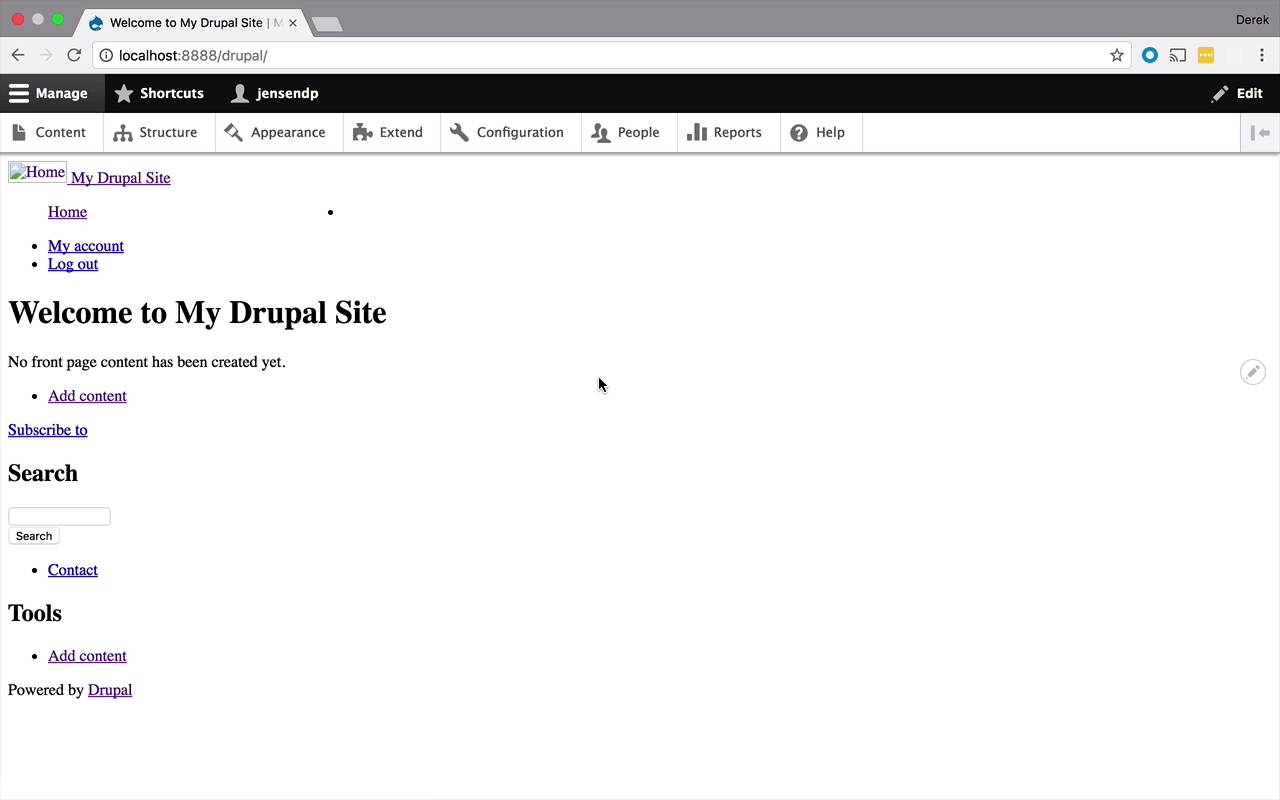
- Overview
- Transcript
2.2 Create Your First Theme
With a little bit of basic theme knowledge under your belt, it's time to create your own theme. It couldn't be any easier. If you know how to create a folder and a single file, you will be able to create your own theme in about two minutes.
1.Introduction
1.1Introduction01:07
1.2Prerequisites07:24
2.Building a Custom Theme
2.1What Are Themes?07:29
2.2Create Your First Theme06:55
2.3Regions, Blocks, and Debugging10:59
2.4Introduction to TWIG14:00
2.5Add Custom CSS05:47
2.6Add External Libraries07:35
2.7Add Basic Styles08:16
2.8Create a Main Page05:57
2.9Style the Header14:13
2.10Style the Navigation06:46
2.11Using Partials05:02
2.12More Partials and Content07:23
2.13Adding Styles to Views07:25
3.Conclusion
3.1Goodbye01:12
2.2 Create Your First Theme
As promised before, we are now going to start to jump into creating our own custom theme. So if you've poked around a little bit, you've noticed as I mentioned before, that there are a number of pre-built, pre-installed themes, in any sort of Drupal installation, simple to this Bartik like here. So we're gonna begin by creating our own theme. And there's a couple things that we have to define within our theme, within this info.yml file. And that's going to be, we have to give our theme a name. We have to define the type, as in what is the type of this configuration file. What is it describing? And in our case, it's going to be describing a theme, but you could also create modules this way. But we're gonna save that for another course. You're gonna need to provide a description, and you're also going to need to provide a core. Meaning, what is the version of core that you are supporting with your theme. So you could be 8.1 or 8.2, or you could even just stick with something generic and say 8.x, which is what we're going to do as well. So let's begin by closing this out. And let's go into our themes folder here, and let's go ahead and create a new folder. Now, in this case, you can call this anything that you would like. But you are typically gonna find that you're gonna call this the name of your theme. So you can call this whatever you want your theme to be. And I am simply going to call this thebest, cuz this is obviously going to be the best theme out there. So let's go ahead and do that. Now within here, I need to create a file. So let's go ahead and create a new file. And we're gonna call this thebest.info.yml. Now, as mentioned before, this is a YAML file, and YAML is very specific about indentations and things like that. So you have to make sure that you're creating these in a very accurate way, and hopefully, I'll be guiding you along through that process, throughout this course. So the first thing that we wanna do, is we wanna define a name. So let's go ahead and define a name. And we're going to give a colon. So this is our name and now we need to give the name a value. And as mentioned before, we're gonna call this The Best. We need to give this a description. So let's say, this is the best Drupal 8 theme around. Then we need to give this a type. And once again, this is going to be a theme. And then we also need to give it a core, meaning what is the version. And we're gonna call this 8.x, and that should be just fine. So let's go ahead and save this. So now all we've done is we've created a folder under the themes folder, and we've created thebest.info.yml. So let's see what exactly has happened now, what has changed. So let's switch back over to our site, let's go into appearance. And let's take a look at the themes that we see down here. And now all of sudden, we see The Best. So that's very interesting, where did we get that from? Well, from simply creating that info.yml file inside our folder, we now get an entry in the uninstalled themes. Well, we don't want this to be uninstalled, we wanna use this thing. So let's go ahead and install it and set it as the default. So once it has done that for us, if I go back to my site, you're gonna see something that is once again woefully uninteresting. But you have now created your first Drupal theme. So let's start to poke around here a little bit, before we go too far. So let's go ahead and right-click on this page and view the page source, and just take a look at exactly what's going on here. And you're gonna notice that there is quite a lot going on here. There is a lot of markup in here that is generated for you. And it's pretty difficult to read, there's a lot going on. And it's really hard to understand exactly what's going on in here. I see some style sheets, but they're very interestingly named. There's a lot of numbers and alphanumeric characters. And that's because, that by default for performance reasons, Drupal is going to combine all of your CSS files and minify them, for performance reasons. And I'm gonna show you how to tweak that little bit, so you can see just exactly what files are being used here. And it's really hard to see demarcation of, where certain sections begin and end, and where's my JavaScript. There's some JavaScript references here, and there is some JavaScript references down here at the bottom. But once again, this is all combined and minified. So it would be nice if we could kind of put our site into, maybe a debug-type state, so we could better read exactly what's going on. And that's what I wanna show you how to do right now. So let's head back over to our site here. And what I'd like to do is, I wanna go into Configuration, and I wanna come into Performance. And you're gonna notice here a couple of things. Now, this is very important for you to remember. And I'm gonna mention it several times, and you're gonna see me do this several times, is having to do with clearing the cache and the bandwidth optimization down here. So one way that Drupal takes care of performance for you, is it caches a lot of information. It caches a lot of the structural and architectural things that you have going on, so that it doesn't always have to retrieve all this information. So when it comes to layouts and markup, all those things, and PHP, and the code that's running behind your theme and the site, all get cached so that it's much quicker to retrieve. But it makes debugging your theme a little bit cumbersome. So every once in a while, when you make changes, if you don't see those changes reflected in your theme, we're gonna have to come in and clear the cache, simply by clicking this button like this. It should only take a moment for it to clear that cache, and then it says cache is cleared. And then you're ready to go. Also, when we saw those kinda bundled and minified CSS and JavaScript files, that's where this is coming from here. So if I uncheck these, save my configuration. If I come back to my site now. And let's just go ahead and refresh. Let's go ahead and view page source again, you're gonna see things have changed a little bit. So now all of a sudden, I see all of these different CSS files now referenced individually. So as you can see, by default, out of the box, Drupal gives you a ton of CSS files, that it is using behind the scenes to give you some styling. And if you go down to the bottom of the page, you're gonna see a bunch of JavaScript as well, that's no longer combined or bundled and minified for you. So that's pretty nice too. So now that we've kind of gotten to this point, we're ready to start digging into just what exactly our theme is comprised of, and how we can start tweaking it. And there's a couple other little tips and tricks on how we can start pulling this thing apart and customizing it, and I'm gonna show you that in the next lesson.


