
 Lessons: 16Length: 2 hours
- Overview
- Transcript
2.4 Introduction to TWIG
With the advent of Drupal 8, the entire theming subsystem has been overhauled. In Drupal 8, you will be using a templating system known as Twig. If you have ever done any Angular or Laravel development, you will probably feel right at home. If you haven't, no worries—you will be able to pick up the basics in just a few minutes.
1.Introduction
1.1Introduction01:07
1.2Prerequisites07:24
2.Building a Custom Theme
2.1What Are Themes?07:29
2.2Create Your First Theme06:55
2.3Regions, Blocks, and Debugging10:59
2.4Introduction to TWIG14:00
2.5Add Custom CSS05:47
2.6Add External Libraries07:35
2.7Add Basic Styles08:16
2.8Create a Main Page05:57
2.9Style the Header14:13
2.10Style the Navigation06:46
2.11Using Partials05:02
2.12More Partials and Content07:23
2.13Adding Styles to Views07:25
3.Conclusion
3.1Goodbye01:12
2.4 Introduction to TWIG
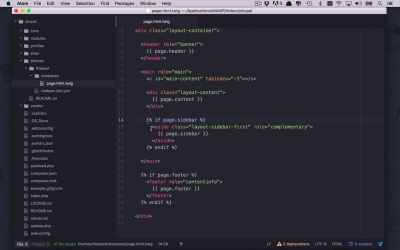
Okay so the first thing that we wanna do is we wanna start to play around a little bit with this first twig template page.html.twig. Now can we sit inside this base theme stable as you can see right here, and start to modify these things. Yes, yes we could. But the problem with that, is that now if were to start doing that, we really wouldn't be modifying and creating our own theme. We would simply be modifying an existing base theme and that makes things incredibly difficult to bundle and distribute if you would like to share your theme with others. So it's always best practice to use these a reference. And then to take these files and bring them into your own theme and start to tweak them and play around with them. So the way that we do that is I'm going to select this file and I am actually going to copy this, and I am going to close out these built in core themes. I'm gonna come down into my own theme which is the best here, and I'm gonna create a new folder, and I'm gonna call it folder templates. And in here is where I'm going to create all of my custom templates. So I can go ahead and paste this in here. So now within here, I have page.html.twig. Now that buys for me the fact that now I have my own. And the cool thing about this is that because I have my own, Drupal is going to realize that I have my own page.html.twig. And it's going to use that one because it found it within my template. Now if l did not have that it would go ahead and fall back to my base stable again. So how do we know that's actually happening that way? Well let's close all of these things out, and take a look at our page in order to, what l wanna do here is am actually going to get rid of all of this coming to stuff here I don't really need any of that. And I can get rid of this here too. That's fine, so this is the kind of base twig template for a page. Now page.html.twig is reused all over the Drupal site from your theme for every single page, hence, the name page.html.twig. So once again, how do I know that this is truly being used on my site. Well, what I can do is I can once again come back to my site. And I remember, I've made structural changes. Now I've added some sub directories to my theme called templates. And I've added a file in their page.html.twig that I wanna use in my site. So in order for these things to actually take effect, I need to clear my cache again. So now that I have done that I can come back to my site. Let's go ahead and refresh again. Now if I were to once again look at my page source, I can scroll down here a little bit to where I was before. And you're gonna notice now, I'm beginning output from themes/thebest/templates/page.html.twig. So that is kind of the, at least my recommendation for best practice on how to bring some base functionality or base twig templates into your own template. So let's go ahead and play with this a little bit now. So what I can do is I can start to modify all of this. As you can see here there's a lot of things going on and I really don't need all of this. I don't need primary menu, secondary menu, breadcrumb and really it's all up to you on a different things different reasons that you need. But I wanna simply this my side is gonna be fairly simplistic my basic theme layout is gonna be simplistic. I wanna have a header at the top. I wanna have a content section in the center. I want to have a side bar section in the center. And you could play around with it. You could have the side bar on the left, on the right doesn't really make any difference. Maybe we'll put ours on the right just to mix it up a little bit. And then I wanna have a footer, and those are the different regions that i want. So all these other stuff I don't really need, so let's just start to clear this out a little bit, let's get rid of all of these primary menu, secondary menu breadcrumbs, I don't really need that stuff. Content, I wanna hang on to so let's keep that. Sidebar first, I don't really, I'm not gonna have multiple sidebars, I'm only gonna have a single sidebar. So let's go ahead and get rid of that. Sidebar second, don't really need that so let's go ahead and clear that out. And then footer. So yes, those are all good. Another, we have also these kind of comments that are in here. You can start to clear these out a little bit, just to make things a little bit easier. And I can also say that this is going to be HTML, so I can get a little better highlighting here. So I think this is looking a little bit better. Now this is a little bit more manageable. We have four defined sections, we have header, content, sidebar, and footer. Now let's take a little bit of time to talk about the syntax of these twig templates. Now if you've ever worked with any sort of kinda double curly bracket dial technologies maybe Angular, maybe Laravel if you have done PHP development you have probably seen similar things to this. We have the double curly bracket or mustaches if you've ever heard of it that way. And then we also have this percent sign curly bracket. Now this are two things that you're gonna see over and over and over again in your twig template and the main two different things that are very important and you wanna make sure you don't mix them up. The double curly brackets as you see right here as an example simply means I want to output into the markup of this page whatever is stored in page.header. So you can think of page maybe as a class or a variable and maybe header as a property ahead off of that class, something along those lines that can be kind of a way that you can internalize what that concept means. Now when it comes to the percent sign and the curly bracket like this, that means that I want to execute the code that is found within that block. Okay, so let's kind of read through this a little bit. I want to create a header element in my markup that has a role of banner and the content that I wanna put in that element is whatever is stored in page.header, okay? The same thing with page.content, I want the page.content to live within the div that has a class of layout content. And then down here, we may or may not have a side bar on the page, we may or may not have a footer on the page. So in that case we wanna check to see if that exists first. If the page has a sidebar then let's go ahead and output this markup on the page, which is going to contain the content of the page.sidebar property inside an aside. And the same is gonna work down here for our footer. Now you could wrap all of these in these if statements for header and content. You could absolutely do that if you want. It's not probably necessary. I'm typically leaning towards the fact that I would hope that there's content there. But you could absolutely put something there to handle the situation where you don't have a header or don't have a content, and that's absolutely fine too. So now we're starting to tweak our site a little bit, we're starting to see what some of these can do for us. So if I were to save this now and I were have come back over here and refresh my page. You're gonna see things gonna get a little bit simpler now, we've lost a lot of that extra stuff. We've lost breadcrumbs and a lot of those types of things. And now we're just down to the basics, we're down to the header which is going to contain this information up here. We have the, this is the entire header here including the welcome to my Drupal site. We have the content here, which says no front page content has been created yet and front page, we're gonna talk about that in a little bit. And then we also have a link here within there to add some content. And then subscribe to in the footer down below. So once again if you wanted to be sure where all that stuff is coming from. You can go into view page source. We can scroll down a little bit and we can once again look at page and then you can start to see where these things are put together. Once again we have my Drupal site. As you can see this is in this block in system.branding which is our header. And you can also see that this is coming from a block. So what we can do now to play around and to tweak some of these things a little bit is going to be a combination of modifier or tweak templates and modifying the content from the site perspective. So what I can also do is I can come into my structure. I can come into my block layout again and I can demonstrate the block regions and you can see this has very, trimmed down quite a bit. We have header, we have content, we have footer. And I can come back into the blocks and regions here, and you're gonna see that I still have all of this here so it looks like I'm utilizing all of these regions even though I'm not. So this is another time for us to go in and tweak our theme through our info.yaml file to define exactly the regions we wanna use within our theme. So let's come back over here to thebest.info.yml and what I can do down here now, is I can specify the regions that I wanna use within my site. So all I have to do is give a list of key value pairs that are going to consist of the machine name that I want to refer to in code for these particular regions and then the human readable version that I wanna see within the UI. So let's talk about what other regions I want in my site. I wanna have a header region and let's just say I wanna call that header. And then I want to have a content region, and I'm gonna call that Main Content or something like that, whatever you want it to be called. I also want to have a Sidebar and that's just going to be called Sidebar like that. And then finally we're gonna have a footer, and I'm going to call that footer, just like that. So let's go ahead and save this. And now I have defined specifically the regions that I want to define within my theme. So how do we know that, that actually worked and where's that going to live? Well, if I come back to my site and I go back into structure, I go into block layout and I come down here and look, once again, nothing has changed. But if I were to clear my caches and if I were to go back to block layout, but interesting little point here, it noticed that there was different blocks assigned to regions within my block layout. And because I have defined a small list, a subset of regions within my theme, specifically header, content, sidebar and footer. I have explicitly said I want those within my theme, and because I've left the other ones out, Drupal is going to say fine, you didn't define them, we're not gonna use them at all. So you're not going to inherit them from base anymore. They're just basically gone. So this is telling you that breadcrumbs was assigned to an invalid region breadcrumb because it's no longer there, which not a big deal. So let's come back into, sorry. Let's go back into our structure here into our block layout. Let's refresh this page and now you're gonna see that things have trimmed down quite a bit. So what's happened now is we have a header. We have main content, see that's my name for it. We have side bar and we have footer, and then we have a bunch of extra blocks in here that are disabled because they were in some place and now they don't have a place to live anymore. So you can start to play around with these a little bit. So in my header I'm probably going to want some main navigation so I can go ahead and enable this one. And so now I have made navigation and site branding that's probably good for the header for main content. I'm gonna want my main content that's going to be fine And you can continue to tweak a lot of these things as you see fit. We're gonna use main content, that'll be good. Sidebar, in the sidebar it would probably be good to maybe have a search so we could drag this down to sidebar. And what else could we put over there? Maybe we could put Powered by Drupal, if you wanna stick that in the side bar. Really it's just completely up to you on how you want these things to look and feel. And then we're also maybe gonna wanna put our footer menu down in the footer region like that. And that's probably good for now I think. So now let's go ahead and save our blocks. We can go back to our site and you can see things have changed a little bit. Not a ton but the idea here is that we have now done a couple of things. We have created a customized version of a page.html.twig file that's going to be displayed or this template that's going to be used for every single page on our site. And we have also gone into our info.yaml file and we have specified exactly the regions that we wanna use within our theme.


