
 Lessons: 16Length: 2 hours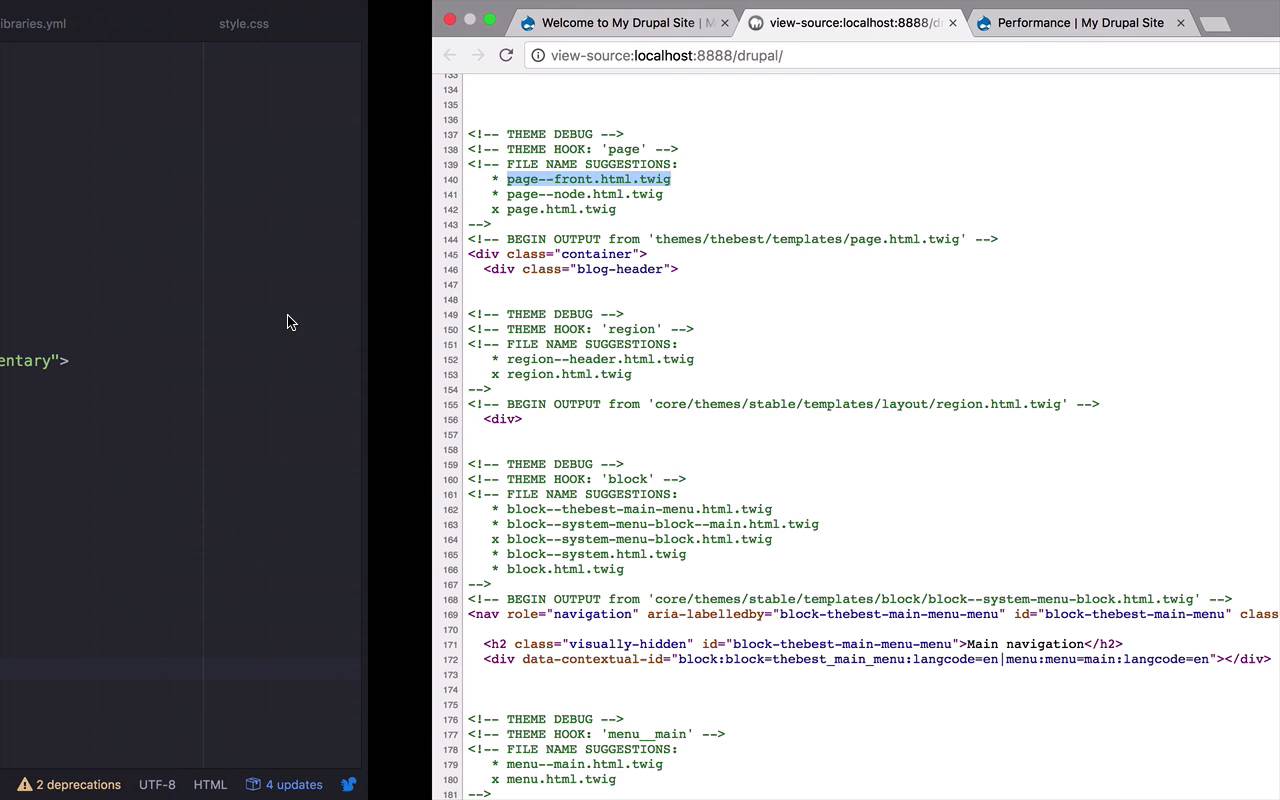
- Overview
- Transcript
2.8 Create a Main Page
Within a website, not all pages are created equal. While many pages in your site will share a similar structure, you will sometimes want a custom structure for certain pages. For example, you will often want your main page to look different from your content pages. In this lesson, you'll learn how to use templates to customize your site's main page.
1.Introduction
1.1Introduction01:07
1.2Prerequisites07:24
2.Building a Custom Theme
2.1What Are Themes?07:29
2.2Create Your First Theme06:55
2.3Regions, Blocks, and Debugging10:59
2.4Introduction to TWIG14:00
2.5Add Custom CSS05:47
2.6Add External Libraries07:35
2.7Add Basic Styles08:16
2.8Create a Main Page05:57
2.9Style the Header14:13
2.10Style the Navigation06:46
2.11Using Partials05:02
2.12More Partials and Content07:23
2.13Adding Styles to Views07:25
3.Conclusion
3.1Goodbye01:12
2.8 Create a Main Page
As mentioned in the previous lesson, we have now come to a point where we need to start making some logical breakpoints within the structure of our website to differentiate the front page, the main page of our website and all of the sub-content of the site. So how do we do that? Well, as I mentioned before, here we are on the main page of our site. This is where we're gonna land. Every time somebody navigates to our site, whatever our site name is. In this case, it's running on localhost/drupal. But now what I wanna do is I want to change this a little bit so that the front page maybe says, Welcome to my Drupal Site or something like that. Or it has some sort of welcome message. But then when they navigate to sub parts of the site, say for instance, node one. Like this. Then I wanna see the content there. So I want these pages to differentiate so that I can have a different look and feel for the main landing page as opposed to the content, the sub content of my site. So how do I do that? Well the first thing that I wanna do is I want to go back to my main page. And let's take a look at the source here. Let's view page source, let's come down to where we start to see our page.html.twig file. And this is where the process really starts to take hold if you start to go back and forth from the code to the site to the source many times. This is how you figure out where certain things live within your theme, where things are being pulled from your base theme and then how you can tweak them. So what we see here is our main page here, our page.html.twig and here is all of our content. But if you look up above here, it's gonna say filename suggestions. Now what this does for you is it gives you a list of other filenames that you can use that are for different purposes. So right now I'm using the generic page.html.twig which pretty much means this is going to be used for pretty much every single page that lives out there. But I could also use page node.html.twig. A node is another way to say, basically anything on your site, any sort of content you create, any article, any basic page, any custom content that you create, all of those things are nodes. So I could have this be a specific page for just nodes. I could also create one that would be a specific page for the Front. Front meaning your main landing page and that's what I'm looking for right now. So what I want to do is I want to have a page that's going to be my main landing page and that's going to be my page--front.html.twig. So let's go ahead and create that now. So just for the beginning let's go ahead and copy all of this. Then let's come into our templates. Let's go ahead and create a new file. And this is going to be, remember this is going to be called page--front.html.twig like that. So let's go ahead and paste this in here. And I'm going to let Adam know that this is HTML. Go ahead and save that. So now here is the beginning of my site. Now what I can do here is I can differentiate this immediately. Right now this says page.content and that's fine. But what if I just wanted to put in maybe an h1 or something and said, welcome to my site or something like that. And I can save that. So now, if I come back over to my site and I refresh my page, nothing seems to have changed. So let's go ahead and look at the source again. If I come down here, you're gonna see that it still is referencing page.html.twig because I have to clear my cache. And then I can come back to my site. I can refresh and now you see Welcome To My Site. So now I'm using, and if I were to refresh my source, just so you can see that it's changed. I'm now using page--front here, which is why this one has the x next to it. So that debugging thing really comes in handy. And if I were to navigate to a node, node/1, it's going to switch back and I can view my source at this point. And you are going to see now that this is using page.html.twig. So now you can start to see how we can use a combination of the debug functionality by looking at where different sections are coming from different blocks in different regions. I can see the actual file that it's using. I can double check what some possibilities are, and I can start to tweak the look and feel of my site. So now I have a separation between the subnodes of my site and the main welcome page. I'm still using the same styles. I'm still using the same CSS that I was using before, as you can see here. This is all gonna be consistent. But the content itself can be customized so I can use page.content. Or I could do different things on the different areas of my website, depending on what my design feels like. All right so now we've started to create this separation a little bit. The next thing that I wanna work on is I wanna start working on my header. So I want to give my header some style. I want to look at how we can tweak the different content that's in my header. I want to give it a background image and I wanna talk a little bit about this home icon right here. So, we're gonna touch all of those things in some header customization in the next lesson.


