
 Lessons: 16Length: 2 hours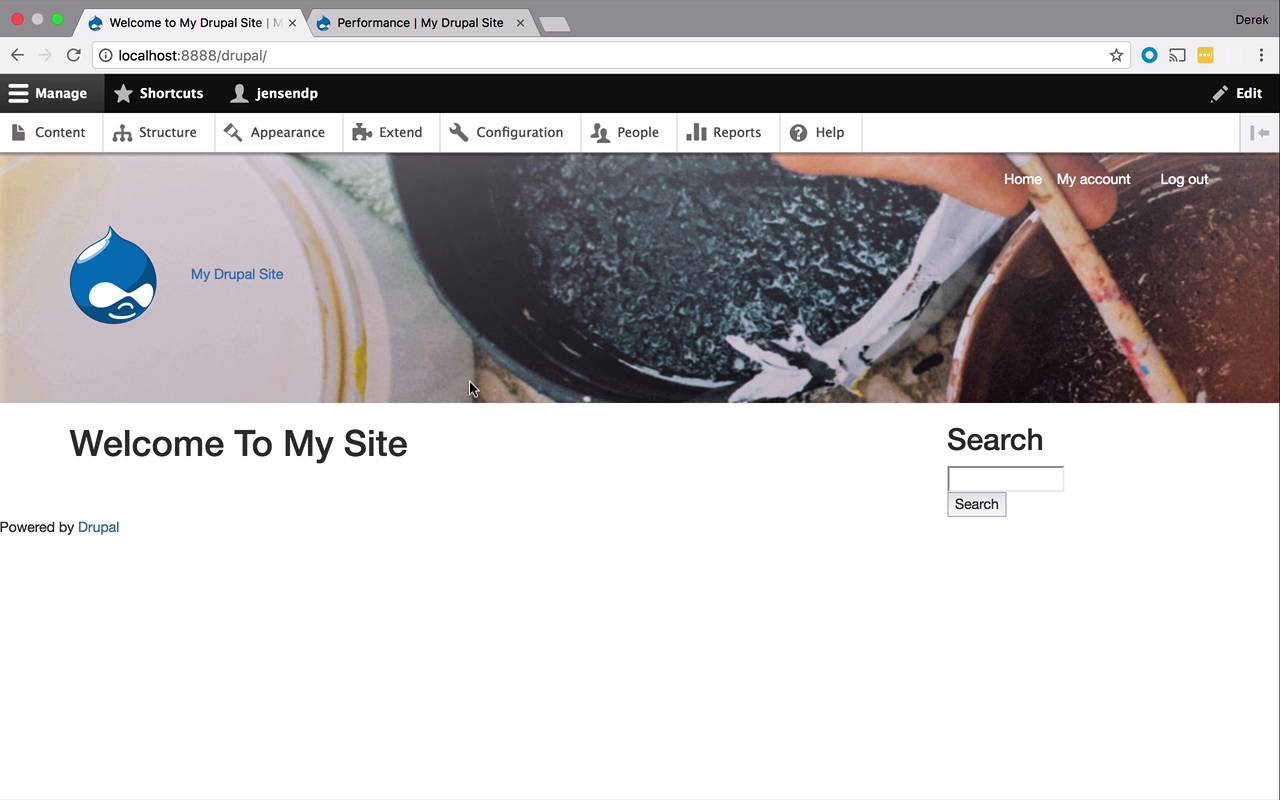
- Overview
- Transcript
2.12 More Partials and Content
Now that we know how to use partials, it's time to do some more cleanup to share duplicated content between several pages. In this lesson, we'll clean up our footer and sidebar using partials, and we'll add some more structure and styles.
1.Introduction
1.1Introduction01:07
1.2Prerequisites07:24
2.Building a Custom Theme
2.1What Are Themes?07:29
2.2Create Your First Theme06:55
2.3Regions, Blocks, and Debugging10:59
2.4Introduction to TWIG14:00
2.5Add Custom CSS05:47
2.6Add External Libraries07:35
2.7Add Basic Styles08:16
2.8Create a Main Page05:57
2.9Style the Header14:13
2.10Style the Navigation06:46
2.11Using Partials05:02
2.12More Partials and Content07:23
2.13Adding Styles to Views07:25
3.Conclusion
3.1Goodbye01:12
2.12 More Partials and Content
Now that we know the trick for our partials, let's start to use it in a couple other places. So in this lesson, what I'd like to do is I would like to reuse that concept of partials. And I want to use it for my side bar here as well as my footer. And I want to change what my footer is here. Right now, I have some footer navigation in there. I want to remove that and actually I'm just gonna stick powered by Drupal in it. So that it's down at the bottom of the page, and over to the left below all of my content. So, that's kind of what we would like to achieve in this lesson here. So let's come into our structure here. Let's adjust that first. So block layout, let's come into our side bar. We are going to drop Powered by Drupal down to our footer. And our footer menu, we are not going to use that for now. So let's just go ahead and disable that. So once we have those in there, and actually, I need to do that again. So one thing you have to be careful of, when it comes to Drupal. If you modify the order of something here, and then click on a button, you're gonna lose some of that restructuring there. So it's better for you to restructure move things around and then hit save. And then enable and disable things. And so we're trying to do them all in one step cuz it won't work very well. So if I come back in here now. I see powered by Drupal, that's pretty good. We can leave it here or we could do the container trick which I think would probably look a little bit better, so we'll probably do that. And then maybe drop it down a little bit further so it's a little bit better spaced. And then we'll go ahead and use partials for those. So let's start by creating a couple of partials. Let's create a new file here, we'll call this, footer.html.twig, and we will also call this sidebar.html.twig, like that. So let's come into our page, our front page, or either one would work. So the first thing that we wanna do here is let's go ahead and grab this sidebar. Let's grab all this sidebar code and we will stick it in sidebar here. Just like that, okay? So HTML, so we're good there. Then we can also come back to our front here. And let's go ahead and inject that in while we're here. So we'll do, include directory ~. And then we'll do partials/sidebar.html.twig, like that. Go ahead and save that. And then we can also take this, we'll copy it and we'll replace our regular page content with that. And then we'll come back to our front and then we can take this footer. Let's cut this out as well. And we can come down into our footer here. Let's paste that in. Let's save that. And then we can come and reference this once from our template. So I'm gonna copy this. I'll paste that in here, and now this one is going to be footer, save that. And we can also do that down here on this page. So we'll paste that and we'll save this. So we'll come back over to our site here. If we refresh, pretty much everything should be the same although it looks like I might have used the wrong thing. We've got to remember to change that to footer so save that there. And that should be good there. Okay, so let's come back in and refresh. All right. So we have powered by Drupal, we have the search here, and that's on our sub page. Let's go ahead and check on our main page. Looking pretty good. So let's just go ahead and tweak this a little bit. And here comes one of the main reasons why using these partials is so beneficial. So I can come into my footer here and I can just create one div right here called container. And then we'll take this whole block, cut it, paste it in here, save. And now if I come back in and refresh on this page. We see Powered by Drupal. And if I go to my sub page right here, you're gonna see the same way here. One other thing I want to tweak though, I want to give this a little bit padding on the top to drop it down. So there's a little bit separation. You can obviously put in some color in there if you want, that would be fine too. But I'm just gonna keep things simple right now, where gonna say blog footer will come into style. We'll drop down here, we'll say blog footer. And let's just give this padding top, let's give this 20 pixels maybe. Just a little something. And then let's go in here and we'll clear our caches just to be on the safe side. And if I were to come in here and refresh we're gonna see it's dropped down a little bit. So we've got a little bit of space in there. So I think we're starting to look pretty good here. We've got pretty good overall structure, everything is kinda laid out the way that we want it. One thing that I want to show you, one of the benefits of creating our menu the way that we have. So you can see in here we can go to these different pages here. I can go to my home page. But I can't really see other pages right now. So one nice thing to remember when you do create those styles for the different pages or articles or what have you. If you wanna add the links to certain node into your main menu, it's actually quite simple. So if I were to go into content right now, you're gonna see I already have one here. So I'm gonna show you two ways to handle this. So if I wanted to create new content and I wanted to create a basic page. Let's just say, maybe say, Contact Us or something like that. Then you can use this to enter in your contact information here. Whatever you want it to be. And this is going to be a new page. So I can come into my menu settings and simply say I want to provide a menu link. I wanted to say contact us and I want it to be in my main navigation. So if I were to save and publish this now, you're going to see that I get contact us right up here, just like I had my home in here. So I can continue to do this and I can add as many pages as I want. I can also come into content and I created this one earlier. So I can come in to edit on this and I can may be make this be something else like About Us or something like that. This page is for information about us, something like that. And then I can come into my menu settings, once again provide a link. I want this to be About Us, Main navigation, and let's save and keep published. And now we're gonna see that back up on our site, which is great. But now we've got kinda this strange structure where it is About Us, Contact Us and Home. Maybe that is not exactly what we would hope to see here. So, I could come into structure. I could go down to menus, and I could come into my main navigation. And I can edit my menu. And in here I am going to see all of my menu links. So I can say, I want my home to be first. Then I want About Us and then Contact Us and then I can hit save now. And if I were to go back to my site, now we're going to see that structure. So I can go to my Home page. I can check out About Us. I can check out Contact Us. And I can even go and check out all the My Account information. And I could even log out if I wanted to as well. So now we're starting to really get to a point where our site is starting to take shape. And we're getting pretty close to wrapping up with our theming.


