

- Overview
- Transcript
1.2 What You Need
To follow along with this course, all you really need is to have Python installed. You will use Python to install Django. A quality code editor is definitely nice to have, though. For that, I recommend Visual Studio Code.
Related Links
1.Introduction
1.1Introduction00:53
1.2What You Need05:26
2.Django App Basics
2.1Install Django and Create a Project05:49
2.2Create an App and Run the Web Server05:15
2.3Responding to Requests06:29
2.4Creating Models07:21
3.Using a Database With Django
3.1Adding Models to the Database05:28
3.2Working With the Database06:29
3.3The Admin Portal04:59
4.Building Out the Lawn Care App
4.1Defining the App Routes07:08
4.2Rendering HTML07:27
4.3Rendering Data in an HTML Template05:08
4.4Displaying Available Fertilizers06:15
4.5Saving Time With the Render Function02:25
4.6Handling “Not Found” Exceptions06:26
4.7Using Forms and Saving to the Database09:05
4.8Adding Some Business Logic08:54
4.9Adding Some Style06:31
5.Conclusion
5.1Conclusion01:06
1.2 What You Need
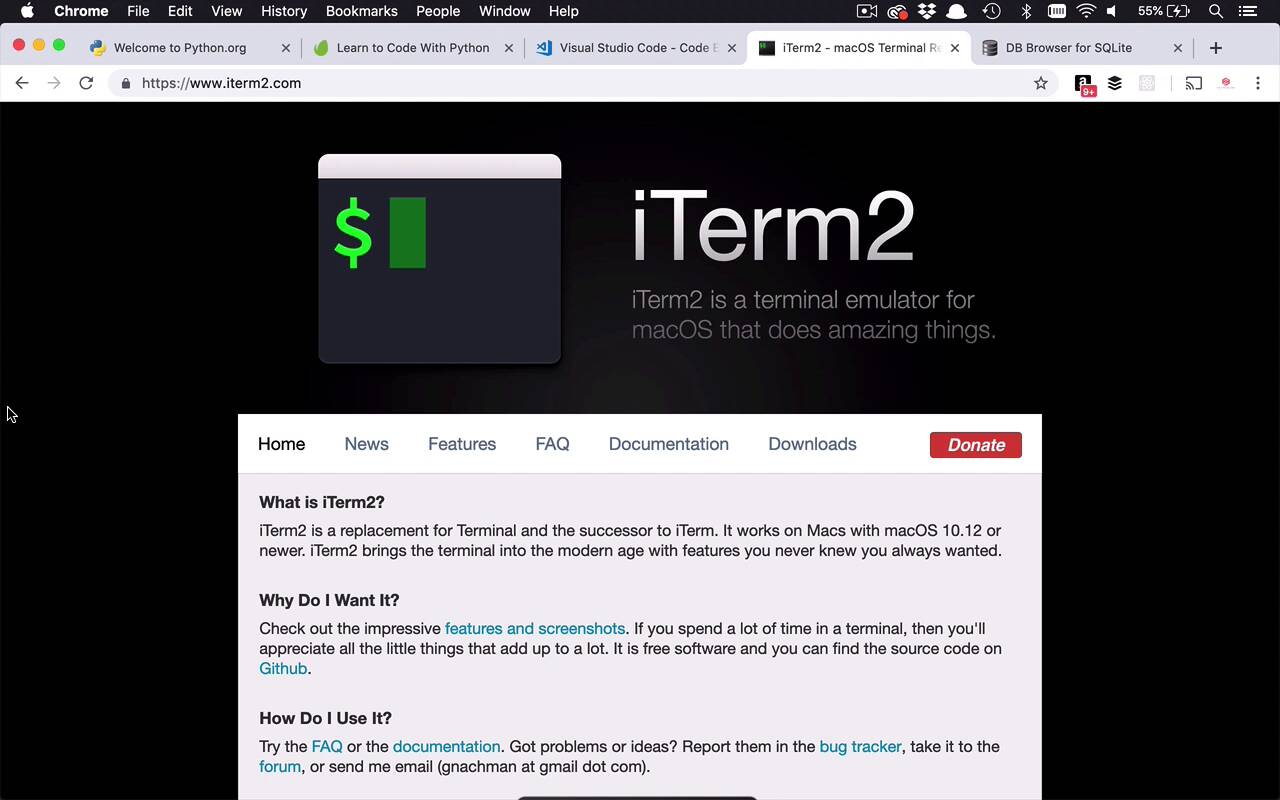
Before we get started creating our Django web application, we need to talk about a couple of prerequisites and some software that you're going to need or at least some optional software that you can use to follow along with this course. Now, first of all, because we are going to be writing a web application in Django, we need to have Python installed because that is the language of Django. So if you already have it, then you can go ahead and skip ahead otherwise, you can go to Python.org and you can go to downloads, and you can go ahead and download the latest and greatest version for your particular platform. In my case I'm running on a Mac, and I have the one of the later versions of Python installed, namely 3.7. And I would highly recommend you using the latest version of Python if you can install it and you can use it simply because that's going to enable you to use the latest and greatest versions of Django. So, if you want to be using the latest version of Django which at the time of this recording is 2.1.7, then you're going to need to have a 3.7 version of Python installed. So go ahead and follow those download and installation instructions here on Python.org. If you also need a little bit of a primer on Python because you haven't really done a lot of work with it before, that's fine. I'm not gonna be covering a lot of all these specifics in this particular course, but you can head over to tuts+ and take a look at my Learn to Code With Python course, which is gonna have tons and tons of introductory level content on Python. The basic building blocks, controlling the flow with if statements and loops, and all sorts of good stuff like that. So, I would at least follow the first couple of chapters here just to kinda get an understanding of what Python is and how to use it and some of the basic building blocks. And that should be enough to get you into building web applications with Django using Python. Also, you're going to need a basic code editor. You could use any sort of text editor you want, but a code editor would be better. So, I would head over to Visualstudio.com or code.visualstudio.com. And you can go ahead and download Visual Studio code. It's a cross platform code editor. I'm going to be using it in this course. It's one of my favorite code editors out there these days, it's 100% free. So if you want to follow along exactly with me, go ahead and download that and install it on your machine as well. After that, you're gonna be pretty much ready to go. There are a couple other things that you're going to see me use that you can install if you would like, but they're not necessarily required. I'm gonna be using a terminal application called iTerm, it's a terminal replacement on Mac. So if you want to use the same one as I'm using, you can absolutely download this, or you can use whatever's built in. Any built in terminal or bash shell or whatever have you, should be absolutely fine for this course as well. So if you wanna stick with whatever you have, that's fine too. And then, finally, we're gonna be doing a little bit of database work, not a lot. We're gonna touch on it a little bit here and there, and we're gonna be using SQLite as our data store. Now, we're not really gonna be digging into it manually very much, but if you're curious and wanna know how to look at a SQLite database, which is basically just a file based database. You can use this DB browser for SQLite, it's a very nice application. It will help you look into the file and actually be able to see the data within the database if you wanna mess around with it or play around with it. I will show you a little bit on how to get access to the data that is in your SQLite database via the terminal application, but if you want something that's a little bit more easy to use, then you can absolutely download this and use it as well. Once you have all of that downloaded and ready to go, you can go ahead and open up your terminal application of choice. Like I said, I have I term right here, and you can go ahead and verify that you have Python installed little python --version. And as you can see here, mine by default says 2.7.9. Now if you are using a Mac, then by default, you might have already had this installed on your machine, or possibly on Windows as well. And then if you go through and follow the instructions to install the latest version of Python, namely 3.7.3 at the time of this recording, you'll notice that it will be able to install Python 3 alongside Python 2. So that you can actually use both for different reasons if you would like, in a lot of cases with the latest installers that are associated with Python, it will install them and also create an alias or a shortcut for you. But in most cases, it's going to be Python 3. And so as you can see here, if I do Python 3, it's gonna take me into a shell where I can start to do some Python commands. But I don't necessary wanna do that right now, so I can say python3 --version and you are gonna see right now I have 3.7.1. So I don't have the latest and greatest but I do have a 3.7 version which will be ready to go and then also, it's part of that once you install this. In a lot of cases, with the later versions, you should also have an installation tool called pip installed. So if I do pip3, very similarly to what I just did before, you can see I have pip3 installed. So pip is a Package Installation Manager that you can use for Python and we'll take advantage of this to install Django in the upcoming lessons. So once you have all of this kind of setup and ready to go, then you're gonna be ready to start building your Django web application.


