

- Overview
- Transcript
3.1 Adding Models to the Database
After creating model classes, you will need a way to map those models into a database. Luckily for us, there is a very simple way to do that using the Django management utility. So let's get those models migrated into our SQLite database!
1.Introduction
1.1Introduction00:53
1.2What You Need05:26
2.Django App Basics
2.1Install Django and Create a Project05:49
2.2Create an App and Run the Web Server05:15
2.3Responding to Requests06:29
2.4Creating Models07:21
3.Using a Database With Django
3.1Adding Models to the Database05:28
3.2Working With the Database06:29
3.3The Admin Portal04:59
4.Building Out the Lawn Care App
4.1Defining the App Routes07:08
4.2Rendering HTML07:27
4.3Rendering Data in an HTML Template05:08
4.4Displaying Available Fertilizers06:15
4.5Saving Time With the Render Function02:25
4.6Handling “Not Found” Exceptions06:26
4.7Using Forms and Saving to the Database09:05
4.8Adding Some Business Logic08:54
4.9Adding Some Style06:31
5.Conclusion
5.1Conclusion01:06
3.1 Adding Models to the Database
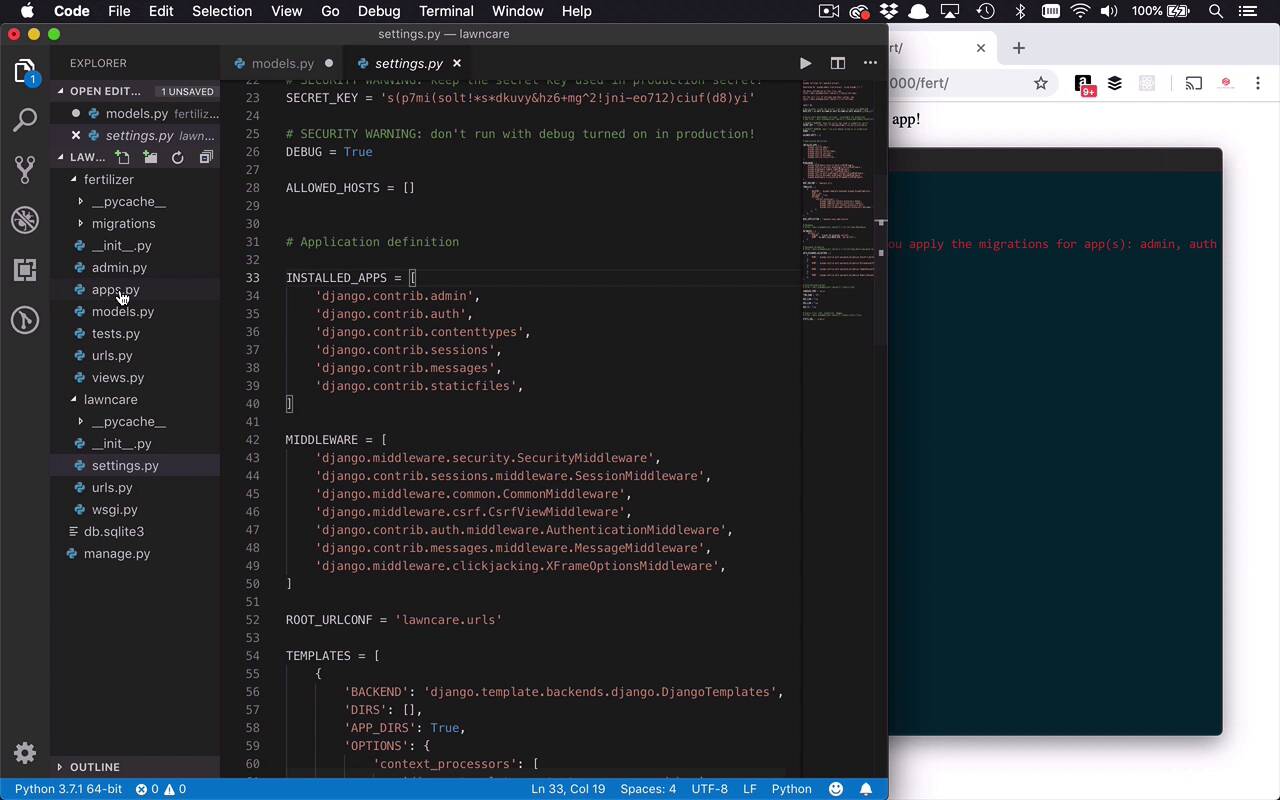
Now that we've created our models, and we've gotten to a point where we can start to create this structure in our database, let's talk about that a little bit. Now, the focus of this course is not gonna be about databases or SQLite or anything like that. I'm just gonna show you the basics of how you're gonna interact with it from a Django application using Python. So now you might remember when we first got started with this, that we have these red lines here when we're running our application. But you have 15 unapplied migrations. Well, what is a migration? Well, a migration is simply some database scripts that have been prepared for you, that can be applied to change the structure of a database. And by default, Django comes with some prebuilt migrations to handle things like users, administration. And some basic things like that, and that's where these 15 unapplied migrations come from. So how do we do something with those migrations? Well, let's go ahead and stop our server, and what we wanna do is we want to apply those migrations to the database, and we simply do the Python command. And once again, we want to use our manage.py file. Because this is our entry point into being able to administer a lot of things within our application, and then we simply wanna say migrate. And when we do that, you're gonna see now that there will be 15 migrations applied and you'll see applying and then the name of the migration. You can see there's some admin stuff in here, log entries, alter permissions, a lot of database type scripts that have been done for us. Once again, this is mostly to do with the administration of your site, the admin section of your site, which is good. But what if we wanna be able to do some of our own modifications to our database based on the models that we've created? Well, we can absolutely do that, but before we can do that, we have to let our application know. Or more specifically, we need to let our project know that there are some other applications within our database that it needs to pay attention to when dealing with migrations and the actual modifying of the database. And so the way that we do that is we come into our lawncare folder, and within here, you're gonna see settings.py. There's a lot of things going on in here. There's gonna be configurations of base directories, secret keys, it's gonna define what type of database you're using and all sorts of good stuff like that. But what's most important at this point is we wanna be able to define installed apps. So right now, our Django application only knows about these kinda pre built apps that we're gonna be using by default, like our admin and authentication and things like that. But we wanna be able to bring in our own application. And the way that we do that is by referencing this config class right here. So if you go into your fertilizer folder into your apps file, you'll see a fertilizer configure. So let's go ahead and copy that. So we're gonna come back into our settings. And at the very top of the installed apps list here, we're simply gonna say I want to also reference fertilizer.apps.FertilizerConfig. So this is gonna let the Django application know that there is another installed app that it needs to pay attention to from a configuration standpoint. So now it's gonna know about our fertilizer application. So when we start to do things with our own migrations and our own models, it's also gonna look into our app, so make sure that is saved. Make sure our models.py file is saved with any other sort of changes that you've made. And now what I wanna do is I want to tell Django to go and look for any additional migrations, or make migrations based on some models that I've created. So we're gonna say Python, in my case python3, I'm gonna say manage.py. I want to make migrations, and I need to let it know the application to look into, and that's gonna be in my fertilizer application. So if I hit Enter at this point, you're gonna see now that it's looked into my fertilizer app and it's done three things. It's found that it needs to create a model application, it needs to create a model fertilizer, and it needs to add the field fertilizer to application. So that's that linkage between those two that I was talking about before. And once I've done that, you're also gonna be able to look into the migrations folder and see that we have in a migrations file here that's gonna replicate all the things that it just said. It's gonna create an application table with these columns. It's gonna create a fertilizer table with these columns and it's also gonna create a link between the two. So now I've got those, now I wanna be able to once again apply those migrations just like I did with all of the pre built admin ones. And once again, all we need to do is say python manage.py, and I want to migrate. And when I do that, it's going to apply all of those migrations, Including my fertilizer.0001_initial, which is right here. So now we've made a bunch of changes to the database and that's really great, but how do we really get into that? Well, obviously like I mentioned before, there's a couple of ways you can do that, you can go ahead and use a tool like a SQLite DB browser. But in this particular case, I wanna show you how to access those tables via command line. Because those commands that we're gonna use are very similar to what we're gonna use within our application when we're trying to access the data from the database.


