

- Overview
- Transcript
3.3 The Admin Portal
Another way to access data in the SQLite database attached to a Django app is through the Admin portal. The Admin portal is a wonder of functionality that comes free in Django apps. In this lesson, you'll learn how to get access to the Admin portal as well as how to manage your database views there.
1.Introduction
1.1Introduction00:53
1.2What You Need05:26
2.Django App Basics
2.1Install Django and Create a Project05:49
2.2Create an App and Run the Web Server05:15
2.3Responding to Requests06:29
2.4Creating Models07:21
3.Using a Database With Django
3.1Adding Models to the Database05:28
3.2Working With the Database06:29
3.3The Admin Portal04:59
4.Building Out the Lawn Care App
4.1Defining the App Routes07:08
4.2Rendering HTML07:27
4.3Rendering Data in an HTML Template05:08
4.4Displaying Available Fertilizers06:15
4.5Saving Time With the Render Function02:25
4.6Handling “Not Found” Exceptions06:26
4.7Using Forms and Saving to the Database09:05
4.8Adding Some Business Logic08:54
4.9Adding Some Style06:31
5.Conclusion
5.1Conclusion01:06
3.3 The Admin Portal
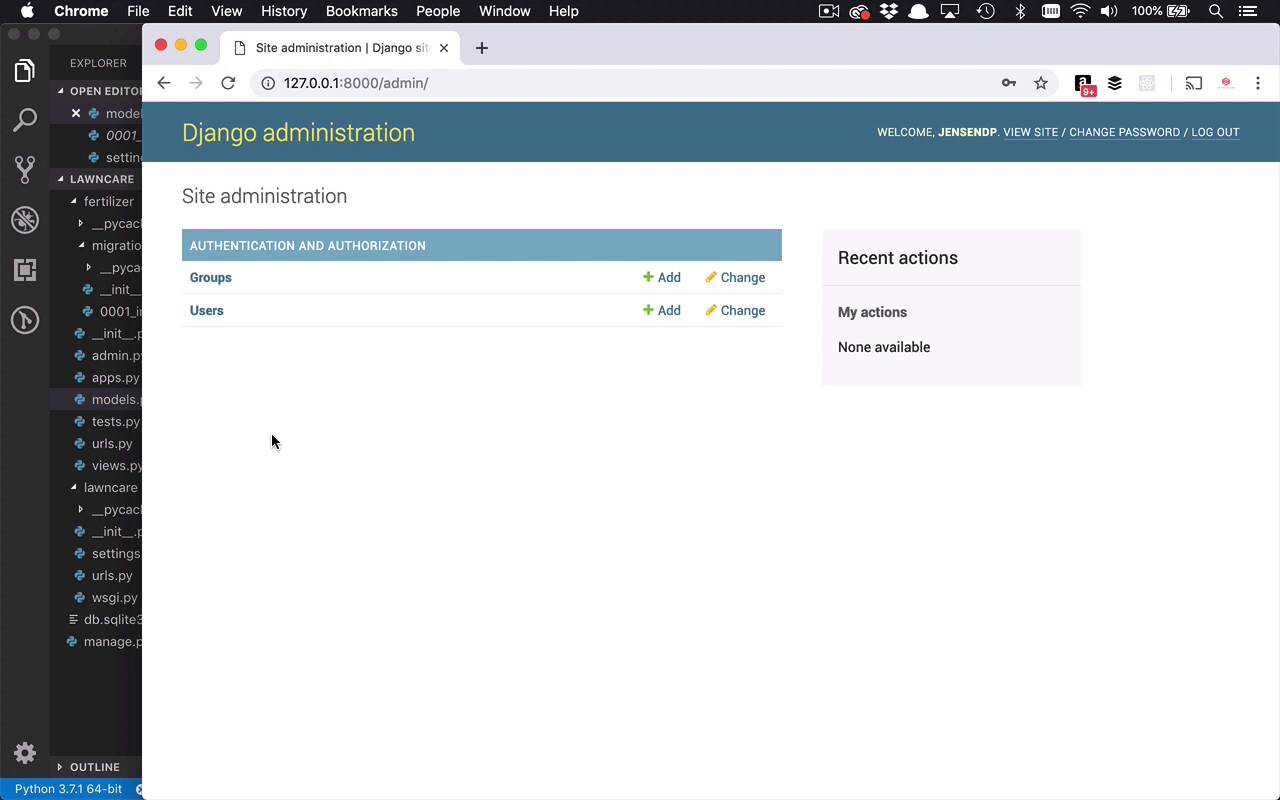
Before we start writing any more of our application, I wanna show you one other way that you can interact with your data within your application. Now, in our case for this particular application, I'm gonna be an administrator that's going to create different instances of fertilizers that I can add into my lawn, or that I can apply to my lawn. I wanna be in charge, I don't wanna anybody to be able to just add in whatever fertilizers they want, I wanna be able to control that. So one of the ways you can do that is through the administrator section of your website. And in this lesson, I'm gonna show you how to create an admin within your application. And then be able to manage different pieces of data within your database, and it's actually quite simple. So the first thing that I wanna do is, I wanna issue a Python command. And I want to use, once again, create my manage.py file, and I wanna create a superuser. This is a special command through Django that's going to ask me a couple of questions to say, okay, well, what do you wanna do? What's your username gonna be, email address, and all those types of things. So I'm gonna make this jensendp, and then an email address, I can say jensendp@gmail.com and hit Enter. And a password, I'll go ahead and put in a password, and I will confirm that password. Password is too common, so this is nice because it's going to allow you to say whether things are too easy or too hard. So you can kind of control the complexity of those passwords. But for this case, I'm not really too worried about it, so I'm just gonna say bypass that. All right, so superuser was created, so how do we see that, how do we interact with this admin section? Well, let's go ahead and get our site up and running again. So we wanna use manage.py, and we wanna do runserver. And now that we're up and running, as you can see now, that red text that was in there that said we had unrun migrations is now gone, because we've run them all in the database. So we're back into our application here, let's go ahead and check out the admin section. And now I have a login that I can use, I can say jensendp, I can type in my password. And now we are in the admin section, and as you can see here, I can change some things that are already in here. Let's go ahead and make this a little bit bigger so it's easier to see. So now you can see, I can do some site administration. And some things that were created in the database for me with those previous migrations has to do with groups and users. So I can create new users, I can create new groups, I can give them permissions, all sorts of cool things like that. And this is kind of a nice little portal to be able to get you to do those things. Now, I can also take some models that I have already created in the database, and I can register them in here to be able to work with them through this admin portal. Simply by defining something within my application to say, I want you to be able to administer and register a particular model or table within my database. And all we have to do is go into our fertilizer application, we'll go into admin, and then I can register my models here. So the first thing that I'm gonna do is, I'm going to bring in, I'm gonna say from .models, I want to import fertilizer. And I wanna register that model, so the way that we do that is by using this admin function right here. So I'm gonna say admin, the admin class, admin.site.register. And I wanna register my fertilizer class, so we'll go ahead and save that. Now by making that one little change, I can come back over here to my site. And if I refresh, you're now gonna see, within my fertilizer app, I can now control fertilizers. So I can come into here, and you're gonna see that I already have one in here because I've injected or created a new instance of that in my database. And I can come in here and I can do more of these, and then I can add a fertilizer. And all this functionality comes by default, simply by the fact that you've created these models, defined their types, put them in the database, and then registered them for administrator use. So you get all of this functionality for free, which is pretty cool. So another nice fertilizer that I like is called Ringer. Bag weight is usually 36 pounds, bag coverage, covers a little bit more, I think it's approximately 5,000 square feet, and then percent N, P, and K. So this one is a 10, 0, 6. So I can go ahead and save, and now I have two in here. So you can see I have Ringer, I have Milorganite. Then now I can start to administer these models within my database through the admin portal, which is pretty cool. So now I can start to do things with that data, directly into the database from the UI, without really having to write any code. So now that we've done that, now it's time for us to actually start to handle some requests and do some functionality for the end user to be able to apply these things. So in the next few lessons, we're gonna start to create new views and start to display some things to the end user, so they can start to interact with our website.


