
 Lessons: 12Length: 1.9 hours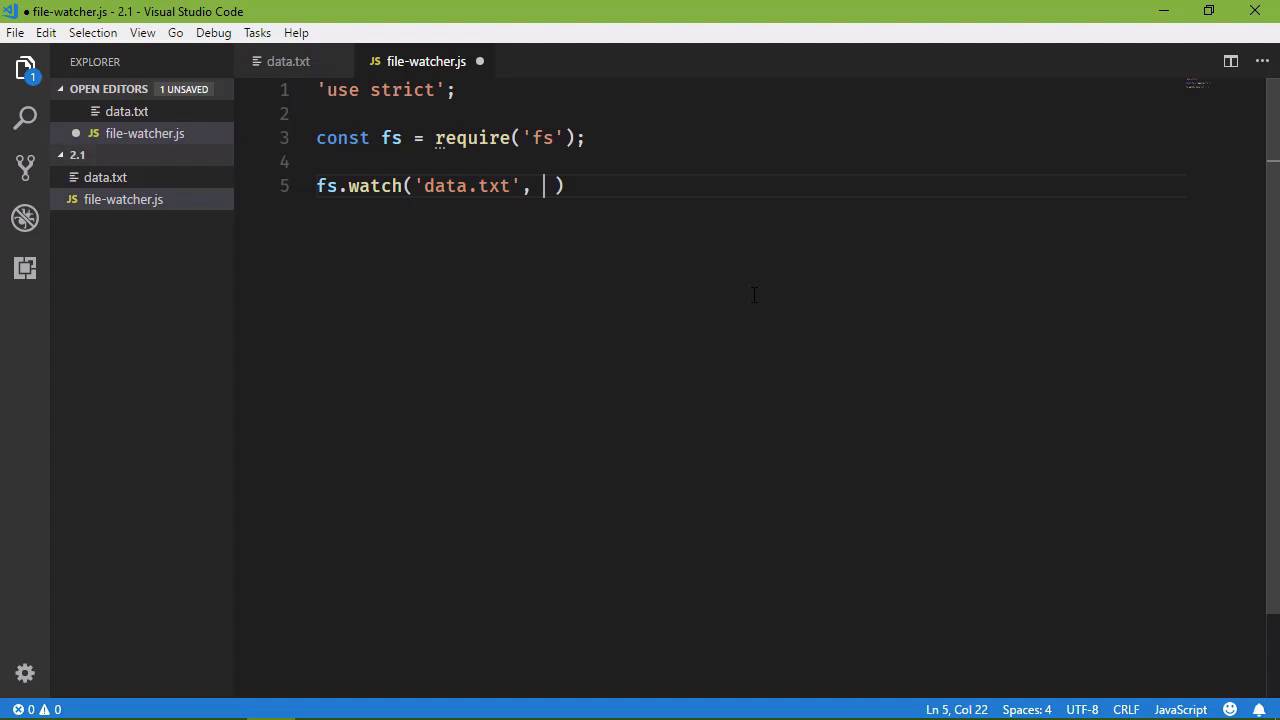
- Overview
- Transcript
2.1 The Event Loop and Async Programming
Node.js is an asynchronous environment, and it achieves asynchrony with its event loop. In this lesson, we'll write an application that demonstrates how to write asynchronous code for the event loop.
1.Introduction
1.1Introduction01:50
1.2Getting Set Up07:33
2.Node.js Concepts
2.1The Event Loop and Async Programming10:29
2.2The Asynchronous Pattern12:06
2.3Using Readable Streams11:18
2.4Writing Is Just as Important09:57
2.5Writing Modules (and Other Stuff)14:57
2.6Writing an HTTP Server16:21
3.Tools for Node.js Developers
3.1The `util` Module11:18
3.2NPM11:23
3.3Creating a package.json File06:54
4.Conclusion
4.1Conclusion01:13
2.1 The Event Loop and Async Programming
In the previous lesson we wrote a very simple application, and calling it an application is kind of a stretch, but technically it is an application. And let's just go ahead and run it. So node space first.js and we that it executes, we see the output, but then notice what happens. Node exists because there's nothing else to do. So in this particular application it executes, does its work and we're done. And if we wanted to for whatever reason run it again, of course,we can do that. In this lesson, we are going to write another application, but one that's going to behave a little differently. Because you've heard that Node is an asynchronous environment and that is absolutely true, but how it achieves that asynchrony can be a little surprising. Because Node uses what's called an event loop. And you might be familiar with event loops, there are many other platforms that use an event loop or something like an event loop and Node is one of those. So we are going to create a folder in this lesson so that we can start organizing our code, so that they fall in line with the lesson numbers. This lesson is 2.1, so our files are going to be in that. And yeah, we need to make cd 2.1, there we go. So now, we can fire up our code editor and what we're going to do is create a file watcher. It's going to watch a file and any time that there are any changes made to that file, it is going to write a message to the console. So let's, first of all, create that file, let's just call it data.txt. Then we will create our let's call it filewatcher.js. And we're going to use strict and in order to watch a file we need to work with the file system. That sounds obvious enough, so what we need to do then is pull in the module that is built into Node that has all of the functionality for working with the file system. So to do that, we are going to create a variable, we can call this variable whatever we want, but I am going to use fs, short for file system. And we're going to use a function called require and then we pass in what we want to require our application to use. So in this case, the name of this module is called fs. So we are requiring fs. Now, the require function is how we pull in a module or a package. There are many built in modules to Node, fs just happens to be the one for working with the file system. But there are many, well many's not the right word, there are millions of third party modules that you can install through npm, note package manager, and they all do different things. Any application that you write is going to probably use a variety of packages, even web applications. If you want to use the MVC pattern, you could write your own framework or you could use a framework like Express that has all of the plumbing built in so that it makes it easier to write an MVC style application with JavaScript and Node. So packages are just part of working with Node and I'm going to use the term package and module interchangeably because they essentially are. So in this case, we are using require, now let me also point out that we are using Node 8. And starting with Node 8 we could if we wanted to use the new import syntax because, Node 8 does support native JavaScript modules. However, in order to have that functionality we do have to use a command line argument in order to make all of that work. And me personally, if we have to opt in to something like that, then it kinda feels like that it's not really ready for prime time. So, we're not going to worry about that require has been what has been used for many, many, many years so we're just going to continue to use require for now. So we have the module for working with our file system and also the require function is going to return most times, just an ordinary JavaScript object. In this particular case, that's what we get, we get an object that has a variety of methods. But the one that we want is simply called watch. Now, require can also return just a single JavaScript function, it depends upon the package that you are requiring. In our case it is an object, it has a method called watch and then we specify the name that we want to watch. So we will pass in data.txt. Now we can think of this as an event so that whenever something changes within data.txt, then we want to execute some code. So just like normal JavaScript events, we are going to supply a function that will then execute whenever the file is updated. So let's do that, and all we really need to do Is just write a message to the console. We could do some other things, but in this particular case that's all I really want to spend time doing. So any time that our data.txt file is changed we're going to see the method file updated in the console. But let's also have a message that is going to say that the application has started and it is listening for changes. So with that, let's put this on the sides, let's put that on the other side and let's run this application. So in this case, we'll say node and then file-watcher and then we will see that the application started and listening for changes. Now, first of all, notice what is happening here. It hasn't stopped, it's just sitting there and it looks like it's not doing anything. And in this particular case it's not doing anything, but it is listening for any change that's made to data.txt. So if there was anything else going on, like if we needed to interact with the database at this particular point in time, or make an HTTP request, or whatever else, that could be going on in the background as well. But what we see here is Node is waiting for something to happen. So this is part of that event loop. So whenever Node reads, and loads, and executes our code to the last line is going to wait for something to do, just like it's doing now. And then whenever something happens, it's going to of course, execute the code that needs to execute. So let's make that happen. We will make a change to data.txt, let's save it, and we see that the file was updated. Now on Windows, chances are you're going to see multiple messages written to the console. You will probably see the same thing on Mac, I don't know about Linux if you are on Linux feel free to let us know what happens. Sometimes you'll see just one message. It's just how the operating system is letting Node know that something changed. So evidently it notified Node twice that the file was updated. So we can get rid of that, we can save it, and see there it was written there too once. Okay, so lets do this, I've talked about the event Loop and waiting for things to happen. So, let's see a better idea of that. So, we're going to leave this the same, but let's also have a counter, it's just going to be counting, 1, 2, 3, 4, 5, 6, 7 in the background. And it will be doing that while it's waiting for something else to happen, so let's have a message that says don't mind me while I count. And we could use a loop, but that'll be really fast and I don't want to do that. Instead, I want to just display a new message, maybe every second or so. So, we can do that with the set interval function. But let's, first of all have our counter variable and then we will have our setInterval. And we will pass in a function that is simply going to write to the console, val++ and we will have this execute every second. So we'll pass 1,000 there. So let's put this back in the split screen, and let's run the application. So, we are going to see in the background, it's going to start counting. And so, we could think of this as doing something else. It's interacting with the database, it's doing work that it needs to do. But the moment that we kick off whatever event is going to signify that the data.txt file changed, we're going to see the message written to the console. Now notice that the counter is still going on and on and on, but that is the behavior, and of course If we make another change, we're going to see the message, the counter keeps going. And so that is how Node achieves asynchrony, it uses an event loop. So Node will load and execute our code to the last line. If there's nothing else to do then it just exits, otherwise it sits and waits for something to happen. And for the majority of our applications, our code is essentially going to be nothing but event handlers. We will be listening for events, and then reacting to whatever those events are. So in this case, it was reacting to whenever a file was changed, for an HTTP application it will be reacting to HTTP requests. So a lot of what we are going to be working with are actually objects called EventEmitters. This is an actual class within the Node API and in the next lesson, we are going to use an EventEmitter. We are going to still work with the file system, but we'll also start working with streams as well.





