
 Lessons: 12Length: 1.9 hours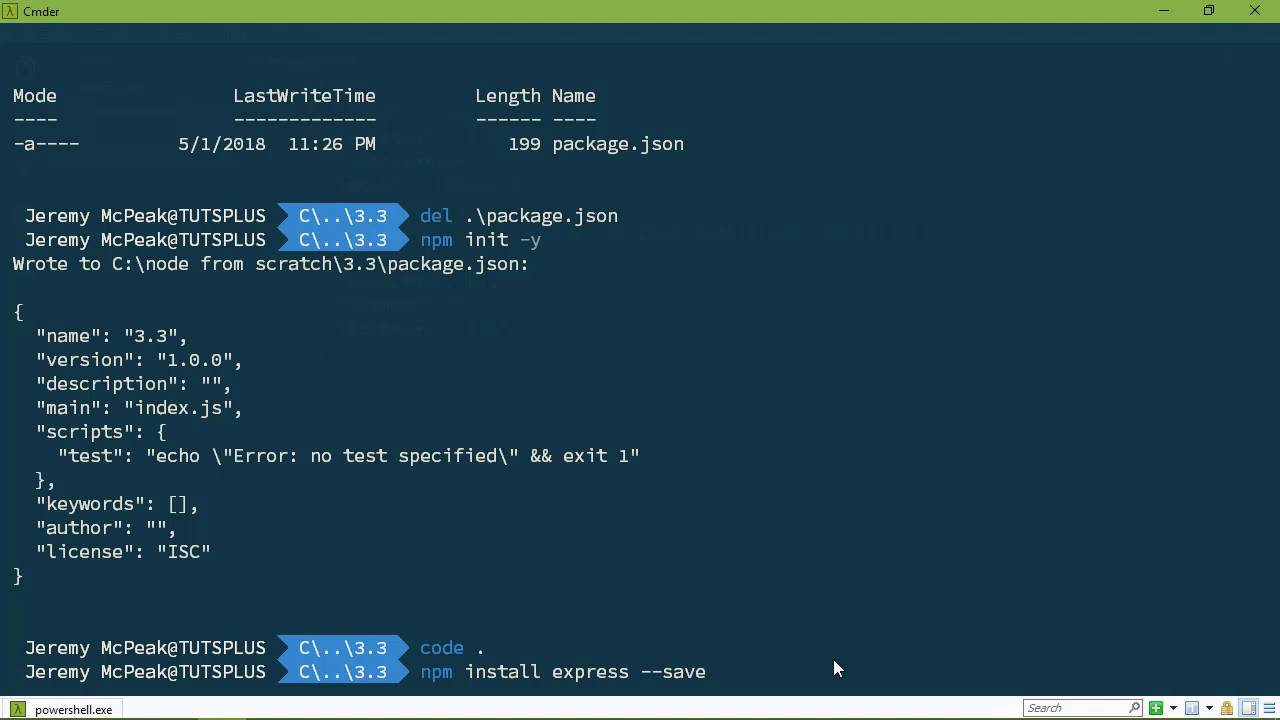
- Overview
- Transcript
3.3 Creating a package.json File
When we commit our project to GitHub, we don't want to upload all the packages and sub-packages the project depends on. Instead, we prefer to have a manifest file that contains all the information about these packages so other devs can download the correct versions with NPM. This is the package.json file, and I'll show you how to create it in this lesson.
1.Introduction
1.1Introduction01:50
1.2Getting Set Up07:33
2.Node.js Concepts
2.1The Event Loop and Async Programming10:29
2.2The Asynchronous Pattern12:06
2.3Using Readable Streams11:18
2.4Writing Is Just as Important09:57
2.5Writing Modules (and Other Stuff)14:57
2.6Writing an HTTP Server16:21
3.Tools for Node.js Developers
3.1The `util` Module11:18
3.2NPM11:23
3.3Creating a package.json File06:54
4.Conclusion
4.1Conclusion01:13
3.3 Creating a package.json File
In the previous lesson, we created a new project and installed a package called express. And it made our life so much easier, because we made a web application with just a few lines of code. The only thing, however, is that by installing that package, we now have this node_modules folder, and it has quite a bit of things there. Now, the actual size in this particular case, is just a couple of meg. But our application is brand new, we will be adding more dependencies. And of course, as you add more dependencies, the larger node_modules becomes. It gets to the point that you definitely don't want to be transmitting that over the network to share it with other people, to put it on network file, or to commit it to source control. So instead, what we want to do is essentially define our project, so that we can then specify the dependencies that we want to use, so that we can install them any time. So that when it comes time to share our project, we can actually delete this node_modules folder and move it to wherever we want and then reinstall them later. So here's how we do this. Let's start by going to another folder. Because typically when I start with a new project, this is how I start. Let's create 3.3 and we say, npm init and this is going to take us through a questionnaire. The first question is going to be what do we want to call this package? Now, by creating one of these files, I'm going to call it a project file. Because that's how I see this file. But really, it is the manifest for a node package. We're not going to actually submit it to the registry, but the potential is there. So the package name, in this case, is going to default to whatever directory we are in, which is 3.3, which, okay, that's fine. So we can just press Enter to take that, or we can type something in and then press Enter. And then we have the version, and then we have the description, and the entry point, and blah, blah, blah. That's a lot of typing, not typing, that's a lot of pressing the Enter key. Because most of time, that's what you're going to do. So what this did do is create this file called package.json. This is our project file, basically. So let's do this. Let's delete package.json. What? We just pressed Enter ten times. Here we go, npm init -y and it's going to default and there we go. So let's open up our code editor and let's take a look at this file. It is a JSON file and, well, we saw it right there in the command line. But here is our file, and it just has information about our particular project. Now, here's the thing though, let's say that okay, we want to use express. So we say, npm install express, and we can do that. But we can also say --save, to the point that this is actually going to save this as a dependency for our project. So I'm going to go ahead and press Enter there. And as we look at our package.json file, you can see that it just updated. And we now have this dependencies, and it is listing express for the version 4.16.3. So this is now saved as a dependency for our project and that means, did it stop? Yes, that means we can come in here. We can delete our node modules. Now, this is going to completely break our application if we try to run, then it's not going to work, because we just deleted express. However, we can come back to here and we can say, npm install. And then boom, it's going to look at our dependencies, and it's going to install all of them. So that there we go, we have our dependencies. Now, it's not going to do anything with any of our actual project files. So if we have our new file app.js, and I guess we could just copy what we have from the previous lesson. Once again, we have this app.js file. Let's delete node_modules, and let's run npm install. Once again, it's just going to install those dependencies. So when it comes to moving our project or copying it to some other place, even if it's on the same system, it's a lot easier to just copy everything but node modules and then run npm install. For example, let's just do that. Let's go to explore and this is our file. We're going to copy everything but 3.3, and let's create a new one called new project. Completely different name, it doesn't matter. Let's cd into that and then npm install, it installs everything. So if you're going to commit your project to source control, then instead of deleting the node_modules, what you would want to do is then set up an ignore for that folder. So that it will not get submitted to your source control but everything else would. So let's add another dependency now. We're in a completely different project here, but let's say then, okay, we want to use a view with our projects. So we could install view, and we would want to save that, of course. So let's do that. Now our code editor is in 3.3, so we are not going to see the change here. Because now we are in a different folder. So let's close what we have, and then we will fire up our code editor for new project. And if we look at the package.jason file, we are going to see that view was added to our dependencies. So when it comes to creating a new project, I think it's a good idea to start with npm init just say, NPM init/y, so that it'll create a default package.json for you. So that then you can start saving your dependencies, and you can install them whenever you want. It just makes managing your project much easier.





