
 Lessons: 12Length: 1.9 hours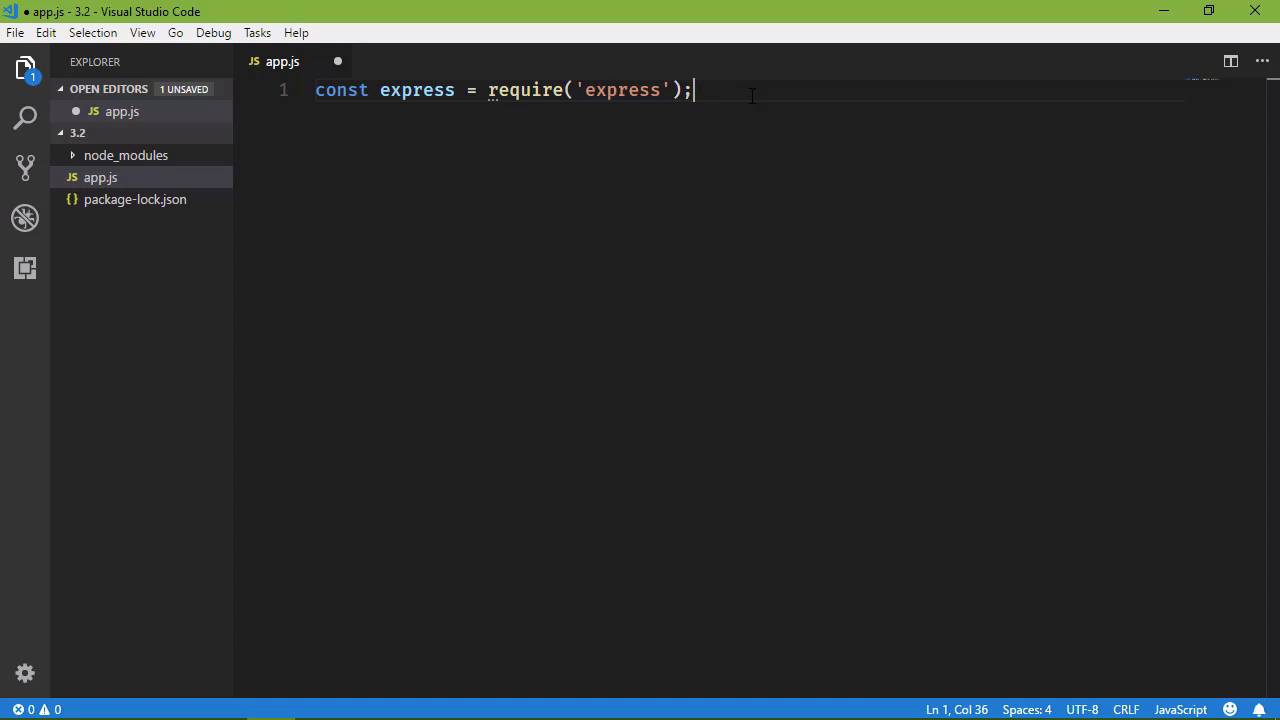
- Overview
- Transcript
3.2 NPM
Node.js changed the way we approach JavaScript, both for the server and for the browser. One of those changes is the use of NPM for package management. In this lesson, I'll show you how to install third-party packages with NPM.
1.Introduction
1.1Introduction01:50
1.2Getting Set Up07:33
2.Node.js Concepts
2.1The Event Loop and Async Programming10:29
2.2The Asynchronous Pattern12:06
2.3Using Readable Streams11:18
2.4Writing Is Just as Important09:57
2.5Writing Modules (and Other Stuff)14:57
2.6Writing an HTTP Server16:21
3.Tools for Node.js Developers
3.1The `util` Module11:18
3.2NPM11:23
3.3Creating a package.json File06:54
4.Conclusion
4.1Conclusion01:13
3.2 NPM
In the previous lesson when I said your code editor is your most important tool, that is absolutely true until you start talking about npm. Because npm is, I have a hard time defining npm because it has hundreds of thousands of packages. These packages can be used within your projects. They can be used to make your projects easier to work with. They can be used in completely different projects for completely different platforms. This is the dependency management tool that every web developer, and in many other cases desktop developers, will use to manage dependencies. It's just become that thing. So the big problem then is finding the packages that you want to use because there's so many available. And especially there are so many that try to solve the same thing, so it's hard finding the one that you actually want to use. Like for example, every platform has the framework. PHP has Laravel. Yes, there's other frameworks, but Laravel is the framework for PHP. For ASP.NET, it is the MVC framework. For Ruby, it's Rails and so on and so forth. Well, with Node, it used to be that way. That we could say that, hey, there is a framework that you should use for your web apps be it a true web application or something to provide services, so web services. And that would be Express. But that's not necessarily the case now because there are other options. However, Express is the one that is still the most used. So that's what we are primarily going to talk about in this lesson. We're not going to cover Express in any amount of detail because it requires its whole other course. But when it comes to writing a web application, Express is a good place to start because it gives you all the tools that you need to build whatever web application that you want. So the hardest part is finding your package that you want to use. And by doing a search for framework, we can see Express here. So let's go and look at Express. And we want to install this, so that we can use it within our project. Now over in the right-hand side, we can see the install command, npm i express. I don't see people use that. What people typically use is this npm install. Now the i is the same thing. It's going to install Express. But whenever we type it, we typically just type out install. Don't ask me why, that's just what we do. So let's go to the command line, and let's create our project. This is 3.2, which apparently already exists. So let's do a quick check. There's nothing in there, okay. So we are going to install it with npm install express. So any package that you want to install, that's how you do it. The hard part is knowing the name of the package that you want to install. But for your projects there are going to be some dependencies that you're just going to start off with. And so it's easy to actually do that. So we're going to install it. It's not going to take very long. And then we're going to fire up our code editor. Now after you install a single package, you're going to see a new folder called node_modules. This is where all of the things that you install from npm go. So if we drill down, we're going to see a lot [LAUGH] of things here. We just installed one package, but Express has many dependencies. So everything that we see here is a dependency of Express. And the more packages you install, the more folders that you're going to get. In fact, Node modules can get pretty darn big. There are many jokes as to the size and weight of Node modules. And it gets to the point that you definitely don't want to be transmitting all of those modules over the network because there's just a lot of them. So when it comes to the point to where you want to commit your project to source control, or move it onto a network share, or whatever you want to do, there are ways to make it easier to transmit your project. And we will look at that here in a few moments. So let's create a new file. And we're gonna call it app.js. And the first thing we're going to do is pull in Express. So we are going to say require('express'). Now we don't have to specify the path or anything like that because this is a named package. So whenever you use the require function, and you are requiring a named package, it's going to, first of all, look to see if there is a native module with that name. And so a native module would be like fs, or util, or things like that. But Express is not native, so it's not going to find one. So it's going to look in the other places, and one of those is node_modules. So it's going to find it there, and it's going to load it. So at this point in time, we have an Express function that we can use to essentially initialize our applications. So what we'll do is store that in a variable called app. And then we will define what are called routes. A route is where we define a URL, and then we define a callback function that is going to essentially handle the request for that URL. So if we make a request for the route of our application, then this callback function is going to execute. And in this case, we're just going to use the response that has a send method and we'll say, Hello, Express! So nothing difficult there. And then we need to listen on a particular port, so we will specify 8080, or we could choose whatever we wanted. 8080 is what I typically go for. And let's also have a message that says, Listening, just so that we know that the application is running. So there we go. We have our application. Now in just a few lines of code, we have a completely working HTTP server that is [LAUGH] so much better than the one we wrote a few lessons ago. But that goes without saying because this is a package that has been used and developed for many years. So let's run this. We'll say node and app.js. You see that it's listening, so we can hop on over to the browser. And we'll go to local host at 8080, and we will see, Hello, Express! Hooray, we have a working application. Now when it comes to defining a route, you can hard code a route just like we did. But you can also have a dynamic route, so that you can have more dynamic applications. We're not going to get into that because I believe I said earlier that going over Express, it requires a lot of time. So we're just going to stick with what we have here, but let's change our code. Let's say that we want to say that this is awesome because it is. It is awesome. And if we go to the browser and refresh, we aren't going to see that change. Because what we have running here is the state of our application before we made this change. So in order to see our new changes, we have to stop our application and then we have to run it again. So it's a manual process. But once we get it running again, we can refresh the page, and voila, we have our new changes. So there are tools available through npm that can automate that, so that we don't have to worry about it. So I've said that npm, we can have packages that we will use within our projects. We will have packages that we will use just to make our lives easier. And this is one of those. It's called, well, you can call it whatever you want according to the author because he doesn't want to dictate how we say it. But what we're going to install something called nodemon, or nodemon, or nodemon. There are many different ways to say it. All of them are correct. I'm going to say nodemon because I see it as a monitoring program, and that's exactly what it does. It will monitor our files just like our file watcher that we wrote so many lessons ago, except that it is going to watch all of our files. Here's the thing, we don't want to just install this for our project. This is a tool that we would want to use throughout our lives. This is something that we would use everywhere. So we would want to install it, so that we could use it everywhere. So instead of saying npm install nodemon, we're going to say install -g, which means install it globally. So there are some things that we will want to install for our project. Then there are things that we will want to install that we will use not just for this project, but for every project that we will write. So this is going to take just a few moments to install. And once we have it, then we can use it to monitor all of our files. And then whenever it sees that something changed, it is going to automatically stop our program and run it again. So in order to make this work, we say nodemon and then app.js. So instead of saying node, we say nodemon. And we will see that everything is ready to go. So we can go to the browser, let's refresh. We didn't change anything and that's fine. So now let's go to our code. Let's get rid of this. This is awesome because that goes without saying. So we can now look at our command line. We see that it restarted our application due to changes and that it is running. So we can go back to the browser and refresh the page, and we see our updated content. So that is just a brief look at npm. In the next lesson we are going to talk about not necessarily creating a node package, but that is pretty much what we do. But the main thing is being able to share and transmit our projects over the network without having to transmit the Node modules as well. And we will look at that in the next lesson.





