
- Overview
- Transcript
4.1 Shopping Cart & PayPal
In this lesson we’re going to work on building our shopping cart functionality so that we can add products to the cart, remove them, and pass the order off to PayPal to handle all of the dirty work like processing credit cards.
1.Introduction
1.1Introduction00:51
2.Getting Started
2.1Creating the Categories Admin Panel29:14
2.2Creating the Product Admin Panel29:40
2.3Displaying Products16:53
2.4Displaying Products By Category10:57
2.5Searching Products06:51
3.Security
3.1User Authentication26:05
3.2Protecting the Admin Panel05:14
4.Payments & Conclusion
4.1Shopping Cart & PayPal21:54
4.2Contact Page & Conclusion03:55
4.1 Shopping Cart & PayPal
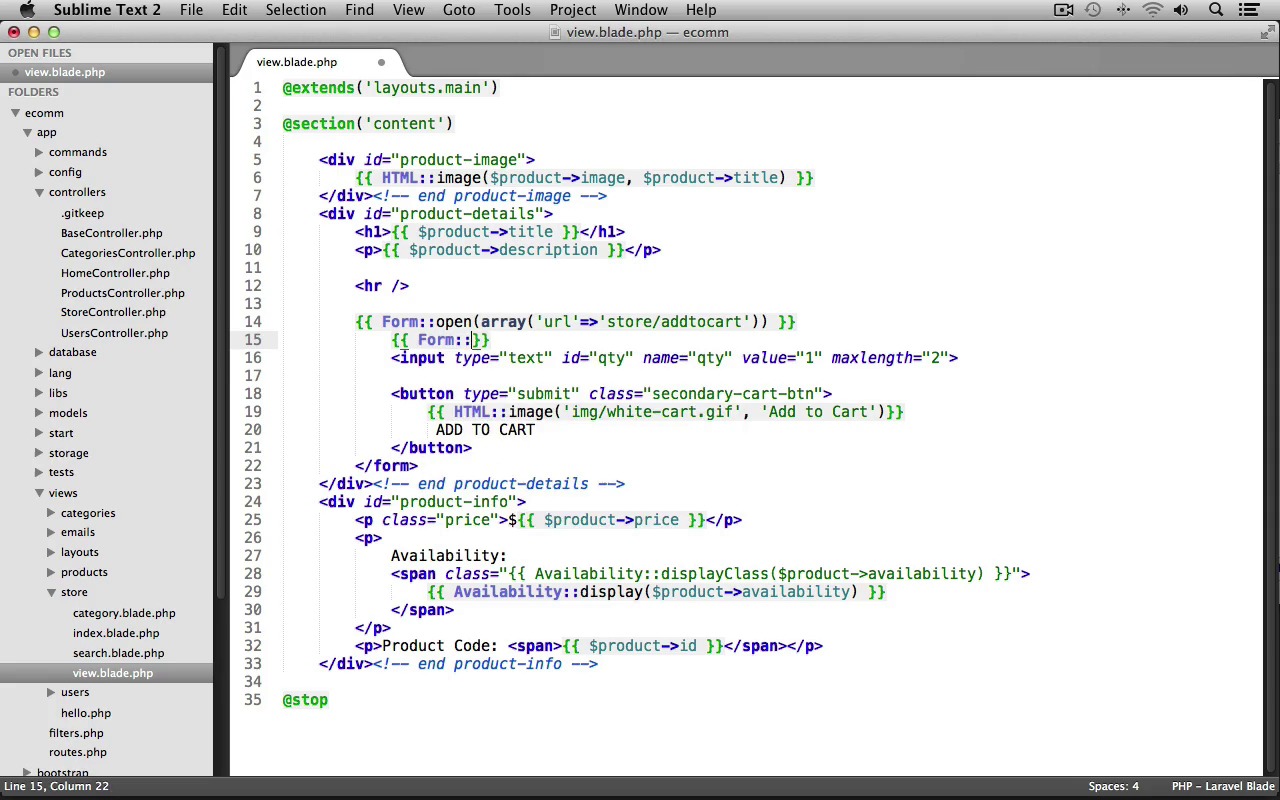
In this lesson, we're going to work on building our shopping cart functionality, so that we can add products to the cart, remove them and pass the order off to PayPal to handle all of the dirty work like processing credit cards. Now the original intent of this course was to show you the process of creating an ecommerce design. Converting that design to HTML and CSS and then building the site using a server site language like PHP to manage categories, products, image upload, users and creating a shopping cart. Building a full blown payment processing app with credit cards and IPN and having to deal with SSL is beyond the scope of this course. We're going to just take the simple, yet still very functional route of building the cart and delegating the payment processing onto PayPal. Now for our cart, we'll be using the Molten Laravel Shopping Cart Package. So let's install that via Composer. Just going to switch into my text editor and let's open up composer.json. And inside of require right after our intervention/image class, let's require in "moltin/laravel-cart" and that's the dev-master. Let's save the file, we can close it out. Let's switch into our terminal and we'll run composer update to install that new library and perfect. Laravel cart has been installed, now we just need to include the service provider and facade. So let's open up app > config and open up app.php. Let's scroll down to our service providers array. And at the bottom here, let's put a comma and we'll include Moltin\Cart\CartServiceProvider and we want to make sure that's a capital S for Service. There we go. Now let's go down to the aliases section and we'll add in the facade. So we'll put a comma after the image one here and we'll put 'Cart' and then 'Moltin\Cart\Facade'. Let's save our file and we can close it out and we should now be able to use the cart class and it's various static methods to fill our cart. Now before we implement our shopping cart, we need to ensure that only logged in users can access the cart. To do this, we're going to use the default auth filter that comes with Laravel, but we need to make a small change to it. So let's open up filter.php and we'll scroll down here to the auth filter. And you can see by default, if you're not logged in, it redirects you to a login page. Now this won't work for us, so we just need to change it to go to ('users/signin') and that's it. We can save it and close it out. Now let's use that auth filter in our store controller. We can close out config and under controllers, let's open up StoreController.php. And inside of our constructor right after our CSRF filter, let's call the beforeFilter again. We'll set the auth filter. We'll pass in an array as the second argument. We'll set the only key. We'll set this equal to an array and now we can tell it which actions should be protected by this auth filter. So we're going to have three actions for our shopping cart that we'll need to protect. The first one is going to be the 'postAaddtocart' action. The second one will be 'getCart' and then the last one will be get remove item. Now let's create our first shopping cart action that's going to be the add to cart action, which will add the selected item into the shopping cart. So at the bottom here, let's create a new public function. We'll prefix this with a post HTTP verb and I'll name this add to cart. Now the form that's going to submit to this add to cart action is going to provide us with the product's id that they're adding, as well as the quantity. So we'll want to store both of those values into variables. Let's create a product variable. We'll use our product model, call it find method and then we'll grab the id that was submitted from the form using the input class's get method. This way, we have a reference to the actual product object. Now let's create a quantity variable. We'll use the input classes get method and we'll grab the quantity for the product that's being added into the cart. Now that we have a reference to the product that's being added in as well as the quantity, let's insert this into the cart using the new cart class that we just installed. So we can use the Cart class and call it insert method. We can just pass in an array here. And now, we can set key value pairs to define the item that's being added into the cart. So we need to set an id. This is going to use the $products=>id and we need to give it a name. We'll use the products title and we need to set the price. We'll use the $products=> price then we'll set the quantity using our $quantity variable from above and then the last key will be the image. So we have access to the image for the product, so we can display that in our shopping cart. So we use the $product's image, so that'll insert the product into the shopping cart for us. Now we just need to redirect the user to the shopping cart itself, so they can see that the product's been added into it. We'll just return, we'll call the Redirect classes to method and we'll redirect to ('store/cart'). Next, we need to create the action for that ('store/cart'). This will be used to display a view, which will retrieve and display the contents of the cart In a table along with a form to submit the cart to PayPal. So let's create a new public function. We'll prefix this with the get HTTP verb and I'll name it Cart. Here, we're just going to return. We'll call the View classes make method. We'll display a cart view file from within the store folder. We'll then chain on the with method call. We'll send a products variable to the view file and this is going to contain the contents of our shopping cart. To get the contents, we just use the Cart class and call its contents method. Now lastly, for our store controller. We need a remove item actions, so that we can remove items from the cart if needed. Let's create a new public function. We'll name this getRemoveitem. Now this is also going to need to accept the item's identifier. Now this is not the id from above, this is the actual item objects identifier. So, I'm going to name this identifier. And now, we just need to get a reference to the item that we're wanting to delete using the passed-in identifier. So we'll create an item variable. We can use the cart class, call its item method and pass in that identifier to get ourselves a reference to the item object. Now that we have the item, we can call the item objects remove method and then we just want to return at the end here. We'll call the redirect classes two method and we'll redirect right back to the cart and that's it for the controller. We're finished in here. We can save it and close it out. Now we need to update our store's index, category, search, and view view files to make the add to cart buttons submit to our add to cart action. So under "views," "store," let's start with the index view file. Let's scroll down here. You can see we have this paragraph tag with a link for the add to cart link. So, we are going to convert this over to be a form. I'll start by just getting rid of the entire link in here. We'll use our form classes open method. We'll pass in an array. We'll set the URL to go to store/add to cart. Next, we need a hidden form field. So we'll call the hidden method. This is going to be for the quantity. We'll give this a default value of one. Now I'm just going to duplicate this line. And we need another hidden form field to hold the product's ID. And it's value is going to use our product object, and then we'll just display the ID there. Now we need to create a button tag. We'll give this a type of submit. We'll give it a class of cart hyphen btn and we'll close the button down here. Now inside of here, we need a span with a class of price and we'll just display the products price using our product object. And we'll close the span and we need to make sure to display our little white cart icon next to the button. So let's use the HTML class's image method. This is going to display an image from the image folder. It's going to be white hyphen cart dot gif and the alt text will say add to cart, and that's it for the image. Afterwards we'll put a space and then we'll put the text add to cart. And then after our button, we just need to close our form using the close method. And that's it for our add to cart button. Now we can actually use this same code in our category and search views as well, so let's copy this, including the paragraph tag. We can close out index.blade.php. Let's open up category and we'll replace its button down here at the bottom. We'll just paste it in. Save it and close it. Let's open up search.blade.php and we'll do the same thing here. Paste it in. And now let's edit our view.blade.php file. We'll start by modifying the opening form tag here. Let's just get rid of this one. We'll use the form classes open method. We'll pass in an array. We'll set the URL. This will submit to store slash add to cart. And next we'll update the label for the quantity. We'll use the form classes label method. This is for the quantity and the label text we'll just say qty short for quantity. Then we'll update the input field for the quantity as well. We use the form classes text method, this is for the quantity, we'll give a value of 1. And we'll pass in an array as the third argument. And we'll set the max length to two. Now we're also going to need a hidden form field containing the products ID so that the action knows which product we're adding to the cart. So we'll use the form classes hidden method. This is going to be for the ID, and its value, we'll use the products id using the product object. And lastly, let's just change this closing Form tag to use our Form class as close method instead. All right, our add to cart buttons are ready to go. Before you try it out, though, we need to create our cart view page, otherwise you'll get an error. Save your view file, you can close it out. Inside of store, let's create a new file. We'll save this as cart.blade.php. Let's have this use our main layout file, layouts.main. Let's create our content section, and we'll stop it here. Now, let's open up our starting resources folder, and let's grab the shopping-cart.html file, and I'll just drop it into Sublime, here. We'll scroll down to our main content section. And let's select all of the code inside of it, grabbing the shopping cart div, we'll just select it all down to the comment saying end shopping cart. Copy that. We can close this file and let's paste it into our cart view file inside of our Content section, now i'm just going to fix up the indentation here a bit. Now we're going to have to make quite a few modifications to this code. First we're going to have a form submit to PayPal. So we'll change the action to go to HTTPS://www.PayPal .com/cgi-bin/webscr next we need to modify our table. We're going to keep this first table row, as these are our table headings. And then we'll keep the very first product. That first table row for the product, we're gonna keep that one, but then we're going to delete the rest of the products in here. So we'll get rid of the second TR, delete that out of there and make sure to keep this last TR with the class of total, as we'll need that. Now let's just wrap this second tr here which contains our product within a foreach loop. We'll loop over all of the products as product. Remember, products holds the contents of our shopping cart. And then after the closing tr, we'll end the foreach loop. Now, we just need to change out this data to use our product object rather than the static data. So here's the product ID. Let's instead use our product object and display its ID. Right below it we have the product name. So let's print out the product's name using our product object. Now you might be thinking that we don't actually have a name field in the database and you are correct. We're not accessing the database at the moment. We're accessing the contents of the cart. And remember we stored the product's title inside of the name key when we created the new item for the cart. So that's why we're using name here. Now we need to update the image right above it. Let's use html call the image helper method. We'll use the product object and it's image. We'll set the alt text using the product's name. Then we'll pass in an array as the third argument. We'll set it's width. This will be 65. And then we'll set its height. This will be 37. Next, we need to set the price. So I'll leave the dollar sign there. And then we'll use the product object and display its price. Now in the next TD tag we're just going to display the product's quantity. So we'll use the product object. And display that quantity, then in the last TD tag again will display the price here. So we'll use product price and now for the link. We need to have this linked to our remove item action, so we can remove the product from the shopping cart. So let's change this to go to stores/remove item/ and then we're going to just Print out the product's identifier. Now, this is not the ID, this is the identifier, so don't confuse them. It is important that you pass in the actual item object's identifier, otherwise it won't be able to delete the item from the shopping cart. Now we just need to change the image inside of the link so we'll use the HTML class's image method. This is going to display the remove.gif image, and the alt-text just says Remove product. Now, let's scroll down to this total tr. Let's display the sub-total. Since we don't have any shipping or tax, it's just going to be the total of the entire cart, so we can display the cart's total using the cart class and calling its total method. And we'll just copy this, and we'll paste it down here for the total as well. And I'm going to put a dollar sign in front of the subtotal price. And now after displaying our total, we now need to fill in a bunch of hidden fields so that we can ship them off to PayPal, so PayPal will process the shopping cart order for us. It's some pretty standard information and there's quite a few of them. So I'm just going to copy and paste them in. All right, I've pasted in the hidden form fields. They are pretty basic, there's just several of them and I didn't wanna type them all out. So, the important parts are where I've used blade to output the carts total, the logged in users first name, last name and e-mail address, and also the business. This would be your PayPal e-mail, so that you can receive the payment. So this is basically, all we need to send to PayPal in order to process our order. Now lastly for this file we just need to change the link here are the end. Lets switch this out, we use HTML, called the link method, this is going to go to the root of our application. The link text will say continue shopping, we'll pass in an array as the third argument, we'll give this a class of tertiary btn. And that's it for the cart view file. We can save it and close it out. Next, we need to modify our main layout file, and do a little bit of cleanup of some of the features that we won't be using, which I've been putting off until now. So under views, layouts, let's open up main.blade.php. And what we're going to remove are the order history links, as that was not a feature of the original Laravel course. It was just part of the design that was created. So I'm going to scroll down here to the user menu, and here we go, here's the first order history link. I'm just going to delete that out of there, and then we have one more down towards the bottom. Here it is, let's get rid of that one. And now we also need to update the shopping cart links so that they link to the correct place. So we need this to go to store/cart, and then we'll go up to the top here and let's find our View Cart link, here it is. So this also needs to go to store/cart, and that's it. Our shopping cart and PayPal payment processing is finished. Make sure to save your layout file. We can close this out, and let's switch into the browser and test it out. Now I've already got my application running here, so I'm just going to refresh it real quick. And now if we try to access out cart without being logged in by clicking View Cart, you can see that it sends us to the sign in page. So I'm just going to sign in real quick. I'll sign in as John Doe, enter in my password, there we go. We're now signed in, we should be able to access the cart now. You can see that it's empty. We have a total of $0, as we haven't added anything to it. So let's go to the home page, and let's make sure our new button's working. Looks good, let's try adding this Macbook to the cart, we'll click the button and perfect. You can see we get our ID, we get the little preview image, the product's name, the unit price, the quantity, and the subtotal. And then everything updates here on the bottom for the total as well. Let's try adding a few other products. Let's do one from the categories page. So let's add this Dell desktop to the cart, there we go. Let's try searching for a product. So the Nexus 10, and let's add this to the cart. And let's go to the individual product view page, let's add this Toshiba laptop in there as well. Now let's try deleting a product from the cart, so we should be able to hit our little x. There we go, it removes it. And the total updates, and now lastly let's check out with PayPal. And there we go, you can see we've been taken to PayPal's order page. We have our business email, that's who the customer's going to be making the payment to. We have our description here which is just eCommerce Store Purchase. We have our price from the cart, and it even prepopulates the email address of the user who is placing the order as we passed that in with the form as well. So now the user can choose to log in and make the payment, and you would receive the money to your e-mail address that you entered in as your business. Alright, we're finished. Next up we'll create the last page of our site. The contact us page, and we'll also go over some of my final thoughts on this e-commerce app, and how you could improve upon it.


