
- Overview
- Transcript
2.4 Displaying Products By Category
In this lesson we’ll work on being able to view our products by category. So we should be able to view all products in the laptop category, the desktop PC category and so on, on a single page.
1.Introduction
1.1Introduction00:51
2.Getting Started
2.1Creating the Categories Admin Panel29:14
2.2Creating the Product Admin Panel29:40
2.3Displaying Products16:53
2.4Displaying Products By Category10:57
2.5Searching Products06:51
3.Security
3.1User Authentication26:05
3.2Protecting the Admin Panel05:14
4.Payments & Conclusion
4.1Shopping Cart & PayPal21:54
4.2Contact Page & Conclusion03:55
2.4 Displaying Products By Category
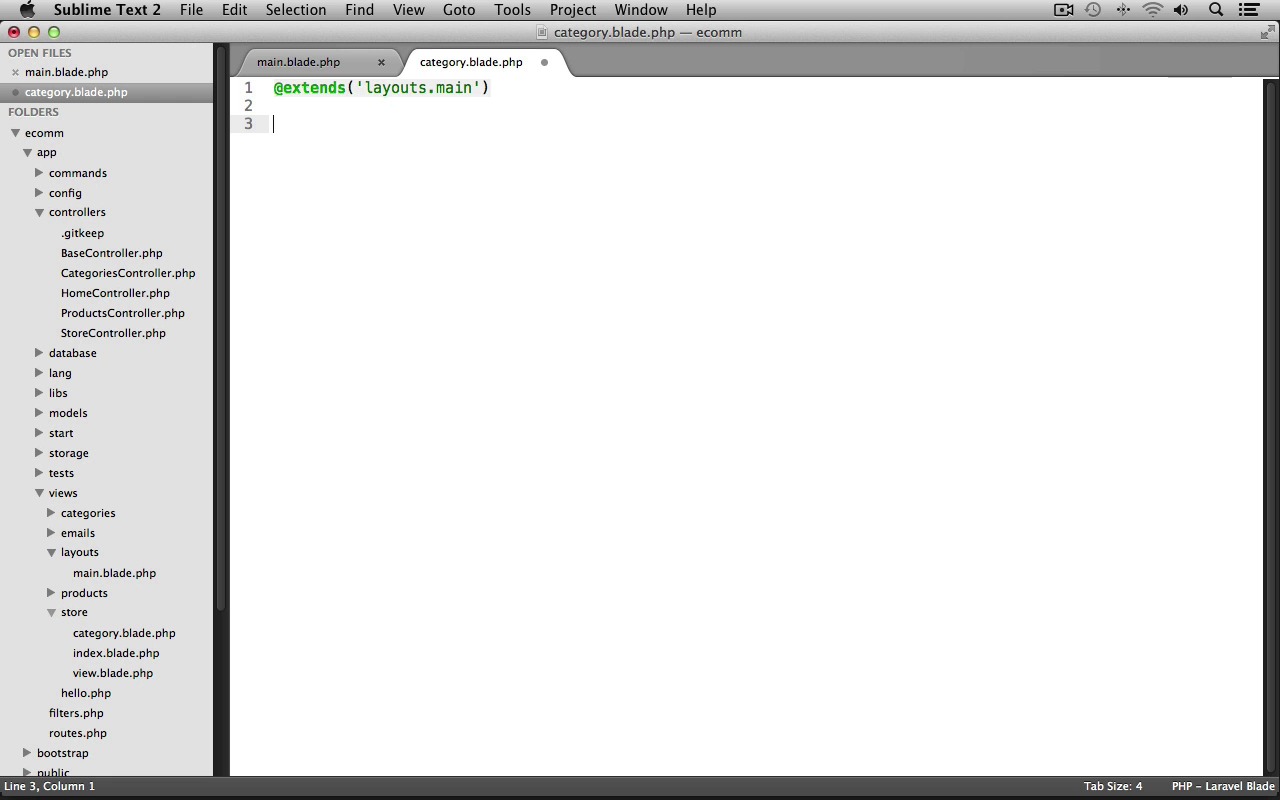
In this lesson, we'll work on being able to view our products by category. So we should be able to view all products for the laptops category, or all products for the desktop PCs category, and so on on a single page. We'll start off by updating our apps category drop-down menu so that it actually uses our categories from the database rather than the current static links that our layout is using. Now our entire site uses that category's drop-down menu. So that means when we go to populate it, all of our view files need to have access to that category data. In order to do this, we'll need to set up beforefilter in our base controller constructor to ensure all of our controllers inherit it. And thus, all view files site wide will share that same category data. Let's switch into our text editor, and under app controllers, let's open up our basecontroller.phpfile. And at the top, let's create our constructor. So, we'll create a publicfunction__construct. And we'll call the beforefilter method. And we can just pass in a closure here. And we'll use the View classes Share method to be able to share data to all of our views. So we're going to find a cat nav variable to all of our views. And it's going to hold all of our categories. So we'll use our category model and call it All Method. And that's it for the base controller. We can save it and close it out. Now we just need to update all of our other controllers to instead of overwriting the BaseController's constructor that we just append to it. So let's open up our CategoriesController. And currently, if you look at our constructor, you can see that it's just completely overriding the BaseController's constructor. So that means we will not be sharing that catnav variable. To fix this, at the top of our constructor, we can call parent__construct, and this will ensure that we append onto our BaseController's constructor rather than overriding it completely. Now we just need to do the same thing for our other controllers, so I'm just going to copy this line. We can close out our categories controller. Let's open up our products controller, and we'll just paste this in at the top of its constructor as well. Save it, close it out. And, we'll go into the store controller. And again, we'll paste this into the top of this constructor. And that's it. Now we just need to modify our main layout to loop over that catnav variable, and display the proper category navigation links in our menu. So under Views, Layouts. Let's open up main.blade.php. And let's scroll down to our drop-down menu here. There it is. Shop by Category. And we'll just get rid of all of these list items with the current static links. And we'll create a foreach loop, we'll loop over the catnav variable as $cat, we'll end our foreach loop, and then inside of it, we'll display each category as a link. Iinside of a list item tag, we'll use the HTML classes link method to create our link. The URI is going to be store/category/, and then we'll just on the categoriesid using our cat object. Now, for the link text, we'll just use the categories name. And that's it for our Shop by Category drop-down menu. Now let's work on our store controller by creating a new action to display all of the products for a particular category. Let's switch into our Store Controller, and at the bottom, let's create a new product function. I'll prefix this with the get http verb. We'll name it Category. And this is going to need to accept the category ID, so we know which category's products we're wanting to retrieve inside of here, we'll just return. We'll call these view classes make method. We'll display a view file from the store folder. That view file will be named Category. Then I'll chain on a withmethodcall so that we can bind the products to the view. This will be stored in a products variable. We'll use our product model. We'll call it where method to find products where the category_id equals the cast in category_id. Now, we also want to make sure that we paginated our product results, so we'll call it the paginated method, and it will return six products per page. Now we're also going to need access to the category name so that we can use that in the heading at the top of the page, so I'm going to bind another with method call here. We'll store this inside of a category variable. We'll use the category model, we'll call find, and we'll just pass in the cat_id. And that's it for our store controller, we can save it and we'll close it out. Next, let's create our category view page. So under Views, Store, let's create a new file. We'll save this as category.blade.php. We'll start off by making this use our main layout. So, use extends, layouts.main. Now our category page will be displaying a promo add area, so we'll need to create that promo section next. So, we'll create a new section named Promo. And then we'll stop the section. And now we can open up our Starting Resources folder. And let's grab that category.html file and I'll just drag and drop it into sublime. Let's scroll down into the promo area and we'll copy this promo alt section. Switch back into our category view file and we'll paste it into the promo section here. I'll just fix up this indentation. And now, we just need to use Laravel's image helper to replace all of these images inside of this section. So I'll go ahead and do that real quick. All right. I have updated all five images inside of the promo section. Now we need to create our contents section. So we'll create a section named Content. And we'll stop down here. And again, we'll switch over to our category.html page. We'll scroll down here to the main content section, and inside of it, let's copy everything from the h2 heading down to the opening listings div tag. And we don't actually need to wrap the product code below it, as we're going to reuse some of the code from our stores index view file since it's exactly the same. So, we can copy that, switch back into our category view, we'll paste it inside of our content section, and I'll just fix up the indentation here a bit. And we need to make sure that we close the listings div here. I'll also put a comment saying, end listings. Now, we just need to grab the product code from our index view file. So under views, store open up index.blade.php And inside of our products div, let's grab everything from the opening for each loop to the end for each. Copy it, close it out, and back here inside of our category view file, we'll paste it inside of our listings div. There we go. That looks good. Now let's go up to the top, and we'll start by updating this H2 heading. This should use our category name, so we can use our category object and display its name. Then right below it, we need to update our categories menu here. We can actually reuse the code from our main layout. So let's switch into main.blade.php. And inside of our unordered list, let's just copy the whole 4H loop. Switch back into our category view file, and we'll just get rid of all of these list item tags, and we'll paste that in. And we'll just fix up this indentation, and perfect. Now we need to make sure to display our pagination links at the bottom of the page. Now this will go into a separate section. So, after the content section, let's create a new section named pagination. And we'll stop the section here. And we're going to store our pagination links inside of a New Section tag. We'll give this an ID of pagination so that it's styled correctly. We'll close the section tag. We'll put a comment here saying, end pagination, and I'm just going to indent this in. And now to display the pagination links, we can just use the product's object and call it's links method. There we go. That completes our category view file. Now, we just need to make sure that we yield this pagination section in our main layout file. So let's go back into main.blade.php, and let's scroll down to right above our footer, and let's use another yield statement to yield the pagination section. All right. That concludes our category view page. Let's switch into the browser and take a look. I've already got my application up and running. I'm just going to refresh the page. And so, if we take a look at our Categories drop menu up here, we can see that we now have our categories listed here. And if you now look down at the bottom left, you'll see that it's linking to the appropriate category ID, so we should be able to click on Desktop PCs, and it looks like we have an error in our Store Controller. So let's go see what I've done wrong. Switch back into our text editor, and I'll open up the store controller. And there we go, you can see that I chained on the paginate method to the end of the width method call. And that's incorrect. You need to chain it on to the where method call. So we need to grab paginate, cut it out, and paste it inside there so that it's chaining with the where method. And that should fix the problem. Let's save the file. We'll go back into our browser. Let's refresh, and awesome. Now, it's working. So here, we can see we're getting all of the products for the Desktop PC category. We have our category up here, and now we also have this little side menu for our categories. So, let's try clicking on the Laptops category, and great, here's our Laptops category. With all of our laptop products at the bottom here, you can see we have our pagination, so we can view page number two. And there's the last laptop. All right, perfect. Everything is working as expected. Next up, we'll work on getting our Search bar at the top here to work, and then, we'll also display those search results.


