
- Overview
- Transcript
3.2 Protecting the Admin Panel
Now that we have an authentication system and a way to identify users as an admin, it’s time to protect our admin panel pages to ensure only logged in admin users can access our admin pages.
1.Introduction
1.1Introduction00:51
2.Getting Started
2.1Creating the Categories Admin Panel29:14
2.2Creating the Product Admin Panel29:40
2.3Displaying Products16:53
2.4Displaying Products By Category10:57
2.5Searching Products06:51
3.Security
3.1User Authentication26:05
3.2Protecting the Admin Panel05:14
4.Payments & Conclusion
4.1Shopping Cart & PayPal21:54
4.2Contact Page & Conclusion03:55
3.2 Protecting the Admin Panel
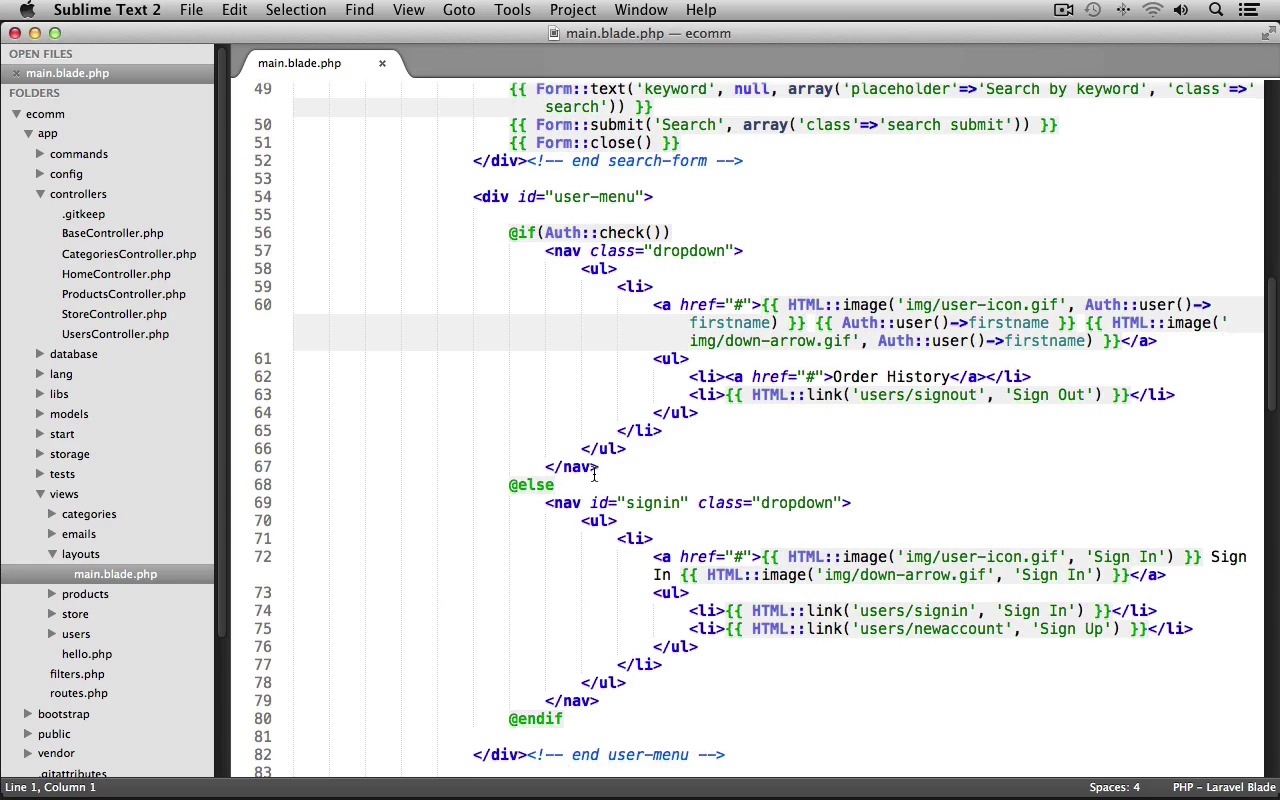
Now, that we have an authentication system and the way to identify users as an admin. It's time to protect our admin panel pages to ensure that only logged in admin users can access them. To do this we're going to create a new filter. So open up your application into your text editor. And under the App folder, let's open up Filters.php. And let's scroll down here to the guest filter, and we're just going to use this as the template for creating our admin filter. Right after it, I'll create a comment saying admin filter. And I'll just paste this in. I'll change the filter name to be admin. And now, we just need to modify the if statement's conditional. We're going to first check if the user is not logged in. We can do that by using an exclamation point, using the Auth class's user method, and that'll check if the user is not logged in. So we're checking if the user is not logged in or if the user is not an admin. To perform that check, we'll again use the Auth classes user method, and we'll grab the users admin value and we'll check if it's not equal to 1. If it's not 1, the user is not an administrator. So if either of these evaluate to true, we'll deny them access to the admin pages by just redirecting them back to the root home page of our application. So let's save our filters file. We'll close it out and now, we can use this filter in our categories and products controllers. Let's open up controllers, and we'll open the categories controller first, inside of our constructor right after the CSRF filter. Let's call the beforeFilter method again and we'll add our admin filter. And now, just by using this one line inside of our constructor, this will protect all of the actions for our categories controller. Let's save the file, just going to copy this line here. We'll close it out. Let's open up our products controller, and we'll paste it inside of it's constructor as well. And our admin panel is now protected. Let's close it out. And now, the last change I want to make is to our interface. I'd like to make it a little more user friendly for the site admins. So under views > layouts, let's open up main.blade.php. And let's scroll down to our user menu. And inside of the nav menu that we use for when the user is logged in, let's perform a check to see if the logged in user is an admin. If so, we'll display some links so that the admin can manage the stores categories and products more easily. So right after the order history link, let's use an if statement. And we'll check if the login user is an admin. We can use the Auth classes user method and we'll check if admin is equal to 1. Then we'll end the if statement. So if admin is equal to 1 that means the login user is an administrator. In that case, let's display some links to manage the categories and products. We'll create a list item tag. We'll use the HTML class and it's link method. We'll link to admin/categories, and the link text will say, manage categories. And then I'll just duplicate this line. And we'll change this over to the admin/products. And the link text will say Manage Products. Let's switch into our browser and test it out. Now, just refresh the page, and you can see that I'm not logged in as any user. So let's try accessing the admin panel pages. We can go to /adminproducts/index, and you can see it didn't take us there, it took us right back to the homepage. And let's try the categories index page. Nope. It doesn't let us access it. It acts as if the page doesn't even exist. Now, let's try logging in with a regular user, a non-admin user. So I'm going to log in using my Jane Doe user. And I'll enter in her password. And Sign In. There we go. And if we look in our user menu, you can see we don't have the admin panel manage links. And if we try accessing them. So we go to admin products. Nope. Doesn't work. Let's try again. Admin categories. All right. It's still being protected. Now lastly, let's log out. And let's log back in with our admin user. That's John Doe and his password and we'll Sign In. Now, when we look at our user menu, you can see this time we have the Managed Categories and Managed Products Links. And we should be able to view these pages. And there we go. So admins are now able to access the admin panel and any other user is not able to access those pages. So that pretty much wraps up our store's categories, products, admin panels and user authentication. Next up, we'll begin working on building our shopping cart.


