
- Overview
- Transcript
2.3 Displaying Products
Now that we can create products for our store, it’s time to display them to our customers. In this lesson we’ll create our site's main home page displaying the four most newest products and we’ll create an individual product view page to display a single product.
1.Introduction
1.1Introduction00:51
2.Getting Started
2.1Creating the Categories Admin Panel29:14
2.2Creating the Product Admin Panel29:40
2.3Displaying Products16:53
2.4Displaying Products By Category10:57
2.5Searching Products06:51
3.Security
3.1User Authentication26:05
3.2Protecting the Admin Panel05:14
4.Payments & Conclusion
4.1Shopping Cart & PayPal21:54
4.2Contact Page & Conclusion03:55
2.3 Displaying Products
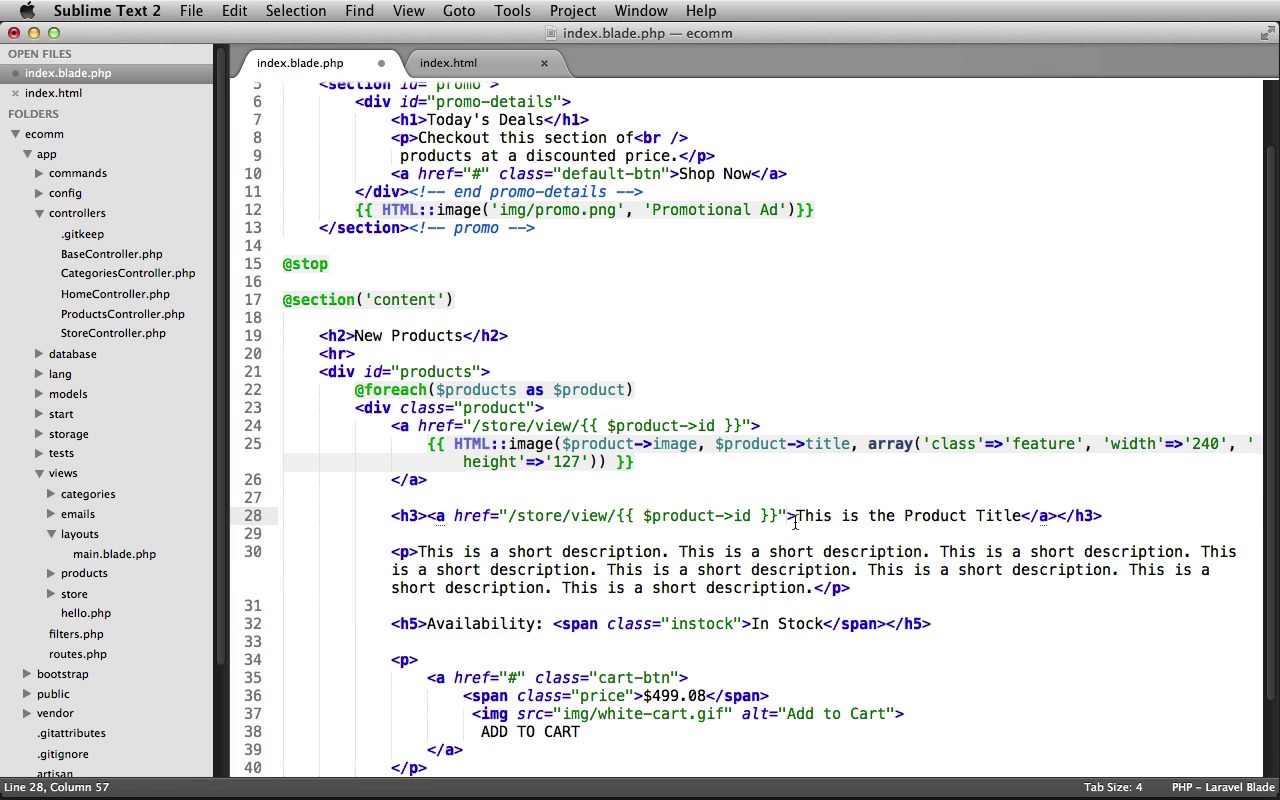
Now that we can create products for our store, it's time to display them to our customers. So in this lesson, we'll create our site's main homepage, displaying the foremost newest products. And we'll create an individual product view page as well, to display a single product. We'll start in our main layout, going to switch into my text editor. And under app, views, layouts, open up main.blade.php, and let's make a few changes. First I'll just scroll down here to our logo, and I'll change this link to link to the root of our application. And now the original design that we were using for this course came with several additional features that were not planned to end up in the final Laravel application, such as the Wishlist, and the Featured Products. So I'm just going to go ahead and remove the Wishlist links. We'll scroll down here a bit. And we'll get rid of this one inside of the alternate drop down menu and then down in the footer we have another one here. I'll just delete that one out as well and now next in order to allow our home page to display the promotional ad area before the main content. We need to yield out another section that we can use for that promo area. This will allow some of our views to use the promo section. Others can just ignore it. So let's scroll up to right above our main content, right after the header. And we'll use another yield statement and we'll yield out another promo section. And that's it for our main layout. We can close this. And now let's work on creating a store controller which we'll use to display our products to our customers. Under controllers, let's create a new file. I'll save this as storecontroller.php. We'll open up our PHP tags, we'll create a new class names store controller. And this extends the base controller. Now we'll create our constructor function and we'll set a before filter, the CSRF before filter. And we want this to be applied on post requests. Now let's create our index action, this is going to act as the home page for our store. We'll create a new public function, prefix it with the get HTTP verb. And I'll name it Index. In here, we're just going to return, we'll display a view. This is going to be in a store folder, and the view file will be named Index. Now I'm just going to chain on the with method call so that we can send some products to the view that'll be available in a products variable. We'll use our product model. We'll call its take method to retrieve just four products, then we'll chain on the orderBy method to order this by the createdAt time stamp. In descending order, and then we just chain on the git method to get those products. And that's it for our index home page, now we need to create a view action to display a single product. Let's create a new public function, we'll prefix this with a get http verb. I'll name the action view, and it's going to need to accept the id of the product that we're wanting to view. Here we'll just return. We'll call the view classes make method to display a view. This will be from the store folder, and the view file will be named view. Then we'll chain on the width method call. To send the product to the view file that'll be available in a product variable. We'll use our product model, we'll call its find method, and just pass in the ID to retrieve that product. All right, that's it for our store controller. We can close this out. Now we need to set up our routes, so let's open up routes.php. We'll start by modifying the root route for our application. So we'll just get rid of the closure and we'll pass in an array instead. We'll set the uses key and we'll tell this to use our store controller and it's get index action as the. Root route for our application. Now we also need to set up some routes for the controller itself for the view action. So I'm just going to duplicate our products route here and we'll change the URI to just be store. And this will use our store controller. All right, that's it for our routes, save the file, and we can close it out. Now we just need to create our homepage, which is our index view file, so under views, let's create a new folder. We'll name this store. Inside of the store folder, we'll create a new file. I'll save this as index.blade.php. First, we'll make sure this uses our main layout. We'll have this extends layout dot main. And then we need to make sure that our index page shows the promo section. So we need to create a new section named promo. Then we'll put a stop down here. And now we just need to grab that promo code from our index.html page from the starting resources. So I'll open that up here. And we can grab index.html, and I'll just drop it into Sublime. Let's scroll down to that promos section. Here it is. You can see the section with the ID of promo. We'll just select that, copy it, go back into our index view file, and past it into the promo section. Now just fix up this indentation a bit. And now, inside of this code, we just need to change this image out, to use Laravel Image Helper instead. So I'll do that real quick. There we go. That'll display the image. Now after our promo section, we need to create our content section. For the main content of the view file. And again we'll just grab the code from our index.HTML file. So down here in the main content section, starting at the H2 heading, let's select everything down to the end of the first product. We'll copy this, go back into our view file, we'll paste it in And then right after it, we need to make sure to close this parent products div. So we'll just end the div. I'll put a comment here saying end products and I'll fix up the indentation. Now let's make a few changes to this code. First, I'll change the H2 heading to say new products. And then inside of the products div, right before the individual div for each product, let's create a foreach loop. We'll loop over all of our products, as product, and then after the closing div for that product, we'll end our foreach loop. Then we just need to update the link so that it links to the individual product view page. So we'll get rid of the hash and we'll do a /store/view/ and then we can use some blade here to print out the product's ID using the product object. And that'll create the proper URI to link to our product. Now, I'm just going to break this image down onto a new line. As well as the ending A tag, and let's change this image out to use Larabelle's image helper method instead, so I'll do that real quick. Here we go, you can see I've replaced that with the image helper method. We're just displaying the product's image. As well as setting it's title as it's alt text. And then we're going to pass in an array as a third argument and we'll give this a class. A feature, and we'll also set it's width to 240. And then we'll set it's height to 127. And that will display the image properly for our design, and right below it we need to update the product titles link. So we can just copy the link from above and we'll paste it in here. And then we just need to change the H3 heading to display the actual image product's title. And then, in the paragraph tag right below it, we need to display the description. We can use our product object and display that description. Now, for the availability right below it. You'll see that we can either have a class of in stock or our of stock which will change the styling of our product's availability text. Now our availability fields value in the database is either a 0 or a 1. So, we need to write two helper methods. One, which will return either the in stock or out of stock class name, and then another one which will return the value. In stock and out of stock, which we can use to display inside of this heading. So, inside of our app folder, I'm going to create a new folder named libs and we'll use this to hold our own personal libraries. Now inside of libs, let's create a new file. I'm going to save this as availability.php, let's open up our php tags. We'll create a new class named availability. Now let's create our first helper method which we'll use to display the text, in stock or out of stock, depending on the current product's availability value. So, we'll create a new Public static function, I'm going to name this display and it's going to need to accept the products availability. And now inside of here, we can use an if statement and we'll check the value of that availability variable. We'll see if it's equal to zero. If it is equal to 0, that means the product is out of stock, so we'll just echo out a string saying Out of Stock. Then we'll use an else if statement, and we'll check if $availability is equal to 1, meaning that it's in stock. In that case, we just echo out In Stock. So we'll use this method to display either the text out of stock or in stock inside that availability header. Now we also need another one we can use to display either the in stock or out of stock class name. So I'm just going to copy this method. And I'll duplicate it right below it, and then I'll just change the method name to be displayClass and it's still going to need to accept the availability. And so, instead of displaying Out of Stock with the capital letters. We need to display the proper Out of Stock class name, which is just outofstock, and then we'll do the same thing for In Stock. All right. That's it for our helper methods. We can now close out the availability class. And now we just need to make sure that Laravel auto loads this class for us so that we can use it in our views. So under app, and then inside of the start folder. Open up global.php and inside of the this ad directory is method call, in the array, we can just duplicate this last line. And we'll change this to load in our libs folder that we just created which contains our availability library. And that's it. We can save the file and close it out and now, back here inside of our index view file. We can use our availability class to display the proper class name and the proper value for the availability heading. So, for the class name we can call our availability class. We'll call the display class method and we just pass in the current products availability value. Now I'm just going to fix up the formating here so we can read this a little easier. I'll just break all of this down onto their own lines and now for the value of the availability. We'll use our regular display method. So we use availability, call display, and we pass in the current products availability value. Now down here inside of our add to cart button we just need to change out this image to use Laravel's Helper. So I'll do that real quick. There we go, we're displaying the image. Now I almost forgot we need to make sure that we display the actual product's price here. So we'll use our product object, and display that price. All right, that completes our index page. Now we just need to create our view page to view a single product so that our links here, which link to the product, actually work. We can close out the index.html page and under views, store. Let's create a new file. I'll save this as view.blade.php. Again let's have this extends our main layout file. So that's layouts.main. And then we'll create our content section. And we'll put our stop statement here. And just like we did with the index view page, let's open up our starting resources. And we'll grab the product.html page. I'll just drag and drop it in here. And let's scroll down to our main content section. And let's start at this div, product image and we'll select everything down to where it says end product info. We'll copy it, we can close this file out and let's paste it inside of our view, view file and i'll just fix up the indentation a bit here. Now inside of the product image div, let's use Laravel's image helper to display this image at full size. So I'll change that out real quick. And then inside of the h1 heading, let's change this out to display the product's title. And then in the paragraph. We'll change this out to display the Product's description and for our add to cart button, let's change this to use the Laravel image helper. There we go, that'll display the image. Next let's display the product's price. So we can use our Product object and print out the price. And now for the availability, we can actually just copy it from over here. So inside of the h5 tag, just copy from Availability down to the closing span. Go back into our view file and we'll replace this. Get rid of it, break it down onto a new line and paste it in and lastly we just need to display the product code. For this we're just going to use the product's ID. All right, we're finished. Make sure to save your file and let's switch into Firefox. As you can see I already have my application up and running. And I'm on my Products Admin Panel, so you can see I've created a whole bunch of products in here. I've got some lap tops, tablets, desktops and some smart phones. So you can go ahead and create your own products, you can mimic what I have here. It's up to you. Just make sure that you have some products so that you can view them. So first of all, let's refresh the page, and we should be able to click on our logo and that should take us to our homepage. There we go, perfect. You can see that it's displaying our promo area, and we scroll down you can see that we're getting the Four most recent products. It's displaying the image, we have the title, which is also a link, linking to the product itself. We have our description, our availability, and our prices our showing up on our buttons. Of course, the Add to Cart button doesn't work yet, as we have not built that functionality. But we will later on in the course, so the homepage looks pretty good. Let's try viewing an individual product. So we should be able to click on the image. There we go, you can see we have the full size view of the image. We have the product's title, description, our add to cart button which, again, doesn't work. We have our price. We have in stock, which is styling it appropriately and we have our product code. So let's go back and we should also be able to click on the title. There we go. Perfect. So that's it for creating our main home page and our individual product view page. Next up, we'll work on creating a page to view all products by a particular category.


