
- Overview
- Transcript
2.5 Searching Products
In this lesson we’ll wrap up working with our products by building the search functionality and displaying the search results for our search keyword.
1.Introduction
1.1Introduction00:51
2.Getting Started
2.1Creating the Categories Admin Panel29:14
2.2Creating the Product Admin Panel29:40
2.3Displaying Products16:53
2.4Displaying Products By Category10:57
2.5Searching Products06:51
3.Security
3.1User Authentication26:05
3.2Protecting the Admin Panel05:14
4.Payments & Conclusion
4.1Shopping Cart & PayPal21:54
4.2Contact Page & Conclusion03:55
2.5 Searching Products
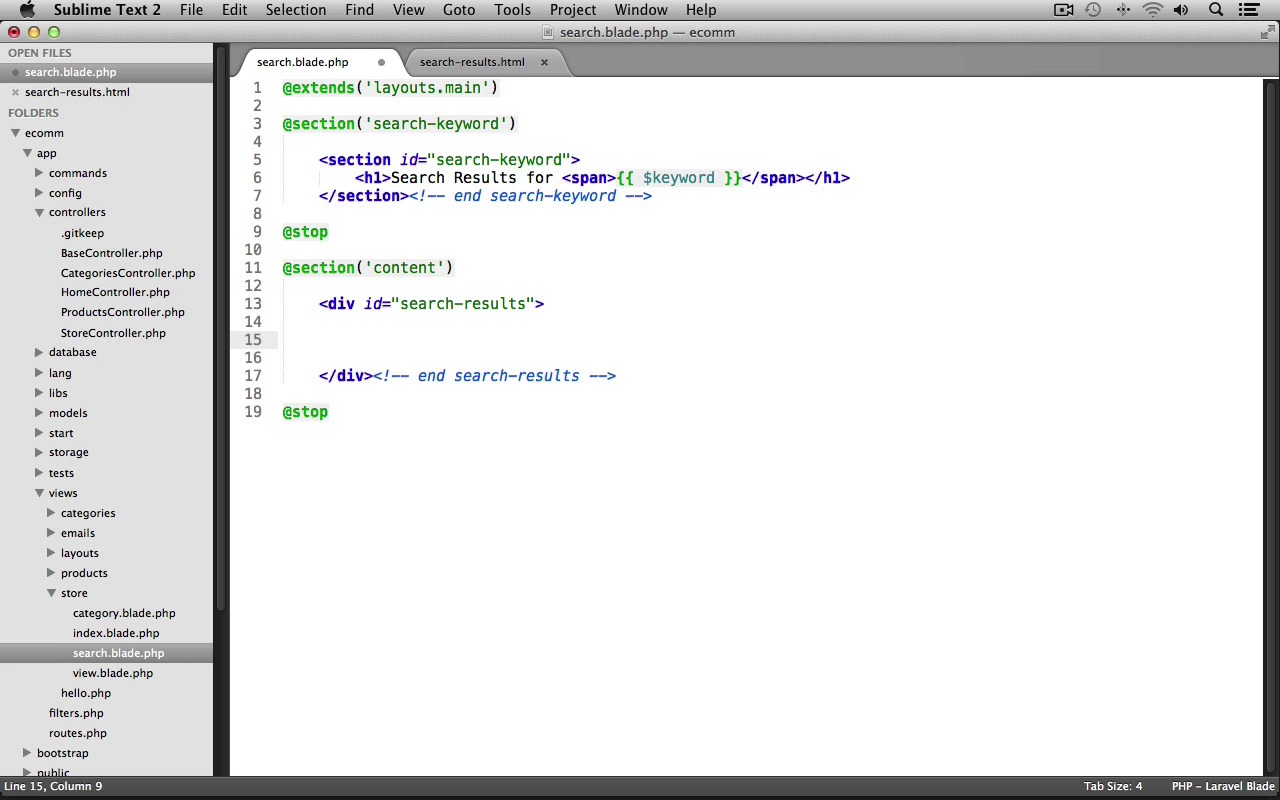
In this lesson we'll wrap up working with our products by building the search functionality and displaying the search results for our search keyword. We'll begin by creating an action that our search form can submit to in our store controller. So let's switch into our text editor and under app controllers, let's open up the store controller. And let's create a new action. We'll create a public function, prefix this with the get HTTP verb. I'll name the action Search. Now we just need a reference to the submitted key word from the search form. I'll create a new variable named keyword. We'll use the input class's get method, and grab that submitted keyword. Now we just need to return a view, so we'll call the view class's make method. This will return a search view file from the store views folder. And I'm just going to chain on a with method call here, so that we can pass all of the products for the search results to the view. This will be stored in a products variable. We'll use our product model. We'll call it where method. And so we're searching for products where the title of the product is like the submitted keyword. Now we need to make sure that this does a partial search. So we're just going to concatenate on a percent sign at the end. And then a percent sign at the beginning, as well. Now, after our where method call, we need to chain on the get method call, to get the results. Now, I'm also going to call the width method again, and we're going to set a keyword variable to be available in the view, and this is just going to be a reference to the submitted keyword from the form, so that we can re-display it in the search keyword section. All right? That's it for our controller. We can save this and close it out. Now let's create our search view file, so under views>store, let's create a new file. I'll save this as search.blade.php. Let's have this use our name layout. So we use @extends('layouts.main') and now our search page has a new section at the top to display the searched keyword. So let's create a new section, I'll name this search-keyword and then we'll stop the section here. Now, let's open up our starting resources folder. And let's open up the search results.html page. If we scroll down to the search keyword section here, we can just copy all of this code. We'll go back into our search view file and let's paste it into the search keyword section. And we'll just fix up the indentation a bit. And now we need to exchange out this keyword for the submitted keyword. We have access to that using the keyword variable. Next let's create our content section. We'll create a new section named content. And then we'll stop the section here. And inside of this section we're going to need a div to hold our search results. This is going to have an ID of search hyphen results, and then we'll end the div here, and I'll put a comment just saying end search results. There we go. And now we can re-use the code from our category page to display the products for the search results. Let's open up under store, category.blade.php. We'll scroll down here. And let's copy from the beginning 4H all the way to the end 4H statement. We'll go back into our search view file and let's paste it into our search results div. There we go. And that's it for our search view file. Now we just need to modify our main layout file to create the search form. And also to add in the yield statement for our search keyword section up here. So under views layouts let's open up main.blade.php. And let's start with updating the search form to use Laravel's form helper. So let's scroll down to our search form div. And let's just get rid of the standard form HTML code. And let's use the form classes open method, we'll pass in an array, we'll set the URL, this will go to store/search and we'll set the method key so that this does a get request. Now we need to create our text input for the user to enter in their keyword. So we'll create a text input using the text method. This will be for the keyword. The value, we'll just set that to null. We'll pass in an array as the third argument. We'll set a placeholder value. This will just say search by keyword. And we'll also give this field a class of search. After that, we need our submit button. We'll use the form classes submit method. This will just say search on the button, then we'll pass in an array as the second argument. And we'll give this button a class of search. And then a space. And then submit so it actually has two different classes and then we just need just to close the form so we use the form classes close method, there we go. And that's it for our search form. Now we need to go down a little further and make sure to yield that search key word section. So right after our promo section we'll use another yield statement. And we'll yield the search hyphen keyword. And that's all we need. We're finished. Let's switch into our browser and take a look. Now I've already got my application up and running, so I'm just going to refresh the page. And here's our search form. So let's try searching for Nexus 10, and great, we get our search key word here in bold saying, Nexus 10. And it looks like we are missing a top horizontal rule here, so let's go into our text editor. And let's go into our search view file. And right above our search keyword section, the section HTML tag, I'm just going to put a horizontal roll in here. We'll save the file. Let's go back into our browser. I'll refresh the page, and there we go. That looks much better. Let's try another search. We'll search for the keyword laptop. And perfect. We get all of the products with the keyword laptop in the title. Next up, we'll work on building our authentication and authorization system to allow users to create a new account, login, and logout.


