
 Lessons: 10Length: 1.2 hours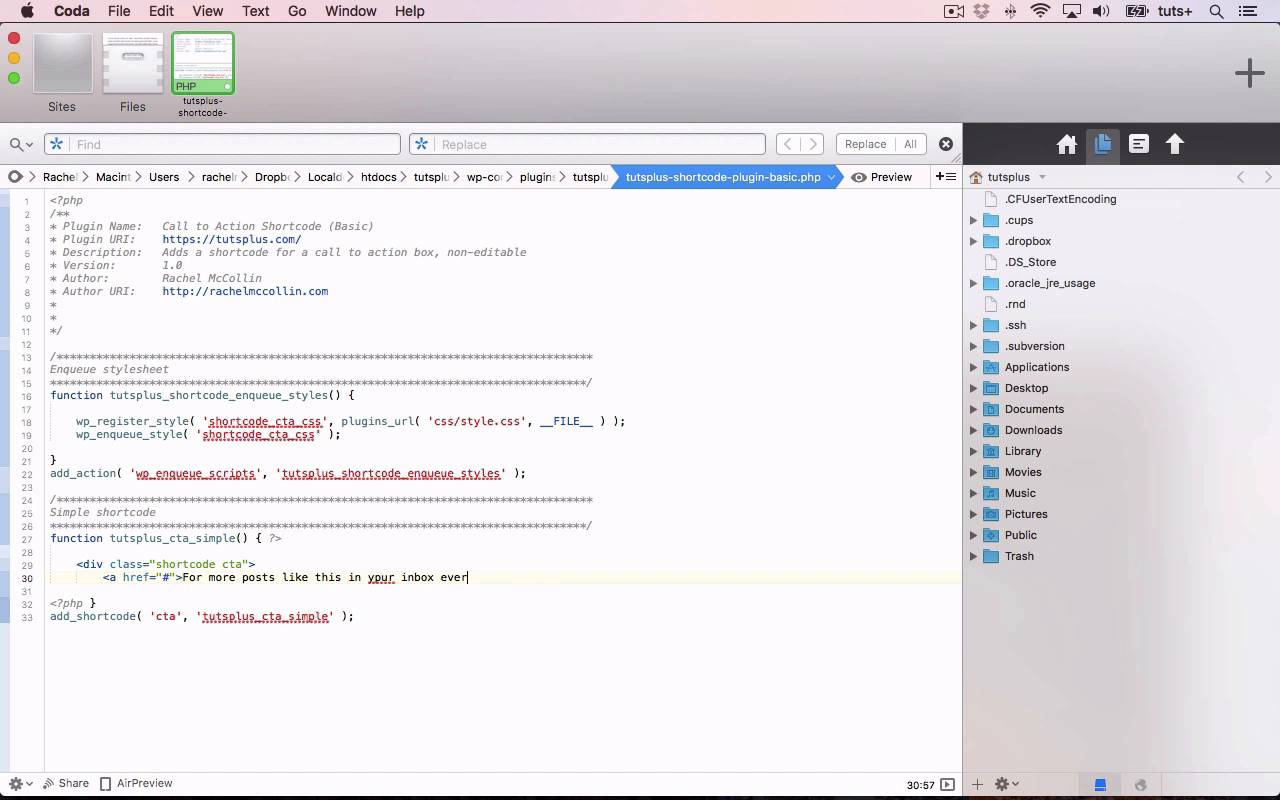
- Overview
- Transcript
4.1 Creating a Simple Shortcode
In this lesson, you’ll learn the basics of coding a shortcode plugin.
Related Links
1.Introduction
1.1Introduction00:59
2.Plugin Best Practice
2.1Best Practice for Coding Plugins06:48
3.Creating a Hook-Activation Plugin
3.1Action and Filter Hooks06:26
3.2Coding a Plugin for Activation With a Hook11:47
4.Creating a Shortcode Plugin
4.1Creating a Simple Shortcode06:23
4.2Creating a Shortcode With Editable Content05:40
4.3Creating a Shortcode With Editable Parameters10:21
5.Code a Widget Plugin
5.1Creating the Widget12:23
5.2Save User Edits to the Widget10:30
6.Conclusion
6.1Conclusion02:52
4.1 Creating a Simple Shortcode
Hello and welcome back to this Tuts+ course on Practical Projects to Learn to Code Plugins. In this part of the course, I'm gonna show you how to create a short code. And we'll create a plugin to code our short code and then I'll show you how to add it to a post. So let's take a look at the code. So here's my short code plugin, which I've already added in my plugins file in WP content. And again, that's got a style sheet, which is very similar, if not identical to the one we used in the previous part of the course. And I've also got in here the short code, here the plug in file. So here is my plugin file which at the top gives details about the plug in and as you can see here I've already include the stylesheet. And I've done that already because I've shown you how to do that in the previous part of the course. So now we're gonna write a function to code our shortcode. So there's a function with its basis, no content is yet. And then instead of using an action hook or a filter hook, we use the add shortcode function afterwards. So this is one of those very rare occasions when you don't use add action or add filter to actually activate one of your functions. And this add shortcode function has two parameters. The second one, in a similar way to add action is the name of our function. So paste that in there. And then the first one is what somebody would type in order to add that short code. So I'm just gonna put CTA. So if somebody types in a short code called CTA, it'll output this code. But we haven't yet got that code to output, so let's do that. Now are open and close my PHP tags because I'm HTML. And what I want to output is a very similar dev to what we added in the previous part of the course. I'm gonna give it a different class because this is in the CTA, instead of being imposed but other than that, it's almost identical. So let's just correct typo there, and then close that dash, so there's my shortcode. Now let's save that, and then I'll see what happens if I add that shortcode to a post. So I'll go back to my post, click on Edit post. So to add a shortcode, I need to create a shortcode block. So I'll hit return here where I want to add it. I'll do forward slash and then I'll get shortcode. That's a good shortcode, a good shortcut not short code in Gothenburg to add a specific type of block. So I'll add my shortcode and even though you're using a shortcode block, you still need to add the square brackets. And then I will save my post and take at take look at it in my site. Now you may have noticed, let's go back to that screen, I added the CTA here after this line, some of the videos require subscription. But when I view it, it appears up here, and that's not what I want. And the reason for that, is because I need to add a couple of little PHP functions to make sure it appears in the right place. So let's go back to our code. So I'm gonna move my closing PHP tag down, and then here I add ob_start. And that's PHP function which starts my object, my shortcode in the right place where I want it to in the code. And then I also need to add at the end, let's just tidy up my formatting. Return ob_get_clean. And adding ob_start and ob_get_clean like this will ensure that it outputs in the correct place. So I'll save that code and then go back to my site and have a look. Refresh the screen, and there you are, it's in the correct place. So I've now added a shortcode with my call to action box. And you could add a shortcode with anything you want in it. So it could just be some text. It could be some codes some HTML I covered it. It could be some PHP. It could even be a function such as WP_query to output, a custom query. Or it could be any piece of code you'd like to. And that makes it really easy for you to add it wherever you want in your post, so that you could maybe pepper your posts with call-to-action boxes. This one I wouldn't cuz it's not very long. But if you had a really long post, you could put call-to-action boxes all the way down. And you might do that on a landing page for example. So that's how you create a really simple shortcode for output some code. In the next part of the course, I'll show you how to add attributes to this shortcode so that the user can input the content of the short code rather than it just being output by the code. See you next time and thanks for watching.


