
 Lessons: 10Length: 1.2 hours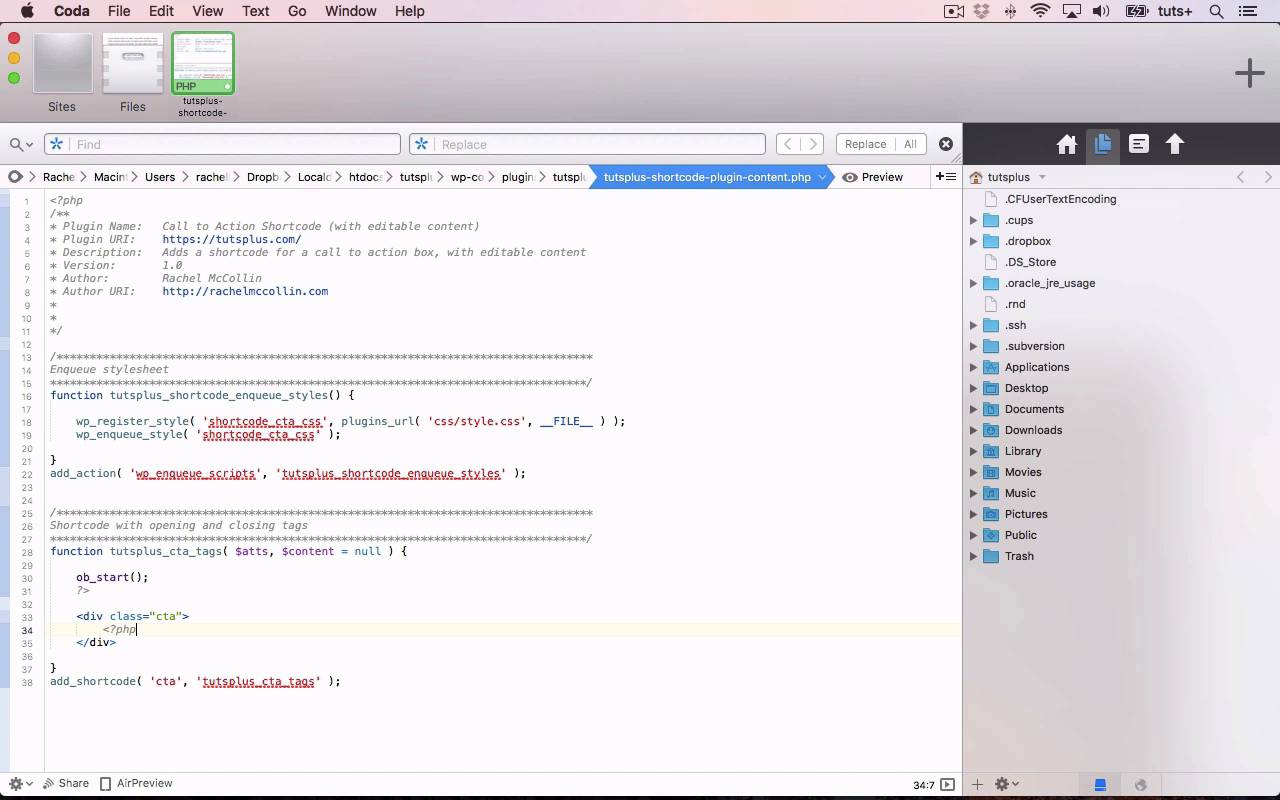
- Overview
- Transcript
4.2 Creating a Shortcode With Editable Content
In this lesson, I’ll show you how to make your shortcode plugin more powerful by supporting attributes and content in the shortcode.
Related Links
1.Introduction
1.1Introduction00:59
2.Plugin Best Practice
2.1Best Practice for Coding Plugins06:48
3.Creating a Hook-Activation Plugin
3.1Action and Filter Hooks06:26
3.2Coding a Plugin for Activation With a Hook11:47
4.Creating a Shortcode Plugin
4.1Creating a Simple Shortcode06:23
4.2Creating a Shortcode With Editable Content05:40
4.3Creating a Shortcode With Editable Parameters10:21
5.Code a Widget Plugin
5.1Creating the Widget12:23
5.2Save User Edits to the Widget10:30
6.Conclusion
6.1Conclusion02:52
4.2 Creating a Shortcode With Editable Content
Hello and welcome back to this tuts plus course on practical projects to learn to code plugins. In this part of the course, I'm gonna show you how to create a more interesting shortcode, one where the user can add the content to it. So, instead of a simple shortcode, that call to action CTA shortcode that we created in the previous part. We'll create a shortcode where the user can add the code in between the opening and closing short code tax. So let's start by looking at the code. Here's our plugin file. And you'll see it's very similar to the other plugin files when we started out, I've included the style sheet, which, if we take a look here at the plugin, you can see it's in the css folder, I've included that and then I've got my function which I need to write here for the actual shortcode. So let's do that. And again, I'll use add shortcode to activate this. Making sure I add the prefix to my function name. So I'll copy that as the second parameter of my shortcode. And the first one, remember, is what somebody types in. So that's just CTA again. Now the code for this is slightly different from the previous set of code where we created a simple shortcode. The first thing we do differently is in these brackets here after the function is we have two parameters. The first one is atts, attributes. And the second one is content. Which is null or empty. Those are two variables that we're adding here that we'll use in our function. So I'll start as I did before with ob_start. And then I'll close the PHP tags because I'm adding HTML. So I've got a div with the class of CTA, which I'm gonna close. And then inside that, Making sure, there we go, that's the variable. So instead of adding some content here I'm echoing out the content. This content variable. And then after that, Ob_get_clean. So we're using ob_start and return ob_get_clean to make sure our output's in the right place. We're opening our CTA div. And then inside that we're echoing out this content here. And when somebody uses this shortcode, they'll have the content themselves. So let's save that and then go back and edit our post. So I'm going to add this to the same place again. And again, I'll add a shortcode block. And here, I'll type cta in square brackets, but instead of leaving it as that, I then type the content, the text that I want to display. And then at the end, I close the shortcode. And then if I want to make this text into a link which I do. In the shortcode block that you'll see here, there's no way of adding a link through the WordPress interface. So I have to code it. And I'm just gonna use a hash for the moment. So now I save that and see what it looks like on my post. And there it is in my post. So it's a link. It's got the right styling, and it's in the right place. So in that case, I've been able to add exactly what content I want to using the WordPress admin screens. And that's a really good way of creating a flexible call to action box or you could just call it a box or a button or something like that. And add it wherever you want in your post with your own text and links. So that's how you add a shortcode where the user can add their own content to it. In the next part of the course, I'm gonna take things a little bit further. And instead of doing it like this, we'll create a shortcode that has parameters, and instead of typing in the content, they'll type in parameters, which dictate how the shortcode is output. See you next time and thanks for watching.


