
 Lessons: 11Length: 1.3 hours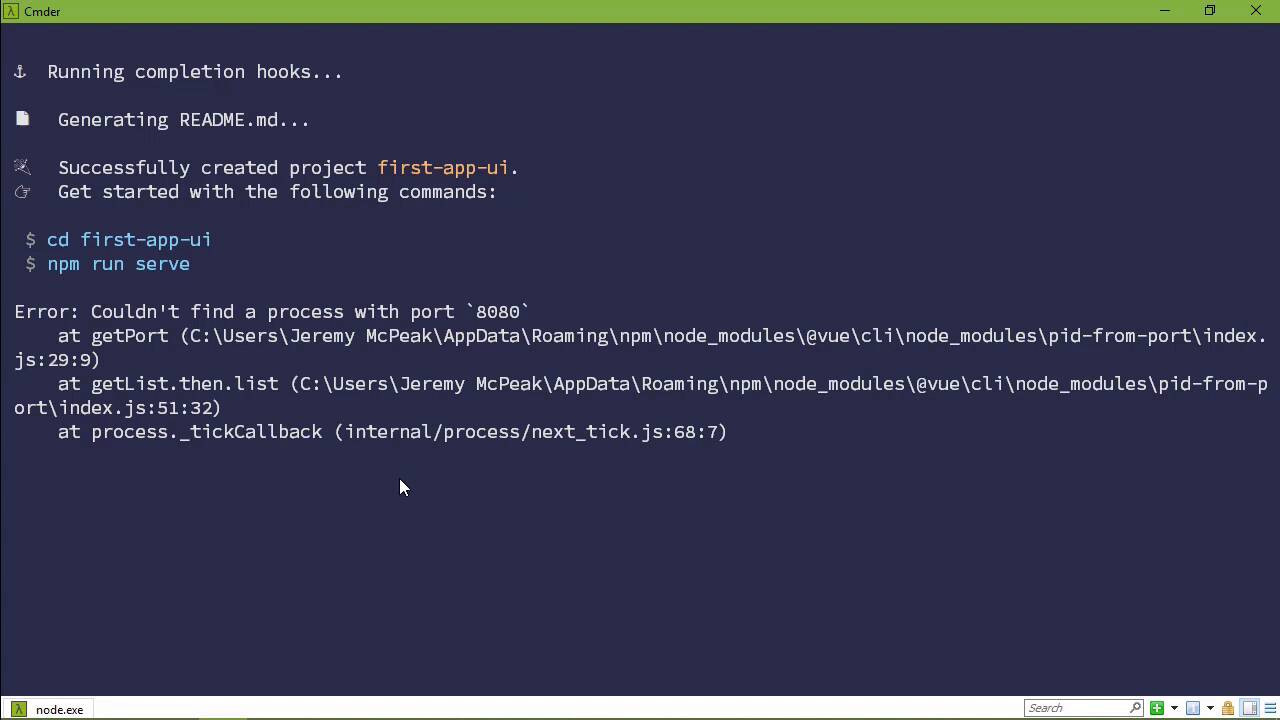
- Overview
- Transcript
2.2 Using the Vue UI
Interestingly, the Vue CLI includes a web-based UI for managing our Vue projects. We'll look at it in this lesson and try out the UI for creating and configuring projects.
1.Introduction
1.1Introduction01:42
1.2What You Need04:10
2.Creating Projects
2.1Using the Command-Line Interface13:58
2.2Using the Vue UI13:41
3.Configuration Options
3.1Overview of Project Configuration Options08:54
3.2Configuring the Index Page08:28
3.3Adding a Second Page06:11
3.4Project vs. Public Assets10:12
3.5Using Environment Variables06:08
4.Deployment
4.1Building and Deploying Your Project05:05
5.Conclusion
5.1Conclusion00:50
2.2 Using the Vue UI
In the previous lesson, we created a Vue project using the Vue CLI. And we did so by executing the vue create command. Well, in this lesson, we are essentially going to do the same thing. But we are going to use the graphical user interface which seems kinda weird, considering that we are using a tool called CLI, which is command line interface. But some people prefer a user interface and so the Vue CLI has one for those people. So in order to run this command, just vue ui. This is going to fire up a web server which is then going to fire up our default browser and we will then be able to manage our projects. So there are two things that we can do just right off the bat, we can create a project or we can import a project. And we will import one here in a few moments. But notice that nothing is listed here. That's because that it only displays the projects that we either create through the UI or the projects that we import. So we created a project using Vue Create. Since that was not done through the UI and we haven't imported it, that's why we don't see it here. Now, there are somethings on the bottom of the screen here. We we can see our current folder which is my home folder. Over on the left-hand side, it would give us the information about the project that's open. We also have an area for the log. So any time that we execute a command like if we tried to run our project, that is going to show up on the log. And there's a few other things. There's a dark mode, which let's use that one. We can report bugs because this is beta. After all, look in the tab, we can see that beta is in the title. And we can also help translate and then refresh the plugins API. So let's close the log and let's create because we will create one and then we will go over what we get through the UI. Because we do get basically the same functionality that we get through the command line, except that it's a graphical interface. So in order to create a project, we, first of all, want to choose the location on the file system. And we have some controls for doing just that. So right now, we are in my home directory. If I wanted to go up to the Users which is the parent directory, I just click on the up arrow and there I am in Users. Let me go back to my home directory and we're going to create a new project here. In the previous lesson, we created a project called my first app or something like that, so it's first-app, and then cmd. In this case, hello, we can see that that folder already exists, so that's a nice little thing to see. Since we are creating this with the UI, we will choose UI. And we can choose the default package manager, which for me is npm. But if you wanted to use yarn, you could select that as well. And then we also have some other options. Now this first one is to overwrite the target folder if it exists, which in our case, it doesn't. But if we wanted it to, then we could just click on that and it would. We can also either initialize the git repository, which is the default, or we can turn that off. We're going to leave it on and then we're going to move to the next item which is the presets. Now, you're going to see that the tutsplus preset is available. So if we wanted to use that to create our project, we could do that. But we also use the Default preset. We can also manually select the features which is essentially what we did in the previous lesson. And I guess we can that here as well just to go through those motions. If we just selected tutsplus, then it would of course use the presets that we set there and everything would be almost exactly as it was in the previous lesson. So let's choose manual and let's then select the features. So Babel is selected and if we wanted the TypeScript, then we can do that. We had Router, didn't we? We didn't save Vuex or CSS Pre-processors. We did say Linter. And that was it. We also said, use config files. So it's very much the same thing except that it's a graphical interface. So then it's going to want us to configure the features that we selected. So we did use the history mode for the router, so let's enable that. For the linter, let's choose ESLint + Prettier. And then we also have the option for linting on save and lint and fixed on commit. So we're going to leave it as Lint on save and then create the project. From here, if we wanted to create a preset, we could do just that. So it's exactly the same workflow, it might be a little cleaner as far as the UI is concerned, but it is the exact same thing. So let's not do this. Let's cancel and let's just back out so that we can use our tutsplus. I wanted to go through those motions so that you can see that it was essentially the same thing. And we can also create a preset. Now behind the scenes, this is executing all of the commands that we did in the previous lesson. So however long it took to create the projects in the previous lesson, it will take that long in this case as well. But once it's done, you will be greeted with the project dashboard, and it's going to give you some welcome tips. There's really nothing that we're going to go over so let's click Understood. And let's talk about this kill port. Now, I haven't successfully made this work but supposedly, you should be able to enter the port of a process. So if you have a project running, let's say on port 8080, and you wanted to kill that process, then it would kill it. Now in this case, it says that it can kill a process and if you look at the command line, you're going to see why. In this case, you're gonna find process with port 8080, and that's because one isn't running. [LAUGH] However, if I start one up, it still is going to say that it can't find one with port 8080. So it could be a Windows thing, I don't know. I haven't been able to really find much information on it. So I'm just going to leave that alone. So now, we can customize our dashboard, and we can add a widgets. So there's the welcome tips. So if we add that back, we have the welcome tips that we've just removed. Now, we can also add some other widgets such as the plugin updates and there are several others that we can choose from. Let's not go over those because they are pretty self explanatory. Now over on the left hand side, we have the ability to manage our projects. So if we look at the plugins, we are going to see the plugins that are currently installed, which is the vue/cli-service which, well, that's going to be there for every Vue CLI project. Then we have the babel plugin and then eslint. Now if we wanted to add a plugin, all we have to do is add plugin. And then we can search for whichever one that we want. So we added Vuetify in the previous lesson. And we can do that by doing a search and choosing that. However, let's do something a little bit different, let's use Bootstrap. So there is a plugin for Bootstrap, actually there's two. Well, one is for Vue components that kind of wrap around the Bootstrap widgets. But here, we have Vue CLI plugin Bootstrap that is for adding Bootstrap 4 to our project. So let's go ahead and install this. And so once again, we have to sit and wait for the UI to finish. And if there was configuration, then we would be doing that here. So if we installed the Vuetify plugin from the previous lesson, there was some configuration after that plugin was installed. We would be seeing that being done here. And if we finished the installation, then once again it's going to invoke that installation and then we will have Bootstrap in our new project. The next item on the left is the dependencies for our project. And this pretty much directly maps to the package.json files. So if we were to look at that in a code editor or a text editor, we would see that our main dependencies are Vue and Vue router. And then we have these various development dependencies. Now if we wanted to install a dependency, we could very easily do that by clicking on Install dependency, doing a search. If we wanted to install axios, we could do that. And that would be added to our project. Then we have the configuration, and this allows us to configure our project after we have already created it. So in the plugins that would have configuration, we would see that here. So if we look at the Vue CLI, there are several settings that we can choose like the output directory. Whenever we build our project, all of those resulting files will be inside of the dist folder inside of our project. If we needed to specify an assets directory for static assets, like images or some CSS and things like that, then we can do that here. If we look at the ESLint configuration, then we are going to see a lot of what we already have, and that is Lint on save. And then we can also select the config. Now the Essential is the default that was automatically selected, so we'll just leave that alone. And that is the configuration. Now finally the tasks, we can run the tasks which these are essentially the scripts inside of the package.json file. So if we wanted to run the serve task, then we can do that. We could run that and we would see the build process being done. Over here in the log, we can see that we are now running the serve task. We see some progress being done as far as the build is concerned. We can look at the output. We can see that it is building all of those modules one at a time. And then finally, when it is done, we can then load that up in the browser and see that application running In fact, there we go. So somewhere there's a link, if we go to outputs, click on that link, that's going to take us to our application. And voila, there it is. It's up and running without any issue. Now if I go back to the main page, type in 8080, because that port is now running and I tried to kill this, well, we're going to see that once again, process doesn't exist. So it found the process, but it then says it doesn't exist. So it could be a Windows thing as I mentioned, and I said i wasn't going to bother with that but apparently I lied. So now that we have this up and running, let's stop the task because I want to go back to the manager. So let's go back to the project manager, and let's import the project from the previous lesson. That is also inside of my home directory, so I'm going to go to that directory. Now I could have clicked on the up arrow like I did in a few minutes ago, but we could also just click on the directory and it would take us there. Let's scroll on down to find that folder and we're going to see that there is this nice little Vue icon next to the projects that were created with the Vue CLI. So there it is, first-app-cmd. Let's select that, that's going to navigate to that folder and then we will say import this folder. And it will import it. We will see the dashboard just like we did for the project that we just created. But in this case, if we go to the configuration, we're going to see an additional listing for the Vuetify configuration. And we can modify those changes right there on that screen. And so that in a nutshell is the UI. It gives us a graphical interface for managing and working with our Vue projects. So if you prefer a UI over a CLI, that is available for you.


