
 Lessons: 11Length: 1.3 hours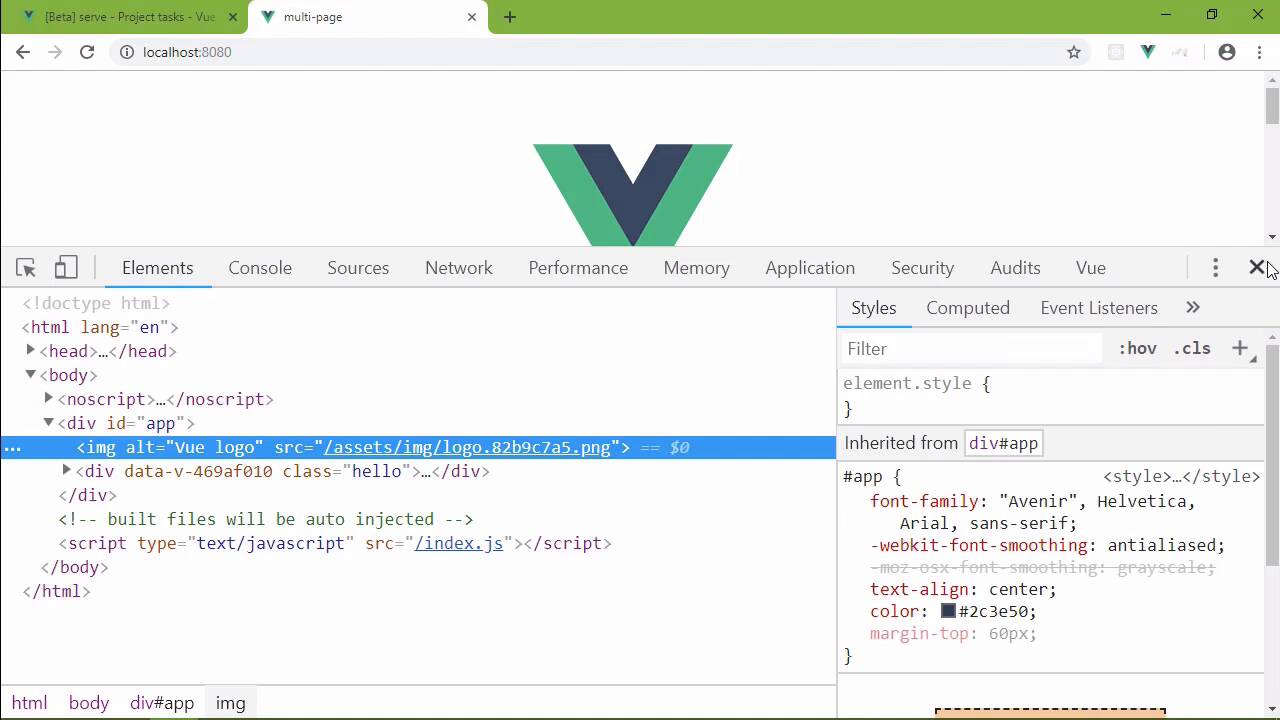

- Overview
- Transcript
3.2 Configuring the Index Page
We can configure the Vue CLI service to look for and use different files for our pages' entry points, templates, etc. We'll look at those options in this lesson.
1.Introduction
1.1Introduction01:42
1.2What You Need04:10
2.Creating Projects
2.1Using the Command-Line Interface13:58
2.2Using the Vue UI13:41
3.Configuration Options
3.1Overview of Project Configuration Options08:54
3.2Configuring the Index Page08:28
3.3Adding a Second Page06:11
3.4Project vs. Public Assets10:12
3.5Using Environment Variables06:08
4.Deployment
4.1Building and Deploying Your Project05:05
5.Conclusion
5.1Conclusion00:50
3.2 Configuring the Index Page
In the previous lesson, we talked about the asset directory setting. And we learned that it really has nothing to do with where our assets reside on the file system, but it has everything to do with the generated URL for our static assets that are passed through webpack. So in this lesson, we're going to talk about our pages and how we can change the default settings. For example, you only have this main.js file inside of our source file. And that is the entry point of our application. So we can think of this as kind of our index page. Now, technically, we don't have an index page. We do have an index.html file inside of the public folder. But this is more of a template than anything else. Technically, what we see in the browser when we go to the root of our application, yes, that is quote, unquote, the index. But this is not that HTML file. Now, it is being used as a template, but that is it. So if we came in here, we added an h2 that said template. And then we looked at this in the browser, of course, we're going to see template here. But this index.html file isn't really the index page that we see in the browser. Instead, that is the result of executing this main.js file and injecting all of that into the index.html inside of the public folder. So let's say, that's okay, we want to change this so that's eventually we will have multiple pages. So it kind of makes sense that we would want to organize our source code so that we would have an index folder. And then we would have the stuff for our index page inside of there. So let's do that by adding a new folder and we're just going to call it index. And then we will put the main.js and the app.vue file inside of here. Because, really, those are the two files that are being used for the index page, if you will. Now, of course, this is going to break our application,. Because by default, our application is looking for a main.js file inside of the source. So then, what do we need to do to make our application look to this new location? Well, inside of our vue.config, we can add a property called pages. And we can add one called index. Now, the index is there by default. But if we specify the index property here, this means that we are going to be changing the properties of our index page. For example, we have a property called entry. This is the entry point of our application. So the default of this is src/main.js. However, we don't want that. Instead, we want src/index/main.js. And so now, if we save this and we restart our application, we will still get an error because we still need to address some of the paths. For example, inside of the app.vue file, we need to change our reference to the logo.png. But that's easy, we just need to go back to the parent directory so that then we could access assets and logo.png. The same is true for the components as well. Now, let's go back to our dashboard for our application, and let's restart the serve task. And then, whenever we view it in the browser, we are going to see that our application works once again. And if we hop back over to the browser, we see the same end result. Even though our directory structure changed, as far as our source code is concerned, the end result is the same. Now, there are several other options that we can specify for our pages. So another one is called template and the default is public/index.html. However, I would make the argument that we could change that file name to template, because that is what it is. I have to admit, the first time that I saw index.html, I thought that, okay, this is the index.html, but that's not the case, it's a template. So we could make the argument that If we name it template, then whenever we see the file name, we know, hey, that's a template. However, that also means that we would have to change the template property on every page that we create. Because in the next lesson, we will add another page to our project. So either we add more work to ourselves, or we just remember that the index.html file inside of the public folder is a template. So whichever poison you want to go with, feel free to do so. So then we have a filename, and the default is index.html. Now, actually, the default is whatever we specify as the property name. So it's going to be index dot and then html. But this is the filename that is generated, whenever we run the build command, that is going to generate all of the HTML files that are based off of the template that we specify in our settings, as well as the entry point. So as we add another page, we will of course want a different filename. But if we omit that, then it's just going to default to whatever the property name is and then .html. We can also set the title, which in this case, let's just set to Index Page. Now, we're not actually going to see that. Because what we have to do then instead of our template is actually say that we want to use the value of our title from our settings. So to do that inside of our title, we would have to do something like this. We have templating syntax that we can use. So we we'll say, angle <%=, and then we want htmlWebpackPlugin.options.title, and then we will have %>. And that is going to grab the value from the title property for our index page, and it's going to put it here. If we have another page where we specify the title, it's going to grab that value and once again put it here. So this template file essentially passes through using the HtmlWebpackPlugin. And so we would use the syntax involved with that to output whatever we need to output in our title. So we are going to leave that as is. But however, since this was a change to our vue.config file, we have to restart our application. So let's once again do that. Although, I did that completely wrong. That is not Webpage, that should be Webpack. So let's do that, go back to the browser, and refresh, there we go. And we can see that the default was Webpack App. However, let's stop and start it again. And whenever that is done building and we refresh, we will see that change. And through the magic of editing, it was instantaneous. And we can see that there is our Index Page value that we specified in our config. So we have modified the settings for our index page. And in the next lesson, we are going to take that idea and essentially modify the settings for a second page for our application.


