
 Lessons: 11Length: 1.3 hours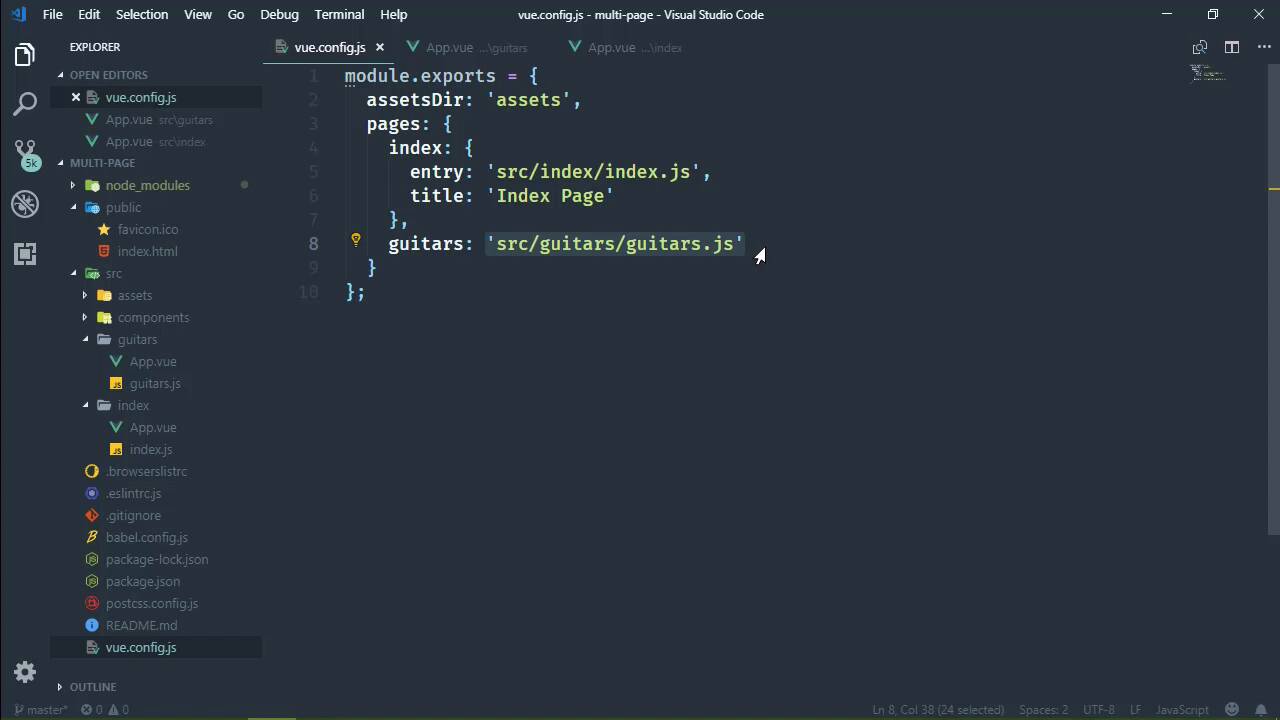
- Overview
- Transcript
3.3 Adding a Second Page
We sometimes need multiple pages in our project. In this lesson, I'll show you how to configure your project to include additional pages.
1.Introduction
1.1Introduction01:42
1.2What You Need04:10
2.Creating Projects
2.1Using the Command-Line Interface13:58
2.2Using the Vue UI13:41
3.Configuration Options
3.1Overview of Project Configuration Options08:54
3.2Configuring the Index Page08:28
3.3Adding a Second Page06:11
3.4Project vs. Public Assets10:12
3.5Using Environment Variables06:08
4.Deployment
4.1Building and Deploying Your Project05:05
5.Conclusion
5.1Conclusion00:50
3.3 Adding a Second Page
In the previous lesson, we modified the settings for the index page. Well, in this lesson, we're going to take those same concepts and add a new page to our project. So let's start by going to our vueconfig. And inside of the pages object, we're simply going to add another property. The name of that property is going to be name of our file or the name of our page, rather. And we can do one of two things, we can assign this a string. And if we do so, it's going to be the entry point for our application, so this would be src/guitars/main.js. Actually, if this was going to be a real application, I would have source guitars and then probably call that guitars. In fact, since we're here, let's just go ahead here and do that just to make things a little bit easier to follow along. So this means that the inside of the index folder, we need to change the main.js to index.js. And we now need a guitars folder, because we'll have an entry point for guitars. So let's go ahead and do that as well. I'm just going to copy index and we will rename that copy to guitars. Now, I do need to change the JavaScript file to guitars.js. And as far as this App.vue, yeah, I would probably change the name of that as well, but we'll just leave that alone. I do want to make this so that it is at least different. So that as we look at the different pages, we definitely know that we are on the guitars page. So this is going to have an h1 element that says that This is the Guitars Page. Let's also have a link that will take us back to the index. Let's just do this, index.html and then Go to index. Let's do essentially the same thing for our index page. Let's add a link that will take us to the guitars page. And let's put this above the logo, so this will take us to guitars.html. Go to Guitars Page and then we will just run the application. So let's run that and I think that's it. Although inside of the guitars App.vue, we could clear some of this out. Because we no longer have the HelloWorld component being used, we could just delete all references there. And we'll just wait for this to complete the build process so that we can test it in the browser. So by using a string here, as I mentioned, this is going to set the entry point. And for all of the other properties, it's going to use the default values. Now the default values are going to be a little bit different, in that the template defaults to whatever our property name is. So the default for template is actually this, public/guitars.html. However, if it doesn't find that file, then it falls back to index.html. So once again, we have that index.html, that is the template for our application really. And unless, if we specify a different template, or if we create a template for the different pages, then those pages will use a different template. So the template is different. Now, we did talk about the filename and how its value is used for the default. It takes the name of our property, so guitars in this case and that would be guitars.html. Now the title is actually going to default to that web app or something along those lines. I don't remember what it is. So this is something that we will probably want to change here. But we're first of all going to use the string value for this property. And then we will go from there, so this is done building. Let's refresh, we have our Go to Guitars Page link, so that works. Let's click on it and This is the Guitars Page, so we have our two different pages. And if we go back to index, we see what we saw before. So let's modify our config and let's go ahead and stop that. And we will set the title because well, it's too late to check what the title was. But the title was not really what we would want it to be. So if we want to set other properties, then we of course need to specify guitars as an object. And then we will set the entry point to that file. And then we could set the title to Guitars. And then once we run the application again, we are going to see that change. And while that's doing that, I am going to pretty this up again, so that we can have the default values listed here inside of the code. And this doesn't take very long, because it's a pretty stock project. But when that's done, we will be able to navigate to our Guitars page. And we will see the Guitars title and there we go. So for every individual page that we want to add to our project, all we have to do is add a property to the pages object in our config. And then set the desired options to their desired values.


