
 Lessons: 10Length: 51 minutes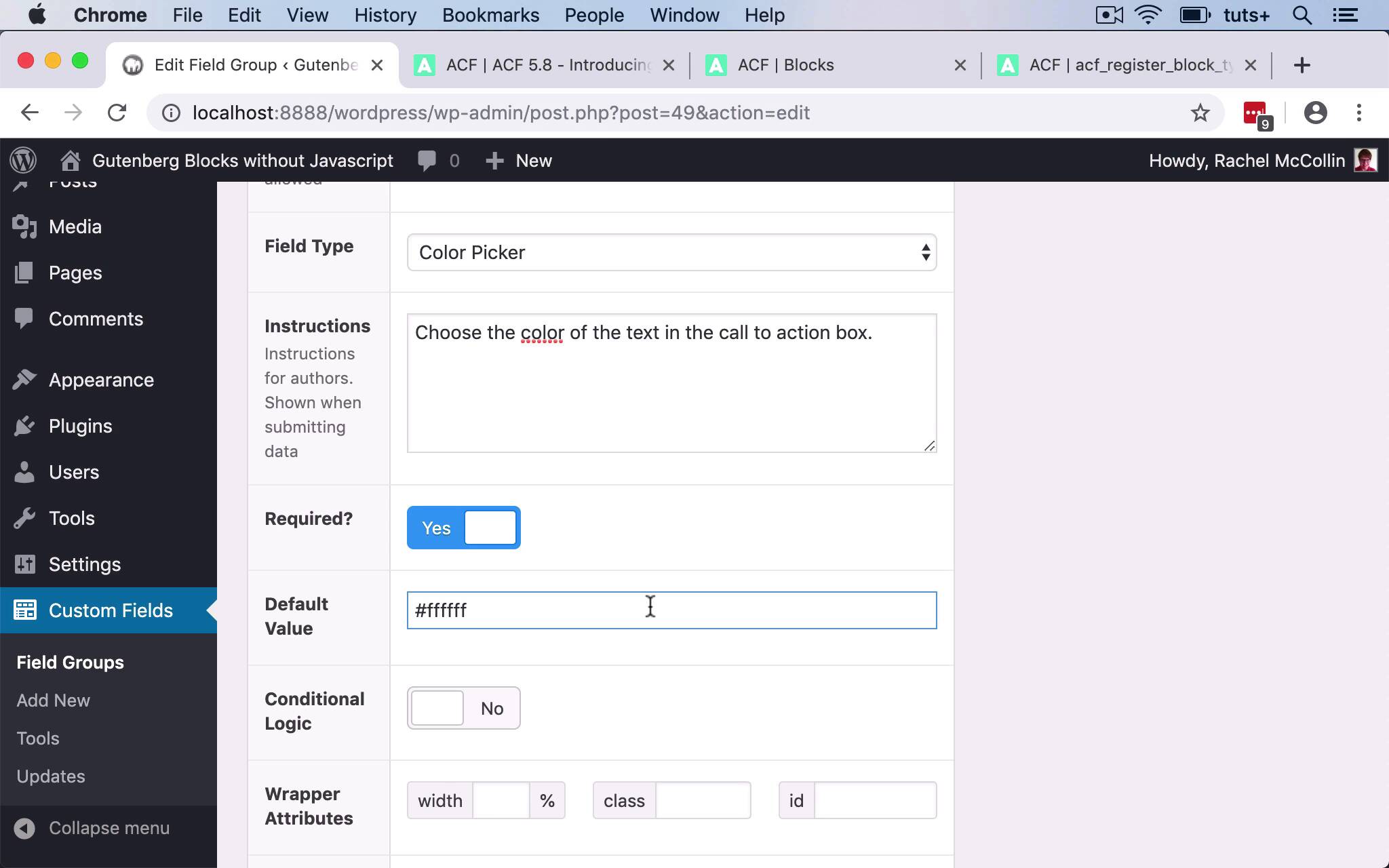
- Overview
- Transcript
3.2 Adding Block Settings
In this lesson, I'll show you how to add some settings to your block. We'll add options to change the block colour.
1.Introduction
1.1Introduction00:48
1.2Why Create Blocks Without JavaScript?03:25
2.Registering a Block
2.1Setting Up the ACF Plugin04:43
2.2Registering a Gutenberg Block With the ACF API06:17
3.Adding Fields to the Block
3.1Creating a Field Group and Adding Fields04:16
3.2Adding Block Settings03:49
4.Outputting the Block
4.1Setting Up the Block Class and Values08:17
4.2Writing the HTML06:14
4.3Adding the Block to a Post or Page10:49
5.Conclusion
5.1Conclusion02:16
3.2 Adding Block Settings
Hello, and welcome back to this Tuts+ course on creating Guttenberg blocks in WordPress without JavaScript. So here we have our field group set up for our block and I'm gonna create an accordion that will include my color pickers. So I'll start with a field label of cta_colors and a field name to go with it, and my field type is an Accordion. And this means that the fields I have beneath this will be part of an accordion that you can make appear when you're setting up your block in the post or the page. So my next field will be my color picker for the background, which I'll call cta_background. Again, the field name is automatically generated and the field type for that will be a color picker. I'll add some instructions for users. That is required, it'll have a default value, which I'll make as black. And then I'll add another color picker for the color of the text. Call that cta_text_color. And again, it will be a Color Picker field type. And I'll add some instructions for users to this one as well. And that'll be required as well and I'll add the default as white. And that's all my fields. So I click on Update for my field group. And now you can see my accordion separated from the rest of the fields. And within that accordion will be the background and the text color. But we also need a way of actually styling those. So I'm gonna add an extra argument to the function where I originally registered the block. So I'm gonna add an additional argument to my function here, enqueue_style, and that will enqueue a style sheet for us. Now, I'm gonna put that in my theme directory, because I want to add styling that fits with my theme. So I use get_template_directory_uri to find that directory and then I need to use a path, I use a path that takes me to the file that I will create. So I need to create a style sheet called cta.css in that location in my theme. Now you could alternatively refer to the plugins directory and you could put the style sheet within the plugin itself, it's up to you. I'm gonna enqueue it and add it to my theme because I want this to be related to my theme. So I'll save that file and then go back to my field group. I've already published it and updated it. So I now have my field group with my style settings and my accordion. And that's how you create all the fields for your field group, including color settings. In the next part of the course, we'll start writing that callback function to output the block on the page. See you next time, and thanks for watching.


