
 Lessons: 16Length: 1.6 hours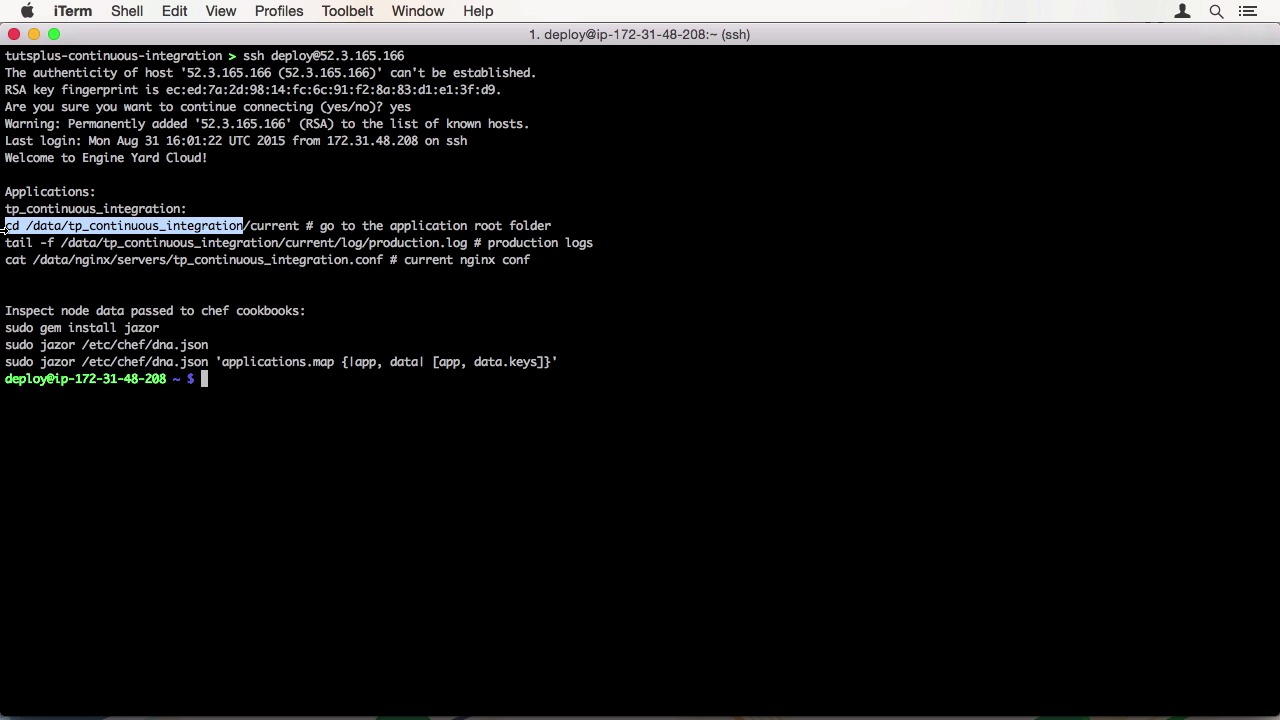
- Overview
- Transcript
2.4 Engine Yard Deployment
Now, that we know how to use Git Flow, we can use continuous delivery with Travis CI to deploy our Rails application to Engine Yard Cloud. In this lesson, I’ll show you how.
Related Links
1.Introduction
1.1Introduction01:07
1.2What Is Continuous Integration?04:54
1.3Development Approaches: Git Flow and GitHub Flow04:38
1.4Project Overview01:42
2.Git Flow, Travis CI and Engine Yard
2.1Travis CI Overview09:01
2.2Test a New Feature07:43
2.3Release and Hotfix08:04
2.4Engine Yard Deployment08:27
3.GitHub Flow, Codeship and Heroku
3.1Codeship Overview09:24
3.2Develop a New Feature09:49
3.3Heroku Deployment05:38
4.Bonus: Custom Jenkins Server and Capistrano
4.1Installing Jenkins on a VPS02:31
4.2Jenkins Overview10:08
4.3Test a Ruby Project06:02
4.4Capistrano Deployment08:04
5.Conclusion
5.1Conclusion01:02
2.4 Engine Yard Deployment
Welcome back to Continuous Integration Workflow. In this lesson, I'll be showing you how to deploy your application to Engine Yard using the deployment feature of Travis CI. I already signed into the Engine Yard cloud and activated my trial. It is very easy to do so. If you get stuck anywhere, don't be afraid to ask the live chat support for help. They resolve any issues very quickly. As you can see, we already have an application set up. We also have a production environment, which is just a single instance. Now we are going to create a separate staging environment. To do that, click the Create New Environment button. You will be presented with a lot of options to set. Luckily, most of them are on the very same default. To name the environment, I'm going to use staging. But I leave the Rails Environment at production. I also use Passenger 4 as the server. Another option would be Unicorn, but there's no need to complicate things. Ruby 2.2 is also fine, but I'll change the PostgreSQL database to 9.4. All other options I'll leave at the default. Notice that I added my SSH key to the account so I can log into the server later. After creating the environment, we have to choose a configuration. For production, I chose the singular instance setup. But let's do a more complicated one for the new environment, two load balance app servers and a dedicated database server in a private network. Now publishing starts. This can take quite a long time, so why don't we configure our application for Engine Yard and Travis in the meantime. To do so, first install the Engine Yard gem, then install the Travis gem. When using the ey init command to initialize the project for Engine Yard, it creates an EY YAML file in the config folder. We also need to log in using the ey login command. Let's have a look at this configuration file. It has many options, most of them commented out, and a ton of documentation. I'll be leaving everything at the defaults, because they work just fine. To make Rails work with Engine Yard, we have to customize deployment a bit. Create an after_symlink.rb file in the deploy folder, and ends at a line to symlink the secrets.yml file from the shared to the release folder. This step is necessary to provide Rails with a secret key base. Using environment variables on Engine Yard is quite difficult, so adding an additional symlink is the much easier way. Now let's commit the changes, but don't push them yet. We are finished with our initial Engine Yard setup, but the provisioning itself has quite a lot of work left. Let's speed it up a bit. All three servers finished provisioning. It's time to do a last manual deployment step. SSH into the application server, and change into the application's root folder. Then switch to the shared/config folder and edit the secrets.yml file. Create a production section, and within that, the secret_key_base property. Use your local Rails application to create a secret with rake secret and paste it into the new file. Then save and exit. Now let's push to our repository. We can use the Engine Yard web interface to manually deploy the develop branch. You can then either use the IP address or the HTTP link to view our application. When we visit the deployed application, everything works, but the database isn't seeded yet. We can misuse the deployment interface, to not run rake db:migrate, but rake db:seed upon deployment. After shut down time with the maintenance page, the authors are in our database. Now let's get to the deployment with Travis CI. Since Engine Yard is explicitly supported by Travis, we can use the command line utility to set up Engine Yard for us. Run travis setup engineyard and you will be asked a few questions to set it up. Because we logged in before, Travis found our API key and encrypted it in the config file. Let's have a look at that. We need to change a few settings before we can use it like we want to. First, we don't just have the production environment, we want to conditionally deploy to a specific environment depending on the branch. When we are on develop, we want to deploy to staging. When we are on master, we want to deploy to production. We also need to set the app name, since it isn't the same as our repository name. Let's set the app property to tp_continuous_integration. Setup is complete. Commit the changes and push them to the server. When we go to the Travis CI site, we can see the build running. One of the jobs failed. Let's look into that. On the bottom of the log, we can see that the deployment failed because there were two at the same time. Right, both jobs run deployment. We can further limit the deployment in the travis.yml file by setting an additional condition on the RVM version. We want to just deploy with Ruby 2.2. After committing and pushing again, a new build is started, and the deployment is only run on the Ruby 2.2 job. You can follow along in the log file. When we look at the environment on Engine Yard, we can see that the version was deployed to our staging environment. To finish up, let's also merge these changes into master. After building, you can see there are different versions on our environments, both deployed by Travis CI. In the next lesson, we are going to look at another provider, Codeship. See you there.


