
 Lessons: 9Length: 40 minutes
- Overview
- Transcript
2.3 Working With Headers
In this lesson we'll move on to setting and retrieving headers using Angular's HttpClient module. You'll also learn how to use the in-memory database to intercept responses and set headers in order to simulate headers that the real API we want to use might add to its responses.
1.Introduction
1.1Introduction00:46
1.2Setup04:05
1.3Angular's in-Memory API03:39
2.Making Basic HTTP Requests
2.1Sending a GET Request06:18
2.2Sending a POST Request04:44
2.3Working With Headers06:14
3.Advanced HttpClient Usage
3.1Using Progress Events: Part 107:01
3.2Using Progress Events: Part 206:44
4.Conclusion
4.1Conclusion00:54
2.3 Working With Headers
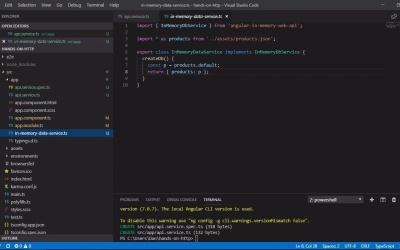
Hi folks. In this lesson, we can see how to add HTTP headers to our requests, which is often a common requirement when working with an API. Let's get started. So let's say that we want to add a custom header to the get request that we make to get the data. We can do that in the API service. First of all we'll need to import the HTTP headers class from Angular. Now lets update the get data method to add a new header. We first create a new constant good opts, which is an object, and we then add a property called headers. The value of this property is a new instance of the HTTP headers class that we just imported from Angular. We pass another object into this constructor and this object should contain the headers that we want to set. In this case we set a header called X-Requested-With, which is both camel cased and hyphenated, the standard format for request headers. We set the value of the header to the string HTTP client. And then we pass this whole opt object object to the get method of the HTTP client as the second argument. When Angular makes the request for us, it will take the headers from the options object and apply them to the request. Because this will get intercepted by the in memory DB, we can't inspect the request in Chrome's Dev Tools. But we can see that the HTTP headers constructor has indeed created the HTTP headers object by logging into the console. Let's just do that quickly. This should be added before the return statement. So as long as the headers property within the opt object is a true HTTP headers object, it will have a method called get. This method takes a single argument, and that's the name of the header that we want to get. In this case, we've only got one header, which is X-Requested-With. So let's go back to the browser now. And we can see that the value HttpClient has indeed been locked to the console. So we know that our headers are a true HTTP headers object and it should therefore work in the way that we expect. Let's get rid of the console log now. The in memory DB has the ability to set headers and the responses from the API as well, so let's make use of that feature to add a header to the response that we get from our post request. First of all, we'll need to update the in memory data service. If we add a method to the class called response interceptor, Angular will invoke that method every time a request is made. The method will be passed the response options by Angular and it should also return the response options again at the end. This gives us the opportunity to modify the response according to our needs. We just need to import the response options. So now let's add a header to the response options. In Angular, the HTTP headers object is actually immutable, so we can't just set the new header directly. Instead, the set method returns a new instance of the HTTP headers object containing the new header, as well as any existing headers. And we overwrite the existing headers object with this new instance. And in this case, the response header that we want to set is called X-Response-From. And the value for that is just the string InMemoryDb. So now we need to get that header back in our app. We need to make a slight change to the app. So right now Angular is returning to us only the body of the response, not the full response, it does this as a convenience. But in this case, we do actually want to access the full response. So let's go back to the API service once again. And in the post data method, we need to add a third argument to the post method. With the get request we added a second argument and that was in object of options for the request. When we're using the post method, this becomes the third argument. And in this case the property that we want to set is called observe. And we just tell Angular that we'd like to observe the full response from the server, not just the actual data, which is stored in the body of the response. So now we need to make a slight change back in the app component. So now the products that we want to push into the products array will be in the body of the response, not the complete response. So let's update that first of all. So now let's see if we can log out the response header. And let's go back to the browser once again. And we'll need to add a new product again. Now in the console, we should see the string InMemoryDB. So in this lesson we saw how we can add headers to an outgoing HTTP request in Angular. We learned that we can set headers using the HTTP headers constructor and passing in the headers that we want to set. Thanks for watching.


