
 Lessons: 7Length: 44 minutes
- Overview
- Transcript
3.2 Templates for Custom Content
In this lesson, we’ll build on your knowledge of creating custom page templates to create templates for custom post types and taxonomies.
Related Links
1.Introduction
1.1Introduction00:37
2.Making Use of Include Files
2.1Review of Standard Include Files05:22
2.2Creating Multiple Loop Files11:36
3.Creating Custom Template Files
3.1Custom Page Templates05:23
3.2Templates for Custom Content11:02
4.Conditional Tags
4.1Using Conditional Tags to Output Content06:37
5.Conclusion
5.1Conclusion02:58
3.2 Templates for Custom Content
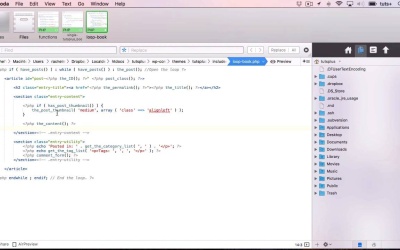
Hello and welcome back to this Tuts+ course on coding advanced theme template files. In this part of the course, I'm gonna show you how to create template files in your theme for custom content types. Specifically, a new post type and a new custom taxonomy. So let's take a look at our functions file, where I've already registered those. Here's the functions file in our theme. So it's already got all the code setting up the theme, as well as registering our widgets. And I've added two new functions. The first one is tutsplus_register_post_type, and that has registered a new post type for books, which has the ID tutsplus_book. And then there's a custom taxonomy which applies to tutsplus_book down here in the register_taxonomy function and it's called genre. So, that is tutsplus_genre. But both of them use the rewrite argument. So the slug would be genre for this one and book for this one. And if you want to learn more about registering post types and taxonomies, I've provided the links in the notes for this course. So let's have a look at the admin for my site now. As you can see, I've got this new post type called Books and I've got this new taxonomy called Genres. And I've added a book in here, which is a book I've written on WordPress. I've written some content for it and I've added a featured image down here. Let's create an excerpt. So I'll copy that, put it into the excerpt. And that will show up in the relevant place. Now, let's take a look at it first. Now at the moment this is using the loop that we already created with single posts. So it's giving a date and the content and then it's giving the categories and it's not showing any comments. I'll need to check the settings for the posts for that. But what I do want to do is to create a new template file that will display this singular post type. And I want to include my featured image, my photo with the book. I don't want the date, because the dates I posted this is irrelevant. And I want it to also include a list, instead of categories, of the genres that it applies to. So let's go about creating that. So I'm gonna make a copy of my single.php file. So I'll duplicate that. And we call it single-tutsplus_book. Because you call the single template file for a new post type single-, and then the name of the post type. And again, in the Notes for this, I've included a link to this site on the WordPress template hierarchy which gives you all of the naming conventions for your different files. As well as showing you how WordPress picks which one to use. So we now have this new single-tutsplus_book. Now, I'm going to change that. So that's the book post type. Now, instead of editing a load in here, I'm gonna change my include here, my get template part function. So instead of being single it'll be book. So it'll look for a file called loop-book.php. So I'll save that. And then in my loops, I'm gonna duplicate loop-single. And I'm gonna call it loop-book. And let's open that. And this is where I do my editing. So firstly, let's get rid of this entry-meta, I don't want that. What I do want is the thumbnail. And I want that to be left aligned so that the content wraps around it. So I put it inside this entry content section. So first I check if it has a post thumbnail. And if that's the case, I output that thumbnail. And I want to use two parameters. The first is the size, which will be medium. And the second is an array of values which gives more information, and in this case I want the class. I'm making sure I do all my punctuation correctly. So that will display the_post_thumbnail and its medium size, and it'll align it to the left using styling that's already in my style sheet. Make sure I put my semicolon at the end, and I'm just going to add some spacing so I can see what's going on here. So that's my content. There's the thumbnail and then there's the actual content itself. And then here, instead of the tag list I'm gonna add, get_the_term_list. And that has some different parameters. Let's just take a look at that. You've got that here in the codex. So it needs the ID, and that's the current post, the taxonomy, and then before the separator and after. So my first, I'm gonna put my quote marks and commas so I know it's all set out correctly. So the first thing is the taxonomy. Sorry, I got that wrong, but first thing is the post. So it's the current post, and then the taxonomy is tutsplus_genre. The preceding text is genre. And the separator is a comma. And then to finish off, we want a closing paragraph tag. I'm not gonna include comments here, so I'm gonna take that out. And then I will save my new loop file. And now if I refresh that in my site, there's an error. So let's take a look. I think that that's because I didn't close the PHP here. So let's just lay that out a bit better. Try that, I'm still getting that error, and yeah, that's the problem. I've actually put too many equal signs there. It should just be an equals and an arrow rather two equals and an arrow. Refresh the page, there we go. So that's now using my new loop. So we have over here the featured image, the categories it's posted in and the genre. So that's how you create a new single template file for a new post type. Now let's do this with an archive template file for a new taxonomy. So going back into coder, I'm gonna close those. And let me just go back into the site and show you the how to genre. So at the moment, this is just using the standard archive template file. Let's create something a little bit more bespoke. So the first thing I'm gonna do is duplicate my archive file. I'm then gonna call it loop_genre. So let's edit this. So I still want my H3, I want my entry content and I want the post thumbnail this time. So I'm gonna copy that from loop_book. Just to be sure I don't put any, Errors in. Now I'm gonna put it here. No I'm not. I'm gonna put it in my entry-content again, In the same place. And I'm gonna get rid of this entry-meta section. So the date isn't being displayed. So all I've got is my title with a link, the post thumbnail and the excerpt. So I'll save that. Now the next thing I need to do is create a template file for that. So I'm gonna create a duplicate of my archive.php file. And in this case, I call it taxonomy, And then the name of my taxonomy. So it's taxonomy-tutsplus_genre.php. So I'll open that up, I'm gonna edit this And all I need to do here is change this archive to genre. So that'll call this loop instead. So I've saved all those, and what I do now is go back to my site and refresh it, and there you are. So I have a new list, that's a link through to my book. I've got the image over on the left-hand side. And then I've got the excerpt. So that's how you create custom templates for your custom post types and your custom taxonomies. Now, another type of template file that you can create is a template file specifically for your front page. And I'm not gonna go into detail on how you do that here because we've got a course that i produced not that long ago and that is still perfectly current on how to create a custom front page with a WordPress theme template. And that shows you how to include multiple loops and widget areas In your front page. In the next part of the course, I'll show you how to bypass some of the additional template files that we've been creating. Yes, we're actually gonna undo some of our work, but it's all useful to know, by using conditional tags. See you next time and thanks for watching.


