
 Lessons: 7Length: 44 minutes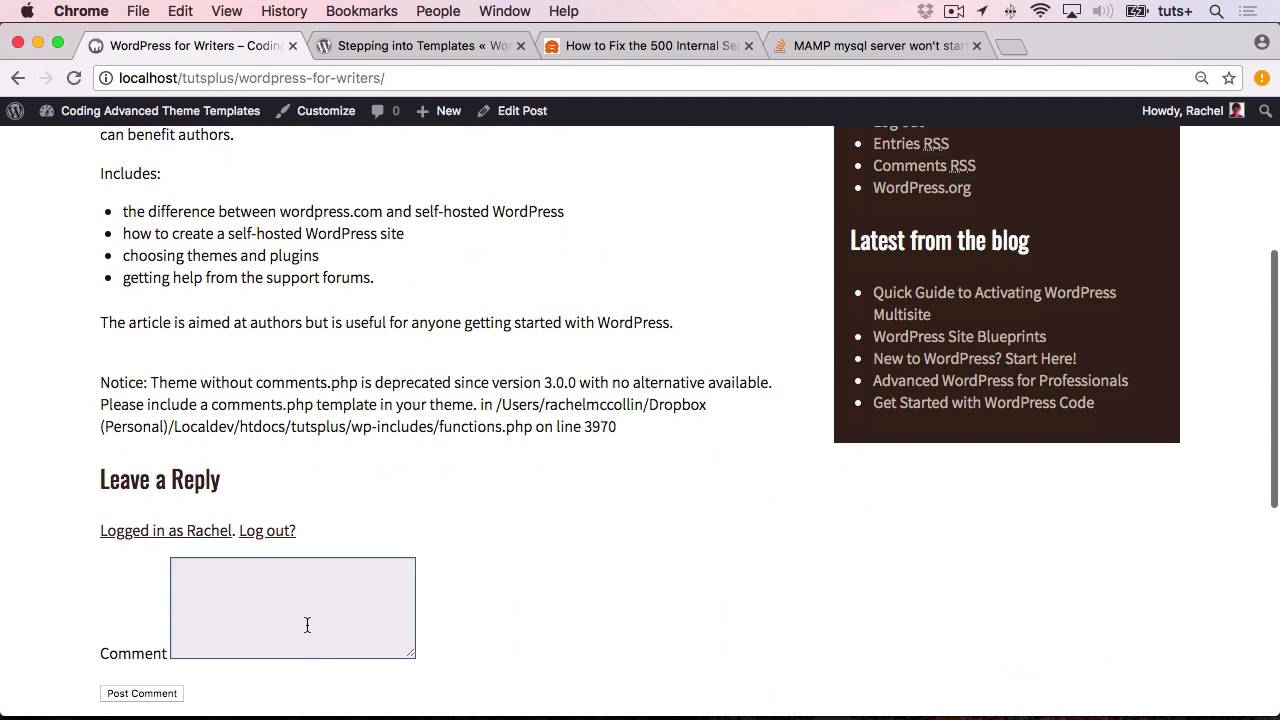
- Overview
- Transcript
2.2 Creating Multiple Loop Files
In this lesson, you’ll learn how to code loops for different content types and call them in your theme.
Related Links
1.Introduction
1.1Introduction00:37
2.Making Use of Include Files
2.1Review of Standard Include Files05:22
2.2Creating Multiple Loop Files11:36
3.Creating Custom Template Files
3.1Custom Page Templates05:23
3.2Templates for Custom Content11:02
4.Conditional Tags
4.1Using Conditional Tags to Output Content06:37
5.Conclusion
5.1Conclusion02:58
2.2 Creating Multiple Loop Files
Hello and welcome back to this TutsPlus course on advance theme development with WordPress. In this part of the course, I'm gonna show you how to create multiple include files for your theme. And specifically I'll show you how to create multiple versions of the loop. So let's start by creating a loop for single pages. This loop we've got at the moment runs for any type of content, and it's a bit generic. So I'm gonna create one just for my pages. So I'll close it, and I'm gonna duplicate it. Now that creates a file called loop copy. I'm gonna change that so it's called loop page. So, now I've got my loop-page.php, I can edit it and this will be used by WordPress whenever I display a single page. It won't just yet cuz I'll have to edit my page-template file first. So, I don't want to include the date in my single pages. So I'm gonna take that out and that's about it. I will include the comments template although I'll probably have top comments turned off for pages but in some cases you might want to include comments on pages. So that's my new version of the loop just for pages but doesn't show the date. I'm gonna save that and then I'm gonna open my page template file, page.php. Now at the moment, this has the same function here as in my index file. Get template part includes loop. I wanted to fetch loop page. Now instead of typing what you might expect, which is that, I actually use page as the second parameter in the function. And the reason for that is because WordPress will look for a file called loop-page.php. And if it doesn't find it, it'll open loop.php. So if something goes wrong with my loop page file, if it's deleted or if it's corrupted or something like that, it'll still revert to the loop.php file. So this is the correct way to add multiple versions of the loop using that get template part function. You use a second parameter here. So save that and then let's go to my site, so here we are in static page and as you can see, there is no date there. So this is using that page template with that special loop for the page. Now let's move on and do that for a couple more types of content. So I'll open coder again, I'm gonna close those template files. I'm gonna close loop as well and then I'm gonna do this for archives. So, let's create a loop for the archive. I'll duplicate that, Call it loop-archive and then I'll open it up. Now, here I don't want the comments template. So I don't this entry utility section. And I want to change my heading tag so it's h3 instead of h2. Because there will be an h2 tag around the main archive heading for the page and I'll save that. And in order to activate it, I need to open my archive php file because you see the h2 tag here. And again here I'm gonna write it this so it says archive. And I'll save that. I'll also output what to change here to the exit. Instead of content and I'll save it and then I'll take a look at my site and see how that looks. So here I am on an archive file, archive page for categories. The application category and you can see it's just showing my X out here. For this post, I could create a to make a manual X things a bit neat there. It's showing the date, but it's not showing anything after the excerpt. So that's using that archive loop. Now let's move on to doing that for a single post, so I'll open coder again, I'll close down my files. I'll create copy of loop I'll call it loopsingle.php. Now, this is going to be four single posts or four single posts of a custom post type. Now, let's take a look at that. At the moment, I don't want to change that. That's absolutely fine. And then I'll open my single.php and I'll edit that. Making sure I typed it correctly. And now, I'll save that. Check that that's all correct, and then I'll check it on my site. So here I am back in my archive page for my category. Let's click on one of these posts and here. That was an error with my comments, I need to fix that. There's an error with my comments here, I will fix that shortly. Let's go back a little bit, a different one that's better. Here we go. Right. So you can see the full content of this particular post. So that's my single post. It's got the date, it's got the full content, and it's got the comment matter. And it's got the comments down here. Now, I've worked out what the problem is with this. I'm using a deprecated function. I should be using comment_form instead. I'm going to take a moment to go and correct that in all my loop files. And then I'll come back and check it on my site. So I've now done that, I've gone back and changed it in all of the relevent loop files. And the reason that was the case is because, if you use comments template, you have to include a comments.php file in your theme, with the contents of your template. If you use the comment form function instead, WordPress will pull in its own comments template. And I'm using that because generally for my sites, I actually use additional comment functionality such as JetPack comments, where people can use Facebook or Google to make comments as well. So I don't want to be manually coding my own. So that's that little glitch fixed, now let's go and take a look at the site and check everything's working. So here's my single post on WordPress for writers. And it's got commands, it's got the date, so it's got all the metadata I want. Now, I could add extra metadata. Now, at the moment, our loop single file, our loop here, is exactly the same as our generic group, so let's add something else to make it specific to a single post. And I'm gonna add a list of the categories and tags for this post. So let's start with the categories. So we're using get_the_category_list() which is a function provided by WordPress. And that that has one parameter that we need to use, and that's the separators. So, we're echoing out Posted In and then followed by the output of get_the_category_list, separated by a comma and a space and then a closing paragraph Now let's do the same for the tags. Now, the get the tag list function is slightly different. Its parameters include what precedes it and what comes after it. So we don't need to echo out any text as well. It would help if I would type correctly. So first parameter is what comes before it Which is text. Our second parameter is a separator and the third parameter is what comes after it. Well, let's put that opening Peter again. Hang on, so that's our second parameter, is the comma and then. That's where I'm going wrong. I'm confusing myself with all these comments. So I've got my first parameter here, which is what comes before it, my second parameter here which is what's separating them. Comma before this next one, that's where I've gone wrong, I've not got a comma there. Comma before the next one and then my final parameter which is a closing pay tag. So that will then echo out the list of categories and the list of tags. Now let's take a look at the site. So here's my post and you can see it says here, posted in applications and then it lists out the tags with a link to each of the archives for those categories in text. So that's a good way to make our single loop. Specific and distinct from the standard loop that's being used by any old file in WordPress. And that's how you add additional loop files and additional include files in your WordPress theme. So you've seen how to create those loop files. And also how to call them correctly from the template file. In the next part of the course, we're going to move on to creating some custom template files. First, we'll create a custom page template file and then in the next part after that we'll look at custom files for taxonomies and post types. See you next time and thanks for watching.


