
 Lessons: 8Length: 1.1 hours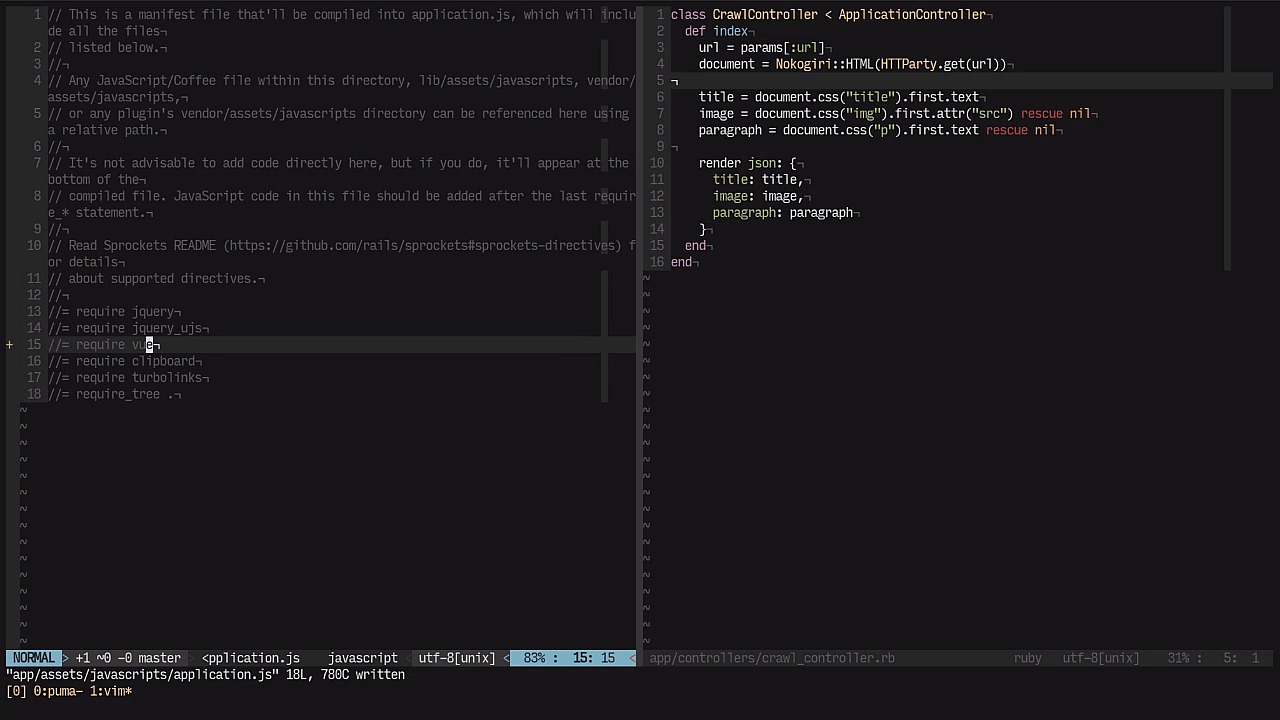
- Overview
- Transcript
2.5 Preview Content With Vue.js: Part 1
Now that we have a solid foundation for our application, we can extend its functionality by supplying preview data to our bookmark objects. We’ll scrape content from the target pages and use Vue.js for interactivity.
Related links
2.5 Preview Content With Vue.js: Part 1
So far we have a pretty solid application. Now, I wanna improve on this and add some interactivity in order to facilitate the process of retrieving some data. I wanna script the contents of each URL and retrieve for example the title and image and the paragraph. Let's do that by first creating a controller. Let's go to our editor and create a crawl controller. So let's type that crawl under score controller dot RB. This controller class will have the sole responsibility of scraping through the website they we're trying to bookmark, and retrieve some data for us to complement the bookmark with. So let's have the index action here, which will do something that we'll implement later on, but this is going to be the interaction point between the page and the server. Now, let's go to config slash routes. Here we're going to have a you get route called something like Slash crawl slash your L and this will point out to the nth X action and the Crawl controller will call it crawl path just like so. And just remove all of this. It's not needed really and separate all of these. So we have this custom crawl route which will pick up on the URL. Let's also add in a constraint. So we use constraints and the constraints will be a hash. That tells us that the URL needs to be something like a string with any value really. This is what we want to achieve because we want to include all of the colons and forward slashes and all that stuff, and we need to let Rails out of the way. So we don't want to have anything for example with the formats and all that stuff. Rails usually picks up on the dots and the text goes after it interprets them as, for example cotton formats. So either Jason or X M L. And URLs have all those dots and foreslashes, this wouldn't work without the constraint. Now the index action will take that URL so URL equals Paramus U.R.L. so we have that variable already out of the way. Now. what do we need to do next? We know for a fact that we're going to call this route from the browser but let's focus our attention on the ruby code first. We need a way to retrieve the content based off the URL, and retrieve some sort of an image, and a paragraph, and a title. For that, I like to use HTTParty. Let's use that by going to the gem file and include the H D party gem as well as know Geary. In order to interpret the contents of that web page and sub in the panel command to add in those Okay, there you go. Now we have those two jams. Let's take the chance to restart the server so we won't have to worry about it any longer. And let's go back to where we were. In here we're going to have a document variable which will be the result of typing nokogiri HTML. We want an html document which comes from HTTParty.get url, and that's it. We will retrieve the contents of the page that's in the url, and we'll create a document out of it. Now I want three variables here. I want a title an image and a paragraph. We're going to try and retrieve all of these based solely off the document. We're going to use the CSS method to retrieve a content based off a CSS selector. I want a title here, so this should be the first one and then text. We want to retrieve the text of the first tag that comes from the list of tags retrieved by this selector method the image will be something very similar. We use document dot CS image dot first dot text the paragraph should also be something very similar, we'll just copy that. But instead of using image, we want the p, standing for paragraph. There are couple of Gotchas here. First off, I want to have the source just like that. So I want to introduce the source attribute instead of just the text, because the image doesn't have any text really. The content or the value of the image is in the source, so we'll retrieve that. Also let's consider the hypothesis that the image doesn't really exist. You're trying to bookmark a page that doesn't really have any images. What do you do? Well, I'm just going to rescue from all exceptions and turned no in case that happens. the same goes for the paragraph. If there are no paragraphs then just retrieve nil as well at the end we want to render A.J. some file that's based off the following hash. We have a title key an image key and a paragraph. There you go, that's it. In terms of the controller that's all you want. We just separate this and focus on the next step, which is the browser interaction. How are we going to introduce the AJAX interaction and all of the form integration with this crawl controller. That is when a Vue.js comes in. Vue.js is one of those libraries that you won't forget. I've been struggling a lot between choosing one framework or one library or the other. In Vue.js has really caught my attention due to its simplicity in nature If you check the guides really quick you will see that all it takes is a simple H.T.M.L.. This might be a raise template or something like that if AFU, and then just instantiate the view objects that you'll need. Specify the element based off a CSS selector usually it's best to pass in an ID selector. and then you have a data sample and also a bunch of different methods inside that view. So that's it. Of course, there's a lot more complexity in this library, but this is a great starting point and it really caught my attention. The link is in the description below so you can take a look at it. Without that out of the way, I want to focus on the new bookmark form. I'm gonna have a well just below the information here. And when we enter a new URL into the form, it's going to interact with the crawl controller. Which is then going to retrieve the information we want to populate the title, and also the image and paragraph fields which are still not there yet. Okay, one thing at a time. Let's introduce you. Let's go to the gem file and there's a gem for that in order to integrate really sensibly. Vue.js. So you use vuejs-rails, load all the changes, just hold on a little bit while it searches for it. Now that's done, we can go to the application.js file. Let's go there really quick. And after requiring every single thing about jQuery, we require Review and that's it. Let's go ahead to the server and restart it. Now let's go to the actual form. So let's open that up really quick, under app, views, bookmark and we're going to instantiate a lot of different attributes in our template. We need to integrate View.js with our elements in the form. We're gonna interact with the text fields, both the URL and the title. We're gonna have a view model key, which will match the actual URL, and then the v-model the same way it goes for really the text fields for the title attribute. So, this is a form of two way binding. If something changes in the URL here, it's gonna change here in the title as well. Also we wanna have an event in case the URL changes. So, we use v-on, and then colon, change, and this will point out to a method. So the method that we want to type in is called urlChanged. This method will be present in our view object. Let's open the console really quick here. Let's open Firebug and reload this page, just so you can see how it is going to behave. Let's reload this. We need to wait a little bit. And then HTML. Let's inspect the elements, for example the Url one. We have the v-model, url, and v-on:change, and then urlChanged. This basically means that we're going to need to have a method with this name which will handle the process of retrieving the content, and then shifting the data back to the object. So let's go ahead to our file explorer and go to App > Assets > JavaScript, and create, for example, a bookmark-vue.js. Let's open that and create our new view object. Let's do that right away just like so. You create this object and you need to specify the element first, which will have an ID and then a whole bunch of data. We're going to begin with just a title, which is going to be null for example, at least to begin with and then the URL, which is also going to be null. When you specify null like this, you know for a fact that it's basically just defining the attributes that are there. After all when you create a new bookmark, it's not going to have any values, so that's fine. Next we're gonna define a list of methods. This is mandatory for the methods to be registered and beconise by the actual templates in the view. We're going to have that urlChanged method, which will be a function. There you go and finally we'll need to have a method called loadPage. I think this is good. I want to separate the concerns that the url box was actually changed. And the load page holds the responsibility of creating index request and all that stuff. So load page will be a function of it's own just like that. So at the end we're going to have an ajax requests here and this ajax request will have some details. The URL here is going to be the URL present in the object itself. Let's just create that underscored dis variable. We're going to need it in order to separate concerns. You'll see what I mean. Then we're going to have a content type, which is going to be application /json. And we need this in order to read JSON data from the request. Now what else do we need really? Well, for one thing we need is the done method which takes a data as an argument and then the body, just like that. And we also need a fail function. So this fail function is actually pretty peculiar because it will load if we have some issues with retrieving the contents so it's a server to achieve some form of error. We can actually handle that pretty easily. So we're going to have this to done method is the successful case And then, the fail function will handle any sort of error on the server. Actually, this start URL is really not the thing that we're looking for, but we do want to reach out to, is our own application. Not really the URL. So, we'll use window.location.origin. Because that will refer to local host 3,000, then we want slash crawl and only then we want this already underscored to start URL. So, this will have something like this local host 3,000. This is the origin that's in there. Then slash crawl, and slash for example HTTP .net or TutsPlus.com. It depends on the URL that you're trying to pass. Note however that this usually throws some errors in the real side of things because of this double colon, and all of this .com thing that's why we have that constraint remember. So this might be one end result. Next we also need to have a data type which is going to be. And at the end we're going to have the done function, which will load the data into our data hash. Let's actually do that. This brought title equals data the title and for now that's it. We still don't have any image or paragraphs or anything of the sort. And in case we fail we might want to have for example an error message. Let's say we have this thought error is going to be something went wrong. Let's try that. Also, we need to make sure that the error is set to null in case the request is successful. So we did that because we have this error variable we need to define it in the data object so do that as well. Now let's take a look at the actual form object really quick because if we do have such an error we need to have that present in our page in our template. So I'm going to create a flash here, that's going to have, for example, a red background and a red color. And this will have the error, as you see here. This is a handler that view recognizes, and also, we need to have this condition that says that the paragraph will only show if we have such an error. So, if it is null, it's not going to show up. We use v-if and then error, or rather the if condition is the key and the value for this key is error, just like so. So if the error variable exists. Meaning it is not null or false, then it's going to appear the end result will be something like this. You can see that the actual text appears because we still haven't connected this view object with the form. We're gonna take care of this in part two, stick around.


