
 Lessons: 8Length: 1.1 hours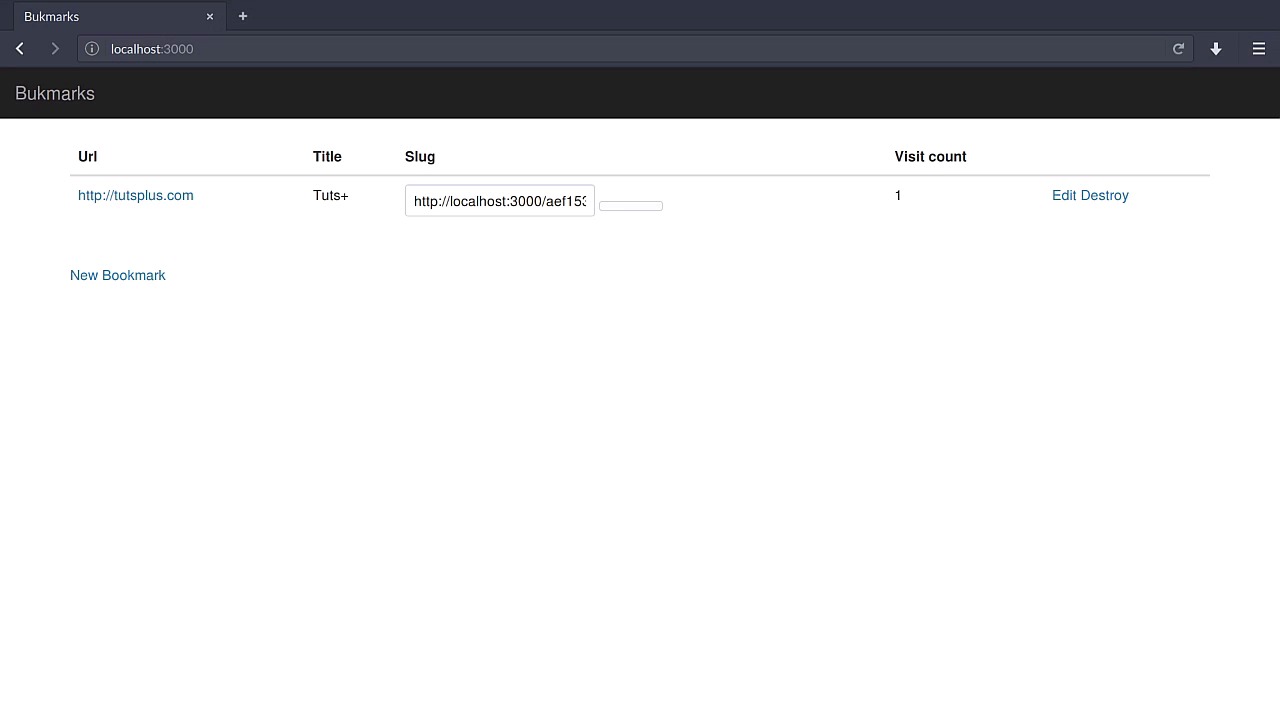
- Overview
- Transcript
2.4 Copy Short URLs to the Clipboard
We can make it easy for users to share bookmarks by making it easy to copy the link URL. We’ll do that with the aid of external JavaScript libraries.
Related links
2.4 Copy Short URLs to the Clipboard
At this point, we have a solid bookmarks manager already. We have a ways of introducing the URL, a title of our choice. The slot gets automatically created upon creating the bookmark. And we can also keep track of the visits, of the number of times the shorthand is clicked. So that's pretty good. Now, I want to suggest a really quick way to copy the URL so you can share it with other people. We're gonna use clipboard.js. If you go to clipboardjs.com, you'll see an introductory page to the clipboard library. It doesn't depend on anything, really. We just need to install it into our Rails application and create a small hook. You can read more on documentation on the link that I'm going to provide in the description below. With that, let's jump straight into our editor and open the gem file. In the gem file, I'm going to include the following gem, clipboard-rails. This is just a basic wrapper around clipboard.js that integrates really well with sprockets and the asset pipeline. So let's just bundle the changes really quick. And hopefully, this should be fast. Okay, there you go. Now, with this, we just need to go to application.js under the JavaScript folder. And in here, we're gonna use require clipboard, and that's it. So this is just a starting point to include the library, and then we're going to create another another JavaScript file. I'm going to use for example the clipboardjs.js file. The reason I'm using clipboard.js rather than just clipboard is to avoid conflicts between the previous aforementioned file. So in here, we're going to introduce a wrapper around jQuery. And now from here, all we need to do is create a new Clipboard object around a specific class. Let's do for example .btn-clipboard. You don't really need to assign it or anything, just instantiate the Clipboard object and it should be good to go. So this specific class has the sole responsibility of handling clipboard.js. The next thing to do is to allow the views to include a link to it or at least a way of introducing this clipboard functionality. So what we'll do here is instead of creating a link to the bookmarks log, we'll introduce a text field. Let's create the text field tag, which will have an empty name, and then the value for it. It's going to be the visit URL. This is the value you want to copy. Let's see how this works. Let's reload the page. And you see that, we don't have the clipboard file. That's okay, let's just go to the server and restart it. After all, we have introduced some gems. So this would do the trick very easily. Let's reload the page now, and there you go. So this is the link right here. It has the value in there and it has no specific name, really. What we do need to have is some sort of ID so that the link that we create for that specific text box can refer to it. So let's do that. Let's go to our editor and create an ID. The ID can be represented with the ID option. And we'll call it, for example, bookmark, and then bookmark.id. So this, the end result will be bookmark, dash, either 1 or 3 or 4 depending on the bookmark's ID. So that's pretty cool. Let's reload this page and check the actual ID of the text box. There you go. There's the correct ID. So that's pretty good. Now that we have that, we need to have a button that will hold the responsibility of copying the value of the bookmark into the clipboard. We'll create a button tag right here, and it will have, let's see, a name called, actually, I'm not going to include any name. I'm just gonna pass a block which will have an icon. This is included with Font Awesome. So I'm just gonna use this, and this will include a funny-looking character which still doesn't exist. This is rather easy to fix, let's just go to the, let's see, app > assets > stylesheets, and then scaffolds.sass. And we're going to import Font Awesome the same way as we do with Bootstrap. So font-awesome-sprockets, and then just font-awesome. So this, basically, it's the same thing as it happens with Bootstrap, because they decided to do it like so. It's not always the same case with every single library, but in this case it works like this. Let's see if the library is already included without restarting the server. So I'm just gonna reload this page, and there you go. Okay, so we have this button right here. I just want to make this a little easier. By the way, let's go to the previous file and double check that we have at least a nice looking component. So, what I wanna do here is introduce a Bootstrap component by providing an input group, like so, and then the text field tag and the button tag right next to it with a small tweak here by introducing an input group button span tag. There you go, and include the button in there. Let's see if this now works. Let's reload the page. And it seems that I've managed to not do this correctly. Well, of course, we still need to provide the correct class attributes. So we'll use form-control for the text field, and then the button tab will have the appropriate class too. So btn btn-default, let's begin with that. And then reload the page. Okay, so this is a lot better. We have the whole URL here, which will actually hold the total width of the table cell, which is pretty good. And now what I want to do here is introduce the btn-clipboard class that we've introduced in the JavaScript file. This class alone will register the event. When clicking on this button, it will copy the value of the text field. There's also one thing that we need to do and that is to specify a data attribute. The attribute we wanna have here is clipboard-target like so. We need to shove this into a string. Let's see, just close the quotes right there. And what we want to do here is specify the ID for the text field tag. So it's going to be #bookmark-#(bookmark.id) like so, but don't forget to add the pound sign right here because we need to specify the ID, so this is required. The end result will be something like this. We reload the page, we click on the button, and the text will be copied. If we go to a new tab and press Ctrl+V, there you go, there's the link. I can press it and it's going to be redirected to the website that I wanted. So there you go. Let's try and create a new bookmark. Let's say for example to forums.envato.com. This will be for example forums, or, better, Tuts+ forums. Hit Save and then go back. You will see that a new link is right here. I'm just gonna copy it. It seems that something's wrong here. Let me just reload the page really quick. Copy it, and there you go. Just open a new tab and press Ctrl+V, and you will go straight to the Envato's forums. Okay, so that's how you implement a mechanism for a clipboard functionality. You need to be very aware, though, about this error that I just come up into. I had difficulties in clicking on the button to select the text and copy it. That was because of Turbolinks. Turbolinks requires me to have a workaround for the JavaScript behavior. So what I need to do here is to go to the file that I've already skipped. Let's see, let's go to clipboardjs.js. So in here, we have this function, right. We have this new Clipboard registered. Now, we need to ensure that this code is also loaded in the event of just switching to a page with Turbolinks. Usually, I would just disable it altogether, so just remove every single reference to Turbolinks, and it would work right out of the box. But if you want to keep Turbolinks enabled, you'll have to do a workaround. Let me show you how. Something like this would do the trick. You extract the common behavior into its own function, for example, runClipboard, and then when loading the document, so document.ready or just this command, just calling the jQuery function and passing that function rather than an anonymous one. And also register a new event on to the document saying, when Turbolinks loads a new page, run this command right there. So, the same behavior will be achieved whether you refresh the page and start all over, or, when you navigate through pages, you will also have this runClipboard command being used. So any time a new page is loaded with Turbolinks enabled, this will also work. The result, when you click on New Bookmark, choose for example a different page, hit Save, and go back to the list of bookmarks, you can click on that and there's the link. You can select it, go to a new page, and it will go straight there. Okay.


