
 Lessons: 8Length: 52 minutes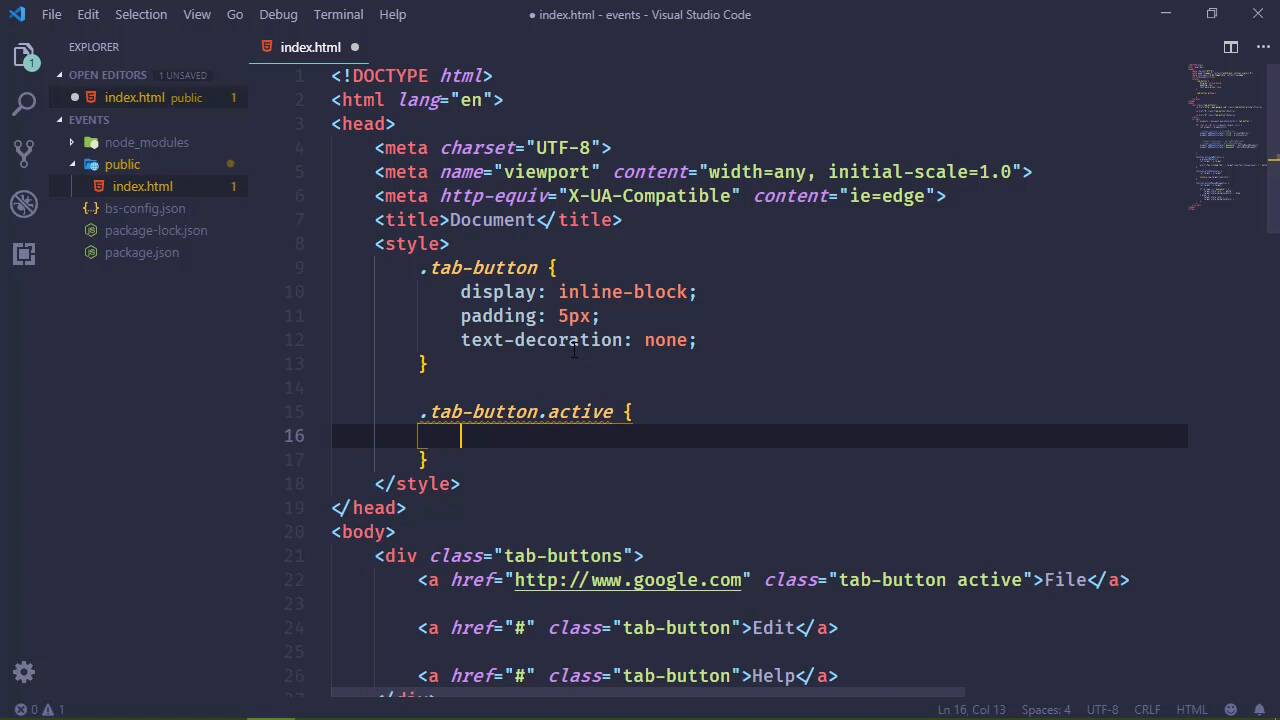
- Overview
- Transcript
2.5 Preventing Default Actions
Some HTML elements have default actions for certain events. For example, clicking on an anchor element will navigate to a different page by default. In this lesson, you'll learn how to prevent these default actions from occurring.
2.5 Preventing Default Actions
In this lesson, we are going to finally finish our tab control. And we're going to start by changing the markup for our tab buttons. We started using a div element, and I'm gonna change it to an a element, a link. The reason being because if I'm expected to click on something, I want it to be an element that normally accepts a click. Now, that's not to say that a div element will not accept a click. It will, we've proven that it can. But to be, quote unquote, semantic, that's what I'm gonna to do. And besides, if we get that one user that doesn't have JavaScript enabled, they could come to our page, they would click on the tabs and nothing would happen. But if we have a link that points to a page that has the same content, we can at least provide them the content that they are after. They just won't get the experience that a person with JavaScript enabled would. But who has JavaScript disabled in this day and age, I really wonder who. So for a file link, I'm going to have an href of google.com. For the other tabs, let's just have a hash, just to keep things simple. And I'm also gonna get rid of this selection, because really that was only there for demonstrative purposes to show how flexible our code is. This will make it easier to just work with these three tabs here. So with that change made, we do need to change our query inside of the querySelectorAll method. Because we do want to retrieve only the a elements with a class of tab button. However, if I hadn't been so explicit there, and just hit tab button that would have work without any issues. And I'm noticing that the coloring is also I'm wondering if there is issue that I'm not catching. I don't see anything, let's go to the browser. Let see if everything still works, and it does. So we clicked on Help, we see our message in the alert box. We see our message in the console, but look at the URL, we navigated to hash. If we click on File, we see the same functionality. But now we're going to see that the browser navigates to google.com. And that would be fine for users that did not have JavaScript enabled. However, for those that do, we want to prevent that from occurring because we want to use our tab control. We want it to be all cool and say, okay, here's your content right here. So we want to prevent the browser from navigating to whatever is specified in the href attribute. And that's very easy to do, we just use our event object. So not only can it provide us information about the event, but it also lets us do things with the event as well. One of those is to prevent the default action from occurring. So there are some elements that have a default action for a given event. So for a link, the click event has a default action of navigating the browser to whatever is specified in the href attribute. If you have a form with a submit button, and you submit the form. Well, the default action for a forms submit event is to submit the event. And there are times that you want to prevent that from occurring, you might want to have some kind of from validation before it gets sent on to the server. I mean there's a whole list of reasons why you would want to prevent either the browser from submitting a form or navigating to a different page or for whatever reason. So with this prevent default method that tells the browser to prevent the default action from occurring. Which in our case is to prevent the browser form navigating to whatever specified in the href attributes. So if we go back and we click on File, we have our message, we have our message in the console, and notice that we were not sent to google.com. If we click on any one of these other links, we will see the same behavior. We have the functionality of seeing the message in the alert box, but nothing changes as far as the URL is concerned. So that is the behavior that we wanted. Now the styling here is a little ugly, so let's make this a little bit easier to look at. So we will have our tab button. Let's give this a display of inline-block. Let's give it some padding, I'm just pulling these numbers out of my brain without thinking about it. And let's also get rid of the underline, so text-decoration will be none. So there we go, we still have our hover, and everything is working great there. Now, it will be nice to keep track of whichever tab is currently active. So let's do this, let's add an active class. And of course, this will change based upon whatever tab is active. So we'll say tab-button.active, and we will essentially have the same styling as our mouse over. So we will have the background color sets to blue and the color to white. And we're going to default with the File tab as being active. But we also want to change the act of based upon whichever ones we click. So we can do that very easily, inside of our activateButton. So let's get rid of the call to alert, that has been annoying and it hasn't been very useful, so we will get rid of that. Now one thing I do want to point out if you do plan on preventing the default action from occurring. It's usually a good idea to make that the very first thing that you do, because if you have code that executes. And if there's an error in that code, and that error occurs before prevent default is called, then the default action is going to occur. So if you prevent the default right off the bat then you don't have to worry about that. And in our case that's what we want, so that just a little tip for you there. Okay, so we are retrieving, the element that received the event. We're going to set the class list, we're going to add the active class to that element. So now whenever we click on edit or help, we can see that those now are active, but we want to deactivate all of those that are currently active. So let's get rid of right console, because we don't need that. But let's do have a function call deactivateActiveTab. And what we're going to do then is find whatever is active, so we'll say active tab, and we will use query selector. Our selector in this case is going to be the tab-button.active, and we will modify the class list and we will remove active. So if we go back to the browser and test this, well that didn't work. Although that's because we didn't call deactivate tab, that makes sense. So we will prevent the default action then we will deactivate the active tab and then we will work with the event targeting modify the class list. So now, we should be able to track whichever of these is active, and that is working just fine. So now, we just need some content. So let's another div element that's going to be a sibling to our tab buttons. Let's give this a class of tab content, and then inside, we will have a div element with an ID of file content, and we can say this is the file content. And we will copy and paste for the other tabs. So we will have edit, and then we will have help as well. And we will also do the same thing here because we want to be able to track whichever content is currently active. So we will have the file defaulted as active and we need some style here as well. So let's make our CSS selector for tab-content div, the display is going to be none. But then we also want to do something for the active tab. So let's add the active class and that is going to be blocked. So first of all, okay, we have the file content defaulted as being displayed. And so whenever we activate that button, we need to know what content to activate as well. And we could do that with a custom attribute, we could say data content and then we could specify the selector. So we would have file content in this case, and then for edit and help, we will have edit and help. So that whenever we click on our tabs, we get the events target. We can then get the selector for the content, and to do that, we will get the attribute for data-content then we will get to that content element. So we will call the querySelector method, pass in that selector, and then we will modify its class list just like we did with the target of the event. But we also want to deactivate the active content as well. So we will say activeContent and the querySelector in this case is going to be what? We have tab-content and active, so this is what that selector is going to look like. And then we will essentially do the same thing here. We will remove the active class from that content. So now whenever we click on edit, we should see the edit content. If we click on Help, we should see the help. And whichever one we click on, we should see the content for, and so we now have a working tab control.


