


- Overview
- Transcript
2.2 Installing and Configuring Laravel
In this lesson, we'll get Laravel and the Cashier component installed and configured using Composer.
1.Introduction
1.1Introduction01:04
2.Getting Ready
2.1Getting Familiar With Stripe04:19
2.2Installing and Configuring Laravel02:12
2.3HTTP vs. HTTPS02:30
3.Using Cashier
3.1Creating a Database Structure and Seeding Data11:41
3.2Making Our First Payment09:09
3.3Subscriptions and Coupons11:01
3.4Generating Invoices06:22
4.Conclusion
4.1Conclusion01:32
2.2 Installing and Configuring Laravel
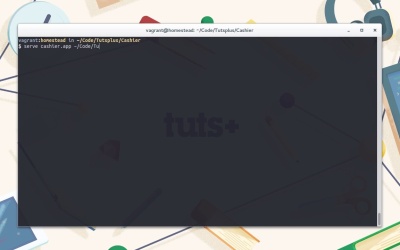
Now that we have a good understanding of stripe, let's go ahead and get a lateral installation up and running, so that we can start playing around. First up, let's make sure that we're in the correct working directory. Then we'll go ahead and run composer create project laravel/laravel Cashier. This will install the latest version of laravel into a folder called Cashier. Once it's done, we'll change our working directory again to our new laravel installation. From here, we'll run composer require laravel/cashier. This will install the latest version of the cashier component. We're going to be using Cashier to handle all of our Stripe calls. Cashier is a very easy to use component which wraps many of the common calls you would make to Stripe. Once we're got laravel Cashier installed, we're going to ssh into homestead so that we can serve our new installation. If you prefer to configure in your Yammer file, than go right ahead. I'm just going to be using the serve command. So to server will run serve with cashier.app as our domain and Code/Tutsplus/Cashier/public, as our folder to serve from. We can now switch over to our browser, and if we hit cashier.app with port 8,000, we should see our Laravel splash screen If you'd like to remove the port then you'll need to add an entry for this domain in your host file. Right, so now we just need to go ahead and configure a few things, let's open up our Cashier folder in sublime. The first thing we'll configure is our database connection, in our .env file I'm going to set DB_Database to a database called cashier I'm going to leave the other database options as they are. Then we're going to add a new option for STRIPE_SECRET, which we're going to set to our private key. So we'll need to get that from our Stripe account. If we go to our account settings and then we select the API keys, we can copy our test secret key and paste it in our .env file and that's all we're going to be doing in this lesson. In the next lesson, we're going to take a quick look at HTTP versus HTTPS and what Stripe expects from us in regards to secure connections


