
Exif, or Exchangeable image file format is a specification for image formats used by digital cameras and scanners. It's also used to store metadata such as camera model, type, author etc. Learn to display Exif metadata in your application by following this Quick Tip.
Step 1: Brief Overview
We'll use an excellent library to load and parse the Exif information of a JPG file; the data will be then displayed in a Dynamic TextField. You can download the library from the developer's site.
Step 2: Set Up Your Flash File
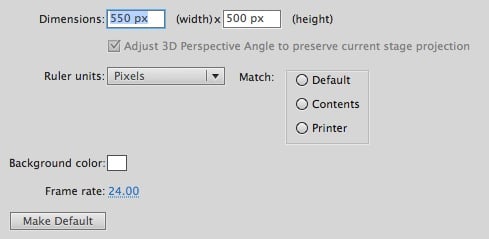
Launch Flash and create a new Flash Document, set the stage size to 320x480px and the frame rate to 24fps.
Step 3: Interface
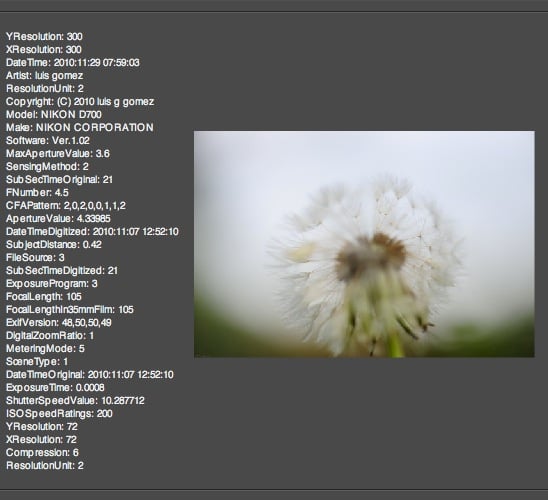
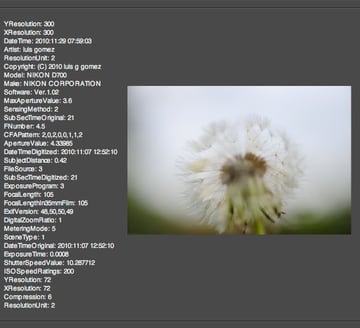
This is the interface we'll be using; nothing fancy, just a TextField in Stage called infoTF. The image will be dynamically loaded using ActionScript.
Step 4: ActionScript
Create a new ActionScript Class (Cmd+N), save the file as Main.as and write the following lines. Please read the comments in the code to fully understand the class behavior.
1 |
|
2 |
package
|
3 |
{
|
4 |
import flash.display.Sprite; |
5 |
import jp.shichiseki.exif.*; |
6 |
import flash.events.Event; |
7 |
import flash.net.URLRequest; |
8 |
import flash.display.Loader; |
9 |
|
10 |
public class Main extends Sprite |
11 |
{
|
12 |
/* An instance of the Exif Loader */
|
13 |
private var loader:ExifLoader = new ExifLoader(); |
14 |
|
15 |
public function Main():void |
16 |
{
|
17 |
/* Loads the image and adds a listener to run a function when complete */
|
18 |
loader.addEventListener(Event.COMPLETE, onComplete); |
19 |
loader.load(new URLRequest('img.jpg')); |
20 |
}
|
21 |
|
22 |
private function onComplete(e:Event):void |
23 |
{
|
24 |
/* Add the image to stage */
|
25 |
loader.scaleX = 0.08;//Scale original image as it is 4000+px wide |
26 |
loader.scaleY = 0.08; |
27 |
loader.x = 195; |
28 |
loader.y = 130; |
29 |
addChild(loader); |
30 |
|
31 |
/* Check the available exif data and display it */
|
32 |
if (loader.exif.ifds.primary) |
33 |
{
|
34 |
displayIFD(loader.exif.ifds.primary); |
35 |
}
|
36 |
if (loader.exif.ifds.exif) |
37 |
{
|
38 |
displayIFD(loader.exif.ifds.exif); |
39 |
}
|
40 |
if (loader.exif.ifds.gps) |
41 |
{
|
42 |
displayIFD(loader.exif.ifds.gps); |
43 |
}
|
44 |
if (loader.exif.ifds.interoperability) |
45 |
{
|
46 |
displayIFD(loader.exif.ifds.interoperability); |
47 |
}
|
48 |
if (loader.exif.ifds.thumbnail) |
49 |
{
|
50 |
displayIFD(loader.exif.ifds.thumbnail); |
51 |
}
|
52 |
}
|
53 |
|
54 |
private function displayIFD(ifd:IFD):void |
55 |
{
|
56 |
/* Adds the read data to the textfield in stage */
|
57 |
for (var entry:String in ifd) |
58 |
{
|
59 |
infoTF.appendText(entry + ": " + ifd[entry] + '\n'); |
60 |
}
|
61 |
}
|
62 |
}
|
63 |
}
|
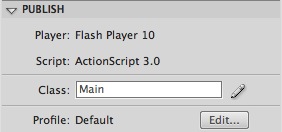
Step 5: Document Class
Remember to add the class name to the Class field in the Publish section of the Properties panel.
Conclusion
Use this library to access the metadata in your jpg file. Remember that some image editors remove the data when compressing, in which case an error will be thrown by the player.
I hope you liked this Quick Tip, thank you for reading!
 By
By






