
This Quick Tip will show you how to implement an Auto Tab between text fields. Doing so will set focus on the next defined text field when the maximum number of characters have been introduced in the previous one. Let's get going!
Final Result Preview
Let's take a look at the final result we will be working towards:
Step 1: Brief Overview
A series of TextFields will be placed on the stage, as well as a button. Using the length property we will check the maximum number of characters allowed in each field and change the active TextField using the focus property. The button will be hidden by default and revealed when all textfields are complete.
Step 2: Set up Your Flash File
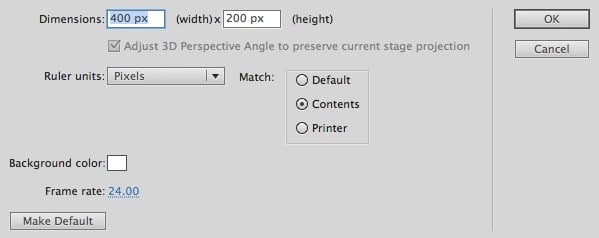
Launch Flash and create a new Flash Document, set the stage size to 400x200px and the frame rate to 24fps.

Step 3: Interface

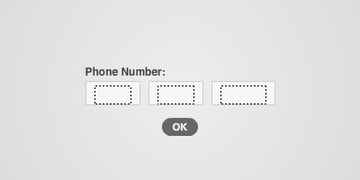
This is the interface we'll be using, it includes three Input TextFields and a button. The TextFields are named txt1, txt2, and txt3 from left to right and the button is named okButton.
In order for the code to work, you need to set the Max Chars option in the Properties Panel of each TextField, in this example these numbers are 3, 3, and 4, respectively.
Recreate the interface yourself, or use the Source FLA.
Step 4: ActionScript
Create a new ActionScript Class (Cmd+N), save the file as Main.as and start writing:
1 |
|
2 |
package
|
3 |
{
|
4 |
import flash.display.Sprite; |
5 |
import flash.events.KeyboardEvent; |
6 |
|
7 |
public class Main extends Sprite |
8 |
{
|
9 |
public function Main():void |
10 |
{
|
11 |
okButton.visible = false; //Hide the okButton |
12 |
stage.addEventListener(KeyboardEvent.KEY_UP, checkTextField); //Listen for key presses |
13 |
}
|
14 |
|
15 |
private function autoTab(...textfields):void //Use the rest argument to include any number of textfields |
16 |
{
|
17 |
var txtLen:int = textfields.length; //Declare the length of the textfields used |
18 |
|
19 |
for (var i:int = 0; i < txtLen; i++) |
20 |
{
|
21 |
if (textfields[i].length == textfields[i].maxChars) |
22 |
{
|
23 |
stage.focus = textfields[i + 1]; //Change focus to next textfield in the array |
24 |
}
|
25 |
if (textfields[txtLen - 1].length == textfields[txtLen - 1].maxChars) //checks for the last textfield in the array |
26 |
{
|
27 |
okButton.visible = true; //show the button |
28 |
}
|
29 |
}
|
30 |
}
|
31 |
|
32 |
private function checkTextField(e:KeyboardEvent):void |
33 |
{
|
34 |
autoTab(txt1, txt2, txt3); //executes the function every key press |
35 |
}
|
36 |
}
|
37 |
}
|
This code checks the maximum number of characters allowed in each textfield, these fields are introduced in the autoTab function as parameters, then the focus changes if the max number is reached. If the last textfield in the parameters array is completed, the submit button is revealed.
The key line is stage.focus = textfields[i + 1];.
Again, don't forget to set the Max Chars option in the Properties Panel of the TextField.
Step 5: Document Class
Remember to add the class name to the Class field in the Publish section of the Properties panel.

Conclusion
Try the demo and experiment with the uses of this feature!
I hope you liked this tutorial, thank you for reading!
 By
By






