


Spanish (Español) translation by Nadia Castelli (you can also view the original English article)
En este tutorial, aprenderás acerca de la API de Telefonía y SMS Android. Aprenderás a realizar una llamada desde tu app y cómo monitorear los eventos de llamada telefónica, así como también a enviar y recibir SMS.
1. Cómo Hacer Una Llamada
Para comenzar, te enseñaré cómo iniciar una llamada desde tu aplicación tanto mediante el uso de la app de llamada telefónica, como también directamente desde tu app, para hacerlo más sencillo para tus usuarios.
Crea un Nuevo Proyecto Android Studio
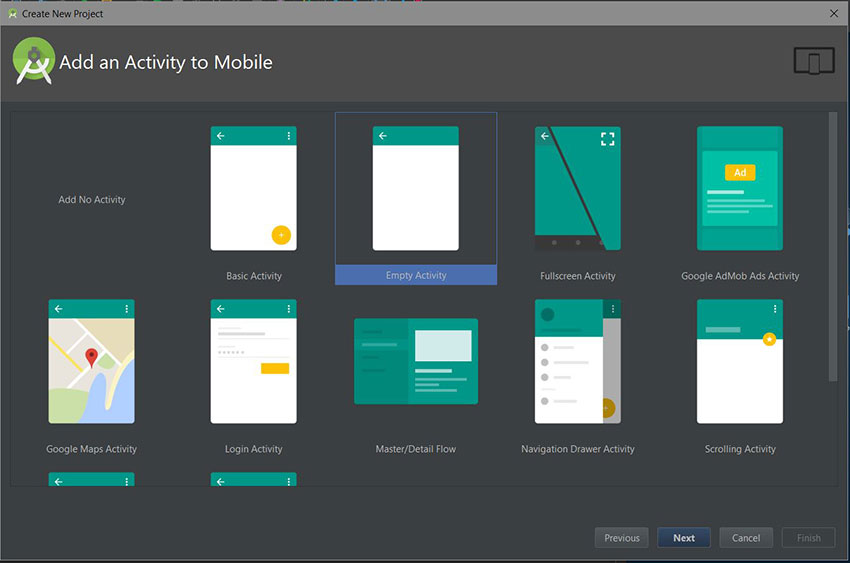
Inicia Android Studio y crea un nuevo proyecto con una activity vacía, llamada MainActivity.
Diseña la Pantalla
Por ahora, nuestro layout sólo contendrá un campo EditText y un botón Llamar:
1 |
<?xml version="1.0" encoding="utf-8"?>
|
2 |
<LinearLayout
|
3 |
xmlns:android="https://schemas.android.com/apk/res/android" |
4 |
xmlns:tools="http://schemas.android.com/tools" |
5 |
android:id="@+id/activity_main" |
6 |
android:orientation="vertical" |
7 |
android:layout_width="match_parent" |
8 |
android:layout_height="match_parent" |
9 |
android:paddingLeft="@dimen/activity_horizontal_margin" |
10 |
android:paddingRight="@dimen/activity_horizontal_margin" |
11 |
android:paddingTop="@dimen/activity_vertical_margin" |
12 |
android:paddingBottom="@dimen/activity_vertical_margin" |
13 |
android:gravity="center_horizontal|center_vertical" |
14 |
tools:context="com.chikeandroid.tutsplust_telephony.MainActivity"> |
15 |
|
16 |
<EditText
|
17 |
android:id="@+id/et_phone_no" |
18 |
android:hint="Enter Phone number" |
19 |
android:inputType="phone" |
20 |
android:layout_width="match_parent" |
21 |
android:layout_height="wrap_content"/> |
22 |
|
23 |
<Button
|
24 |
android:id="@+id/btn_dial" |
25 |
android:layout_gravity="center_horizontal" |
26 |
android:text="Dial" |
27 |
android:layout_width="wrap_content" |
28 |
android:layout_height="wrap_content"/> |
29 |
</LinearLayout>
|

Modifica la Clase MainActivity
En el código que verás aquí debajo, creamos un intent ACTION_DIAL para mostrar el marcador telefónico. El número telefónico se obtiene de nuestro esquema URI tel: tel:XXXXXXXX. Fíjate que no necesitas ningún permiso para que esto funcione:
1 |
import android.content.Intent; |
2 |
import android.net.Uri; |
3 |
import android.os.Bundle; |
4 |
import android.support.v7.app.AppCompatActivity; |
5 |
import android.text.TextUtils; |
6 |
import android.view.View; |
7 |
import android.widget.Button; |
8 |
import android.widget.EditText; |
9 |
import android.widget.Toast; |
10 |
|
11 |
public class MainActivity extends AppCompatActivity { |
12 |
|
13 |
@Override
|
14 |
protected void onCreate(Bundle savedInstanceState) { |
15 |
super.onCreate(savedInstanceState); |
16 |
setContentView(R.layout.activity_main); |
17 |
Button mDialButton = (Button) findViewById(R.id.btn_dial); |
18 |
final EditText mPhoneNoEt = (EditText) findViewById(R.id.et_phone_no); |
19 |
|
20 |
mDialButton.setOnClickListener(new View.OnClickListener() { |
21 |
@Override
|
22 |
public void onClick(View view) { |
23 |
String phoneNo = mPhoneNoEt.getText().toString(); |
24 |
if(!TextUtils.isEmpty(phoneNo)) { |
25 |
String dial = "tel:" + phoneNo; |
26 |
startActivity(new Intent(Intent.ACTION_DIAL, Uri.parse(dial))); |
27 |
}else { |
28 |
Toast.makeText(MainActivity.this, "Enter a phone number", Toast.LENGTH_SHORT).show(); |
29 |
}
|
30 |
}
|
31 |
});
|
32 |
}
|
33 |
}
|
Si ejecutas la app y presionas el botón de llamada, serás redirigido a la app de llamadas, y allí tendrás que marcar el teléfono tú mismo. Puedes cambiar este flujo para realizar la llamada directamente desde tu app, simplemente reemplazando el intent ACTION_DIAL por ACTION_CALL. Esto requiere el permiso android.permission.CALL_PHONE.

2. Monitoreando Eventos de Llamada Telefónica
En esta sección, aprenderemos a monitorear eventos de llamada telefónica en el sistema Android. El teléfono puede estar en alguno de tres estados:
- idle (cuando no está siendo usado)
- ringing (cuando hay una llamada entrante)
- off-hook (cuando la llamada es atendida)
Agrega el Permiso
Necesitamos el permiso READ_PHONE_STATE para poder monitorear el estado del teléfono. Agrégalo en AndroidManifest.xml:
1 |
<uses-permission android:name="android.permission.READ_PHONE_STATE"/> |
Crea el Objeto PhoneStateListener
Creamos un objeto de la clase PhoneStateListener, y luego sobrescribimos su método onCallStateChanged() (en IntelliJ, esto resulta sencillo de hacer con Control-O, seleccionando o buscando luego el método a sobrescribir). Manejaremos los cambios de estado de llamada mostrando un Toast. Fíjate que también podemos acceder a los números telefónicos entrantes cuando este método se dispara:
1 |
// ...
|
2 |
PhoneStateListener mPhoneStateListener = new PhoneStateListener() { |
3 |
@Override
|
4 |
public void onCallStateChanged(int state, String incomingNumber) { |
5 |
super.onCallStateChanged(state, incomingNumber); |
6 |
|
7 |
switch (state) { |
8 |
case TelephonyManager.CALL_STATE_IDLE: |
9 |
Toast.makeText(MainActivity.this, "CALL_STATE_IDLE", Toast.LENGTH_SHORT).show(); |
10 |
break; |
11 |
case TelephonyManager.CALL_STATE_RINGING: |
12 |
Toast.makeText(MainActivity.this, "CALL_STATE_RINGING", Toast.LENGTH_SHORT).show(); |
13 |
break; |
14 |
case TelephonyManager.CALL_STATE_OFFHOOK: |
15 |
Toast.makeText(MainActivity.this, "CALL_STATE_OFFHOOK", Toast.LENGTH_SHORT).show(); |
16 |
break; |
17 |
}
|
18 |
}
|
19 |
};
|
20 |
// ...
|
Dependiendo de las necesidades de tu aplicación, podrías también sobrescribir alguno de estos otros métodos de evento: onCellInfoChanged(), onCallForwardingIndicatorChanged(), onCellLocationChanged(), u onSignalStrengthChanged().
Escuchando el Estado de Llamada Telefónica
Para poder empezar a escuchar el estado de llamada telefónica, necesitamos obtener el TelephonyManager del servicio del sistema, e inicializarlo en el onCreate().
1 |
// ...
|
2 |
private TelephonyManager mTelephonyManager; |
3 |
@Override
|
4 |
protected void onCreate(Bundle savedInstanceState) { |
5 |
// ...
|
6 |
mTelephonyManager = (TelephonyManager) getSystemService(getApplicationContext().TELEPHONY_SERVICE); |
7 |
}
|
En el método onResume(), podemos empezar a escuchar utilizando el método listen() del TelephonyManager, pasándole la instancia de PhoneStateListener y el static LISTEN_CALL_STATE. Paramos de escuchar en el método onStop(), pasando LISTEN_NONE como segundo argumento de listen().
1 |
// ...
|
2 |
@Override
|
3 |
protected void onResume() { |
4 |
super.onResume(); |
5 |
mTelephonyManager.listen(mPhoneStateListener, PhoneStateListener.LISTEN_CALL_STATE); |
6 |
}
|
7 |
@Override
|
8 |
protected void onStop() { |
9 |
super.onStop(); |
10 |
mTelephonyManager.listen(mPhoneStateListener, PhoneStateListener.LISTEN_NONE); |
11 |
}
|
12 |
// ...
|
Otras opciones posibles para escuchar al evento son LISTEN_CELL_LOCATION, LISTEN_SIGNAL_STRENGTH, LISTEN_CALL_FORWARDING_INDICATOR, y LISTEN_CELL_INFO.
Finalmente, ejecuta la app y asegúrate de recibir una llamada.

Este monitoreo solo funcionará mientras la app se ejecute en primer plano. Para que esto funcione en segundo plano (cuando nuestra aplicación no está corriendo), necesitaríamos crear un BroadcastReceiver así cuando la app no está ejecutándose, aún podremos monitorear los estados de llamada telefónica. Dependiendo de los requerimientos de tu app, esta podría ser una manera mucho mejor de escuchar los cambios de estado de llamada telefónica. Te enseñaré a hacerlo en la próxima sección.
Ten en cuenta que solamente estamos monitoreando las llamadas entrantes. Para monitorear las salientes, requerimos permisos adicionales. Para monitorear las llamadas salientes, incluye la siguiente línea en tu archivo AndroidManifest.xml.
1 |
<uses-permission android:name="android.permission.PROCESS_OUTGOING_CALLS"/> |
Cómo Usar el Emulador para Hacer Llamadas y Enviar Mensajes SMS
Puedes utilizar tu emulador para hacer un simulacro de llamada o envío de mensaje SMS, pero necesitarás configurar algunas cosas. Abre tu emulador, presiona el último botón de la barra de navegación derecha para abrir la ventana de diálogo de configuración avanzada, y luego selecciona el botón de teléfono.

3. Monitoreando Eventos de Llamada Telefónica en Segundo Plano
Crea un BroadcastReceiver
Al igual que en la sección anterior, necesitamos crear un event listener para monitorear los cambios de estado del teléfono. La mayor diferencia es que esta vez, extenderemos la clase base BroadcastReceiver para poder escuchar los estados de llamada telefónica aún cuando la aplicación no esté ejecutándose. ¡Asegúrate de no registrar el listener más de una vez! Esta comprobación está en la línea 36.
1 |
import android.content.BroadcastReceiver; |
2 |
import android.content.Context; |
3 |
import android.content.Intent; |
4 |
import android.telephony.PhoneStateListener; |
5 |
import android.telephony.TelephonyManager; |
6 |
import android.widget.Toast; |
7 |
|
8 |
public class PhoneCallStateReceiver extends BroadcastReceiver { |
9 |
private TelephonyManager mTelephonyManager; |
10 |
public static boolean isListening = false; |
11 |
|
12 |
@Override
|
13 |
public void onReceive(final Context context, Intent intent) { |
14 |
|
15 |
mTelephonyManager = (TelephonyManager) context.getSystemService(context.TELEPHONY_SERVICE); |
16 |
|
17 |
PhoneStateListener mPhoneStateListener = new PhoneStateListener() { |
18 |
@Override
|
19 |
public void onCallStateChanged(int state, String incomingNumber) { |
20 |
super.onCallStateChanged(state, incomingNumber); |
21 |
|
22 |
switch (state) { |
23 |
case TelephonyManager.CALL_STATE_IDLE: |
24 |
Toast.makeText(context, "CALL_STATE_IDLE", Toast.LENGTH_SHORT).show(); |
25 |
break; |
26 |
case TelephonyManager.CALL_STATE_RINGING: |
27 |
Toast.makeText(context, "CALL_STATE_RINGING", Toast.LENGTH_SHORT).show(); |
28 |
break; |
29 |
case TelephonyManager.CALL_STATE_OFFHOOK: |
30 |
Toast.makeText(context, "CALL_STATE_OFFHOOK", Toast.LENGTH_SHORT).show(); |
31 |
break; |
32 |
}
|
33 |
}
|
34 |
};
|
35 |
|
36 |
if(!isListening) { |
37 |
mTelephonyManager.listen(mPhoneStateListener, PhoneStateListener.LISTEN_CALL_STATE); |
38 |
isListening = true; |
39 |
}
|
40 |
}
|
41 |
}
|
Modifica el AndroidManifest.xml
Un broadcast receiver funciona sólo si está registrado. Necesitamos informarle al sistema Android sobre nuestro broadcast receiver registrándolo en el archivo AndroidManifest.xml, conectando nuestra clase PhoneCallStateReceiver al <intent-filter>l que describe el broadcast que deseamos recibir—en este caso, PHONE_STATE.
1 |
<receiver android:name=".PhoneCallStateReceiver"> |
2 |
<intent-filter>
|
3 |
<action android:name="android.intent.action.PHONE_STATE"/> |
4 |
</intent-filter>
|
5 |
</receiver>
|
Monitoreando Llamadas Salientes
Para las llamadas salientes, necesitas incluir el intent de acción NEW_OUTGOING_CALL <action android:name="android.intent.action.NEW_OUTGOING_CALL"/> en el <intent-filter> del receiver en el AndroidManifest.xml.
Para obtener el número telefónico de la llamada saliente, dentro del método onReceive(Context, Intent), podemos ver el número en el intent, como un extra. Para prevenir que la llamada prospere, podemos invocar setResultData() y pasarle un argumento nulo. resultData se usa como el número real a llamar.
1 |
@Override
|
2 |
public void onReceive(final Context context, Intent intent) { |
3 |
// for outgoing call
|
4 |
String outgoingPhoneNo = intent.getStringExtra(Intent.EXTRA_PHONE_NUMBER).toString(); |
5 |
// prevent outgoing call
|
6 |
setResultData(null); |
7 |
}
|
Puedes aprender más acerca de los broadcasts y broadcast receivers en nuestro tutorial, aquí en Envato Tuts+:

4. Enviando Mensajes SMS
Tienes dos opciones principales al momento de enviar SMS: usar la aplicación cliente de SMS del dispositivo, o saltearte el cliente enviando el SMS directamente desde tu app. Veremos ambos escenarios, y puedes decidir cuál es mejor para tu caso de uso. Comencemos enviando un SMS utilizando el cliente de SMS del dispositivo.
Diseña el Layout
Primero, necesitamos modificar nuestro layout principal para que tenga un campo EditText para el mensaje, y un botón Enviar Mensaje.
1 |
<!--/ ... /-->
|
2 |
<EditText
|
3 |
android:id="@+id/et_message" |
4 |
android:hint="Enter message" |
5 |
android:inputType="textCapSentences|textMultiLine" |
6 |
android:maxLength="2000" |
7 |
android:maxLines="12" |
8 |
android:layout_width="match_parent" |
9 |
android:layout_height="wrap_content"/> |
10 |
|
11 |
<Button
|
12 |
android:id="@+id/btn_send_message" |
13 |
android:layout_gravity="center_horizontal" |
14 |
android:text="Send Messange" |
15 |
android:layout_width="wrap_content" |
16 |
android:layout_height="wrap_content"/> |
17 |
<!--/ ... /-->
|
Modifica la MainActivity
Dentro de nuestro método onCreate() en la clase MainActivity, crea un intent con ACTION_SENDTO como primer argumento y una URI smsto:<phone number> como segundo argumento. El mensaje de texto será el valor del extra sms_body:
1 |
// ...
|
2 |
Button sendMessageBtn = (Button) findViewById(R.id.btn_send_message); |
3 |
final EditText messagetEt = (EditText) findViewById(R.id.et_message); |
4 |
sendMessageBtn.setOnClickListener(new View.OnClickListener() { |
5 |
@Override
|
6 |
public void onClick(View view) { |
7 |
String message = messagetEt.getText().toString(); |
8 |
String phoneNo = mPhoneNoEt.getText().toString(); |
9 |
if(!TextUtils.isEmpty(message) && !TextUtils.isEmpty(phoneNo)) { |
10 |
Intent smsIntent = new Intent(Intent.ACTION_SENDTO, Uri.parse("smsto:" + phoneNo)); |
11 |
smsIntent.putExtra("sms_body", message); |
12 |
startActivity(smsIntent); |
13 |
}
|
14 |
}
|
15 |
});
|
16 |
// ...
|
Aquí, el cliente SMS hará el monitoreo del estado de la entrega del mensaje.
Ejecuta la App
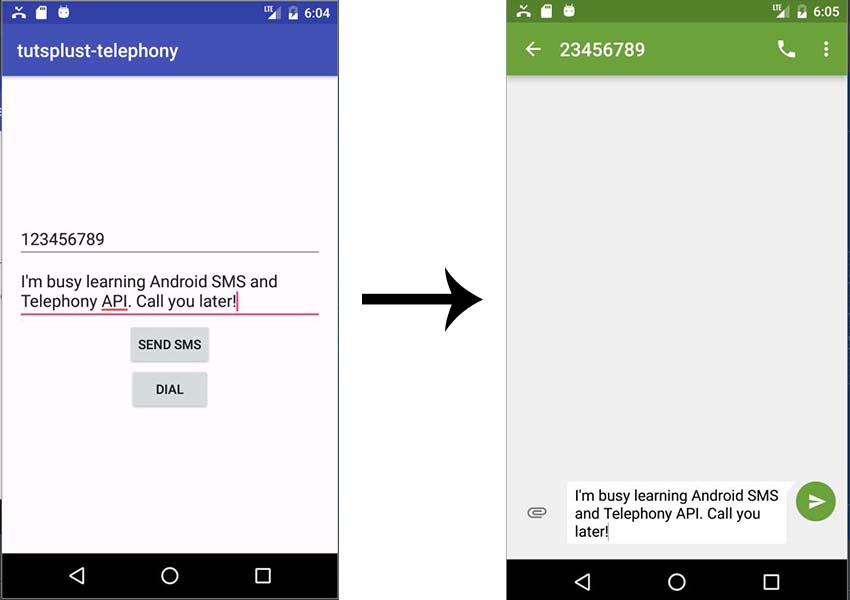
Cuando todos los campos requeridos hayan sido completados, al tocar el botón Enviar SMS se abrirá el cliente de SMS del usuario, o se darán opciones al usuario para que seleccione una app si no ha seleccionado alguna anteriormente.
5. Enviando Mensajes SMS Directamente
A continuación veremos cómo enviar el SMS directamente desde nuestra aplicación en lugar de utilizar el cliente SMS del dispositivo.
Agrega el Permiso en AndroidManifest.xml
Como de costumbre, necesitamos registrar el permiso en el AndroidManifest.xml.
1 |
<uses-permission android:name="android.permission.SEND_SMS"/> |
Modifica la clase MainActivity
A continuación, para Android 6.0 (API nivel 23) y superiores, necesitamos pedir el permiso SEND_SMS en tiempo de ejecución.
Para aprender más acerca de los permisos en tiempo de ejecución en Android, y cómo han cambiado a partir de la versión 6.0, lee nuestro tutorial aquí, en Envato Tuts+:

Para enviar un SMS, obtenemos la instancia SmsManager por defecto y luego invocamos su método sendTextMessage(), pasándole el número telefónico como primer argumento, y el mensaje como segundo argumento:
1 |
// ...
|
2 |
final int SEND_SMS_PERMISSION_REQUEST_CODE = 111; |
3 |
private Button mSendMessageBtn; |
4 |
|
5 |
@Override
|
6 |
protected void onCreate(Bundle savedInstanceState) { |
7 |
// ...
|
8 |
mSendMessageBtn = (Button) findViewById(R.id.btn_send_message); |
9 |
final EditText messagetEt = (EditText) findViewById(R.id.et_message); |
10 |
|
11 |
mSendMessageBtn.setEnabled(false); |
12 |
if(checkPermission(Manifest.permission.SEND_SMS)) { |
13 |
mSendMessageBtn.setEnabled(true); |
14 |
}else { |
15 |
ActivityCompat.requestPermissions(this, new String[] {Manifest.permission.SEND_SMS}, |
16 |
SEND_SMS_PERMISSION_REQUEST_CODE); |
17 |
}
|
18 |
mSendMessageBtn.setOnClickListener(new View.OnClickListener() { |
19 |
@Override
|
20 |
public void onClick(View view) { |
21 |
String message = messagetEt.getText().toString(); |
22 |
String phoneNo = mPhoneNoEt.getText().toString(); |
23 |
if(!TextUtils.isEmpty(message) && !TextUtils.isEmpty(phoneNo)) { |
24 |
|
25 |
if(checkPermission(Manifest.permission.SEND_SMS)) { |
26 |
SmsManager smsManager = SmsManager.getDefault(); |
27 |
smsManager.sendTextMessage(phoneNo, null, message, null, null); |
28 |
}else { |
29 |
Toast.makeText(MainActivity.this, "Permission denied", Toast.LENGTH_SHORT).show(); |
30 |
}
|
31 |
}
|
32 |
}
|
33 |
});
|
34 |
}
|
35 |
|
36 |
private boolean checkPermission(String permission) { |
37 |
int checkPermission = ContextCompat.checkSelfPermission(this, permission); |
38 |
return (checkPermission == PackageManager.PERMISSION_GRANTED); |
39 |
}
|
40 |
|
41 |
@Override
|
42 |
public void onRequestPermissionsResult(int requestCode, @NonNull String[] permissions, @NonNull int[] grantResults) { |
43 |
switch (requestCode) { |
44 |
case SEND_SMS_PERMISSION_REQUEST_CODE: { |
45 |
if(grantResults.length > 0 && (grantResults[0] == PackageManager.PERMISSION_GRANTED)) { |
46 |
mSendMessageBtn.setEnabled(true); |
47 |
}
|
48 |
return; |
49 |
}
|
50 |
}
|
51 |
}
|
52 |
// ...
|
Para monitorear el estado de entrega, el método sendTextMessage() del SmsManager tiene dos parámetros opcionales de tipo PendingIntent: sentIntent y deliveryIntent.
1 |
void sendTextMessage (String destinationAddress, |
2 |
String scAddress, |
3 |
String text, |
4 |
PendingIntent sentIntent, |
5 |
PendingIntent deliveryIntent) |
Si deseas utilizar sentIntent, observa el código resultante Activity.RESULT_OK si es exitoso, o, en caso contrario, RESULT_ERROR_GENERIC_FAILURE, RESULT_ERROR_RADIO_OFF, y RESULT_ERROR_NULL_PDU para indicar un error.
6. Recibiendo un Mensaje SMS
Para que tu app comience a recibir mensajes SMS en el teléfono del usuario, lo mejor es tener registrado un broadcast receiver para que pueda recibir una alerta cuando llegue un nuevo SMS, aún cuando tu app no esté corriendo en primer plano.
Agrega el Permiso
Agrega el permiso RECEIVE_SMS al AndroidManifest.xml:
1 |
<uses-permission android:name="android.permission.RECEIVE_SMS"/> |
A continuación, necesitamos corroborar que la app tenga permiso para recibir mensajes SMS en tiempo de ejecución. Entonces, en la clase MainActivity, comprueba que esté el permiso RECEIVE_SMS. En caso negativo, pídelo.
1 |
// ...
|
2 |
@Override
|
3 |
protected void onCreate(Bundle savedInstanceState) { |
4 |
// ...
|
5 |
if(!checkPermission(Manifest.permission.RECEIVE_SMS)) { |
6 |
ActivityCompat.requestPermissions(this, new String[]{Manifest.permission.RECEIVE_SMS}, 222); |
7 |
}
|
8 |
}
|
9 |
// ...
|
Crea un Broadcast Receiver
Recuperamos cada objeto de la clase SmsMessage mediante el uso del método createFromPdu(byte[] pdu), pasándole un PDU (unidad de datos de protocolo). Luego, lo agregamos a nuestro array de mensajes.
Para poder soportar API 23 y superiores, debes incluir el String extra "format" (tanto "3gpp" para mensajes GSM/UMTS/LTE en formato 3GPP, o "3gpp2" para mensajes CDMA/LTE en formato 3GPP2).
1 |
import android.content.BroadcastReceiver; |
2 |
import android.content.Context; |
3 |
import android.content.Intent; |
4 |
import android.os.Build; |
5 |
import android.os.Bundle; |
6 |
import android.telephony.SmsMessage; |
7 |
import android.widget.Toast; |
8 |
|
9 |
public class SMSReceiver extends BroadcastReceiver { |
10 |
|
11 |
@Override
|
12 |
public void onReceive(Context context, Intent intent) { |
13 |
Bundle bundle = intent.getExtras(); |
14 |
if(bundle != null) { |
15 |
Object[] pdus = (Object[]) bundle.get("pdus"); |
16 |
String format = bundle.getString("format"); |
17 |
|
18 |
final SmsMessage[] messages = new SmsMessage[pdus.length]; |
19 |
for(int i = 0; i < pdus.length; i++) { |
20 |
if(Build.VERSION.SDK_INT >= Build.VERSION_CODES.M) { |
21 |
messages[i] = SmsMessage.createFromPdu((byte[]) pdus[i], format); |
22 |
}else { |
23 |
messages[i] = SmsMessage.createFromPdu((byte[]) pdus[i]); |
24 |
}
|
25 |
String senderPhoneNo = messages[i].getDisplayOriginatingAddress(); |
26 |
Toast.makeText(context, "Message " + messages[0].getMessageBody() + ", from " + senderPhoneNo, Toast.LENGTH_SHORT).show(); |
27 |
}
|
28 |
}
|
29 |
}
|
30 |
}
|
Ahora, ejecuta la app, ciérrala, y envía un SMS a tu emulador.

Conclusión
En este tutorial, aprendiste a:
- hacer una llamada desde tu app
- monitorear eventos de llamada telefónica
- enviar mensajes SMS usando tanto la app de mensajería del dispositivo, como así también tu propia aplicación directamente
- recibir mensajes SMS en segundo plano
Puedes hacer mucho más con llamadas telefónicas y mensajes SMS en Android. Visita la documentación de la API de Telefonía y la SMSManager API de Android para aprender más.
Mientras tanto, ¡revisa algunos de nuestros otros posts acerca de desarrollo Android!


 By
By






